connectivity
48 Topics
Using ClientConnectionId to Correlate .NET Connection Attempts in Azure SQL
Getting Better Diagnostics with ClientConnectionId in .NET A few days ago, I was working on a customer case involving intermittent connectivity failures to Azure SQL Database from a .NET application. On the surface, nothing looked unusual. Retries were happening. In this post, I want to share a simple yet effective pattern for producing JDBC-style trace logs in .NET — specifically focusing on the ClientConnectionId property exposed by SqlConnection. This gives you a powerful correlation key that aligns with backend diagnostics and significantly speeds up root cause analysis for connection problems. Why ClientConnectionId Matters Azure SQL Database assigns a unique identifier to every connection attempt from the client. In .NET, this identifier is available through the ClientConnectionId property of SqlConnection. According to the official documentation: The ClientConnectionId property gets the connection ID of the most recent connection attempt, regardless of whether the attempt succeeded or failed. Source: https://learn.microsoft.com/en-us/dotnet/api/system.data.sqlclient.sqlconnection.clientconnectionid?view=netframework-4.8.1 This GUID is the single most useful piece of telemetry for correlating client connection attempts with server logs and support traces. What .NET Logging Doesn’t Give You by Default Unlike the JDBC driver, the .NET SQL Client does not produce rich internal logs of every connection handshake or retry. There’s no built-in switch to emit gateway and redirect details, attempt counts, or port information. What you do have is: Timestamps Connection attempt boundaries ClientConnectionId values Outcome (success or failure) If you capture and format these consistently, you end up with logs that are as actionable as the JDBC trace output — and importantly, easy to correlate with backend diagnostics and Azure support tooling. Below is a small console application in C# that produces structured logs in the same timestamped, [FINE] format you might see from a JDBC trace — but for .NET applications: using System; using Microsoft.Data.SqlClient; class Program { static int Main() { // SAMPLE connection string (SQL Authentication) // Replace this with your own connection string. // This is provided only for demonstration purposes. string connectionString = "Server=tcp:<servername>.database.windows.net,1433;" + "Database=<database_name>;" + "User ID=<sql_username>;" + "Password=<sql_password>;" + "Encrypt=True;" + "TrustServerCertificate=False;" + "Connection Timeout=30;"; int connectionId = 1; // Log connection creation Log($"ConnectionID:{connectionId} created by (SqlConnection)"); using SqlConnection connection = new SqlConnection(connectionString); try { // Log connection attempt Log($"ConnectionID:{connectionId} This attempt No: 0"); // Open the connection connection.Open(); // Log ClientConnectionId after the connection attempt Log($"ConnectionID:{connectionId} ClientConnectionId: {connection.ClientConnectionId}"); // Execute a simple test query using SqlCommand cmd = new SqlCommand("SELECT 1", connection) { Log($"SqlCommand:1 created by (ConnectionID:{connectionId})"); Log("SqlCommand:1 Executing (not server cursor) SELECT 1"); cmd.ExecuteScalar(); Log("SqlDataReader:1 created by (SqlCommand:1)"); } } catch (SqlException ex) { // ClientConnectionId is available even on failure Log($"ConnectionID:{connectionId} ClientConnectionId: {connection.ClientConnectionId} (failure)"); Log($"SqlException Number: {ex.Number}"); Log($"Message: {ex.Message}"); return 1; } return 0; } // Simple logger to match JDBC-style output format static void Log(string message) { Console.WriteLine( $"[{DateTime.Now:yyyy-MM-dd HH:mm:ss}] [FINE] {message}" ); } } Run the above application and you’ll get output like: [2025-12-31 03:38:10] [FINE] ConnectionID:1 This attempt server name: aabeaXXX.trXXXX.northeurope1-a.worker.database.windows.net port: 11002 InstanceName: null useParallel: false [2025-12-31 03:38:10] [FINE] ConnectionID:1 This attempt endtime: 1767152309272 [2025-12-31 03:38:10] [FINE] ConnectionID:1 This attempt No: 1 [2025-12-31 03:38:10] [FINE] ConnectionID:1 Connecting with server: aabeaXXX.trXXXX.northeurope1-a.worker.database.windows.net port: 11002 Timeout Full: 20 [2025-12-31 03:38:10] [FINE] ConnectionID:1 ClientConnectionID: 6387718b-150d-482a-9731-02d06383d38f Server returned major version: 12 [2025-12-31 03:38:10] [FINE] SqlCommand:1 created by (ConnectionID:1 ClientConnectionID: 6387718b-150d-482a-9731-02d06383d38f) [2025-12-31 03:38:10] [FINE] SqlCommand:1 Executing (not server cursor) select 1 [2025-12-31 03:38:10] [FINE] SqlDataReader:1 created by (SqlCommand:1) [2025-12-31 03:38:10] [FINE] ConnectionID:2 created by (SqlConnection) [2025-12-31 03:38:11] [FINE] ConnectionID:2 ClientConnectionID: 5fdd311e-a219-45bc-a4f6-7ee1cc2f96bf Server returned major version: 12 [2025-12-31 03:38:11] [FINE] sp_executesql SQL: SELECT 1 AS ID, calling sp_executesql [2025-12-31 03:38:12] [FINE] SqlDataReader:3 created by (sp_executesql SQL: SELECT 1 AS ID) Notice how each line is tagged with: A consistent local timestamp (yyyy-MM-dd HH:mm:ss) A [FINE] log level A structured identifier that mirrors what you’d see in JDBC logging If a connection fails, you’ll still get the ClientConnectionId logged, which is exactly what Azure SQL support teams will ask for when troubleshooting connectivity issues.353Views3likes0CommentsAzure PostgreSQL Lesson Learned #3: Fix FATAL: sorry, too many clients already
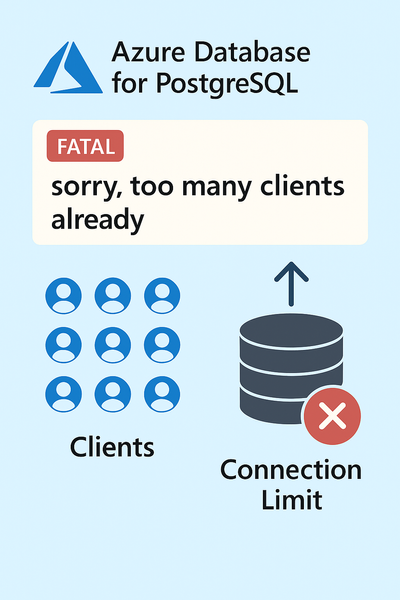
We encountered a support case involving Azure Database for PostgreSQL Flexible Server where the application started failing with connection errors. This blog explains the root cause, resolution steps, and best practices to prevent similar issues.490Views4likes0CommentsLesson Learned #533: Intermittent Azure SQL Database Connectivity and Authentication Issues
While working on a recent service request, we helped a customer troubleshoot intermittent connection and authentication failures when accessing Azure SQL Database using Active Directory (Entra ID) authentication from a Java-based application using HikariCP with JDBC/ODBC. They got the following error: com.zaxxer.hikari.pool.HikariPool$PoolInitializationException: Failed to initialize pool: Failed to authenticate.. Request was throttled according to instructions from STS. Retry in 29701 ms. java.sql.SQLTransientConnectionException: HikariPool-application1 - Connection is not available, request timed out after The first insight was focusing in the error message: Request was throttled according to instructions from STS. Retry in 29701 ms. This message seems it is returned by the Azure Active Directory Security Token Service (STS) when the client is sending too many token requests in a short period of time, exceeding the allowed threshold. We don't have all the details about, but, in high-concurrency environments (e.g., multiple threads, large connection pool) causes each thread to independently request a new token and we could reach a limit in this service, even, if the connection pool retries frequently or fails authentication, the number of token requests can spike. This is the reason, that HikariCP tries to initialize or refresh connections quickly, as many threads attempt to connect at once, and all trigger token requests simultaneously, STS throttling is reached. In order to avoid this situation, could be different topics, like, ensure our application caches tokens and reuses them across threads, using Managed Identity, increase the retry after delay, or perhaps, depending on HikariCP configuration, pre-warm connections gradually. Of course, discuss with your EntraID administration is other option.Lessons Learned #534: Azure SQL Database Connections with Managed Identity and Python ODBC
We worked on a service request that our customer trying to enable their Python application, hosted on Azure App Service, to connect securely to Azure SQL Database using a user-assigned managed identity. They attempted to use the Microsoft ODBC Driver for SQL Server with the managed identity for authentication. During our troubleshooting process we found several issues/error messages causing by an incorrect settings in the connection string: The initial connection string used the 'ActiveDirectoryInteractive' authentication method, which is not compatible with managed identities. The correct approach is to use 'ActiveDirectoryMsi' or 'ActiveDirectoryManagedIdentity' for system/user-assigned managed identities. Switching to 'ActiveDirectoryMsi' led to a pyodbc error: pyodbc.Error: (FA005, [FA005] [Microsoft][ODBC Driver 18 for SQL Server]Cannot use Access Token with any of the following options: Authentication, Integrated Security, User, Password. (0) (SQLDriverConnect)). The FA005 error message indicated a mismatch between the use of an access token and the connection string properties. Specifically, when passing an access token, the connection string must not include conflicting authentication parameters such as User, Password, or Integrated Security.258Views0likes0CommentsLesson Learned #532:Power BI Refresh Failure Due to Connection Pool Exhaustion in Azure SQL Database
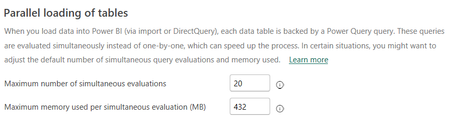
We've been working on a service request that a customer experienced frequent failures when refreshing Power BI reports connected to an Azure SQL Database. The error message indicated a problem with acquiring connections from the data source pool, leading to unsuccessful report refreshes. We found the following error message: A request for a connection from the data source pool could not be granted. Retrying the evaluation may solve the issue. The exception was raised by the IDbCommand interface. Analyzing the details of the case, we found that the issue occurred regardless of whether Entra ID or SQL authentication was used, we don't have issue at Azure SQL Database level and not login error, but, we identified a high number of simultaneous connection attempts from Power BI to Azure SQL Database. We also reviewed the configuration of Power BI Desktop and noted that it loads multiple tables in parallel during refresh operations. This behavior triggers a surge of concurrent connections to the database, which in this scenario resulted in exhaustion of the connection pool at the application layer. We suggested to reduce the parallel table loading setting in Power BI Desktop, using File > Options and settings > Options > Data Load and Under Parallel loading of tables. Later adjusted the setting to a higher value to find a balance between performance and stability.157Views0likes0CommentsLesson Learned #359: TCP Provider: Error code 0x68 (104) (SQLExecDirectW)
Today, we got a service request that our customer faced the following error message connecting to the database: (pyodbc.OperationalError) ('08S01', '[08S01] [Microsoft][ODBC Driver 18 for SQL Server]TCP Provider: Error code 0x68 (104) (SQLExecDirectW)'). This customer is using Python in a Linux environment. Following I would like to share my lessons learned about this error message.28KViews2likes4CommentsLesson Learned #522: Troubleshooting TLS and Cipher Suites with Python connecting to Azure SQL DB
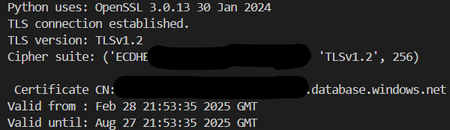
A few days ago, we were working on a service request where our customer was experiencing several issues connecting to Azure SQL Database due to TLS version and cipher suite mismatches when using Python and ODBC Driver 18. Although we were able to get that information through a network trace, I would like to share things that I learned. Using the library SSL in Python allows to establish a TLS/SSL context where I can control the TLS version and specify or inspect the cipher suite. Here’s a small script that demonstrates how to connect to the Azure SQL Gateway over port 1433 and inspect the TLS configuration: import ssl import socket #ServerName to connect (Only Gateway) host = 'servername.database.windows.net' port = 1433 # TLS context context = ssl.create_default_context() print("Python uses:", ssl.OPENSSL_VERSION) context.minimum_version = ssl.TLSVersion.TLSv1_2 context.maximum_version = ssl.TLSVersion.TLSv1_2 context.check_hostname = True context.verify_mode = ssl.CERT_REQUIRED context.load_default_certs() # Testing the connection. with socket.create_connection((host, port)) as sock: with context.wrap_socket(sock, server_hostname=host) as ssock: print("TLS connection established.") print("TLS version:", ssock.version()) print("Cipher suite:", ssock.cipher()) # CN (Common Name) cert = ssock.getpeercert() try: cn = dict(x[0] for x in cert['subject'])['commonName'] print(f"\n Certificate CN: {cn}") except Exception as e: print(" Error extracting CN:", e) print("Valid from :", cert.get('notBefore')) print("Valid until:", cert.get('notAfter')) Using this script I was able to: Enforce a specific TLS version by setting minimum_version and maximum_version , for example, (1.2 or 1.3) Retrieve the cipher suite negotiated. Inspect the details of the certificate. Enjoy!308Views0likes0CommentsLesson Learned #520: Troubleshooting Azure SQL Database Redirect Connection over Private Endpoint
A few days ago, we handled an interesting support case where a customer encountered the following connection error when using sqlcmd to connect to their Azure SQL Database "Sqlcmd: Error: Microsoft ODBC Driver 18 for SQL Server : Login timeout expired. Sqlcmd: Error: Microsoft ODBC Driver 18 for SQL Server : TCP Provider: Error code 0x102. Sqlcmd: Error: Microsoft ODBC Driver 18 for SQL Server : A network-related or instance-specific error has occurred while establishing a connection to servername.database.windows.net (Redirected: servername.database.windows.net\xxxx8165ccxxx,6188). Server is not found or not accessible. Check if instance name is correct and if SQL Server is configured to allow remote connections. For more information see SQL Server Books Online." At first glance, what immediately caught our attention was the port number mentioned in the error 6188. This is not the typical 1433 port that SQL Server usually listens on. Additionally, the message referenced a "Redirected" connection, which gave us the first strong clue. We asked the customer to run the following commands for diagnostics steps: ping servername.database.windows.net to identify the IP address resolved for the Azure SQL Database Server, returning a private IP: 10.1.0.200. nslookup servername.database.windows.net to confirm whether the resolution was happening through a custom DNS or public DNS. ifconfig -a to determine the local IP address of the client, which was 10.1.0.10 (our customer is using Linux environment - RedHat) With all this information in hand, we asked the customer to open a terminal on their Linux machine and execute sudo tcpdump -i eth0 host 10.1.0.200 meanwhile they are attempting to connect using another terminal with sqlcmd and we observed that the sqlcmd was: First making a request to the port 1433 that is expected And then immediately attempting a second connection to port 6188 on the same private IP. It was during this second connection attempt that the timeout occurred. After it, based on the port and the message we asked to our customer what type of connection has this server and they reported Redirect. We explained in Azure SQL, when Redirect mode is enabled, the client: Connects to the gateway on port 1433 Receives a redirection response with a new target IP and dynamic port (e.g., 6188) Attempts a new connection to the private endpoint using this port We reviewed the connection configuration and confirmed that Redirect mode was enabled. After speaking with the customer's networking and security team, we discovered that their firewall rules were blocking outbound connections to dynamic ports like 6188. We proposed two alternative solutions: Option 1: Adjust Firewall Rules Allow outbound traffic from the client’s IP (10.1.0.10) to the Private Endpoint IP (10.1.0.200) for the required range of ports used by Azure SQL in Redirect mode. This keeps the benefits of Redirect mode: Lower latency Direct database access via Private Link Reduced dependence on Azure Gateway Option 2: Switch to Proxy Mode Change the Azure SQL Server's connection policy to Proxy, which forces all traffic through port 1433 only. This is simpler for environments where security rules restrict dynamic port ranges, but it may introduce slightly higher latency. In this case, the customer opted to update the VNet's NSG and outbound firewall rules to allow the necessary range of ports for the Private Endpoint. This allowed them to retain the benefits of Redirect mode while maintaining secure, high-performance connectivity to their Azure SQL Database.765Views0likes0CommentsLesson Learned #215: Hands-On-Labs: Communication link failed error message using ODBC.
We used to have cases where our customer faced the following error messages like following: ERROR [08S01] [Microsoft][ODBC Driver 17 for SQL Server]TCP Provider: An existing connection was forcibly closed by the remote host. ERROR [08S01] [Microsoft][ODBC Driver 17 for SQL Server]Communication link failure In this video below we going to provide us some insights about it.
Lesson Learned #515:Recommendations for Troubleshooting - Login failed for user 'XXX'. (18456)
During a recent support case, a customer encountered the error: pyodbc.InterfaceError: ('28000', "[28000] [Microsoft][ODBC Driver 18 for SQL Server][SQL Server]Login failed for user 'XXX'. (18456) (SQLDriverConnect); ") using a Python code. Following, I would like to share my lessons learned to fix this issue. The error code 18456 is typically caused by login issues, such as incorrect or missing credentials, rather than connectivity or networking problems. In our investigation, we identified the root cause and suggested recommendations to prevent and resolve similar issues. Root Cause The application was configured to retrieve the database server and host name from environment variables. However: Missing Environment Variables: One or more variables were not set. Default Value Misconfiguration: The code defaulted to a hardcoded value when variables were missing. For example, the server defaulted to "localhost", which was not the intended database server. As a result, the application attempted to connect to an unintended server with incorrect or missing credentials, leading to the Login failed error. Recommendations 1. Validate Environment Variables Always validate critical environment variables like server, username, and password. If a required variable is missing or empty, the application should raise an explicit error or log a clear warning. 2. Avoid Misleading Defaults Use placeholder values, such as "NOT_SET", as defaults for critical variables. This approach ensures that misconfigurations are immediately visible and do not silently fail. 3. Log Connection Details Log critical details like the server and database being accessed. Ensure this information is included in application logs to make troubleshooting easier. Avoid logging sensitive information such as passwords. Python Solution I was thinking how to improve the Python code, implementing a validation of environment variables, handle errors and log critical connection details: import os def get_env_variable(var_name, default_value=None, allow_empty=False): """ Retrieves and validates an environment variable. :param var_name: The name of the environment variable. :param default_value: The default value if the variable is missing. :param allow_empty: If False, raises an error for empty variables. :return: The value of the environment variable or default_value. Example: server = get_env_variable("DB_SERVER", default_value="NOT_SET") """ value = os.getenv(var_name, default_value) if value is None or (not allow_empty and (value.strip() == "" or value.strip() == "NOT_SET" or default_value is None)): raise ValueError(f"Environment variable '{var_name}' is required but not set.") return value800Views0likes0Comments