bulktags
1 TopicBulk Device Tagging in MDE: PowerShell & API Approach
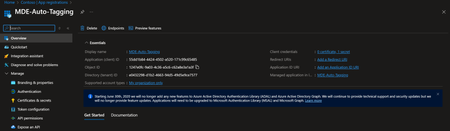
Effective device management is critical for ensuring security hygiene and maintaining operational agility within enterprise environments. In Microsoft Defender for Endpoint (MDE), device tagging plays a key role by enabling logical grouping, targeted policy application, efficient incident response, compliance tracking, and automation. It elevates device management from a manual, error-prone process to a scalable, context-aware workflow that aligns with both security and operational objectives. This guide presents a streamlined method for bulk tagging devices in MDE using the API and PowerShell automation. By following the outlined steps, security teams can automate the tagging process, minimize manual work, and maintain consistent device categorization to support compliance, reporting, and policy enforcement. Objective Use Microsoft Defender for Endpoint API to add tags for multiple devices efficiently. Step 1: Create App Registration in Entra ID Go to Entra ID (Azure Active Directory) → App registrations → New registration. Enter: Name: e.g., MDE-Auto-Tagging. Supported account types: Choose Single tenant (or multi-tenant if required). Redirect URI: Leave blank for now (not needed for client credentials flow). Click Register. Note down: Application (Client) ID Directory (Tenant) ID Step 2: Create Client Secret In the registered app → Certificates & secrets → New client secret. Add description and expiry (e.g., 6 months or 12 months). Copy the Value immediately (you won’t see it again). Step 3: Assign API Permissions In the app → API permissions → Add a permission. Select: APIs my organisation uses → Search for WindowsDefenderATP. Choose: Machine.ReadWrite.All (required for tagging). Application permissions → Expand Machine → Select: Click Add permissions. Grant admin consent for your organisation. Step 4: Validate Permissions Ensure status shows Granted for . (as shown below) If not, click Grant admin consent again. Step 5: Use PowerShell Script to apply tags to multiple devices Please review the PowerShell script hosted here: Microsoft-Unified-Security-Operations-Platform/Microsoft Defender for Endpoint/AddBulkTags.ps1 at main · Abhishek-Sharan/Microsoft-Unified-Security-Operations-Platform This script: Fetches Bearer token using Client ID, Tenant ID, and Client Secret. Reads Device IDs from CSV. Applies tags to each device via Defender API. How to Run (I am using Azure Shell for demo) Update the script with: $TenantId, $ClientId, $ClientSecret and Tag Value Path to your CSV file containing DeviceId. Upload MachineIDs.csv in Azure Shell, template shown below (line 2 and 3 are DeviceIDs) Upload the PowerShell script in Azure Shell as well Execute the PowerShell script, read the Disclaimer and provide your consent for further execution if you’re comfortable As shown below, it will apply the tags. Step 6: Validate tags Go to Devices page and check if the tags are applied or not. Security Best Practices Rotate client secrets regularly. Restrict app permissions to only what’s needed. Store secrets securely (e.g., Azure Key Vault). By implementing this automated tagging workflow, organisations can significantly simplify device management within MDE. Regularly rotating client secrets, restricting app permissions, and securely storing credentials are recommended best practices to maintain a robust security posture. With PowerShell automation and API integration, bulk tagging becomes a scalable solution—enabling teams to efficiently update device tags and leverage exclusion lists, ultimately saving time and reducing operational overhead. Reference Documentation: Add or remove a tag for multiple machines - Microsoft Defender for Endpoint | Microsoft Learn