azurepostgres
7 TopicsAzure PostgreSQL Lesson #15: Private DNS in Another Subscription Causing Server Deployment Failures
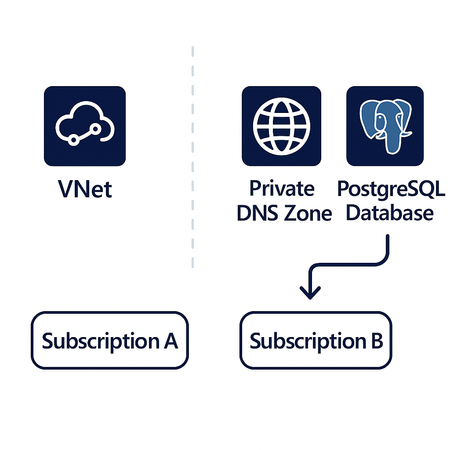
Co‑authored with angesalsaa Case Overview A customer attempted to deploy Azure Database for PostgreSQL – Flexible Server using private networking (VNet injection + Private DNS). The deployment failed with a generic “Internal error”, offering no clear indication of what was wrong. At first glance, networking looked correct: VNet was properly peered Subnet delegation was in place Private DNS zone existed Permissions appeared sufficient Yet, the deployment consistently failed. Root Cause (What We Found) The Virtual Network and Private DNS zone were hosted in a different subscription than the PostgreSQL server. While the PostgreSQL subscription had Microsoft.DBforPostgreSQL registered, the subscription hosting the VNet / Private DNS zone did NOT. Azure requires the Microsoft.DBforPostgreSQL resource provider to be registered in every subscription involved not just where the PostgreSQL server lives. This applies to: VNets used for VNet injection Private DNS zones linked to those VNets If the provider is missing, the deployment fails silently with an internal error. Key Insight Cross‑subscription networking for Azure PostgreSQL Flexible Server is not passive. Azure actively validates resource providers in all referenced subscriptions. Resolution Once Microsoft.DBforPostgreSQL was registered in the network/DNS subscription, the deployment completed successfully without any other changes. Troubleshooting & Validation Steps STEP 1 – Identify Cross‑Subscription Dependencies Check whether: VNet is in a different subscription Private DNS zone is in a different subscription STEP 2 – Validate Resource Provider Registration In every involved subscription, ensure: Microsoft.DBforPostgreSQL is registered. Azure Portal path: Subscription → Resource Providers → Microsoft.DBforPostgreSQL → Register Azure resource providers and types - Azure Resource Manager | Microsoft Learn STEP 3 – Retry Deployment After registration: Re-run PostgreSQL Flexible Server deployment Internal error should no longer occur Best Practices (Avoid This in Future) Always register Microsoft.DBforPostgreSQL in: PostgreSQL subscription VNet subscription Private DNS subscription Validate provider registration before private deployments Document cross‑subscription prerequisites in landing zones Include this check in IaC / ARM / Bicep pipelines References Azure Database for PostgreSQL – Flexible Server Networking overview with private access (virtual network) | Microsoft Learn Takeaway If your PostgreSQL Flexible Server deployment fails with an Internal error in a private network setup check resource provider registration across subscriptions before touching networking.216Views0likes0CommentsAzure PostgreSQL Lesson Learned #13: Major Version Upgrade Failure Due to HypoPG Extension
Co-authored with angesalsaa Case Overview We investigated a customer case where a Major Version Upgrade (MVU) from PostgreSQL 11 to 17 on Azure Database for PostgreSQL Flexible Server consistently failed during the pre-check phase. The upgrade was triggered through the Azure Portal, but the process was blocked due to the presence of the HypoPG extension installed across multiple databases. Symptoms: How the Failure Appears When attempting a Major Version Upgrade in Azure Portal, customers typically encounter: Immediate failure during pre-check validation. Portal error indicating failed at pre-check. Upgrade does not proceed beyond validation. This is expected behavior because Azure validates extension compatibility before performing any in-place upgrade. Root Cause: HypoPG Extension Blocks MVU Azure Database for PostgreSQL Flexible Server supports only a specific list of extensions during major version upgrades. HypoPG is not part of the allow-listed extensions for MVU. If your source server contains HypoPG in any database, the upgrade will fail. Step-by-Step Troubleshooting & Resolution Guide STEP 1 — Audit All Extensions on the Server Azure PostgreSQL does not allow cross-database queries, so you must inspect each database individually. Option A: Check Extensions in Current Database SELECT current_database() AS database_name, extname AS extension_name, extversion AS version FROM pg_extension; 👉 In our case, HypoPG appeared in 4 databases, causing the pre-check failure. STEP 2 — Enable HypoPG Temporarily in Azure Portal Before removing the extension, we had to re-enable HypoPG in Server Parameters because it was previously disabled at Azure Portal level as customer disabled as precaution step but removing part was not enough here: Azure Portal → Server → Server Parameters → azure.extensions → Add hypopg STEP 3 — Remove HypoPG Extension from All Databases Once enabled the extension, remove the extension from each affected database using following command: DROP EXTENSION hypopg CASCADE; ⚠️ CASCADE will drop dependent objects verify impact before execution. After running this command on all affected databases, HypoPG was successfully removed. STEP 4 — Validate Allowed Extensions In Azure Portal: Server → Server Parameters → azure.extensions Ensure only supported extensions are listed. Remove unsupported entries. Make sure hypopg is removed STEP 5 — Re-Run MVU With HypoPG removed and supported extensions validated: Server was in Ready state. Trigger MVU again via Portal: Portal → Server → Overview → Upgrade → Select PostgreSQL 17 Upgrade completed successfully. a { text-decoration: none; color: #464feb; } tr th, tr td { border: 1px solid #e6e6e6; } tr th { background-color: #f5f5f5; } Final Outcome After removing HypoPG and validating the server parameters: MVU completed without errors. Server upgraded from PostgreSQL 11 to 17. Best Practices to Avoid Future Upgrade Failures Audit Extensions Regularly — Especially before major version upgrades. Limit Extensions via azure.extensions — Only enable what you actively use. Clean Up Deprecated Extensions — Remove unused or legacy extensions early. Align with Azure’s Supported Extension List — Check official documentation. Automate Extension Validation — Prevent last-minute surprises. Helpful References Major Version Upgrades | Microsoft Learn287Views1like0CommentsAzure PostgreSQL Lesson Learned #6: Major Upgrade Blocked by Password Auth (The One-Change Fix)
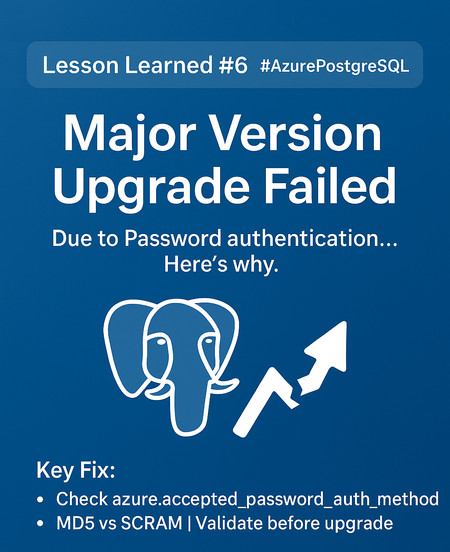
Co‑authored with angesalsaa Symptoms Portal Upgrade action fails or the precheck reports that upgrading with password authentication from 11 isn’t allowed. Users still authenticate with legacy MD5/password (or the server’s auth isn’t set to allow SCRAM‑SHA‑256). Error you can hit: - Fail at precheck. Root Cause PostgreSQL 11 on Flexible Server requires SCRAM to be enabled before attempting an in‑place major version upgrade to higher versions. The service precheck blocks the upgrade if the server is still on password/MD5‑only auth. Why SCRAM? It’s the modern, secure challenge‑response protocol (SCRAM‑SHA‑256) recommended by Postgres. Mentioned in our Public Documentation under Unsupported Configuration Parameter: Major Version Upgrades - Azure Database for PostgreSQL | Microsoft Learn Contributing Factors No prior auth hardening: password_encryption not set to scram-sha-256. User passwords still stored as MD5 hashes, not re-issued under SCRAM. Clients/drivers unverified for SCRAM support (older libraries may fail). Specific Conditions We Observed Source server on PG 11 (Flexible Server). Upgrade target to a higher supported version via portal. Operational Checks Before you flip the switch, confirm you can safely move authentication: List server auth parameters (portal → Server parameters): Verify these 2 server parameters password_encryption & azure.accepted_password_auth_method = scram-sha-256 and authentication methods include SCRAM. Mitigation Goal: Enable SCRAM and re-issue all passwords → re-run the upgrade. 1) Enable SCRAM on the server Portal: Server parameters → set: password_encryption = scram-sha-256 azure.accepted_password_auth_method = scram-sha-256 Check Important Note: Connectivity with SCRAM - Azure Database for PostgreSQL | Microsoft Learn These are dynamic properties and don't require server restart. Verify client/driver compatibility Ensure your application drivers (JDBC, Npgsql, libpq, etc.) support SCRAM before enforcing it. Update client libraries if needed. Re‑run the Major Version Upgrade Portal: Overview → Upgrade → select target major version → Upgrade. Post‑Resolution Upgrade completed successfully. Authentication now uses SCRAM‑SHA‑256; users continue connecting with updated passwords. No further precheck blocks on auth. Prevention & Best Practices Standardize on SCRAM (password_encryption = scram-sha-256) across all environments. Inventory roles and rotate passwords under SCRAM before your upgrade window. Validate drivers in CI/CD for SCRAM support to avoid runtime surprises. Read the upgrade docs (concepts + how‑to) and version policy so you understand supported targets and timelines. Understand Unsupported Scenarios: Major Version Upgrades - Azure Database for PostgreSQL | Microsoft Learn Why This Matters Skipping this step causes failed upgrades, longer downtime, and emergency rollbacks. Moving to SCRAM not only unblocks the upgrade but also improves security posture (MD5 is deprecated in the community). Key Takeaways Issue: PG11 → higher major upgrade blocked due to password/MD5 authentication. Fix: Enable SCRAM and reset all role passwords, then retry the upgrade. References SCRAM in Azure Database for PostgreSQL – Flexible Server (how to enable & verify) — https://learn.microsoft.com/en-us/azure/postgresql/flexible-server/security-connect-scram Authentication parameters (incl. password_encryption) — https://learn.microsoft.com/en-us/azure/postgresql/flexible-server/param-connections-authentication-authentication Major version upgrade: concepts & steps — Concepts · https://learn.microsoft.com/en-us/azure/postgresql/flexible-server/how-to-perform-major-version-upgrade414Views0likes0CommentsAzure PostgreSQL Lesson Learned #8: Post-Upgrade Performance Surprises (The One-Step Fix)
Co‑authored with angesalsaa Symptoms Upgrade from PostgreSQL 12 → higher version succeeds. After migration, workloads show: Queries running slower than before. Unexpected CPU spikes during normal operations. No obvious errors in logs or connectivity issues. Root Cause Missing or stale statistics can lead to bad query plans, which in turn might degrade performance and consume excessive memory. After a major version upgrade, the query planner relies on outdated or default estimates because the optimizer’s learned patterns are not refreshed. This often results in: Sequential scans instead of index scans. Inefficient join strategies. Increased CPU and memory usage. Contributing Factors Large tables with skewed data distributions. Complex queries with multiple joins. Workloads dependent on accurate cost estimates. Specific Conditions We Observed Any source server version can be impacted once you upgrade to higher version. No ANALYZE or VACUUM run post-upgrade. Operational Checks Before troubleshooting, confirm: Query plans differ significantly from pre-upgrade. pg_stats indicates outdated or missing statistics. Mitigation Goal: Refresh statistics so the planner can optimize queries. Run ANALYZE on all tables: ANALYZE; Important Notes: These commands are safe and online. For very large datasets, consider running during low-traffic windows. We recommend running the ANALYZE command in each database to refresh the pg_statistic table. Post-Resolution Queries return to expected performance. CPU utilization stabilizes. Execution plans align with indexes and cost-based optimization. Prevention & Best Practices Always schedule ANALYZE immediately after major upgrades. Automate stats refresh in your upgrade runbook. Validate plans for critical queries before going live. Why This Matters Skipping this step can lead to: Hours of degraded performance. Emergency escalations and customer dissatisfaction. Misdiagnosis as engine regression when it’s just missing stats. Key Takeaways Issue: Post-upgrade query slowness and CPU spikes due to stale/missing statistics. Fix: Run ANALYZE immediately after upgrade. Pro Tip: Automate this in CI/CD or maintenance scripts for zero surprises. References Major Version Upgrades - Azure Database for PostgreSQL | Microsoft Learn405Views0likes0CommentsAzure PostgreSQL Lesson Learned #3: Fix FATAL: sorry, too many clients already
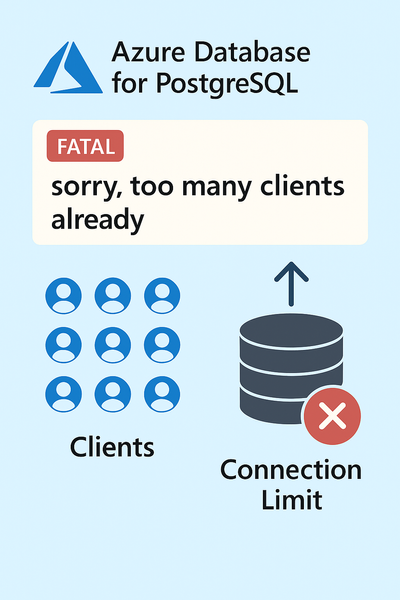
We encountered a support case involving Azure Database for PostgreSQL Flexible Server where the application started failing with connection errors. This blog explains the root cause, resolution steps, and best practices to prevent similar issues.493Views4likes0Comments
Azure PostgreSQL Lesson Learned#1:Fix Cannot Execute in a Read-Only Transaction After HA Failover
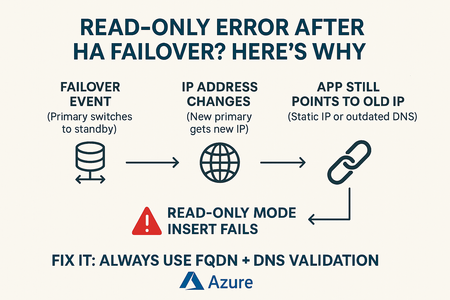
We encountered a support case involving Azure Database for PostgreSQL Flexible Server where the database returned a read-only error after a High Availability (HA) failover. This blog explains the root cause, resolution steps, and best practices to prevent similar issues. The issue occurred when the application attempted write operations immediately after an HA failover. The failover caused the primary role to switch, but the client continued connecting to the old primary (now standby), which is in read-only mode.512Views2likes0CommentsAzure PostgreSQL Lesson Learned #2: Fixing Read Only Mode Storage Threshold Explained
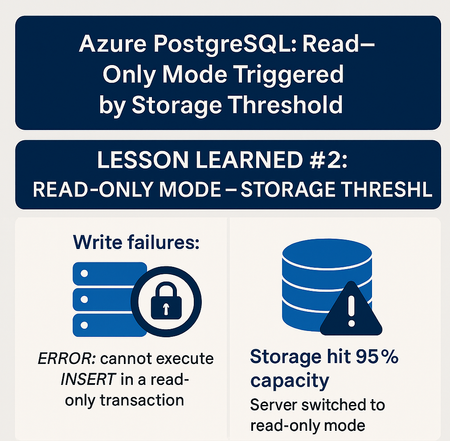
Co-authored with angesalsaa The issue occurred when the server’s storage usage reached approximately 95% of the allocated capacity. Automatic storage scaling was disabled. Symptoms included: Server switching to read-only mode Application errors indicating write failures No prior alerts or warnings received by the customer Example error: ERROR: cannot execute %s in a read-only transaction Root Cause The root cause was the server hitting the configured storage usage threshold (95%), which triggered an automatic transition to read-only mode to prevent data corruption or loss. Storage options - Azure Database for PostgreSQL | Microsoft Learn If your Storage Usage is below 95% but you're still seeing the same error, please refer to this article for more information > Azure PostgreSQL Lesson Learned#1:Fix Cannot Execute in a Read-Only Transaction After HA Failover Contributing factors: Automatic storage scaling was disabled Lack of proactive monitoring on storage usage High data ingestion rate during peak hours Specific conditions: Customer had a custom workload with large batch inserts No alerts configured for storage usage thresholds Mitigation To resolve the issue: Increased the allocated storage manually via Azure Portal No restart is needed after you scale up the storage because it is an online operation but make sure If you grow the disk from any size between 32 GiB and 4 TiB, to any other size in the same range, the operation is performed without causing any server downtime. It's also the case if you grow the disk from any size between 8 TiB and 32 TiB. In all those cases, the operation is performed while the server is online. However, if you increase the size of disk from any value lower or equal to 4096 GiB, to any size higher than 4096 GiB, a server restart is required. In that case, you're required to confirm that you understand the consequences of performing the operation. Scale storage size - Azure Database for PostgreSQL | Microsoft Learn Verified server returned to read-write mode Steps: Navigate to Azure Portal > PostgreSQL Flexible Server > Compute & Storage Increase storage size (e.g., from 100 GB to 150 GB) Post-resolution: Server resumed normal operations Write operations were successful Prevention & Best Practices Enable automatic storage scaling to prevent hitting usage limits > Configure Storage Autogrow - Azure Database for PostgreSQL | Microsoft Learn Set up alerts for storage usage thresholds (e.g., 80%, 90%) Monitor storage metrics regularly using Azure Monitor or custom dashboards Why This Matters Failing to monitor storage and configure scaling can lead to: Application downtime Read-only errors impacting business-critical transactions By following these practices, customers can ensure seamless operations and avoid unexpected read-only transitions. Key Takeaways Symptom: Server switched to read-only mode, causing write failures (ERROR: cannot execute INSERT in a read-only transaction). Root Cause: Storage usage hit 95% threshold, triggering read-only mode to prevent corruption. Contributing Factors: Automatic storage scaling disabled. No alerts for storage thresholds. High ingestion during peak hours with large batch inserts. Mitigation: Increased storage manually via Azure Portal (online operation unless crossing 4 TiB → restart required). Server returned to read-write mode. Prevention & Best Practices: Enable automatic storage scaling. Configure alerts for storage usage (e.g., 80%, 90%). Monitor storage metrics regularly using Azure Monitor or dashboards.601Views0likes0Comments