azure sql db
91 TopicsAzure SQL Hyperscale: Understanding PITR Retention vs Azure Portal Restore UI
Overview Customers using Azure SQL Database – Hyperscale may sometimes notice a discrepancy between the configured Point-in-Time Restore (PITR) retention period and what the Azure Portal displays as available restore points. In some cases: PITR retention is configured (for example, 7 days), Yet the Azure Portal only shows restore points going back a shorter period (for example, 1–2 days), And the restore UI may allow selecting dates earlier than the configured retention window without immediately showing an error. This post explains why this happens, how to validate backup health, and what actions to take. Key Observation From investigation and internal validation, this behavior is not indicative of backup data loss. Instead, it is related to Azure Portal UI behavior, particularly for Hyperscale databases. The backups themselves continue to exist and are managed correctly by the service. Important Distinction: Portal UI vs Actual Backup State What the Azure Portal Shows The restore blade may show fewer restore points than expected. The date picker may allow selecting dates outside the PITR retention window. No immediate validation error may appear in the UI. What Actually Happens Backup retention is enforced at the service layer, not the portal. If a restore is attempted outside the valid PITR window, the operation will fail during execution, even if the UI allows selection. Hyperscale backup metadata is handled differently than General Purpose or Business Critical tiers. Why This Happens with Hyperscale There are a few important technical reasons: Hyperscale backup architecture differs Hyperscale uses a distributed storage and backup model optimized for scale and fast restore, which affects how metadata is surfaced. Some DMVs are not supported Views like sys.dm_database_backups, commonly used for backup visibility, do not support Hyperscale databases. Azure Portal relies on metadata projections The portal restore experience depends on backend projections that may lag or behave differently for Hyperscale, leading to UI inconsistencies. How to Validate Backup Health (Recommended) Instead of relying solely on the Azure Portal UI, use service-backed validation methods. Option 1: PowerShell – Earliest Restore Point You can confirm the earliest available restore point directly from the service: # Set your variables $resourceGroupName = "RG-xxx-xxx-1" $serverName = "sql-xxx-xxx-01" $databaseName = "database_Prod" # Get earliest restore point $db = Get-AzSqlDatabase -ResourceGroupName $resourceGroupName -ServerName $serverName -DatabaseName $databaseName $earliestRestore = $db.EarliestRestoreDate Write-Host "Earliest Restore Point: $earliestRestore" Write-Host "Days Available: $([math]::Round(((Get-Date) - $earliestRestore).TotalDays, 1)) days" This reflects the true PITR boundary enforced by Azure SQL. Option 2: Internal Telemetry / Backup Events (Engineering Validation) Internal monitoring confirms: Continuous backup events are present. Coverage aligns with configured PITR retention. Backup health remains ✅ Healthy even when the portal UI appears inconsistent. Key takeaway: Backup data is intact and retention is honored. Is There Any Risk of Data Loss? No. There is no evidence of backup loss or retention policy violation. This is a visual/UX issue, not a data protection issue. Recommended Actions For Customers ✅ Trust the configured PITR retention, not just the portal display. ✅ Use PowerShell or Azure CLI to validate restore boundaries. ❌ Do not assume backup loss based on portal UI alone. For Support / Engineering Capture a browser network trace when encountering UI inconsistencies. Raise an incident with the Azure Portal team for investigation and fix. Reference Hyperscale-specific behavior during troubleshooting. Summary Topic Status PITR retention enforcement ✅ Correct Backup data integrity ✅ Safe Azure Portal restore UI ⚠️ May be misleading Hyperscale backup visibility ✅ Validate via service tools Final Thoughts Azure SQL Hyperscale continues to provide robust, reliable backup and restore capabilities, even when the Azure Portal UI does not fully reflect the underlying state. When in doubt: Validate via service APIs Rely on enforcement logic, not UI hints Escalate portal inconsistencies appropriatelyWhen Azure Portal/CLI Can’t Delete an Azure SQL DB: Check the Database Name (Unsupported Characters)
Scenario (from a real service request) A customer reported a General Purpose (Gen5, 2 vCores) Azure SQL Database that was incurring charges but could not be deleted using Azure Portal or Azure CLI. CLI output showed two entries, including one whose database name included a forward slash (example display: xxxx-xxx-sql/xxx-xxx-db). Symptoms you may see The database appears in listing outputs, but deletion via ARM/CLI fails with invalid resource ID formatting. The name looks like server/db (contains /), making it difficult for portal/CLI to target correctly. Why this happens? Databases created through T‑SQL/SSMS can sometimes allow characters that ARM-based creation would block, which can cause portal/CLI/ARM operations to fail for that database. In SQL, identifiers that don’t follow “regular” naming rules must be used as delimited identifiers (e.g., wrapped in brackets). The fix that worked We advised the customer to delete the database using T‑SQL, enclosing the database name in square brackets (delimited identifier). The customer confirmed the database was successfully dropped using this approach. If you want to prevent this going forward Prefer creating databases through portal/ARM/CLI, which enforces naming rules and avoids “unsupported character” edge cases. If you must keep a database that has unsupported characters, Microsoft’s public guidance notes that the long-term workaround is to rename the database using T‑SQL to a compliant name so it can be managed normally via portal/CLI again Key takeaway If an Azure SQL Database becomes “undeletable” through portal/CLI and the name contains unusual characters (like '<,>,*,%,&,:,\,/,?'), it may still be fully manageable from T‑SQL using delimited identifiers—and that can be the cleanest way to unblock deletion and stop unexpected costs.How to Get Database‑Wise Session Details in an Azure SQL Elastic Pool Using T‑SQL
When you run multiple databases inside an Azure SQL Database elastic pool, it’s common to hit questions like: Which database is using the most sessions right now? Are we getting close to the pool’s session limit? Which application(s) are opening connections? Is connection pooling configured correctly? The Azure portal can be helpful, but you don’t always have portal access—and even when you do, you may want a quick, scriptable approach you can run from SSMS / Azure Data Studio / sqlcmd. This post provides copy‑paste T‑SQL queries to: check pool‑level session pressure, list active sessions “by database”, summarize active session counts per database, and capture a connection inventory—and then ties it all back to one of the most common root causes of high session counts: connection pooling behavior in the application. What you should know up front (setting expectations) 1) Elastic pool DMVs give you pool context from inside any pooled database The DMV sys.dm_elastic_pool_resource_stats returns usage for the elastic pool that contains the current database, including concurrent session utilization, and it can be queried from any user database in the same elastic pool. 2) Connection/session DMVs can show pool‑wide connections (with sufficient permissions) Microsoft documentation notes you can use sys.dm_exec_connections to retrieve connection details—and if a database is in an elastic pool and you have sufficient permissions, the view returns the set of connections for all databases in the elastic pool. It also calls out sys.dm_exec_sessions as a companion DMV for session details. If you run the queries below and only see your own session, it typically indicates a permissions scope limitation (the documentation notes this behavior for DMV visibility). Quick “Which query should I run?” guide Are we close to pool session limits? → Query A Which database is busy right now (active work)? → Query B Give me a ranked list of active sessions per database → Query C Which apps/hosts/users are connecting? → Query D Query A — Check elastic pool session pressure (near real‑time) Run this in any user database in the elastic pool: SELECT TOP (60) end_time, avg_cpu_percent, avg_data_io_percent, avg_log_write_percent, max_worker_percent, max_session_percent, used_storage_percent FROM sys.dm_elastic_pool_resource_stats ORDER BY end_time DESC; How to interpret it max_session_percent tells you how close your pool is to its session limit (peak session utilization in the interval). This DMV is intended for real‑time monitoring and troubleshooting and retains data for ~40 minutes. Query B — Active sessions by database (best for “what’s happening right now?”) This query focuses on sessions that are currently executing requests, and attributes them to a database by using the request’s SQL context (DB_NAME(st.dbid)). The st.dbid approach is widely used in troubleshooting patterns to show the execution context database. SELECT DB_NAME(st.dbid) AS database_name, s.session_id, s.login_name, s.host_name, s.program_name, s.client_interface_name, c.net_transport, c.encrypt_option, c.auth_scheme, c.connect_time, s.login_time, r.status AS request_status, r.command, r.start_time, r.cpu_time, r.total_elapsed_time FROM sys.dm_exec_requests AS r JOIN sys.dm_exec_sessions AS s ON r.session_id = s.session_id JOIN sys.dm_exec_connections AS c ON c.session_id = s.session_id CROSS APPLY sys.dm_exec_sql_text(r.sql_handle) AS st WHERE s.is_user_process = 1 AND r.session_id <> @@SPID ORDER BY database_name, r.cpu_time DESC; What customers typically use this for Identify which database has the most active work right now See which client program and host are responsible Spot heavy or long‑running requests using cpu_time and total_elapsed_time Query C — Count active sessions per database (simple ranked view) If you want a quick summary like “DB1 has 18 active sessions; DB2 has 5…” WITH active_pool_sessions AS ( SELECT DB_NAME(st.dbid) AS database_name, r.session_id FROM sys.dm_exec_requests AS r JOIN sys.dm_exec_sessions AS s ON r.session_id = s.session_id CROSS APPLY sys.dm_exec_sql_text(r.sql_handle) AS st WHERE s.is_user_process = 1 ) SELECT database_name, COUNT(*) AS active_sessions FROM active_pool_sessions GROUP BY database_name ORDER BY active_sessions DESC; This is a great “top list” during incidents and uses the same execution context mapping pattern (st.dbid). Query D — Connection inventory (who is connected?) Use this when you suspect connection storms, too many open sessions, or connection pooling issues. SELECT c.session_id, c.net_transport, c.encrypt_option, c.auth_scheme, s.host_name, s.program_name, s.client_interface_name, s.login_name, s.original_login_name, c.connect_time, s.login_time FROM sys.dm_exec_connections AS c JOIN sys.dm_exec_sessions AS s ON c.session_id = s.session_id WHERE s.is_user_process = 1 ORDER BY c.connect_time DESC; Microsoft documentation provides this exact join pattern (connections + sessions) as the baseline way to retrieve connection metadata and notes elastic pool behavior when permissions allow. Connection pooling: the #1 reason session counts spike (and how to fix it) Now that you can see sessions and connections, here’s the most common “why”: connection pooling configuration and behavior in the application. What connection pooling is? Creating a new database connection includes several time‑consuming steps: establishing a physical channel, handshake, parsing the connection string, authenticating, and other checks. To reduce that overhead, ADO.NET uses connection pooling: when your application calls Open(), the pooler tries to reuse an existing physical connection; when your application calls Close()/Dispose, the connection is returned to the pool instead of being physically closed—ready for reuse on the next Open(). Important (and often misunderstood): pooling is client‑side, but it has a very real effect on how many concurrent sessions you consume in an elastic pool. Common pooling pitfalls that cause “too many sessions” 1) Connections are not being returned to the pool (connection leaks) Pooling relies on the application calling Close()/Dispose so the pooler can return the connection to the pool for reuse. If connections aren’t closed properly, the pool can’t reuse them, and your app may keep creating new ones. What it looks like in SQL: Query D shows a growing number of sessions from the same program/host over time. Practical fix: Ensure every DB usage pattern disposes the connection (e.g., using blocks in .NET). (General best practice; the pooling mechanism’s reliance on Close/return is documented.) 2) Pool fragmentation (you accidentally create multiple pools) ADO.NET keeps separate pools for different configurations. Connections are separated into pools by connection string and (when integrated security is used) by Windows identity. Pools can also vary based on transaction enlistment and credential instances. What this means: Small differences in connection strings across services/environments can create multiple pools—each with its own connections—so total sessions can be much higher than expected. What it looks like in SQL: Query D shows many sessions from the same overall application family but with slightly different connection contexts (different apps/services). Practical fix: Keep connection strings consistent across instances where possible (same keywords, same security settings, same app identity strategy). (The “separate pools by configuration” concept is documented.) 3) “Max pool size reached” (client-side pool exhaustion) mistaken for Azure SQL limits A Microsoft Tech Community troubleshooting post shows that if you set a small Max Pool Size, you can hit client-side errors such as: “Timeout expired… prior to obtaining a connection from the pool… all pooled connections were in use and max pool size was reached.” That is not the same as hitting an Azure SQL tier limit—it’s the application waiting because it can’t obtain a connection from its own pool. How to differentiate quickly If you see “max pool size reached” / “timeout obtaining connection from the pool” → client pooling pressure. If max_session_percent in Query A is consistently high → pool-level session pressure. 4) Holding connections open longer than necessary Even with pooling enabled, if your application opens a connection and then holds it while doing non-database work, those connections remain “in use” and can’t return to the pool—causing waits and more concurrent sessions under load. (This follows directly from the documented “Open returns a pooled connection; Close returns it to the pool” behavior.) What it looks like in SQL: Query D shows many sessions from the same application. Query B/C shows many active sessions tied to one database during spikes. Practical fix: Open connections as late as possible; close as early as possible around each DB unit of work. (General best practice derived from pooling mechanics.) A simple customer checklist (quick wins) Confirm every DB call closes/disposes the connection so it can return to the pool. Avoid varying connection strings unnecessarily (prevents pool fragmentation). If you see pool wait errors (“max pool size reached”), treat it as an application pooling signal first. Use the T‑SQL queries above to validate: pool pressure (Query A) busiest databases / active sessions (Query B/C) connection sources (Query D) Wrap‑up With the queries in this post, you can troubleshoot elastic pool session behavior without relying on the Azure portal: Query A: real-time pool session/worker pressure Query B/C: database-wise view of active workload (most actionable during incidents) Query D: connection inventory (great for pooling issues and connection storms) And when session counts spike, don’t overlook the application side: connection pooling behavior (leaks, fragmentation, pool sizing, and holding connections open) is one of the most common drivers.Lessons Learned #539: Azure SQL DB Scale-Down from S3 to S2 Can Fail When Change Feed Is Enabled
Recently, I worked on a service request where a customer reported that an Azure SQL Database could not be scaled down from Standard S3 to Standard S2. The operation failed with the following message: "An unexpected error occurred while processing the request". During the troubleshooting process, we reviewed the database configuration to identify any setting that could prevent the scale-down operation. As part of that review, we executed the query select * from sys.databases and observed that the column is_change_feed_enabled had a value different from 0. This indicated that Change Feed was enabled on the database and, according to the current documentation, this setting is not supported when scaling down to Standard S0, S1, or S2 After disabling Change Feed by running EXEC sys.sp_change_feed_disable_db; we were able to complete the scale-down operation successfully.When and How to Update Statistics in Azure SQL Database
Accurate statistics are a cornerstone of good query performance in Azure SQL Database. While the platform automatically manages statistics in most scenarios, there are real‑world cases where manual intervention is not only recommended—but essential. This article explains when, why, and how to update statistics in Azure SQL Database, with practical samples and real customer scenarios drawn from production support cases. Microsoft Learn reference (overview): https://learn.microsoft.com/sql/relational-databases/statistics/statistics Why Statistics Matter SQL Server’s query optimizer relies on statistics to estimate row counts, choose join strategies, allocate memory grants, and decide whether to run operations in parallel. When statistics are stale or inaccurate, even well‑indexed queries can suddenly degrade. In Azure SQL Database: AUTO_CREATE_STATISTICS is enabled and managed by the platform AUTO_UPDATE_STATISTICS runs asynchronously Because updates are async, queries may continue running with outdated cardinality estimates until statistics refresh completes. https://learn.microsoft.com/en-us/sql/relational-databases/query-processing-architecture-guide When Manual Statistics Updates Are Required 1. After Large Data Changes (ETL / Batch Operations) Customer scenario A nightly ETL job bulk‑inserts millions of rows into a fact table. The following morning, reports time out and logical reads spike. Why it happens Auto‑update thresholds are based on row‑count changes and may not trigger immediately—especially for append‑only or skewed data. Recommended action UPDATE STATISTICS dbo.FactSales; Target only the critical statistic if known: UPDATE STATISTICS dbo.FactSales (IX_FactSales_CreatedDate); 2. Query Plan Regression Without Schema Changes Customer scenario A stable query suddenly switches from a Nested Loops join to a Hash Join, increasing CPU usage and BUFFERIO waits. Root cause Statistics no longer reflect current data distribution. Recommended action UPDATE STATISTICS dbo.Customer WITH FULLSCAN; Learn more: https://learn.microsoft.com/sql/relational-databases/statistics/update-statistics 3. After Restore Operations (PITR / Geo‑Restore / Database Copy) Customer scenario After a Point‑in‑Time Restore (PITR) on a Hyperscale database, queries run slower despite healthy platform telemetry. Why it happens Statistics are restored as‑is, but workload patterns often change after the restore point. Auto‑update statistics may lag behind. Recommended action EXEC sp_updatestats; Prioritize heavily accessed tables first on large databases. Learn more: https://learn.microsoft.com/azure/azure-sql/database/recovery-using-backups Query Store Comparison: Before vs After Updating Statistics One of the most effective ways to validate the impact of statistics updates is Query Store. Before update (typical signs): Sudden plan change for the same query text Increased logical reads and CPU time Change in join strategy or memory grant After statistics update: Optimizer selects a more efficient plan Logical reads reduced CPU and duration stabilize Example workflow -- Capture runtime stats SELECT * FROM sys.query_store_runtime_stats WHERE query_id = <QueryID>; -- Update statistics UPDATE STATISTICS dbo.Orders; -- Force recompilation EXEC sp_recompile 'dbo.Orders'; Query Store reference: https://learn.microsoft.com/en-us/sql/relational-databases/performance/monitoring-performance-by-using-the-query-store Decision Flow: When Should I Update Statistics? Performance regression observed? | v Query plan changed without schema change? | Yes | v Recent data change / restore / ETL? | Yes | v Update targeted statistics If NO at any step, rely on automatic statistics and continue monitoring. What NOT to Do ❌ Do not run blanket WITH FULLSCAN on all tables FULLSCAN is CPU and IO expensive, especially on large or Hyperscale databases. ❌ Do not schedule frequent database‑wide sp_updatestats jobs This can introduce unnecessary workload and plan churn. ❌ Do not update statistics blindly without investigation Always validate plan regression or stale estimates using Query Store or execution plans. Checking Statistics Freshness SELECT OBJECT_NAME(s.object_id) AS table_name, s.name AS stats_name, sp.last_updated, sp.rows, sp.rows_sampled FROM sys.stats s CROSS APPLY sys.dm_db_stats_properties(s.object_id, s.stats_id) sp ORDER BY sp.last_updated; DMV reference: https://learn.microsoft.com/en-us/sql/relational-databases/system-dynamic-management-views/sys-dm-db-stats-properties-transact-sql Best Practices Summary ✅ Prefer targeted statistics updates ✅ Update stats after bulk data changes or restores ✅ Validate results using Query Store ✅ Avoid unnecessary FULLSCAN operations ✅ Use stats updates as a diagnostic and remediation step, not routine maintenance Conclusion Although Azure SQL Database manages statistics automatically, asynchronous updates and changing workload patterns can result in sub‑optimal query plans. Manually updating statistics after significant data changes, restore operations, or observed plan regressions is a safe and effective best practice to restore optimal query performance.Cannot enable Change Data Capture (CDC) on Azure SQL Database: Msg 22830 + Error 40529 (SUSER_SNAME)
Issue While enabling CDC at the database level on Azure SQL Database using: EXEC sys.sp_cdc_enable_db; GO the operation fails. Error The customer observed the following failure when running sys.sp_cdc_enable_db: Msg 22830: Could not update the metadata that indicates the database is enabled for Change Data Capture. Failure occurred when executing drop user cdc Error 40529: "Built-in function 'SUSER_SNAME' in impersonation context is not supported in this version of SQL Server." What we checked (quick validation) Before applying any changes, we confirmed CDC wasn’t partially enabled and no CDC artifacts were created: -- Is CDC enabled for this database? SELECT name, is_cdc_enabled FROM sys.databases WHERE name = DB_NAME(); -- Does CDC schema exist? SELECT name FROM sys.schemas WHERE name = 'cdc'; -- Does CDC user exist? SELECT name FROM sys.database_principals WHERE name = 'cdc'; These checks were used during troubleshooting in the SR. (Also note: Microsoft Learn documents that enabling CDC creates the cdc schema/user and requires exclusive use of that schema/user.) Cause In this case, the failure aligned with a known Azure SQL Database CDC scenario: enabling CDC can fail if there is an active database-level trigger that calls SUSER_SNAME(). To identify active database-level triggers, we used: SELECT name, object_id FROM sys.triggers WHERE parent_class_desc = 'DATABASE' AND is_disabled = 0; Resolution / Workaround The customer resolved the issue by: Identifying the active database-level trigger. Disabling the trigger temporarily. Enabling CDC at the database level and then enabling CDC on the required tables. Re-enabling the trigger after CDC was successfully enabled. Post-resolution verification After enabling CDC, you can validate the state using: -- Confirm CDC enabled at DB level SELECT name, is_cdc_enabled FROM sys.databases WHERE name = DB_NAME(); And for table-level tracking, Microsoft Learn recommends checking the is_tracked_by_cdc column in sys.tables. Notes / Requirements To enable CDC for Azure SQL Database, db_owner is required. Azure SQL Database uses a CDC scheduler (instead of SQL Server Agent jobs) for capture/cleanup.126Views0likes0CommentsDORA exit planning for Azure SQL Database: a practical, “general guidance” blueprint
Why this matters: Under the EU Digital Operational Resilience Act (DORA), many financial entities are strengthening requirements around ICT risk management, third‑party risk oversight, and—critically—exit planning / substitutability. Microsoft provides resources to help customers navigate DORA, including a DORA compliance hub in the Microsoft Trust Center. This post distills general guidance based on a real-world support thread where a customer requested a formal advisory describing an exit strategy for an Azure SQL Database workload (including a large database scenario). (Note: The content here is intentionally generalized and not legal advice—always align with your compliance team and regulators.) The customer asked Microsoft Support for a formal response to support DORA regulatory expectations, focusing on data portability, exit planning, and substitution capabilities for workloads running on Azure SQL Database. The support response framed the need as: a regulatory submission use case under DORA, where Microsoft can provide official references and describe the technical capabilities enabling portability and exit. while customers remain responsible for defining, documenting, testing, and periodically validating their exit procedures. Microsoft’s DORA resources: where to pull “regulatory artifacts” from A key part of the Support Request response was pointing to Microsoft’s formal compliance resources: Microsoft publishes DORA-related guidance and operational resilience materials via the Microsoft Trust Center and makes compliance documentation available via the Service Trust Portal for supervisory/audit processes. Microsoft also maintains a DORA compliance hub in the Trust Center aimed at helping financial institutions meet DORA requirements. Microsoft Learn provides an overview of DORA, scope, and key areas for customer consideration. Navigating DORA compliance | Microsoft Trust Center Practical takeaway: For DORA evidence packs, align your narrative to the regulator’s questions, and use Trust Center / Service Trust Portal materials as the “Microsoft-published” backbone, then attach your customer-owned exit runbooks and test evidence. Data ownership and portability: the foundation of an exit plan In the ticket’s advisory, Microsoft Support emphasized: Azure SQL Database is built on the SQL Server engine, and customers retain ownership of their data. The service supports portability through SQL Server–compatible schemas, T‑SQL, and documented export/restore mechanisms, reducing dependency on proprietary formats. How to use this in a DORA exit narrative: Frame “reversibility” as standards-based data and schema portability (SQL/T‑SQL + documented export/import). That’s exactly the type of substitutability narrative many regulators want to see. Supported exit strategy building blocks (Azure SQL Database → on‑prem SQL Server) The Support Request response described the exit approach at a high level, using supported, documented capabilities: Exporting database schema and data using SQL Server–compatible formats Restoring or importing into an on‑prem SQL Server environment with functional equivalence Maintaining security controls (auth, encryption in transit/at rest, integrity protections) during transition Validating restored data and application functionality as part of exit testing One concrete, Microsoft-documented portability method for Azure SQL Database is exporting to a BACPAC (schema + data), which can later be imported into SQL Server. BACPAC: what Microsoft documentation explicitly calls out (and why it matters for “exit planning”) Microsoft Learn documents: A BACPAC contains metadata and data and can be stored in Azure Blob storage or local storage and later imported into Azure SQL Database, Azure SQL Managed Instance, or SQL Server. Export a BACPAC File - SQL Server | Microsoft Learn For transactional consistency, ensure no write activity during export or export from a transactionally consistent copy. Blob-storage exports have a maximum BACPAC size of 200 GB; larger exports should go to local storage using SqlPackage. BACPAC is not intended as a backup/restore mechanism; Azure SQL has built-in automated backups. DORA relevance: BACPAC is a strong “portability evidence” artifact because it is explicitly positioned for “archiving” or “moving to another platform,” including SQL Server. sql-docs/azure-sql/database/database-export.md at live · MicrosoftDocs/sql-docs Large databases: why “one-button export” may not be your plan The Support Request thread highlighted a “large database” scenario and referenced that Microsoft documentation describes high-level migration patterns such as offline export/import and staged validation for large databases. In practice, if your database is far beyond BACPAC’s typical constraints (for example, BACPAC export to blob capped at 200 GB), your exit plan should explicitly describe: a staged approach (e.g., dry-run validation environment, phased cutover planning), capacity planning (network bandwidth, validation windows), and a testing cadence that produces regulator-friendly evidence. The ticket response also emphasized that customers should plan for sufficient time and capacity for transfer and validation (especially for large databases). Customer responsibilities under DORA (the part regulators care about most) A key statement from the Support Request advisory is worth repeating as general guidance: Microsoft provides the technical capabilities enabling data portability and exit, but customers remain responsible for defining, documenting, testing, and periodically validating exit procedures—including planning timelines, allocating sufficient capacity, executing test exits, and maintaining evidence for regulatory review. This aligns well with DORA’s intent and Microsoft’s broader DORA guidance narrative: DORA requires operational resilience outcomes, and organizations must integrate cloud capabilities into their governance and controls. A simple DORA-ready “exit plan checklist” you can adapt Below is a general checklist you can use to structure your exit plan documentation and evidence pack—aligned with what was emphasized in the Support Request: Scope & dependencies Identify the Azure SQL Database workloads, dependent applications, and data flows to be included in the exit plan. (Customer-owned documentation and evidence) Portability mechanism(s) Reference documented portability options such as schema+data export mechanisms (e.g., BACPAC) where applicable. Security controls during transition Document how auth and encryption controls are maintained during transfer and restoration validation. Validation plan Define how you will validate data integrity and application functionality in the target environment. Scale planning (large DBs) Document transfer capacity planning, timelines, and staged validation where needed. Evidence & audit trail Store test outputs, run logs, and references to Microsoft Trust Center / Service Trust Portal materials used in submissions. From the SR’s formal advisory perspective, the message is consistent: Azure SQL Database supports data portability and exits planning via SQL Server–compatible design and documented export/import mechanisms, Microsoft provides DORA-oriented compliance materials via the Trust Center and Service Trust Portal. and customers should own the exit runbook, testing, and evidence required for regulatory review.242Views0likes0Comments
Alternatives After the Deprecation of the Azure SQL Migration Extension in Azure Data Studio
The Azure SQL Migration extension for Azure Data Studio is being deprecated and will be retired by February 28, 2026. As part of our unified and streamlined migration strategy for Azure SQL, we are consolidating all migration experiences into a consistent, scalable platform. If you are currently using the Azure SQL Migration extension, this blog will guide you through recommended replacement options for every phase of migration, whether you are moving to Azure SQL Managed Instance, SQL Server on Azure Virtual Machines, or Azure SQL Database. What is happening to the Azure SQL Migration extension in ADS? As you already know, Azure data studio will officially retire on February 28, 2026. The Azure SQL Migration extension in Azure Data Studio will also retire along with Azure Data Studio on February 28, 2026. The Azure SQL Migration extension will no longer be available in the marketplace of Azure Data Studio. What should you use instead? Below is the updated guidance for the migration tool categorized by migration phase and target. 1) Pre‑Migration: Discovery & Assessments Prior to migration, it is advisable to evaluate the SQL Server environment for readiness and to determine the right-sized Azure SQL SKU. Below are the recommended options: A) SQL Server enabled by Azure Arc Use the SQL Server migration experience in the Azure Arc portal for: Instance discovery at scale Migration assessments at scale, including: Readiness assessment for all Azure SQL targets. Performance-based, right-sized target recommendations. Projected Azure costs with the recommended target configuration. Reference: Steps to get started with the Azure Arc assessments- Deploy Azure Arc on your servers. SQL Server instances on Arc-enabled servers are automatically connected to Azure Arc. See options to optimize this. B) Automated assessments at scale using Azure DMS PowerShell and Azure CLI The Azure DataMigration modules in Azure PowerShell and Azure CLI can be used to automate assessments at scale. Learn more about how to do this. Here are the sample templates to automate the assessment workflow: Azure PowerShell DataMigration cmdlets DMS Azure CLI commands C) Azure Migrate For scenarios where assessments are required at data center level including different types of workloads like Applications, VM Servers and databases, use Azure Migrate to perform discovery and assessments at scale. Learn more about Azure Migrate. References: Review inventory Create SQL Assessment Review SQL Assessment 2) Migrations Based on the migration targets, here are the recommended tools you can use to carry out the migration: A. To Azure SQL Managed Instance The following options are available for migrating data to Azure SQL Managed Instance: 1. SQL Migration experience in Azure Arc For migrations to Azure SQL MI, leverage the streamlined SQL Migration experience in Azure Arc which lets you complete the end-to-end migration journey in a single experience. This experience provides: Evergreen assessments and right-fit Azure SQL target recommendation. Inline Azure SQL Target creation. Free Azure SQL MI Next generation General Purpose service that lets you experience the power of Azure SQL MI for free for 12 months. Near zero downtime migration using Managed Instance link powered by Distributed Availability Group technology. Secure connectivity. Reference blog: SQL Server migration in Azure Arc 2. Automated migration at scale using Azure DMS PowerShell and Azure CLI To Orchestrate migrations to Azure SQL MI at scale programmatically, use: DMS PowerShell cmdlets DMS Azure CLI commands Learn more about how to do this. B. To SQL Server on Azure Virtual Machines To migrate to SQL Server on Azure Virtual Machines, use: 1. Azure Database Migration Service (DMS) DMS supports migrating to SQL Server on Azure Virtual Machines using both online and offline methods. Your SQL Server backups can be in Azure Blob Storage or on a network SMB file share. For details on each option, see: Backups stored in Azure Blob Storage Backups maintained on network SMB file shares Note: The migration experience from SQL Server on-premises to SQL Server on Azure VM will soon be available in SQL Server enabled by Azure Arc. 2. Automated migration at scale using Azure DMS PowerShell and Azure CLI For programmatic migrations to Azure SQL Virtual Machines: DMS PowerShell cmdlets DMS Azure CLI commands Learn more about how to do this. 3. SSMS option: SQL Server Management Studio (SSMS) migration component If you can connect to both SQL Server on-premises and SQL Server running on Azure VM using SQL Server Management Studio, the migration component in SSMS can help you to migrate to SQL Server on Azure VM. For details, see SSMS Migration component. C. To Azure SQL Database Migrating a SQL Server database to Azure SQL Database typically involves migrating schema and data separately. Here are the options to perform offline and online migration to Azure SQL Database: 1. Offline migration to Azure SQL Database a. Azure Database Migration Service (DMS) portal experience Use Azure DMS portal to migrate both schema and data. Azure DMS uses Azure Data Factory and leverages the Self-hosted Integration Runtime (SHIR). Installation steps are here. b. Automated migration at scale using Azure DMS PowerShell and Azure CLI Use Azure DMS PowerShell and Azure CLI command line to orchestrate the schema and data migration to Azure SQL Database at scale: DMS PowerShell cmdlets DMS Azure CLI commands Learn more about how to do this. 2. Online migration to Azure SQL Database Using Striim To enable online migration of your mission critical databases to Azure SQL Database leverage Striim. Microsoft and Striim have entered a strategic partnership to enable continuous data replication from off-Azure SQL Servers to Azure SQL Database with near-zero downtime. For more details, refer to: Zero downtime migration from SQL Server to Azure SQL Database | Microsoft Community Hub Removing barriers to migrating databases to Azure with Striim’s Unlimited Database Migration program... To leverage the Striim program for migrations, please reach out to your Microsoft contact or submit the below feedback to get started. Summary The table below provides a summary of the available alternatives for each migration scenario. Migration Scenario Guided experience Automation experience Pre-Migration (Discovery + Assessment) SQL Migration experience in Azure Arc / Azure Migrate DMS PowerShell / Azure CLI To Azure SQL Managed Instance SQL Migration experience in Azure Arc DMS PowerShell / Azure CLI To SQL Server on Azure Virtual Machine DMS Azure Portal / SSMS migration component DMS PowerShell / Azure CLI To Azure SQL Database DMS Azure portal (offline & schema migration) / Striim (online migration) DMS PowerShell / Azure CLI (offline & schema migration) Final Thoughts Simplify your SQL migration journey and improve migration velocity to all Azure SQL targets, leverage the connected migration experiences in SQL Server enabled by Azure Arc, DMS, and SSMS. For SSMS, as a first step we brought the capabilities to perform assessment and migration to higher versions of SQL Server including to SQL Server on Azure Virtual Machines. As a next step, we are bringing cloud migration capabilities as well into SSMS. Feedback We love hearing from our customers. If you have feedback or suggestions for the product group, please use the following form: Feedback form As you begin your migration to Azure, we welcome your feedback. If you do not see suitable alternatives for any migration phases, use the feedback form to let us know so we can update the options accordingly.1.5KViews1like0CommentsMultiple secondaries for Azure SQL Database failover groups (Public Preview)
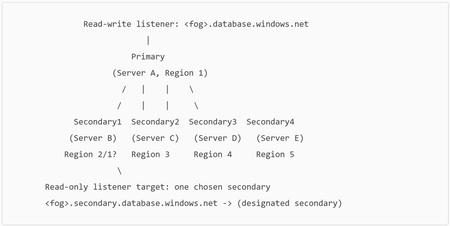
Azure SQL Database failover groups are a business continuity capability that helps you manage geo-replication and coordinated failover of one or more databases from a primary Azure SQL logical server to a secondary logical server in another region. A key benefit is automatic endpoint redirection: your application can keep using the same listener endpoints, and connections are routed to the current primary after a geo-failover. Until recently, an Azure SQL Database failover group supported only one secondary server. Microsoft has now announced public preview support for up to four secondaries per failover group—unlocking more flexible DR designs, regional read scale-out patterns, and richer HA/BC architectures. Why this matters: the “one-secondary” constraint is gone Traditional failover group topologies were straightforward: one primary ↔ one secondary. That model is great for many DR plans, but it can be limiting when you want to: Distribute read-only workloads across multiple regions, Maintain multiple failover targets for broader regional resilience, Support complex compliance or geo-distribution requirements, or Migrate regions without sacrificing existing protection. With multiple secondaries, you can now design a failover group that better matches how globally distributed applications actually run—while still benefiting from the simplicity of the failover group abstraction and stable listener endpoints. What’s new in Public Preview With this enhancement, you can now: Create up to four secondary servers for a single failover group. Place these secondaries in the same or different Azure regions (with important guidance for read-only routing—covered below). Choose which secondary should receive traffic for the read-only listener endpoint (<fog-name>.secondary.database.windows.net). Fail over to any secondary (planned or forced), giving you more operational flexibility during incidents or DR drills. Supported service tiers for multiple secondaries (per the announcement): Standard, General Purpose, Premium, Business Critical, and Hyperscale. Core concept refresher: listener endpoints (and why they’re central) Failover groups expose two stable DNS-based listener endpoints: Read-write listener: <fog-name>.database.windows.net Read-only listener: <fog-name>.secondary.database.windows.net These endpoints are DNS CNAME records created when the failover group is created. After failover, DNS updates redirect the listener(s) to the new role holder. A few practical details that matter in real operations: The Learn documentation notes the DNS TTL is 30 seconds for primary and secondary listener records, which influences how quickly clients pick up endpoint changes (subject to client-side DNS caching behavior). For read-only workloads, it’s recommended to indicate read intent in the connection string using ApplicationIntent=ReadOnly. By default, failover of the read-only listener is disabled (to avoid impacting primary performance when the secondary is offline), which can be a key consideration for read-only availability expectations. Architecture: one failover group, up to four secondaries Here’s a simple way to visualize the topology: With multiple secondaries, you designate one secondary as the read-only listener endpoint target. All read-only listener traffic routes to that chosen secondary. If a failover group has only one secondary, the read-only endpoint defaults to it. How to get started (Azure portal) Creating the initial failover group is unchanged. To add additional secondaries, the announcement outlines these portal steps: Go to your Azure SQL logical server in the Azure portal. Open Failover groups under Data management. Select your existing failover group. Click Add server to add another secondary server. In the side panel, select: The secondary server to add, and The read-only listener endpoint target (a dropdown that lists existing and newly added secondaries). Click Select, then Save to apply the configuration—seeding begins for databases in the group to the new secondary. Important note from the announcement: if you intend to serve read workloads via the read-only listener, the designated read-only target should not be in the same region as the primary. PowerShell examples (create / modify / fail over) The announcement provides PowerShell examples to create and update a failover group with multiple secondaries: Create a failover group with multiple secondaries New-AzSqlDatabaseFailoverGroup ` -ResourceGroupName "myrg" ` -ServerName "primaryserver" ` -PartnerServerName "secondaryserver1" ` -FailoverGroupName "myfailovergroup" ` -FailoverPolicy "Manual" ` -PartnerServerList @("secondary_uri_1","secondary_uri_2","secondary_uri_3","secondary_uri_4") ` -ReadOnlyEndpointTargetServer "secondary_uri_1" The secondary_uri_n values are Azure resource IDs in the form: /subscriptions/<sub>/resourceGroups/<rg>/providers/Microsoft.Sql/servers/<server> Add/replace the secondary server list on an existing failover group Set-AzSqlDatabaseFailoverGroup ` -ResourceGroupName "myrg" ` -ServerName "primaryserver" ` -FailoverGroupName "myfailovergroup" ` -FailoverPolicy "Manual" ` -PartnerServerList @("secondary_uri_1","secondary_uri_2","secondary_uri_3","secondary_uri_4") ` -ReadOnlyEndpointTargetServer "secondary_uri_1" Perform a failover Use Switch-AzSqlDatabaseFailoverGroup (example shown in the announcement): Switch-AzSqlDatabaseFailoverGroup ` -ResourceGroupName "myrg" ` -ServerName "secondaryserver1" ` -FailoverGroupName "myfailovergroup" Planned vs. forced failover (operational clarity) The preview announcement highlights portal actions for: Failover (planned / synchronized) Forced failover (unplanned / potential data loss) The Learn documentation further clarifies that Failover performs full synchronization (no data loss) and requires the primary to be accessible, while Forced failover can result in data loss because replication is asynchronous and doesn’t wait for final propagation. Limitations and notes (preview behavior) From the announcement: Up to four secondaries per failover group. Each secondary must be on a different logical server than the primary. Secondaries can be in the same or different regions. The read-only listener endpoint target should be in a different region from the primary if you want to use the read-only listener for read workloads. Failover group name must be globally unique within .database.windows.net. Chaining (geo-replica of a geo-replica) isn’t supported. Backup storage redundancy and zone redundancy inheritance behaviors vary by tier; the announcement calls out: For non-Hyperscale, zone redundancy isn’t enabled by default on secondaries (enable after creation). For Hyperscale, secondaries inherit HA settings from their respective primaries. Best practices (practical guidance) The announcement and documentation recommend several patterns worth emphasizing: Prefer paired regions when feasible for better performance than unpaired regions. Test regularly using planned failovers (DR drills) so you validate your end-to-end plan. Monitor replication lag to ensure your RPO expectations are being met. Keep failover group scope reasonable (number of databases impacts failover duration; the documentation advises limiting databases per group and using multiple groups if needed). Use the right endpoint for the right workload: Writes → <fog-name>.database.windows.net (read-write listener) Reads → <fog-name>.secondary.database.windows.net (read-only listener) Monitoring example: sys.dm_geo_replication_link_status The DMV sys.dm_geo_replication_link_status returns a row per replication link and includes fields like partner_server, partner_database, last_replication, and replication_lag_sec, which you can use to track replication health. A simple query (run in the user database participating in geo-replication) is: SELECT partner_server, partner_database, last_replication, replication_lag_sec FROM sys.dm_geo_replication_link_status; (These columns and their meanings are documented in the DMV reference.) Closing thoughts Multiple secondaries for Azure SQL Database failover groups is a meaningful step forward for customers running globally distributed applications. It combines the operational simplicity of failover groups—stable listener endpoints and coordinated failover—with added architectural freedom: more DR targets, more read scale-out options, and smoother migration pathways. If you’re already using failover groups today, this preview is a great opportunity to revisit your topology and ask: Where would additional geo-secondaries reduce risk or improve performance for my read-heavy workloads? If you’re designing new, this capability expands what “good” looks like for resilient, regionally distributed data tiers. Learn more (official resources) Multiple secondaries for failover groups is now in public preview Failover groups overview & best practices (Azure SQL Database) Configure a failover group (Azure SQL Database) sys.dm_geo_replication_link_status DMV reference528Views0likes0CommentsEnable auditing to identify Change Tracking history table drops using Extended Events (Azure SQL Db)
When Change Tracking is enabled, the system-maintained history table dbo.MSChange_tracking_history is a key place to look for cleanup progress and errors. For example, Microsoft’s troubleshooting guidance for Change Tracking auto-cleanup explicitly references querying the history table to validate whether cleanup is running and whether there are cleanup errors. In real-world environments, teams sometimes observe that dbo.MSChange_tracking_history “disappears” unexpectedly (for example, during cleanup troubleshooting), which then blocks visibility into cleanup progress and error history. When that happens, the most practical way to answer “who/what dropped the history table?” is to audit the DDL using Extended Events (XEvents)—a lightweight monitoring capability designed for troubleshooting. This post shows how to create a database-scoped XEvent session in Azure SQL Database that captures Change Tracking history table drops and related events, using the script you provided. Why Extended Events for this scenario? Extended Events are built to capture internal engine activities with relatively low overhead, and are supported across SQL Server and Azure SQL. In Azure SQL Database, XEvents are commonly used for investigation and troubleshooting when you need evidence of what happened and who initiated it. In this specific case, we want to capture: A history table drop event (Change Tracking-specific) A syscommittab truncate event (Change Tracking-specific) A generic object deletion event filtered to the history table name And we want to enrich each event with context (app, host, user, SQL text, stack, timestamps, etc.). The Extended Events session (copy/paste) Below is your script to create a database-scoped session named CTXEvent that audits the Change Tracking history table drop and related events: CREATE EVENT SESSION [CTXEvent] ON DATABASE ADD EVENT sqlserver.change_tracking_historytable_drop( ACTION(mdmtargetpkg.mdmget_TimeStampUTC,sqlserver.client_app_name,sqlserver.client_hostname,sqlserver.context_info,sqlserver.database_name,sqlserver.external_script_request_id,sqlserver.session_id,sqlserver.sql_text,sqlserver.transaction_id,sqlserver.tsql_stack,sqlserver.username)), ADD EVENT sqlserver.change_tracking_syscommittab_truncate( ACTION(mdmtargetpkg.mdmget_TimeStampUTC,sqlserver.client_app_name,sqlserver.client_hostname,sqlserver.context_info,sqlserver.database_name,sqlserver.external_script_request_id,sqlserver.session_id,sqlserver.sql_text,sqlserver.transaction_id,sqlserver.tsql_stack,sqlserver.username)), ADD EVENT sqlserver.object_deleted( ACTION(mdmtargetpkg.mdmget_TimeStampUTC,sqlserver.client_app_name,sqlserver.client_hostname,sqlserver.context_info,sqlserver.database_name,sqlserver.external_script_request_id,sqlserver.session_id,sqlserver.sql_text,sqlserver.transaction_id,sqlserver.tsql_stack,sqlserver.username) WHERE ([object_name]=N'MSchange_tracking_history')) WITH (MAX_MEMORY=16384 KB,EVENT_RETENTION_MODE=NO_EVENT_LOSS,MAX_DISPATCH_LATENCY=10 SECONDS,MAX_EVENT_SIZE=0 KB,MEMORY_PARTITION_MODE=NONE,TRACK_CAUSALITY=ON,STARTUP_STATE=OFF) GO Why these three events? sqlserver.change_tracking_historytable_drop: directly captures the Change Tracking “history table dropped” operation (purpose-built for this investigation). sqlserver.change_tracking_syscommittab_truncate: captures maintenance actions on syscommittab, which is central to Change Tracking’s internal state. sqlserver.object_deleted with a predicate on MSchange_tracking_history: provides a generic “safety net” if the drop manifests via generic DDL deletion paths. Why these actions? The actions you selected are the practical “who/what/where” context you usually need to attribute the operation: sqlserver.client_app_name / sqlserver.client_hostname: which app + which machine initiated the DDL sqlserver.username: identity executing the statement sqlserver.sql_text + sqlserver.tsql_stack: the statement and call stack (helpful if the drop occurs via a job, framework, or tooling) sqlserver.session_id / sqlserver.transaction_id: correlate activity across events TRACK_CAUSALITY=ON: enables correlation across related events within the session context. Starting and stopping the session Your session is created with STARTUP_STATE=OFF, meaning it does not start automatically. That’s typically a good practice for targeted investigations: enable it only during the window where you expect the issue. For Azure SQL Database, you can manage the session using SSMS or equivalent T-SQL workflows. Microsoft’s Extended Events QuickStart walks through creating sessions and working with session data, including the general workflow concepts. Tip (practical): Turn it on shortly before your expected “drop window,” reproduce/observe, then turn it off after you capture the event to minimize overhead. Where does the data go? Your script defines the events + actions + session options, but it does not define a target (for example, event_file). That’s OK for short, in-the-moment investigations, but for durable evidence and easy sharing, many teams prefer writing to an event file target. Option: Persist captured events to Azure Storage (recommended for multi-hour investigations) Microsoft provides a dedicated walkthrough for Azure SQL Database to create an event session with an event_file target stored in Azure Storage, including: creating a storage account + container granting access (RBAC or SAS) creating a database credential creating/starting the session viewing the event data If you choose this route, you can then read event files using sys.fn_xe_file_target_read_file (supported in Azure SQL Database, commonly used to consume XEL files from blob storage). How to interpret the results (what to look for) When the table drop happens, the captured event payload should allow you to confidently answer: Who initiated the operation? Look at sqlserver.username plus client_app_name and client_hostname. What executed the drop? Look at sql_text and tsql_stack. Was this tied to cleanup activity or another workflow? If you see change_tracking_syscommittab_truncate around the same time (and correlated via session/transaction/casuality identifiers), that can indicate the drop happened in proximity to Change Tracking maintenance behavior. Was the drop recurring or one-off? If you capture repeated events at a steady cadence, it points to an automated process (job, deployment pipeline, scheduled task, framework) rather than an ad-hoc human action. Why this matters: the history table is part of Change Tracking troubleshooting Microsoft’s Change Tracking cleanup troubleshooting guidance explicitly uses dbo.MSChange_tracking_history as the place to validate whether cleanup is running and whether errors are being logged. So if the history table is being dropped, you effectively lose an important “black box recorder” that you rely on to understand cleanup behavior—exactly why auditing the drop is so valuable. Operational tips (minimize noise, maximize signal) These are practical recommendations commonly used in incident investigations (treat them as operational guidance you can adapt to your environment): Run the session for a limited time window (enough to catch the drop). Keep actions focused (your list is already purpose-built for attribution). Prefer file target if you need durable evidence (especially when coordinating across teams). Document what “good” looks like before you enable the session (e.g., confirm whether the history table exists and whether it’s being written to), using the troubleshooting query from Microsoft docs. Common troubleshooting steps (when the audit session “doesn’t capture anything”) When you set up a targeted Extended Events session like CTXEvent, there are usually three places where things can go wrong: (1) Change Tracking state, (2) XEvent session scope/permissions, or (3) the target (storage/credential). The checklist below is written to help you isolate which layer is failing—quickly, and with minimal guesswork. 1) First, validate the Change Tracking baseline (so you’re not “tracing a ghost”) Does the history table exist—and is it expected to exist? Microsoft’s Change Tracking guidance uses dbo.MSChange_tracking_history as the first place to look for cleanup status and errors. If the table doesn’t exist, that can be a signal that auto-cleanup has never run (or hasn’t run since CT was re-enabled). Check whether auto-cleanup is enabled and whether it’s been running recently. The Change Tracking troubleshooting doc recommends checking sys.change_tracking_databases (to validate auto-cleanup is enabled) and querying the history table for recent entries (to validate cleanup is actually running). If dbo.MSChange_tracking_history is missing, confirm whether that’s due to CT lifecycle. A common “gotcha” is assuming the history table is created the moment CT is enabled. In practice, the table can be missing if CT was disabled and then re-enabled, or if only manual cleanup was used—because the history table is tied to auto-cleanup behavior. Why this matters: If the history table never existed (or is missing for expected reasons), your “history table drop” symptom might actually be a different behavior than a true DDL DROP—and you’ll want to confirm the CT lifecycle first before you rely on drop-auditing as the primary signal. 2) Confirm the Extended Events session is created in the right place (Azure SQL DB specifics) Make sure the session is database-scoped (Azure SQL Database requirement). In Azure SQL Database, Extended Events sessions are always database-scoped, and the event_file target writes to Azure Storage blobs (not local disk). If you accidentally create or manage the session as if it were server-scoped, you’ll hit confusing errors or see “no data.” Confirm you created the session in a user database (not master). Azure SQL Database doesn’t support creating database-scoped sessions from master. If you try, you can run into failures that look like target/session problems but are actually scope issues. Verify permissions: least privilege that still works. If the session creation/alter/start fails silently (or you can’t start it), confirm the principal has the right database permission. A practical minimum that works for managing DB-scoped sessions is ALTER ANY DATABASE EVENT SESSION (instead of granting broad CONTROL/db_owner). 3) If you’re using event_file: storage + credential is the most common failure point If the session starts but no .xel ever shows up, focus here first—because event_file in Azure SQL DB depends on a correct Storage setup. Validate the “happy path” prerequisites (in order): Storage account exists and a container exists. The Database Engine has access to that container either via RBAC (managed identity) or via a SAS token. A credential is created in the same database where the session is created. Microsoft’s event_file walkthrough is explicit about these steps, and missing any one of them can cause “target initialization” or “no output” symptoms. Quick diagnostic: temporarily switch to an in-memory target to prove events are firing. The Azure SQL Extended Events guidance notes you can use a ring_buffer target as a quick way to validate that the session is collecting events (without involving storage). If ring_buffer shows events but event_file does not, the issue is almost certainly storage/credential access. Common “it looks correct but still fails” causes (practical): You created the credential in the wrong database (or the session is in a different DB than the credential). The container permissions don’t actually include write access for the engine identity/token. The session was created correctly but never started (especially if STARTUP_STATE = OFF). 4) If you do capture events, but can’t attribute “who did it” Once the session is logging events, attribution usually comes down to having the right actions attached. The docs emphasize that Extended Events are designed to collect “as much or as little as necessary,” and in investigations you typically want the “who/what/where” context: app name, hostname, username, session_id, sql_text, etc. Practical tip: Start with your curated set of actions (like client_app_name, client_hostname, username, session_id, and sql_text), and only add more fields if you still can’t triangulate the origin. This keeps overhead and noise down while staying evidence driven. 5) If the table drop is periodic (hourly / scheduled), treat it like an automation clue In real customer scenarios, the symptom can be “history table disappears repeatedly,” which makes it especially important to correlate drops with client_app_name / hostname / username (and optionally transaction/session details) to determine whether this is a scheduled job, maintenance task, or application behavior. This is exactly the type of “pattern identification” where XEvents tends to outperform ad-hoc guessing. Quick “decision tree” summary History table missing? Start with CT lifecycle + auto-cleanup checks. Session exists but captures nothing? Confirm DB scope + permissions. Captures to ring_buffer but not to event_file? Storage/credential access problem. Captures events but no “who”? Add/verify the right actions (client_app_name/hostname/username/sql_text). References Extended Events QuickStart and overview (applies to Azure SQL Database). Change Tracking cleanup troubleshooting and history table usage (dbo.MSChange_tracking_history). Event File target for Azure SQL Database stored in Azure Storage + steps (RBAC/SAS + credential). Reading XEL output from blob using sys.fn_xe_file_target_read_file.169Views0likes0Comments