Autopilot
130 Topics
Windows Autopilot and Configuration Management Client Installation Methods
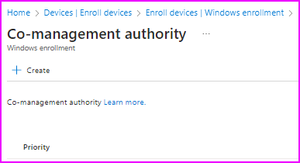
I'm using Windows Autopilot to build my machines with AzureAD hybrid join. Currently as part of the ESP we deploy the configuration manager client and our VPN software (both Win32 apps) to them so we can get them co-managed ASAP. We also do this in ESP as blocking apps to control the device availability to users until they are completed. Our implementation partner advised us to install the Configuration Manager client in this manner to speed up co-management. Autopilot works (albeit slow at _ 60 mins). I am confused though on whether or not adding the configuration manager client into the autopilot build in this manner is supported? Reading this (https://learn.microsoft.com/en-us/mem/configmgr/comanage/how-to-prepare-win10) it states: You can't deploy the Configuration Manager client while provisioning a new computer in Windows Autopilot user-driven mode for hybrid Azure AD join. This limitation is due to the identity change of the device during the hybrid Azure AD-join process. Deploy the Configuration Manager client after the Autopilot process. For alternative options to install the client, see https://learn.microsoft.com/en-us/mem/configmgr/core/clients/deploy/plan/client-installation-methods. So reading this it seems what we are doing is invalid. So question 1: Is it incorrect/unsupported to install the configuration manager client as a Win32 app during autopilot (ESP or otherwise)? Furthermore I read here (https://learn.microsoft.com/en-us/mem/configmgr/comanage/how-to-prepare-win10) that it appears there is no longer a need to to deploy configuration manager client as an app at all but it can simply be configured in it via Home -> Device -> Enroll Devices -> Windows Enrollment > Co-management Authority You no longer need to create and assign an Intune app to install the Configuration Manager client. The Intune enrollment policy automatically installs the Configuration Manager client as a first-party app. The device gets the client content from the Configuration Manager cloud management gateway (CMG), so you don't need to provide and manage the client content in Intune. Is this method only valid post autopilot?Solved6KViews4likes10Comments
Moving from MDT/WDS to Autopilot – Real-World Lessons, Wins & Gotchas
Hi all, We’ve been moving away from an ageing WDS + MDT setup and over to Windows Autopilot, and I thought I’d share a few key lessons and experiences from the journey. In case anyone else is working through the same transition (...or about to). Why the change? MDT was becoming unreliable, drivers/apps would randomly fail to install, WDS is on the way out, and we needed a more remote-friendly approach. We also wanted to simplify things for our small IT team and shift from Hybrid Azure AD Join to Azure AD Join only. We’re doing this as a phased rollout. I harvested existing device hashes using a script from a central server, and manually added machines that weren’t online at the time (most of which were just unused spares, we haven't introduced new hardware yet). If you want a copy of this auto-harvest, please see my next post, this script is useful as it'll just go off and import the hardware hashes into Intune, and can run against multiple computers at a time. (I will add the link to the post once made). Some of the biggest hurdles: • 0x80070002 / 0x80070643 errors (typically due to incomplete registration or app deployment failures) • Enrollment Status Page (ESP) hangs due to app targeting issues (user vs device) and BitLocker config conflicts • Wi-Fi setup with RADIUS (NPS) was complex, Enterprise Certificates and we're still using internal AD for authentication, so user accounts exist there and sync over to Azure. • Legacy GPOs had to be rebuilt manually in Intune, lots of trial and error • Some software (like SolidWorks) wouldn’t install silently via Intune, so I used NinjaOne to handle these, along with remediation scripts in Intune where needed We also moved from WSUS to Windows Autopatch, which improved update reliability and even helped with driver delivery via Windows Update. What’s gone well: Device provisioning is more consistent, updates are more reliable, build time per machine has dropped, and remote users get systems faster. It’s also reduced our reliance on legacy infrastructure. What I’m still working on: Tightening up compliance and reporting, improving detection/remediation coverage, figuring out new errors that may occur, and automating as much manual processes as possible. Ask me anything or share your own experience! I’m happy to help anyone dealing with similar issues or just curious about the move. Feel free to reply here or message me. Always happy to trade lessons learned, especially if you’re in the middle of an Autopilot project yourself. Cheers, Timothy Jeens698Views3likes5Comments
Autopilot profile is not assigned if a device already registered Azure AD
When import device information for Autopilot, if the devices already registered to Azure AD, the profile status in Windows Autopilot devices have not changed from ”Not Assigned”. After deleting the device from both Autopilot devices and Azure AD, and import again, it has changed to ”Assigned”. It is the same behavior at import csv file, which created by PowerShell script manually or use Autopilot profile to convert targeted devices. Note that we had not applied Autopilot enrollment to all devices, and we use a security group referring ”ZTDId”. And a security group specified Azure AD devices for convert. And, it seems when import csv file to Autopilot, devices register to Azure AD automatically. If we remove it from Azure AD, the device information will not re-register automatically. Or will it work with the security group of all Azure AD device? I want to know: 1. Import Autopilot information of devices that already registered to Azure AD does it work? 2. With the security group reference ZTDId, does it work? 3. The best practice to register Autopilot information, that device already registered to Azure AD and Intune Thank you for reading. If you know anything about it, please teach me.86KViews1like23Comments
Autopillot self-deploying mode and Windows Updates
Hi all, Looking for help in getting W10 devices to patch whilst in sleep mode. I would be looking to put the Windows 10 device to sleep then deploying updates overnight. Set up is as follows - Lenovo T470s Laptop - Windows 10 1903 - OS Deployed using Autopilot self-deploying mode. Laptop is in Shared PC mode The area which is unclear to me is as follows. The setting in Shared PC mode below suggests that this is the period when maintenance starts Shared multi-user device Maintenance start time(in minutes from midnight) I believe I would have to use a Windows Update Ring alongside this to deploy the updates. Hovwever, there doesn't seem to be documentation detailing how to achieve this. i.e. waking form sleep mode and deploying updates using Windows update rings? Any advice appreciated1KViews1like1CommentClose the Year Strong with Surface for Business Deals
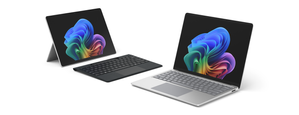
As organizations look to maximize their remaining budget and prepare for 2026, now is the moment to modernize device fleets with Surface for Business. These limited-time Surface promotions make it easier to accelerate refresh cycles, strengthen endpoint security, and equip employees with devices that are AI-ready from day one. Surface for Business devices combine productivity-forward design, leading AI capabilities, and Microsoft security at multiple layers. Whether refreshing a subset of users or upgrading entire departments, organizations can close the year with hardware that helps reduce risk, assists in lowering management overhead, and positions teams for the next wave of AI-driven productivity. Secure by Design Surface for Business devices deliver hardware-based protections aligned with Secured-core PC standards. Hardware-based security, advanced firmware protections, and a growing number of memory-safe drivers help reduce exposure across the stack, providing peace of mind that clears the way for AI innovation. AI-Ready With advanced processors including powerful AI chips on supported models, Surface for Business devices are ready to help employees maximize their skills using AI to drive business forward. From a dedicated Copilot key 1 to Foundry on Windows 2 for developing local agents, these devices provide the foundation for people to achieve their best. Learn more about unlocking AI innovation in our new eBook. Ready to Deploy Surface for Business devices support Windows Autopilot 3 , enabling IT teams to deploy devices directly to employees, preconfigured with corporate profiles and security baselines, without imaging or desk-side setup. Combined with centralized management through Microsoft Intune 4 , organizations can reduce deployment time and help keep endpoints consistent from day one. Make the Most of Year-End Purchasing Opportunities Maximize remaining 2025 budget by exploring end-of-year savings on select Surface for Business devices. Work with your preferred reseller to capitalize on year-end spend, or purchase directly through Microsoft Store in the US 5 to take advantage of available offers that make modernizing your device fleet easier as you prepare for 2026. Resellers can help organizations align device selection, deployment plans, and support needs while optimizing budget utilization. Businesses purchasing through Microsoft Store benefit from fast, free shipping and a 60-day return window on most physical products. 6 Across both channels, Surface for Business offers provide a cost-effective path to refresh devices now rather than deferring upgrades—helping IT leaders complete their roadmap, meet procurement targets, and deliver new value to end users before the new year. Find a reseller [https://www.microsoft.com/surface/business/where-to-buy-microsoft-surface Buy from Microsoft Store US [https://www.microsoft.com/en-us/store/collections/surface-deals-bundles] References Feature availability varies by device and market. See Key Support for details. Some capabilities may require additional subscriptions not included with Windows or Surface devices. Windows Autopilot device preparation depends on specific capabilities available in Windows client and Microsoft Entra ID. It also requires a mobile device management (MDM) service such as Microsoft Intune. These capabilities can be obtained through various editions and subscription programs. Additional licenses required, not included with Surface. Offers and promotions vary by market. Terms apply. Microsoft Store only ships to certain countries; see Shipping options, costs, and delivery times - Microsoft Support for details.167Views1like0CommentsParameter is incorrect error at ESP phase of Autopilot device preparation policy (Autopilot V2)
Hi Team, I am testing the Windows autopilot device preparation profile (Autopilot V2). Here, I need to rename the device while it is enrolling to the Intune (during ESP). So, I created a script that has below command to rename the device and rebooting it. Rename-Computer -NewName $newname -ErrorAction 'Stop' -ErrorVariable err -Restart -Force The issue I am facing now is that, when the device is at ESP, it runs the script to rename the device and also it restart the device. But after restart it does not complete the device preparation set up and s an shows an error screen called with message "Parameter is incorrect" and after clicking on OK, I get to see the login screen. After logging in, I am able to use my machine fine and the device is also renamed as per my organization standards. Does anyone also have faced this kind of issue while testing the Autopilot V2 with reboot script at ESP. Regards, Ashish Arya632Views1like2CommentsReassigning a device to another user
What is the recommended process for reassigning a device to a new user in an environment where all devices are enrolled in Autopilot, Intune Defender, and Entra ID, and users have M365 E5 licenses? Currently, to maintain compliance while the device is awaiting reassignment, I have been deleting it from the Intune and Defender portals, but not from Autopilot. However, since the device remains in Autopilot, it cannot be deleted from Entra ID and continues to display the old name and user assignment, even after being renamed in Autopilot. Is there a better approach to this situation?606Views1like0Comments
AutoPilot Hardware hash error, You cannot call a method on a null-valued expression
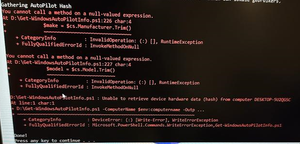
When we trying to download the hardware hash for Autopilot via Powershell, we recently are getting null-valued expression errors on random laptops W11P laptops . So far on W10P we never hard problems. Is there a way to exclude $model, $make? Or can we adjust the script? our script: @ECHO OFF echo Enabling WinRM PowerShell -NoProfile -ExecutionPolicy Unrestricted -Command Enable-PSRemoting -SkipNetworkProfileCheck -Force echo Gathering AutoPilot Hash PowerShell -NoProfile -ExecutionPolicy Unrestricted -Command %~dp0Get-WindowsAutoPilotInfo.ps1 -ComputerName $env:computername -OutputFile %~dp0compHash.csv -append echo Done! pause3.8KViews1like5Comments
Collect Autopilot hashes without big user interaction?
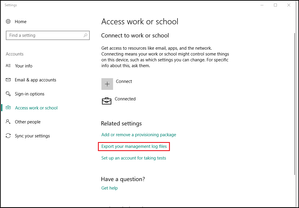
Hi there, is there a way to collect the hashes for the autopilot from existing local Windows 10/11 devices without guiding the user through a powershell script? You can also export the management protocols directly via the GUI, is there perhaps a batch for this? Thanks a lotSolved2.7KViews1like3CommentsNo Assigned user in Windows Autopilot Configuration
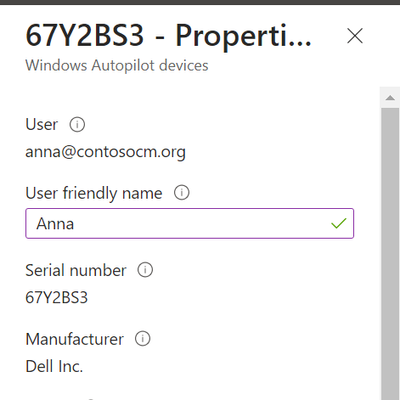
I have assigned an user to an Autopilot device in the hope I could provision the device according to that user's account settings. I wish I could get something like in the picture below (after hitting Windows key 5 times). Unfortunately, it always says "Assigned user: not assigned". What should I check?3.6KViews1like1Comment