application insights
56 Topics
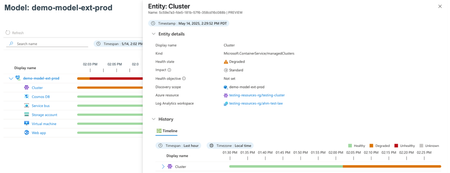
Announcing the Public Preview of Azure Monitor health models
Troubleshooting modern cloud-native workloads has become increasingly complex. As applications scale across distributed services and regions, pinpointing the root cause of performance degradation or outages often requires navigating a maze of disconnected signals, metrics, and alerts. This fragmented experience slows down troubleshooting and burdens engineering teams with manual correlation work. We address these challenges by introducing a unified, intelligent concept of workload health that’s enriched with application context. Health models streamline how you monitor, assess, and respond to issues affecting your workloads. Built on Azure service groups, they provide an out-of-the-box model tailored to your environment, consolidate signals to reduce alert noise, and surface actionable insights — all designed to accelerate detection, diagnosis, and resolution across your Azure landscape. Overview Azure Monitor health models enable customers to monitor the health of their applications with ease and confidence. These models use the Azure-wide workload concept of service groups to infer the scope of workloads and provide out-of-the-box health criteria based on platform metrics for Azure resources. Key Capabilities Out-of-the-Box Health Model Customers often struggle with defining and monitoring the health of their workloads due to the variability of metrics across different Azure resources. Azure Monitor health models provide a simplified out-of-the-box health experience built using Azure service group membership. Customers can define the scope of their workload using service groups and receive default health criteria based on platform metrics. This includes recommended alert rules for various Azure resources, ensuring comprehensive monitoring coverage. Improved Detection of Workload Issues Isolating the root cause of workload issues can be time-consuming and challenging, especially when dealing with multiple signals from various resources. The health model aggregates health signals across the model to generate a single health notification, helping customers isolate the type of signal that became unhealthy. This enables quick identification of whether the issue is related to backend services or user-centric signals. Quick Impact Assessment Assessing the impact of workload issues across different regions and resources can be complex and slow, leading to delayed responses and prolonged downtime. The health model provides insights into which Azure resources or components have become unhealthy, which regions are affected, and the duration of the impact based on health history. This allows customers to quickly assess the scope and severity of issues within the workload. Localize the Issue Identifying the specific signals and resources that triggered a health state change can be difficult, leading to inefficient troubleshooting and resolution processes. Health models inform customers which signals triggered the health state change, and which service group members were affected. This enables quick isolation of the trouble source and notifies the relevant team, streamlining the troubleshooting process. Customizable Health Criteria for Bespoke Workloads Many organizations operate complex, bespoke workloads that require their own specific health definitions. Relying solely on default platform metrics can lead to blind spots or false positives, making it difficult to accurately assess the true health of these custom applications. Azure Monitor health models allow customers to tailor health assessments by adding custom health signals. These signals can be sourced from Azure Monitor data such as Application Insights, Managed Prometheus, and Log Analytics. This flexibility empowers teams to tune the health model to reflect the unique characteristics and performance indicators of their workloads, ensuring more precise and actionable health insights. Getting Started Ready to simplify and accelerate how you monitor the health of your workloads? Getting started with Azure Monitor health models is easy — and during the public preview, it’s completely free to use. Pricing details will be shared ahead of general availability (GA), so you can plan with confidence. Start Monitoring in Minutes Define Your Service Group Create your service group and add the relevant resources as members to the service group. If you don’t yet have access to service groups, you can join here. Create Your Health Model In the Azure Portal navigate to Health Models and create your first model. You’ll get out-of-the-box health criteria automatically applied. Customize to Fit Your Needs In many cases the default health signals may suit your needs, but we support customization as well. Investigate and Act Use the health timeline and our alerting integration to quickly assess impact, isolate issues, and take action — all from a single pane of glass. You can access health models today in the Azure portal! For more details on how to get started with health models, please refer to our documentation. We Want to Hear From You Azure Monitor health models are built with our customers in mind — and your feedback is essential to shaping the future of this experience. Whether you're using the out-of-the-box health model or customizing it to fit your unique workloads, we want to know what’s working well and where we can improve. Share Your Feedback Use the “Give Feedback” feature directly within the Azure Monitor health models experience to send us your thoughts in context. Post your ideas in the Azure Monitor community. Prefer email? Reach out to us at azmonhealthmodels@service.microsoft.com — we’re listening. Your insights help us prioritize features, improve usability, and ensure Azure Monitor continues to meet the evolving needs of modern cloud-native operations.6.3KViews8likes1Comment
Observability for the Age of Generative AI
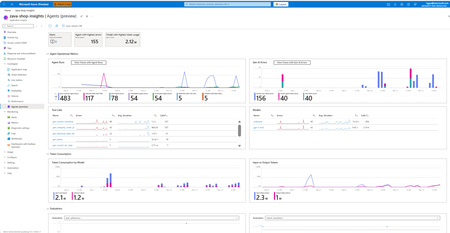
Every generation of computing brings new challenges in how we monitor and trust our systems. With the rise of Generative AI, applications are no longer static code—they’re living systems that plan, reason, call tools, and make choices dynamically. Traditional observability, built for servers and microservices, simply can’t tell you when an AI agent is correct, safe, or cost-efficient. We’re reimagining observability for this new world. At Ignite, we introduced the next wave of Azure Monitor and AI Foundry integration—purpose-built for GenAI apps and agents. End-to-End GenAI Observability Across the AI Stack Customers can see not just whether their systems are up or fast, but also whether their agent responses are accurate. Azure Monitor, in partnership with Foundry, unifies agent telemetry with infrastructure, application, network, and hardware signals—creating a true end-to-end view that spans AI agents, the services they call, and the compute they run on. New capabilities include: Agent Overview Dashboard in Grafana and Azure – Gain a unified view of one or more GenAI agents, including success rate, grounding quality, safety violations, latency, and cost per outcome. Customize dashboards in Grafana or Azure Monitor Workbooks to detect regressions instantly after a model or prompt change—and understand how those changes affect user experience and spend. AI-Tailored Trace View – Follow every AI decision as a readable story: plan → reasoning → tool calls → guardrail checks. Identify slow or unsafe steps in seconds, without sifting through thousands of spans. AI-Aware Trace Search by Attributes – Search, sort, and filter across millions of runs using GenAI-specific attributes like model ID, grounding score, or cost. Find the “needle” in your GenAI haystack in a single query. Foundry Low-Code Agent Monitoring – Agents created through Foundry’s visual, low-code interface are now automatically observable. Without writing a single line of code, you can track reliability, safety, and cost metrics from day one. Full-Stack Visibility Across the AI Stack – All evaluations, traces, and red-teaming results are now published to Azure Monitor, where agent signals correlate seamlessly with infrastructure KPIs and application telemetry to deliver a unified operational view. Check out our get started documentation. Powered by OpenTelemetry Innovation This work builds directly on the new OpenTelemetry extensions announced in our recent Azure AI Foundry blog post. Microsoft is helping define the OpenTelemetry agent specification, extending it to capture multi-agent orchestration traces, LLM reasoning context, and evaluation signals—enabling interoperability across Azure Monitor, AI Foundry, and partner tools such as Datadog, Arize, and Weights & Biases. By building on open standards, customers gain consistent visibility across multi-cloud and hybrid AI environments—without vendor lock-in. Built for Enterprise Scale and Trust With open standards and deep integration between Azure Monitor and AI Foundry, organizations can now apply the same discipline they use for traditional applications to their GenAI workloads, complete with compliance, cost governance, and quality assurance. GenAI is redefining what it means to operate software. With these innovations, Microsoft is giving customers the visibility, control, and confidence to operate AI responsibly, at enterprise scale.561Views0likes0CommentsGenerally Available - Azure Monitor Private Link Scope (AMPLS) Scale Limits Increased by 10x!
Introduction We are excited to announce the General Availability (GA) of Azure Monitor Private Link Scope (AMPLS) scale limit increase, delivering 10x scalability improvements compared to previous limits. This enhancement empowers customers to securely connect more Azure Monitor resources via Private Link, ensuring network isolation, compliance, and Zero Trust alignment for large-scale environments. What is Azure Monitor Private Link Scope (AMPLS)? Azure Monitor Private Link Scope (AMPLS) is a feature that allows you to securely connect Azure Monitor resources to your virtual network using private endpoints. This ensures that your monitoring data is accessed only through authorized private networks, preventing data exfiltration and keeping all traffic inside the Azure backbone network. AMPLS – Scale Limits Increased by 10x in Public Cloud & Sovereign Cloud (Fairfax/Mooncake) - Regions In a groundbreaking development, we are excited to share that the scale limits for Azure Monitor Private Link Scope (AMPLS) have been significantly increased by tenfold (10x) in Public & Sovereign Cloud regions as part of the General Availability! This substantial enhancement empowers our customers to manage their resources more efficiently and securely with private links using AMPLS, ensuring that workload logs are routed via the Microsoft backbone network. What’s New? 10x Scale Increase Connect up to 3,000 Log Analytics workspaces per AMPLS (previously 300) Connect up to 10,000 Application Insights components per AMPLS (previously 1,000) 20x Resource Connectivity Each Azure Monitor resource can now connect to 100 AMPLS resources (previously 5) Enhanced UX/UI Redesigned AMPLS interface supports loading 13,000+ resources with pagination for smooth navigation Private Endpoint Support Each AMPLS object can connect to 10 private endpoints, ensuring secure telemetry flows Why It Matters Top Azure Strategic 500 customers, including major Telecom service providers and Banking & Financial Services organizations, have noted that previous AMPLS limits did not adequately support their increasing requirements. The demand for private links has grown 3–5 times over existing capacity, affecting both network isolation and integration of essential workloads. This General Availability release resolves these issues, providing centralized monitoring at scale while maintaining robust security and performance. Customer Stories Our solution now enables customers to scale their Azure Monitor resources significantly, ensuring seamless network configurations and enhanced performance. Customer B - Case Study: Leading Banking & Financial Services Customer Challenge: The Banking Customer faced complexity in delivering personalized insights due to intricate workflows and content systems. They needed a solution that could scale securely while maintaining compliance and performance for business-critical applications. Solution: The Banking Customer has implemented Microsoft Private Links Services (AMPLS) to enhance the security and performance of financial models for smart finance assistants, leading to greater efficiency and improved client engagement. To ensure secure telemetry flow and compliance, the banking customer implemented Azure Monitor with Private Link Scope (AMPLS) and leveraged the AMPLS Scale Limit Increase feature. Business Impact: Strengthened security posture aligned with Zero Trust principles Improved operational efficiency for monitoring and reporting Delivered a future-ready architecture that scales with evolving compliance and performance demands Customer B - Case Study: Leading Telecom Service Provider - Scaling Secure Monitoring with AMPLS Architecture: A Leading Telecom Service Provider employs a highly micro-segmented design where each DevOps team operates in its own workspace to maximize security and isolation. Challenge: While this design strengthens security, it introduces complexity for large-scale monitoring and reporting due to physical and logical limitations on Azure Monitor Private Link Scope (AMPLS). Previous scale limits made it difficult to centralize telemetry without compromising isolation. Solution: The AMPLS Scale Limit Increase feature enabled the Telecom Service Provider to expand Azure Monitor resources significantly. Monitoring traffic now routes through Microsoft’s backbone network, reducing data exfiltration risks and supporting Zero Trust principles. Impact & Benefits Scalability: Supports up to 3,000 Log Analytics workspaces and 10,000 Application Insights components per AMPLS (10× increase). Efficiency: Each Azure Monitor resource can now connect to 100 AMPLS resources (20× increase). Security: Private connectivity via Microsoft backbone mitigates data exfiltration risks. Operational Excellence: Simplifies configuration for 13K+ Azure Monitor resources, reducing overhead for DevOps teams. Customer Benefits & Results Our solution significantly enhances customers’ ability to manage Azure Monitor resources securely and at scale using Azure Monitor Private Link Scope (AMPLS). Key Benefits Massive Scale Increase 3,000 Log Analytics workspaces (previously 300) 10,000 Application Insights components (previously 1,000) Each AMPLS object can now connect to: Azure Monitor resources can now connect with up to 100 AMPLS resources (20× increase). Broader Resource Support - Supported resource types include: Data Collection Endpoints (DCE) Log Analytics Workspaces (LA WS) Application Insights components (AI) Improved UX/UI Redesigned AMPLS interface supports loading 13,000+ Azure Monitor resources with pagination for smooth navigation. Private Endpoint Connectivity Each AMPLS object can connect to 10 private endpoints, ensuring secure telemetry flows. Resources: Explore the new capabilities of Azure Monitor Private Link Scope (AMPLS) and see how it can transform your network isolation and resource management. Visit our Azure Monitor Private Link Scope (AMPLS) documentation page for more details and start leveraging these enhancements today! For detailed information on configuring Azure Monitor private link scope and azure monitor resources, please refer to the following link: Use Azure Private Link to connect networks to Azure Monitor - Azure Monitor | Microsoft Learn Design your Azure Private Link setup - Azure Monitor | Microsoft Learn Configure your private link - Azure Monitor | Microsoft Learn340Views0likes0CommentsAdvancing Full-Stack Observability with Azure Monitor at Ignite 2025
New AI-powered innovations in the observability space First, we’re excited to usher in the era of agentic cloud operations with Azure Copilot agents. At Ignite 2025, we are announcing the preview of the Azure Copilot observability agent to help you enhance full-stack troubleshooting. Formerly “Azure Monitor investigate”, the observability agent streamlines troubleshooting across application services and resources such as AKS and VMs with advanced root cause analysis in alerts, the portal, and Azure Copilot (gated preview). By automatically correlating telemetry across resources and surfacing actionable findings, it empowers teams to resolve issues faster, gain deeper visibility, and collaborate effectively. Learn more here about the observability agent and learn about additional agents in Azure Copilot here. Additionally, with the new Azure Copilot, we are streamlining agentic experiences across Azure. From operations center in the Azure portal, you can get a single view to navigate, operate and optimize your environments and invoke agents in your workflows. You also get suggested top actions within the observability blade of operations center to prioritize, diagnose and resolve issues with support from the observability agent. Learn more here. In the era of AI, more and more apps are now AI apps. That’s why we’re enhancing our observability capabilities for GenAI and agents: Azure Monitor brings agent-level visibility and control into a single experience in partnership with Observability in Foundry Control Plane through a new agent details view (public preview) showcasing success metrics, quality indicators, safety checks, and cost insights in one place. Simplified tracing also transforms every agent run into a reasonable, plan-and-act narrative for faster understanding. On top of these features, the new smart trace search enables faster detection of anomalies—such as policy violations, unexpected cost spikes, or model regressions—so teams can troubleshoot and optimize with confidence. These new agentic experiences build upon a solid observability foundation provided by Azure Monitor. Learn more here. We’re making several additional improvements in Azure Monitor: Simplified Onboarding & More Centralized Visibility Streamlined onboarding: Azure Monitor now offers streamlined onboarding for VMs, containers, and applications with sensible defaults and abstraction layers. This means ITOps teams can enable monitoring across environments in minutes, not hours. Previously, configuring DCRs and linking Log Analytics workspaces was a multi-step process; now, you can apply predefined templates and scale monitoring across hundreds of VMs faster than before. Centralized dashboards: A new monitor overview page in operations center consolidates top suggested actions and Azure Copilot-driven workflows for rapid investigation. Paired with the new monitoring coverage page (public preview) in Azure Monitor, ITOps can quickly identify gaps based on Azure Advisor recommendations, enable VM Insights and Container Insights at scale, and act on monitoring recommendations—all from a single pane of glass. Learn more here. Richer visualizations: Azure Monitor dashboards with Grafana are now in GA, delivering rich visualizations and data transformation capabilities on Prometheus metrics, Azure resource metrics, and more. Learn more here. Cloud to edge visibility: With expanded support for Arc-enabled Kubernetes with OpenShift and Azure Red Hat OpenShift in Container Insights and Managed Prometheus, Azure Monitor offers an even more complete set of services for monitoring the health and performance of different layers of Kubernetes infrastructure and the applications that depend on it. Learn more here. Advanced Logs, Metrics, and Alert Management Logs & metrics innovations: Azure Monitor now supports the log filtering and transformation (GA), as well as the emission of logs to additional destinations (public preview) such as Azure Data Explorer and Fabric—unlocking real-time analytics and more seamless data control. Learn more here. More granular access for managing logs: Granular RBAC for Log Analytics workspaces ensures compliance and least privilege principles across teams, now in general availability. Learn more here. Dynamic thresholds for log search alerts (public preview): Now you can apply the advanced machine learning methods of dynamic threshold calculations to enhance monitoring with log search alerts. Learn more here. Query-based metric alerts (public preview): Get rich and flexible query-based alerting on Prometheus, VM Guest OS, and custom OTel metrics to reduce complexity and unblock advanced alerting scenarios. Learn more here. OpenTelemetry Ecosystem Expansion Azure Monitor doubles down on our commitment to OpenTelemetry with expanded support for monitoring applications deployed to Azure Kubernetes Service (AKS) by using OTLP for instrumentation and data collection. New capabilities include: Auto-instrumentation with the Azure Monitor OpenTelemetry distro for Java and NodeJS apps on AKS (public preview): this reduces friction for teams adopting OTel standards and ensures consistent telemetry across diverse compute environments. Auto-configuration for apps on AKS in any language already instrumented with the open-source OpenTelemetry SDK to emit telemetry to Azure Monitor. Learn more here. Additionally, we are making it easier to gain richer and more consistent visibility across Azure VMs and Arc Servers with OpenTelemetry visualizations, offering standardized system metrics, per-process insights, and extensibility to popular workloads on a more cost-efficient and performant solution. Learn more here. Next Steps These innovations redefine observability from cloud to edge—simplifying onboarding, accelerating troubleshooting, and embracing open standards. For ITOps and DevOps teams, this means fewer blind spots, faster MTTR, and improved operational resilience. Whether you’re joining us at Microsoft Ignite 2025 in-person or online, there are plenty of ways to connect with the Azure Monitor team and learn more: Attend breakout session BRK149 for a deep dive into Azure Monitor’s observability capabilities and best practices for optimizing cloud resources. Attend breakout session BRK145 to learn more about how agentic AI can help you streamline cloud operations and management. Attend breakout session BRK190 to learn about how Azure Monitor and Microsoft Foundry deliver an end-to-end observability experience for your AI apps and agents. Join theater demo THR735 to see a live demo on monitoring AI agents in production. Connect with Microsoft experts at the Azure Copilot, Operations, and Management expert meet-up booth to get your questions answered.1.4KViews3likes0CommentsGeneral Availability: Granular RBAC in Azure Monitor Logs
We’re excited to announce the general availability of Granular Role-Based Access Control (RBAC) in Azure Monitor Logs! This capability enables you to set fine-grained data access control at the row level, giving you more flexibility and security when managing log data. Back in May 2025, we introduced this feature in public preview. Today, it’s fully available and ready for production use What is Granular RBAC? Organizations often need to segregate and control access to data without trading off the benefits of a centralized logging platform. Granular RBAC builds on existing Azure RBAC capabilities for workspace and table-level access, allowing you to: Apply least privilege access at any level, workspace, table, or row level security. Maintain all your data in a single Log Analytics workspace. Separate data plane and control plane access using Azure Attribute-Based Access Control (ABAC) as part of your RBAC role assignments. With Granular RBAC, you can filter which data each user can view or query based on conditions you define such as organizational roles, geographic regions, or data sensitivity levels. What’s New? Broad Availability: Granular RBAC is now supported in Azure Public Cloud, Azure Government (GCC), and Azure China. New Built-in Role: The Log Analytics Data Reader role now fully supports Granular RBAC for an out-of-the-box experience. Learn more Get Started Learn more about Granular RBAC and how to set it up in Azure Monitor Logs We hope you enjoy this new addition to Azure Monitor Log Analytics.699Views3likes0CommentsAnnouncing General Availability: Azure Monitor dashboards with Grafana
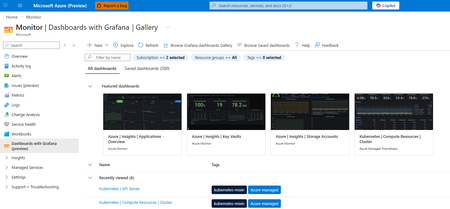
Continuing our commitment to open-source solutions, we are announcing the general availability of Azure Monitor dashboards with Grafana. This service offers a powerful solution for cloud-native monitoring and visualizing all your Azure data. Dashboards with Grafana enable you to create and edit Grafana dashboards directly in the Azure portal without additional cost and less administrative overhead compared to self-hosting Grafana or using managed Grafana services. Built-in Grafana controls and components allow you to apply a rich set of visualization panels and client-side transformations to Azure monitoring data to create custom dashboards. Start quickly with pre-built and community dashboards Dozens of pre-built Grafana dashboards for Azure Kubernetes Services, Application Insights, Storage Accounts, Cosmos DB, Azure PostgreSQL, OpenTelemetry metrics and dozens of other Azure resources are included and enabled by default. Additionally, you can import dashboards from thousands of publicly available Grafana community and open-source dashboards for the supported data sources: Prometheus, Azure Monitor (metrics, logs, traces, Azure Resource Graph), and Azure Data Explorer. Streamline monitoring with open-source compatibility and Azure enterprise capabilities Azure Monitor dashboards with Grafana are fully compatible with open-source Grafana dashboards and are portable across any Grafana instances regardless of where they are hosted. Furthermore, dashboards are native Azure resources supporting Azure RBAC to assign permissions, and automation via ARM and Bicep templates. Import, edit and create dashboards in 30+ Azure regions Choose from any language in the Azure Portal for your Grafana user interface Manage dashboard content as part of the ARM resource Automatically generate ARM templates to automate deployment and manage dashboards Take advantage of Grafana Explore and New Dashboards Leverage Grafana Explore to quickly create ad-hoc queries without modifying dashboards and add queries and visualizations to new or existing dashboards New out of the box dashboards for additional Azure resources: Additional Azure Kubernetes Service support including AKS Automatic and AKS Arc connected clusters Azure Container Apps monitoring dashboards Microsoft Foundry monitoring dashboards Azure Monitor Application Insights dashboards OpenTelemetry metrics Microsoft Agent Framework High Performance Computing dashboards with dedicated GPU monitoring When to step up to Azure Managed Grafana? If you store your telemetry data in Azure, Dashboards with Grafana in the Azure portal is a great way to get started with Grafana. If you have additional 3rd-party data sources, or need full enterprise capabilities in Grafana, you can choose to upgrade to Azure Managed Grafana, a fully managed hosted service for the Grafana Enterprise software. See a detailed solution comparison of Dashboards with Grafana and Azure Managed Grafana here. Get started with Azure Monitor dashboards with Grafana today.762Views3likes0Comments
Simplify Application Monitoring for AKS with Azure Monitor (Public Preview)
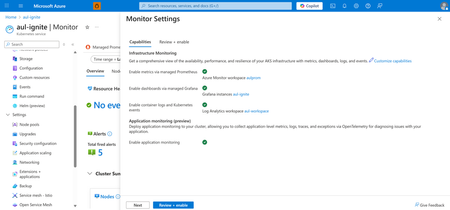
As cloud-native workloads scale, customers increasingly expect application and infrastructure observability to be unified, automated, and devops-friendly. Azure Monitor is advancing this vision with Application Monitoring for Azure Kubernetes Service (AKS). With seamless onboarding and troubleshooting experiences in the Azure Portal, now in Public Preview. This new capability brings first-class OpenTelemetry support, seamless onboarding from the AKS cluster blade, and auto-instrumentation and auto-configuration options that make it easier than ever to collect application performance data into Azure Monitor and Application Insights—without modifying application code or maintaining custom agents. Enable application monitoring for your AKS deployed apps directly from the Azure Portal in two steps: 1. Enable application monitoring for the AKS cluster in Monitor Settings 2. Choose the namespaces for application monitoring and configure namespace-wide onboarding to route application signals to an App Insights resource. Optionally, leverage Custom Resource Definitions (CRDs) for more granular enablement and per-deployment onboarding. Feature Highlights Auto-instrumentation Auto-instrument Java and NodeJS applications without code changes. This approach instruments workloads with the AzureMonitor OpenTelemetry distro and routes telemetry to Application Insights. Now available in both CLI and Azure portal for addon enablement and namespace configuration. Unified Monitoring and Troubleshooting Switch seamlessly between infrastructure and application layers with improved navigation between Container Insights and Application Insights, curated OpenTelemetry workbooks, and Azure-curated Grafana dashboards. When looking into your deployment controllers from Container Insights, you can also see the application performance metrics alongside to identify problematic requests or failures. From there, you can seamlessly transition over to your Application Insights to get a more detailed diagnosis. View your application performance next to your infrastructure metrics in Container Insights Full-Stack Dashboards with Grafana This new application monitoring capability becomes even more powerful when paired with Dashboards with Grafana for Azure Monitor. With curated, Azure-hosted Grafana dashboards built specifically for Application Insights and OpenTelemetry data, teams can extend their AKS application monitoring experience with rich, full-stack visualizations tailored for cloud-native workloads. Application monitoring dashboards available through Dashboards with Grafana These dashboards allow you to: Bring application traces, requests, dependencies, and exception data from Application Insights into Grafana dashboards optimized for app-centric troubleshooting. Correlate application performance with AKS infrastructure metrics, including node, pod, and container health, to rapidly identify cross-layer issues. Visualize OpenTelemetry signals flowing through Azure Monitor in a unified, standards-based format without needing to build dashboards from scratch. Customize and extend dashboards with your own OTel metrics or additional Application Insights dimensions for deeper app performance analytics. By combining Application Monitoring for AKS with Dashboards for Grafana, developers and operators gain a complete, end-to-end view of application behavior, making it faster and easier to diagnose issues, validate deployments, and understand the health of microservices running on AKS. Call to Action Start simplifying application observability today with Azure Monitor for AKS. Unify your metrics, logs, and traces in a single monitoring experience powered by OpenTelemetry and Azure Monitor. Explore the documentation and get started: https://learn.microsoft.com/azure/azure-monitor/app/kubernetes-codeless Learn more about our new features for OpenTelemetry in Azure Monitor: https://aka.ms/igniteotelblog335Views1like0Comments
Troubleshoot with OTLP signals in Azure Monitor (Limited Public Preview)
As organizations increasingly rely on distributed cloud-native applications, the need for comprehensive standards-based observability has never been greater. OpenTelemetry (OTel) has emerged as the industry standard for collecting and transmitting telemetry data, enabling unified monitoring across diverse platforms and services. Microsoft is among the top contributors to OpenTelemetry. Azure Monitor is expanding its support for the OTel standard with this preview, empowering developers and operations teams to seamlessly capture, analyze, and act on critical signals from their applications and infrastructure. With this limited preview (sign-up here), regardless of where your applications are running, you can channel the OpenTelemetry Protocol (OTLP) logs, metrics and traces to Azure Monitor directly. On Azure compute platforms, we have simpler collection orchestration that also unifies application and infrastructure telemetry collection with the Azure Monitor collection offerings for VM/VMSS or AKS. On Azure VMs/VMSS (or any Azure Arc supported compute), you can use the Azure Monitor Agent (AMA) that you are already using to collect infrastructure logs. On AKS, the Azure Monitor add-ons that orchestrate Container Insights and managed Prometheus, will also auto configure the collection of OTLP signals from your applications (or auto-instrument with Azure Monitor OTel Distro for supported languages). On these platforms or anywhere else, you can choose to use OpenTelemetry Collector, and channel the OTLP signals from your OTel SDK instrumented application directly to Azure Monitor cloud ingestion endpoints. OTLP metrics will be stored in Azure Monitor Workspace, a Prometheus metrics store. Logs and traces will be stored in Azure Monitor Log Analytics Workspace in an OTel semantic conventions-based schema. Application Insights experiences will light up, enabling all distributed tracing and troubleshooting experiences powered by Azure Monitor, as well as out of the box Dashboards with Grafana from the community. With this preview, we are also extending the support for auto-instrumentation of applications on AKS to .NET and Python applications and introducing OTLP metrics collection from all auto-instrumented applications (Java/Node/.NET/Python). Sign-up for the preview here: https://aka.ms/azuremonitorotelpreview.594Views1like0CommentsAzure Copilot observability agent: Intelligent Investigations Across Your Azure Stack
Cloud operations require more than reactive troubleshooting; they demand intelligent observability that scales across resources and interfaces and provides actionable insights when services are not operating as expected. We are introducing the Azure Copilot observability agent that materializes this promise. Azure Copilot observability agent extends and builds on top of what was previously known was the Azure Monitor investigation capability and introduces a slick experience, combining the power of agentic investigations with expanded capabilities for deeper visibility and faster resolution. Smarter insights, faster recovery, deeper visibility across your Azure stack. What it is The Azure Copilot observability agent works within your Azure workflows to make troubleshooting faster and smarter. It helps you: Automatically isolate problems in complex applications across the stack Detect and correlate anomalies from metrics, logs and other observability signals to help identify cause of an issue Correlate data from multiple sources for full context. Generate actionable findings and next steps described in clear human language. Preserve results for collaboration and tracking. Integrated with alerts, the Azure portal, and Azure Copilot (gated preview), the Azure Copilot observability agent ensures investigations are seamless and actionable. How it works When you get an alert and need to investigate it quickly and take action, simply click on the ‘Investigate’ button. Next, you’ll see a list of AI-generated findings to select from. Each finding suggests possible causes behind what went wrong and offers a starting point for troubleshooting. In order to get a better understanding of the summary, you can easily access the supporting Data. Behind the scenes, the observability agent uses the power of AI, Machine learning models for anomaly detection and correlation, and large language models (LLMs) to deliver these insights. Expanded intelligence for critical resources The Azure Copilot observability agent now delivers intelligent, AI-driven investigations across your Azure stack, from application services down to the underlying infrastructure. It automatically scopes from the resource to dependent components and infrastructure layers, correlating metrics, logs, and health signals for deeper visibility and faster root cause analysis. This includes support across a customer’s application services and critical Azure resources such as Virtual Machines (VM), Azure Kubernetes Service (AKS) clusters, and more, providing true full-stack coverage for complex environments. For these environments, investigations leverage multiple analysis types to deliver deeper insights: Metric analysis - detect abnormal CPU, memory, or network utilization patterns in VMs and AKS nodes, helping identify resource pressure before it impacts workloads. Recent alerts correlation - when a spike in AKS pod restarts occurs, the observability agent correlates with recent alerts to highlight cascading issues across cluster components. Resource health checks - surface health signals for VMs and AKS nodes alongside anomaly findings, enabling operators to validate whether infrastructure degradation is contributing to application instability. Resource diagnostics tools integration - findings are automatically connected to built-in Azure diagnostics for quick validation and remediation steps without leaving the investigation workflow Log-based metric analysis - for AKS and VM environments, enrich metric anomaly detection with contextual tags and data derived from logs, enabling more precise root cause identification. Extended regional availability The Azure Copilot observability agent is now supported in most Azure regions, so you can leverage its capabilities wherever your workloads run Copilot support With Copilot, you can instantly interact with your alerts in a natural way. Just ask questions like ‘Show me my critical alerts’ or ‘Which alerts need my attention?’ Copilot will surface a clear list of alerts for you. From there, simply click an alert to view its details and access the Investigate button -your gateway to the Azure Copilot observability agent. With one click, you can dive deeper, uncover potential root causes, and get actionable insights to resolve issues faster. Looking ahead The Azure Copilot observability agent is evolving toward a broader role in your observability strategy. While today it focuses on investigations, we have an exciting roadmap to make investigations even smarter and more actionable. Future releases will also expand into advanced scenarios, such as correlating issues and managing monitoring configurations without adding complexity. Start using the Azure Copilot observability agent today Available in preview, the Azure Copilot observability agent is integrated into your existing Azure workflows. Access it from alerts, the Azure portal, or Azure Copilot (gated preview) and experience a smarter way to resolve issues. Learn more: documentation for full details on capabilities and setup. We’re committed to evolving the observability agent based on your feedback. Share your thoughts via azmoninvestigation@microsoft.com or through the Give Feedback form in the experience. Don’t Miss What’s Next Ignite Session: Unlock cloud-scale observability and optimization with Azure December Webinar: Updates, best practices, and live Q&A, 👉 to secure your spot! NEW Deep Preview! In parallel with this preview, we are starting a preview of new exciting investigation capabilities, enabling deeper and more precise investigation insights. We have enabled Azure Copilot observability agent with deep agentic reasoning, also enabling dialog with the developer in natural language, enabling deep, interactive investigation of the issues. Click here to sign up for preview.826Views0likes0CommentsIntroducing the enhanced query diagnostics in Azure Log Analytics
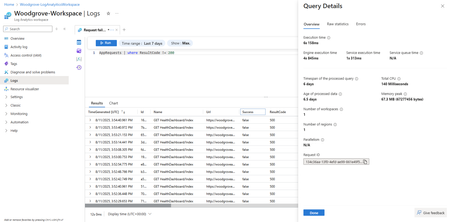
We’re excited to introduce a set of new capabilities that simplify query diagnostics and troubleshooting in Azure Log Analytics. With this new experience, users can now easily resolve query issues that may surface using the suggested recommendations, have a deeper visibility into query execution statistics and utilize those to optimize query performances. What’s new? Improved query notification experience Concise details providing a clear understanding of query status, errors, and root cause Actionable recommendations and suggestions to quickly resolve query issues Contextual linkage to the Query Details pane for advanced diagnostics The revamped 'Query Details' pane After running a query, you can navigate to the revamp Query details to explore multiple query aspects over the new tabs: Overview – A curated set of key performance indicators, including: Execution time breakdown: Engine, Log Analytics Service, and Queue times Metrics such as Total CPU, Memory peak, Response size and more Raw statistics – Complete execution details, referenced workspaces, and technical metadata Errors – Raw error payloads for precise and advanced debugging With these enhancements, query troubleshooting is made easier - All within the familiar Azure Log Analytics experience over the Azure Portal. Learn more: Optimize log queries in Azure Monitor - Azure Monitor | Microsoft Learn573Views1like0Comments