adhardening
9 TopicsActive Directory Hardening Series - Part 4 – Enforcing AES for Kerberos
Disabling Kerberos RC4 is a top priority for many organizations today but identifying devices that don't support AES has been very challenging. In this post I explain that a very helpful clue has been hiding in plain sight.146KViews31likes48CommentsActive Directory Hardening Series - Part 8 – Disabling NTLM
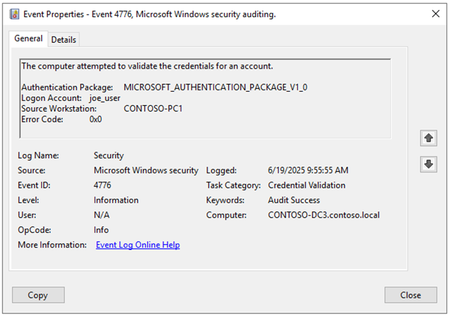
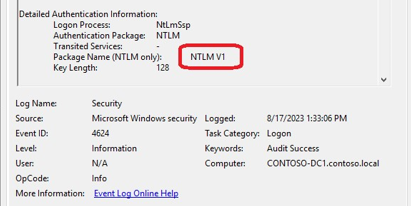
Hi All. Jerry Devore back again to continue talking about hardening Active Directory. This time I want to discuss disabling NTLM or more likely how to minimize its use in a domain until all dependencies have been removed. Technically it has been possible to block NTLM since Windows Server 2008 R2 but implementing those policies has proven to be too daunting for most organizations. However, in recent years there has been a renewed effort to sunset NTLM given the inherit vulnerabilities not to mention the regularly used exploits that take advantage of those weaknesses. If you are expecting to find an "easy button" in this article I will save you time by saying this is not going to be easy. However, I hope to provide a framework you can follow to get the process started. Baselining Business theorist Peter Drucker is credited with saying "You can't manage what you can't measure". That sentiment is a perfect way to frame up this effort. Since it was introduced, Active Directory's primary and preferred authentication protocol has been Kerberos, but NTLM has always been ready to step in and help if Kerberos fails. While most understand that concept, I find many don't realize just how much NTLM fallback is really occurring with their domains, devices and applications. A logical first step in the effort is to establish a baseline of the daily volume of NTLM authentications occurring in a domain. A simple way to do that would be to leverage 4776 events from domain controller security logs. Assuming you are auditing for Account Logon\Credential Validation, each time an NTLM authentication is forwarded to a domain controller for validation, a 4776 event will be logged which will capture the name of the authenticating account along with the client (source workstation) of the authentication request. Unfortunately, it does not capture the name of the device where the account was logging on. On the device where the logon occurred a 4624 event will be logged. Those events can be very helpful because they capture the authenticating user, the client device (Workstation Name) and the device that was accessed. As a bonus it will also tell you the version of NTLM that was negotiated. Another way to understand the volume of NTLM authentications is to leverage Performance Monitor. The counter Security System-Wide Statistics \ NTLM Authentications will reflect both NTLM credential validations performed along with direct NTLM authenticated connections to the domain controller. Regardless of how you record the volume, reporting daily totals via a dashboard will allow you and your management to track the progress of your efforts. If you are going to implement such a dashboard, I recommend you also represent Kerberos authentications and highlight the percentage of authentications using NTLM versus the number of Kerberos service tickets issued. Given service tickets by default have a maximum lifetime of 10 hours, it will not be an apples-to-apples comparison but seeing the shift will help confirm you are moving in the right direction. Enabling Auditing While the 4776 and 4624 events provide a good start, they really provide no information regarding the process that is using NTLM. To get that level of detail we need to up our auditing game using the following policy settings located in Computer Configuration\Policies\Windows Settings\Security Settings\Local Policies\Security Options. Setting Name Recommended Setting Registry setting Network security: Restrict NTLM: Audit Incoming NTLM Traffic Enable auditing for domain accounts Computer\HKEY_LOCAL_MACHINE\SYSTEM\CurrentControlSet\Control\Lsa\MSV1_0\auditreceivingntlmtraffic Network security: Restrict NTLM: Outgoing NTLM traffic to remote servers Audit all Computer\HKEY_LOCAL_MACHINE\SYSTEM\CurrentControlSet\Control\Lsa\MSV1_0\restrictsendingntlmtraffic Network security: Restrict NTLM: Audit NTLM authentication in this domain Enable all (Domain Controllers Only) Computer\HKEY_LOCAL_MACHINE\SYSTEM\CurrentControlSet\Services\Netlogon\Parameters\auditntlmindomain Once that auditing is configured the following events will be logged to Applications and Services Logs\ Microsoft \ Windows \ NTLM \ Operational. In reviewing the table keep in mind: Client refers to the device that originated the authentication. It does not reflect the OS or its role in the domain. Server refers to the devices being authenticated to. It does not reflect the OS or its role in the domain. Event (ID) Logged On Trigger Condition Block Event ID 8001 – NTLM client blocked audit: Audit outgoing NTLM authentication traffic that would be blocked. Client machine (or any Windows host acting as an NTLM client) – e.g. a user’s workstation or a server initiating an NTLM connection to another system will log this event locally Any outgoing NTLM authentication from the device Once blocking has been enforced a 4001 event will be logged instead of 8001 8002 – NTLM server blocked audit: Audit Incoming NTLM Traffic that would be blocked. Any Windows Device including Domain Controllers Incoming NTLM authentication that does not require a domain controller for credential validation (e.g. local accounts and loopback authentication) Once blocking has been enforced a 4002 event will be logged instead of 8002 8003 – NTLM server blocked in the domain audit: Audit NTLM authentication in this domain. Domain member server (any non-DC server in the AD domain that is hosting a resource). Incoming NTLM authentication using a domain account which would require a domain controller to validate Once blocking has been enforced a 4003 event will be logged instead of 8003 8004 – Domain Controller Blocked Audit: Audit NTLM authentication to this domain controller. Domain Controller NTLM Credential validation request from a domain member over secure channel Once blocking has been enforced a 4004 event will be logged instead of 8004 8005 – Domain Controller Blocked Audit: Audit NTLM authentication to this domain controller Domain Controller NTLM Credential validation due to an NTLM authentication directly to the domain controller (e.g. Type 3 logon to the DC) Once blocking has been enforced a 4005 event will be logged instead of 8005 8006 – Domain Controller Blocked Audit: Audit NTLM authentication to this domain controller Domain Controller NTLM Credential validation request from a trusted domain over secure channel Once blocking has been enforced a 4006 event will be logged instead of 8006 Now that we know what to look for let’s test it out. Here is an example where Joe_User on CONTOSO-PC1 used Edge to connect to IIS on CONTOSO-FS2 using NTLM. Event 8001 on CONTOSO-PC1 captured: The target server of the authentication (HTTP/contoso-fs2.contoso.local) The name of the process used for the authentication (msedge.exe) The name of identity for the authentication. (joe_user) Event 8003 on CONTOSO-F2 captured: The identity of authenticating account (joe_user) The name of the client (CONTOSO-PC1) The name of the process that was accessed (w3wp.exe) Event 8004 on CONTOSO-DC3 captured: The name of the authenticating account (joe_user) Name of the client device (CONTOSO-PC1) The name of the server being authenticated to (Secure channel name – CONTOSO-FS2) But wait there is more! Microsoft developers have been busy working on new features to make it more feasible to audit NTLM and restrict NTLM. One such feature is the new enhanced audit events which captures much richer detail related to NTLM use. Here are some examples of the goodness that will soon be available on Windows 11 24H2 and Server 2025. Event 4020 on the clients contains all the same information as the 8001 events but it also captures the reason NTLM was selected along with other useful information like the NTLM version, Service Principal Name and the negotiation flags. Event 4022 logged on the server being accessed captured more details than 8002 / 8003 events such as the SPN being accessed and the NTLM version negotiated Event 4032 logged on the domain controller is a game changer because it finally provides a way to detect the version of NTLM negotiated using only the domain controller log. Previously it was necessary to collect the 4624 events from all domain joined devices in order to detect NTLMv1 use. In addition to these examples there are a few other new events related to detecting NTLM authentications to a domain controller and cross domain authentication using NTLM. There currently are no plans to backport this auditing to early operating systems. If you want to begin evaluating the events you can sign up for the Windows Insider program. Is your head spinning from all the event IDs mentioned so far? To help keep them straight here is a table that provides a summary of the different options for hunting down NTLM use. Event ID Pros Cons 4776 Credential Validation Only requires log collection from domain controllers Can be used to baseline the amount of NTLM authentication in a domain Can be used to identify accounts that are "NTLM top talkers" Only provides the client (workstation field) and the authenticating user name. The event does not capture the resource being accessed 4624 An account successfully logged on Captures authenticating user, client name and the server that was accessed Also captures the version of NTLM that was negotiated Requires event collection from all domain joined devices that are hosting resources Does not provide information about the process or application that is using NTLM 8001-8006 An account used NTLM for either inbound or outbound authentication Captures authenticating user, client name, server name and the name of processes using NTLM Can be used to identify accounts and devices that have no dependencies on either outbound or inbound NTLM authentication Requires events collection from all domain joined devices for a comprehensive understanding of NTLM use in a domain However, collecting only the domain controller events (8004) will capture the authenticating user, client name and the server name for event domain authentication 4001-4006 NTLM authentication was blocked Captures when NTLM has been blocked so you can be aware of an unintended impact Requires events collection from all domain joined devices for a comprehensive understanding of NTLM authentications being blocked 4020,4022,4030,4032 An account used NTLM for either inbound or outbound authentication Captures very detailed information about NTLM authentications including process name, negotiated flags and the reason NTLM fallback occurred Will only be supported on 24H2 / 2025 and higher Requires events collection from all domain joined devices for a comprehensive understanding of NTLM use in a domain 4021,4023,4031,4033 NTLM authentication was blocked Contains more detailed information than the 4001-4006 when NTLM is blocked Requires events collection from all domain joined devices for a comprehensive understanding of NTLM authentications being blocked Remediation Now that we know where NTLM is being used we can start to investigate why it is being selected over Kerberos. Performing that analysis involves attributing the failures to one of the following categories. 1. Domain Controller Connectivity Authenticating with Kerberos requires the client to acquire a service ticket directly from a domain controller in the resource’s domain. In contrast NTLM only requires the client to have connectivity to the resource since credential validation is handled by the resource (secure channel path back to the user’s domain). Such failures are more common in multi-domain environments with network segmentation or when an application is hosted by another trust organization. Currently KDC Proxy is the only native solution to help with such line of sight issues but it’s list of supported applications is pretty limited. A similar feature named IAKerb is currently in development which will allow the resource server to act as a proxy and enable the client to acquire service tickets without direct connectivity to the resource domain controller. Unlike KDC Proxy, IAKerb will not be application dependent. 2. Local Accounts Accessing a resource using a local account is rarely a good idea but sometimes it is necessary (e.g. workgroup scenarios). Local account authentications have been limited to using NTLM but that will change when a feature named LocalKDC becomes available. LocalKDC will allow member servers to emulate a domain controller and begin supporting Kerberos for local accounts. Like IAKerb, LocalKDC is not ready for primetime, but you can find components of it starting to show up in Windows Server 2025. 3. Service Principal Name (SPN) issues Kerberos Service Tickets are requested by specifying a Service Principal Name in the TSG-REQ. In response the KDC will determine which account has that SPN then uses the account’s credential (AES key or NTLM hash depending on msds-SupportEncryptionTypes attribute) to encrypt the ticket. Service Ticket requests can fail if: There are two accounts with the same SPN set (not unique) The SPN is not set on any account in the domain The client is connecting the resource by IP address instead of a DNS name Since 2008 setspn has had the ability to prevent setting duplicate SPN which helps but setspn is not the only way a SPN can be set. The good news is that you can easily determine if your domain has any duplicate SPNs by running setspn -x. If any are discovered, you simply need to determine which account to remove the SPN from. Identifying missing SPNs is not as easy but they can be detected using 4769 events when ticket request failures occur. However, there is a catch. Given the volume of SPN related issues can be very high, such errors are not logged unless the domain controller has the Kerberos event logging setting LogLevel set to 1. Like other verbose logging, use caution when enabling it and when you are done with your assessment you will likely want to turn it back off. On the bright side, enabling and disabling is effective immediately and does not require a reboot. The same diagnostic logging setting can be used on the client side to capture the failure in its System log. The event 3 logged on clients can be used to identify Kerberos failures beyond bad SPNs. I would be remiss if I did not point out that a common reason for a missing SPN is load balancer VIP names and other uses of alias names. If the account used for the loaded balanced solution is unique per target server, Kerberos is not going to be a supportable option. By default, Windows will not attempt Kerberos if an IP address was used to access the resource. As a result, 4769 events are not a dependable way to detect NTLM fallback due to IP address use. The best solution to audit NTLM fallback due to IP address use the new 4020 events previously mentioned which are only supported on Windows 11 24H2 and Server 2025. It is worth pointing out that Windows 10 / Server 2016 (and newer) supports configuring the TryIPSPN registry setting to override the default behavior of not requesting a service ticket for a SPN that uses an IP. Of course, in order for such a request to be successful you would need to define the IP address as SPN on the account for the resource. 4. Application is configured for NTLM Telemetry data indicates that slightly more than half of all NTLM use is the result of application configuration. In some cases it possible to reconfigure the application to use Negotiate which will result in Kerberos being selected over NTLM. In other cases, the application is simply hardcoded to use NTLM which is going to require vendor / developer assistance to remediate. This would be a good time to mention a few ways Windows natively defaults to NTLM which are: RPC Endpoint Mapper – Back in the Windows 95 days there was a concern that that unauthenticated calls related to RPC Endpoint Mapper (EPM) may be exploitable. As result the policy settings Enable RPC Endpoint Mapper Client Authentication and Restrict Unauthenticated RPC clients (Administrative Templates\System\Remote Procedure Call) were introduced which forces RPC EPM to authenticate with NTLM. Nearly 30 years later the feared RPC mapper exploit never came to fruition, but many hardening baselines (e.g. CIS / STIG) still recommend enabling both settings. As result there is a good chance an auditor is going to ding you for not enabling a policy that forces the use of NTLM. If that happens, please explain to the auditor that disabling these settings does not allow RPC services to be accessed anonymously because each RPC service has its own security descriptor to restrict access. Loopback authentication -This occurs when the system account connects to itself for various services. To be clear, this type of connection never touches the network and often defaults to NTLM. If you are auditing for inbound NTLM for all accounts (Network security: Restrict NTLM: Audit Incoming NTLM Traffic) these local connections can trigger 8001 events with the calling identity being the computer account or System. If you configure the policy to block NTLM (NTLM server blocked: Incoming NTLM traffic to servers that are blocked), a 4002 event will be logged instead. Configuring blocking for outbound NTLM does not appear impact loopback authentications. If you configure the inbound policy to block all accounts and start to log 4002 events like this one, there is a good chance it is due to loopback authentication for RPC EPM. Disabling the RPC policies mentioned above prevents the inbound blocking policy from impacting those connections. MS-CHAPv2 – When a solution leverages CHAPv2 (RADIUS, 802.11x, NPS, etc) NTLM is not used in the traditional sense, but the password is hashed and used for a challenge/response credential validation with the domain controller. If the domain controller has been configured to block NTLM the MS-CHAPv2 authentication will be rejected (response error 0xc0000418) and a 4004 event will be logged on the domain controller. Because MS-CHAPv2 is not a straight up NTLM authentication, disabling NTLM on the client will not break MS-CHAPv2. However, enabling Credential Guard or adding the user to Protected Users Group will given the weak credential is no longer available. If you are still using MS-CHAPv2 look for an alternative like EAP-TLS then flip your wall calendar forward to 2026. Print Spooler connections making bad SPN requests when using Named Pipes – This issue, referred to as a Print Nightmare Artifact, can result in NTLM fallback when the Kerberos AS-REQ for krbtgt/NT Authority fails. The preferred solution is to configure the Print Spooler to use RPC over TCP via the administrative template settings: o Printers\Configure RPC connection settings o Printers\Configure RPC listener settings These settings were added to the Windows Security Baseline starting with Windows 11 22H2, but are supported on patched versions of Windows 10/11 and Windows Server 2016 or later. If RPC over Named Pipes is required, it may be necessary to configure HKEY_LOCAL_MACHINE\SOFTWARE\Policies\Microsoft\Windows NT\Printers\RPC\RpcNamedPipeAuthentication = 0x2 as explained in this Directory Services blog post. Performance Monitor remote connections – Ryan Ries recently wrote about this issue on his personal blog site. In it he explains Perfmon has an issue with formulating a valid SPN when making remote connections. The good news is that his post explains a workaround to trick it into requesting a valid SPN. Domain Based DFS Namespace Referral for non-domain joined and 3 rd party devices – When accessing a domain based DFS share the client must first contact a domain controller in order to be redirected to a “root” server. Given that no object has a SPN for CIFS/CONTOSO.LOCAL it is not possible to request a service ticket for \\contoso.local\Data. While you may see a domain joined Windows client perform a TSG-REQ for CIFS/CONTOSO.LOCAL, it will immediately fall back and request a CIFS ticket for a domain controller (CIFS/CONTOSO-DC1.CONTOSO.LOCAL). Doing that will allow DFS referrals to continue to work even when the domain controller no longer supports NTLM. Non domain joined Windows and 3 rd party devices accessing domain based DFS namespace do not know how to fall back when the TSG-REQ fails. As a result, disabling NTLM on the domain controllers will most likely prevent them from accessing domain based DFS shares. Let the blocking begin Once you have remediated NTLM dependencies you can begin implementing blocking policies where it is not required. Like the auditing policies, the blocking settings are located in Computer Configuration\Policies\Windows Settings\Security Settings\Local Policies\Security Options. Setting Name Possible Settings Recommended Setting Comment Network security: Restrict NTLM: Incoming NTLM traffic Allow All Deny all domain accounts Deny all accounts Deny all domain account Denying all accounts will impact local loopback connections for the System account Network security: Restrict NTLM: Outgoing NTLM traffic to remote servers Audit all Allow all Deny all Deny all Enable only for devices that are not dependent on outbound NTLM Network security: Restrict NTLM: NTLM authentication in this domain Disable Deny for domain accounts to domain servers Deny for domain accounts Deny for domain servers Deny all This setting will be used at the end of the project to block NTLM across the domain. Only applied to Domain Controllers Deny for domain accounts to domain servers – Blocks NTLM pass-through authentication for domain accounts from this domain to servers in the same domain. It does not affect inter-domain authentications unless those involve this domain’s accounts and servers. Deny for domain accounts – Blocks NTLM pass-through authentication for any account from this domain, regardless of the target (including trusted domains). Deny for domain servers – Blocks NTLM pass-through authentication to any server in this domain, regardless of whether the authenticating account is from this domain or a trusted domain. Deny all – Blocks all NTLM pass-through authentication Network security: Restrict NTLM: Add remote server exceptions for NTLM authentication Allows you to create an exception list of remote servers to which client devices are allowed to use NTLM authentication if the Network security: Restrict NTLM: Outgoing NTLM traffic to remote servers policy setting is configured. Network security: Restrict NTLM: Add server exceptions in this domain Allows you to create an exception list of servers in this domain to which client devices are allowed to use NTLM pass-through authentication if any of the deny options are set in the Network Security: Restrict NTLM: NTLM authentication in this domain policy setting. As you can see from the table it is possible to block NTLM on the client side (Outgoing NTLM traffic), on the server side (Incoming NTLM traffic) or on the domain controller (NTLM authentication in this domain). I suggest you break up the effort into small projects rather than taking a big bang approach. Some ways to get started are: Place privileged administrator accounts in Protected User Group. Members of that group are prevented from using NTLM and don’t even retain the hash in LSASS. This is a great way to target accounts separate from device configuration. Just remember that service accounts and devices should not be added to Protected Users. I recommend adding admin accounts to the group incrementally so you can find and address any compatibility issues before entire is impacted. Prioritize Tier 0 devices such as PAW and management servers when implementing outbound and inbound restrictions for NTLM. Given only highly privileged accounts should be logging on to them, it makes sense to address them first. Attempt to block NTLM on new application servers before they go into production. Taking that step might help catch configuration issues before it is too late. Target a small pilot group of endpoint devices for the first pass. Narrowing your focus in that manner will make it more manageable to collect and assess the data. Additionally, it will minimize user interruption as you implement the restrictions. Consider enabling NTLM blocking on the SMB client if all outbound NTLM cannot be blocked but is not required for SMB connections. That restriction is currently only supported on Server 2025 and Windows 11 24H2 (and higher). To be clear this restriction is only supported by the SMB client and not on the SMB server service. There is a good chance you will discover a few key applications that are unable to support Kerberos. Rather than allow them to sideline your project you can simply give them an exception until a long-term solution can be implemented. Such exceptions can be created for outbound authentications and for the domain wide restrictions. As the documentation explains, it is possible to utilize a wildcard when defining the exclusions. Additionally, it is possible to use the SPN format when editing the policy as shown in this example. As you begin blocking NTLM you will want to start collecting the blocking events mentioned in the table above so you are aware of functionality that may be impacted. In addition to those events, make sure your support teams are aware of the following clues that NTLM is being blocked Failed SMB connections will often return the error “Network path not found” or “The operation being requested was not performed because the user has not been authenticated” Failed RPC connection will trigger the error “The RPC server is unavailable” (RPC_S_SERVER_UNAVAILABLE) Netlogon.log (if enabled) will log 0xC0000418 which corresponds to STATUS_INVALID_DOMAIN_STATE The user is repeatedly prompted for credentials 4625 events (failed logon) with SubStatus 0xC0000418 Hopefully this information will help jumpstart your project to begin disabling NTLM. Here are a few final Do’s and Don’ts to keep in mind as you start your journey. Don’t think you are powerless to address NTLM in your environment. While total NTLM disablement in a domain is extremely challenging, there are plenty of incremental gains that will provide tangible benefits and get the process started. Do invest in developing dashboards in your SIEM to make it possible to analyze NTLM authentications at scale. If your SIEM does not have capacity to collect the NTLM events you could use Azure Log Analytics or Windows Event Forwarding (WEF) to get the data into a central location. Do prioritize Tier 0 devices and accounts when assessing and blocking NTLM. Don’t give up on Protected Users Group if you encounter issues. The benefits for privileged accounts are considerable so to take the time to resolve problems rather than remove your admins from the group. Do understand that processes running in Kernel Mode will be logged as the System account (PID 4). The two processes you are most likely to encounter are SMB (client and server) and HTTP.sys. For more information on SMB see this blog post by Ned. When it comes to HTTP.sys keep in mind that we are not just talking about IIS but other services that leverages HTTP.sys like WinRM, Active Directory Web Services (ADWS), SQL Server Reporting Services (SSRS) and Remote Desktop Gateway. To be clear these solutions do not require NTLM but if they fall back you will have to dig deeper to determine why the logs show the System account performing NTLM. Do upgrade your domain controllers to Server 2025. Aside from the new NTLM events, 2025 has other enhanced auditing to help with enforcing SMB Signing and LDAP Channel Binding. Those are all on top of the other new domain controller features introduced with 2025. Don’t avoid deploying 2025 domain controllers because you haven’t enforced NTLMv2 yet. While Server 2025 no longer supports requesting NTLMv1, 2025 domain controllers will still accept NTLMv1 when performing credential validation (same functionality as lmcompatibility =4). For more information on the new enhanced NTLMv1 auditing on 2025 domain controllers check out this article. Do be aware that vulnerability scanners sometime attempt to authenticate with NTLM just to probe how the device will respond. It is not necessary an indication that NTLM is required for an authenticated scan. Don’t prioritize disabling NTLM over addressing NTLMv1, SMBv1 and enforcing SMB signing. You should address those more exploitable items first. Do know that authentication over external trusts generally defaults to NTLM. If you have any external trusts, you should consider changing them to forest trusts before imposing restriction on cross domain NTLM authentication. Do send a message to ntlm@microsoft.com if you have worked through the remediations in this article and still have devices or application that are using NTLM. We might not be able to give you individual assistance, but it will help identify items that still need work. Do check out these other resources Windows IT Pro Blog - The evolution of Windows authentication YouTube Video - The Evolution of Windows Authentication Ask the Directory Services Team blog - NTLM Blocking and You: Application Analysis and Auditing Methodologies in Windows 7 Microsoft Learn - Auditing and restricting NTLM usage guide Storage at Microsoft blog - SMB NTLM blocking now supported in Windows Insider Overview of NTLM auditing enhancements in Windows 11, version 24H2 and Windows Server 2025 RunAsRadio - The End of NTLM with Steve Syfuhs (provides a deep dive on IAKerb and LocalKDC) Advancing Windows security: Disabling NTLM by default - Windows IT Pro BlogDecrypting the Selection of Supported Kerberos Encryption Types
In response to the current threat landscape, security departments are beginning to require AES for Kerberos ticket encryption. In this blog we will break down the compatibility considerations so you can move forward in your domain with confidence.610KViews27likes58CommentsActive Directory Hardening Series - Part 7 – Implementing Least Privilege
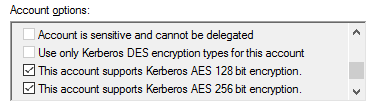
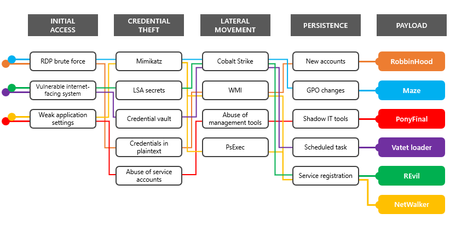
Hi all! Jerry here again to continue the AD hardening series. This time I want to address the concept of least privilege as it applies to Active Directory. Of the three principles of Zero Trust (verify explicitly, least privilege, assume breach), least privilege is the most achievable using native Active Directory features. It is also a concept that was well established before Windows domains were introduced. Some organizations did a great a great job minimizing administrative access from day one but sadly they were the exception. While we are far more disciplined when granting privileged access today, most domains have a couple decades of accumulated delegated access that needs to be reviewed and revoked where no longer justified. Today I want to walk you through areas typically reviewed during an assessment of Active Directory security as it relates to minimizing privilege. Why hyper focus on privileged accounts? When I deliver workshops on credential hygiene, I generally lead off with this diagram to illustrate that the initial access methods can be a moving target, but the pursuit of credentials is a constant. If we can prevent attackers from acquiring useful credentials we can disrupt the rest of their playbook. Accomplishing that involves minimizing the number of privileged accounts, restricting where privileged accounts are exposed (Tier model), deploying Privileged Admin workstations (PAWs), and implementing the protocol hardening settings covered in this series. Service Accounts Overprivileged service accounts are far too common. While governance for service accounts has greatly improved in recent years, many organizations still have opportunities to remediate service accounts provisioned before we became disciplined in this area. Placing service accounts in the Domain Admins group is a textbook example of not adhering to the principle of least privilege. This was sometimes done out of convenience and other times due to a lack of clarity regarding the application's true requirements. Once an application has been deployed, it can be very difficult to "right-size" the privileges of the service account, but it is a necessary step. For the record, organizations who have held the line on minimal service account privileges have found ways to scan for vulnerabilities, deploy security updates, and perform Active Directory backups without placing accounts in Domain Admins or equivalent groups. Before you agree to purchase such products clarify the requirements for the solution. Vendors are far more likely to figure out how to adhere to least privilege before the sale than after. As you remediate overprivileged service accounts, prioritize accounts with a Service Principal Name (SPN) since they are vulnerable to Kerberoasting attacks. Any such account that cannot have its privileges reduced should be enabled for AES and given a strong password. Local admin on devices In the early days of Active Directory, withholding local administrative rights on endpoints was often done to prevent configuration drift and the installation of unlicensed software. Today the position is primarily driven by security risks. Without local administrative privilege it is very difficult for malicious software to be accidentally installed. Additionally, interacting with LSASS memory where credentials are stored requires the Debug programs right which by default is limited to Administrators. Withholding local administrative rights on endpoints is another area where we are seeing considerable improvement. However, there are often exceptions for select users like developers and system administrators. While it is great to see this progress, any exception should be thoroughly scrutinized to determine if it is necessary or just convenient. For context, consider these scenarios User Profile Configuration Scenario Blast Radius Developer A standard desktop is used for writing code along with productivity work. The developer is a member of administrators group in order to install tools The developer visits a compromised website and unknowingly installs software (drive-by download) that gives the attacker command and control (C2) of the device. The attacker uses the access to manipulate the code project. The project containing the malicious binaries is deployed to production servers given the attacker access to sensitive data and credentials Help desk The help desktop group has been added to the Administrators group of all endpoints A user creates a support case after opening a link in a phishing email. The help desktop agent makes an RDP connect to the device which exposes the support credential to the adversary The attacker uses the credential to move laterally across all endpoints in the domain User Right Assignments The User Rights Assignment (URA) settings in the Default Domain Controllers Policy are often bloated with delegations that have accumulated since the first domain controller was promoted. A quick review will often reveal privileges granted to defunct accounts, the IUSR account and other difficult to justify delegations. To understand Microsoft's best practice for URAs on Domain Controller I suggest you download the Windows Server 2022 Security Baseline and review the group policy report named MSFT Windows Server 2022 - Domain Controller. Better yet you could use Policy Analyzer to compare your environment to the baseline as explained in this article. The need to review and harden URAs is not limited to Domain Controllers. The same review should be performed for all domain-joined devices. Group Policy Delegations Once adversaries acquire privileged credentials, they often use native tools to accomplish their objectives. Manipulation of existing GPOs is a perfect example of such "Living off the Land" techniques. This threat can be compounded by delegating GPO management rights across various support groups. While decentralized GPO management can make operational tasks seem more efficient, it comes at a price. The group named Group Policy Creator Owners has contributed to this issue. Members of the group can create new GPOs for which they will have full control. The net result is distributed GPO management permissions which can give an attacker many options to deliver a payload via a GPO. As a result, the use of Group Policy Creator Owners is no longer recommended. Instead, operational processes to minimize policy delegations should be implemented. Historically the Advanced Group Policy Management tool was Microsoft's solution for centralized GPO management but extended support for AGPM will end in April of 2026. In light of that you may want to consider a 3rd party tool that offers similar features. If you are on the fence about addressing this issue, I recommend you consider that by default any authenticated user can read the ACLs of GPOs. An attacker can use any victims account to quickly determine which accounts can modify a GPO. From there they just need to acquire one of those desktop, helpdesk or similar support accounts. Organizational Unit Delegations OU delegations are another area where privileges seem to accumulate over time. Sometimes these delegations have been well thought out and implemented. Other times they are the result of a less structured approach. Below are some examples of elevated permissions that can be useful to an adversary. Reset passwords Join devices to the domain Read confidential attributes Create and modify groups Create and modify user accounts Create and modify computer accounts Link GPOs Replicate Directory Changes - All (permission require to replicate password from a domain controller used by DCSync) The Delegation of Control Wizard in Active Directory Users and Computers makes it very easy to grant new permissions on OUs. However, it has no functionality to easily identify what has been custom delegated or revoke the granted rights. A free tool to review what has been delegated is AD ACL Scanner which was written by Robin Granberg. AD ACL Scanner has many features that I think you will find useful as you review your domain and look for ways to remediate permissions applied to OUs. Privileged Groups Minimizing membership of privileged groups is a fundamental step in adhering to the principle of least privilege. While removing unnecessary accounts from these groups might be perceived as a lack of trust in individuals and taken personally, it's important to consider the broader context of credential theft and lateral movement. The issue is more about trust in devices rather than individuals. Those who understand these risks are usually quick to relinquish any level of privilege that exceeds what is necessary for their roles. As you work on reducing your privileged group memberships, it's helpful to communicate that the primary concern is device trust. When planning the membership of privileged groups, it is beneficial to distinguish between service administration and data administration. Service administration, as the name suggests, involves operational support for Active Directory Domain Services, including tasks such as promoting and supporting domain controllers, managing replication, and updating the schema. These tasks necessitate membership in the built-in privileged groups and cannot be delegated more granularly. On the other hand, data administration encompasses the management of users, groups, password resets, GPOs, and attributes, all of which can be delegated without relying on the built-in groups. The table below lists the built-in groups that represent the most privilege which should be given priority when performing a Tier 0 access review. Group Name Recommendation Account Operators Account Operators group does not map well to how organizations operate. More appropriate delegations can be implemented to more granularly control the management of objects. As a result, the recommendation is to leave this group empty. Administrators Given Administrators grants full control to the Domain Controller’s OS, membership should be limited to accounts responsible for operational support of directory services. Due to nesting, there is no need for members of Domain Admins to also be direct members of Administrators. Backup Operators To minimize privilege, leave Backup Operators empty and create a special purpose service account that has the URAs of Backup up files and directory and Restore files and directories. Domain Admins Membership should be limited to resources responsible for operational support of domain controllers. Enterprise Admin In multi domain forests this group is nested in the Administrators group of every domain. When a centralized team is responsible for all domains, this group is often used to minimize the number of accounts an Active Directory administrator would need to possess. However, it is important to consider the blast radius if such an account was compromised. Group Policy Creator Owners As previously mentioned, this group allows members to create new GPOs for which they will have full control. Given that will result in decentralized management of GPOs, it is recommended to leave this group empty and pursue other solutions to minimize accounts that can manage group policies. Print Operators Domain Controllers should never host print queues or have the print spooler service enabled. In addition to having no members, print operators should have the URAs Load and unload devices drivers and Allow log on locally removed from the Default Domain Controller policy. Remote Desktop Users Remote desktop privileges should be limited to accounts used to perform service administration of Active Directory. Additionally, network connectivity to the RDP service (3389) on domain controllers should be restricted using firewall rules or IPsec. Schema Admins Schema modification is a very rare event. This group should remain empty and only populated when actively extending the schema. Server Operators Members of this group can perform junior admin tasks on domain controllers including start and stop service, manage network shares and manage backups. This group does not align with how Active Directory service administration is performed today. As a result it should remain empty and the URAs Allow logon locally, Back up files and directories, Change the system time, Force shutdown from a remote system, Restore files and directories and Shut down the system should be removed from it in the Default Domain Controllers policy. The following groups are considered to be equivalent to Tier 0 given they could be used in some manner to elevate privileges. Membership of these groups should also be minimized and monitored for modification. Group Name Recommendation Incoming Forest Trust Builders Group Members of the Incoming Forest Trust Builders group can create incoming, one-way trusts to this domain. By default, this group has no members. Key Admins Group This group is granted write access to msDS-KeyCredentialLink attribute of user and computer objects in a domain which is used to store public keys related to Passwordless authentication such as Windows Hello for Business. The group should be limited to accounts that administer WHFB keys and similar Passwordless key pair credentials Enterprise Key Admins Group This group is the same as Key Admins except the scope is the forest instead of just a domain. Network Configuration Operators Group This domain group grants the ability to manage TCP/IP and other network configuration settings on domain controllers. It could be used to enable a AiTM attack by manipulating name resolution and IP routing. Read-only Domain Controllers Group This group should only contain actual RODCs assuming you must have RODCs. Additionally, some third-party products are designed to be in the group in or order to emulate a RODC. The security risks introduced by such solutions should be fully evaluated. Replicator Group This is a legacy group that previously was used for Sysvol replication. By default, it has no members and should remain empty. Storage Replica Administrators Group This group can manage storage replicas on domain controllers. By default, this group has no members and should remain empty. System Managed Accounts Group This is a new group introduced with Server 2016. By default, the only member is the default account. This group should not have its membership manually modified. Certificate Service DCOM Access Group Members of this group can connect to certification authorities in the enterprise and by default is empty. Typically, only PKI administrators need to be added as members of this group. Allowed RODC Password Replication Group Members in this group can have their passwords replicated to all read-only domain controllers in the domain. Privileged accounts should not be members. Cert Publishers Group Members of this group are permitted to publish certificates to the directory. Membership should be limited to the accounts intended to be used for publishing certificates such as PKI administrators. Additionally, the computer accounts of the Enterprise CAs need to be in this group. Cloneable Domain Controllers Group Membership of this group should be limited to domain controllers you wish to clone. Cryptographic Operators Group Members are authorized to perform cryptographic operations. Membership should be limited to accounts that require this right for Certificate Services administration Distributed COM Users Group Members are allowed to launch, activate and use Distributed COM objects on domain controllers. DnsUpdateProxy Group This group is intended to be used by DHCP servers which are registering DNS records on behalf of DHCP clients. The group should only include those DHCP servers. DnsAdmins Group Group used to delegate management of DNS zones. This group was not introduced until Server 2003. Prior to then it was common to add an account to Domain Admins in order to manage DNS (e.g. Infrastructure team). Zones created before Windows 2003 need to have the ACLs updated to delegate access to this group. Domain Controllers Group This group has the extended right Replicating Directory Changes All. Members can replicate account passwords using that permission. Membership should be limited to domain controllers. Enterprise Read-only Domain Controllers Group This group has the extended right Replicating Directory Changes and should be limited to RODCs. Given RODCs are not without risks careful consideration should be given before deploying RODCs. Kerberos Delegation Kerberos Delegation enables an account or device to acquire Kerberos service tickets on behalf of another account. It is often referred to as Kerberos Double Hop authentication and is regularly explained using a diagram like this one. An overly simplified explanation of the flow is: The IIS server has been "trusted for delegation". The user connects to the IIS server using a Kerberos service ticket previously acquired and also provides a copy of its TGT. An application running on the IIS server needs to connect to the SQL server as the user, so it presents the user's TGT to the domain controller and requests a service ticket for the SQL server. The IIS server presents the service ticket to the SQL server and is authenticated in the context of the user's account. In a perfect world this architecture works great. The user has a SSO experience and is only able to access the data it has been granted to it in the SQL database. However, in the real-world web servers sometimes get compromised, which could allow an adversary to acquire service tickets to other SPN enabled resources by leveraging the users shared TGT. To mitigate that risk, we want to "constrain" or limit the delegation to select target SPNs. This screenshot shows an example of constrained delegation which limits CONTOSO-WEB1 delegation to the SQL SPN set on the CONTOSO-DB1 computer account. If CONTOSO-WEB1 was to be compromised, the attacker could still acquire service tickets to the CONTOSO-DB1 but not for any other targets. When Active Directory was first introduced an account was either trusted (unconstrained) or not trusted for delegation. Constrained delegation was introduced with Windows 2003 and Server 2012 R2 took things a step further with Resource-based constrained delegation (RBCD) which allows the trust to be configured on the backside service rather than the frontend service. Additionally, RBCD was designed to work over trust relationships. The following PowerShell queries can be used to locate any computer or user object that has been trusted for unconstrained delegation. If you discover any such objects they should be reconfigured for constrained delegation. Get-ADComputer -Filter {TrustedForDelegation -eq $true -and primarygroupid -eq 515} -Properties trustedfordelegation, serviceprincipalname, description Get-ADUser -Filter {TrustedForDelegation -eq $true} -Properties TrustedForDelegation, ServicePrincipalName, Description In most cases, privileged accounts used to administer Active Directory do not access applications that require Kerberos delegation. As result, least privilege can be imposed on those accounts by configuring the option Account is sensitive and cannot be delegated. Once enabled the account is incapable of sharing a copy of its TGT with a device that has been trusted for delegation (uncontained or constrained). Exchange Permissions When Exchange was first integrated with Active Directory (Exchange 2000), a shared permission model was the only option which gave Exchange servers and Exchange administrators the ability to create and manage objects along with elevated permissions on the domain controllers. At the time, Domain and Exchange administration was often performed by the same team so there was little concern about violating the principle of least privilege. Eventually those responsibilities began to diverge to sperate teams and the concept of split permissions was introduced with Exchange 2010 SP1. Organizations that will continue to have on-prem Exchange servers are encouraged to implement Active Directory split permissions which will change how some operational processes are performed such as creating mailbox users or managing distribution groups. RBAC split permissions is another alternative but it does not provide the same level of privilege reduction for the Exchange objects (Exchange Trusted Subsystem, Exchange Servers group, Organization Management) For a time, it was necessary to keep an Exchange server on-prem to perform recipient management even after all mailboxes were moved to Exchange Online. That is no longer a requirement due to a new set of Exchange Management Tools. Organizations who adopt the new tools can remove any remaining Exchange servers and then use the CleanupActiveDirectoryEMT.ps1 script to remove the Exchange related permissions from Active Directory. If the Exchange shared permission cannot be removed, the Exchange Servers and Exchange administrators should be considered Tier 0 rather than Tier 1. Credential Vaulting In discussions about revamping privileged access, the concept of credential vaulting often comes up. Credential vaults can be a key component of a privileged account management solution, but how and where you use your account while it's checked out still matters. Consider this scenario: 3:00 AM - CONTOSO-FS1 (file server) is compromised. Malicious software is installed that will ship off newly acquired credentials to the adversary. 9:00 AM - Joe Admin checks out his Domain Admin account from the vault which required multi-factor authentication (MFA). 11:00 AM - Joe Admin logs on to CONTOSO-FS1 to manage some file share permissions. 11:01 AM - The adversary receives a message containing the NTLM hash of Joe's account. 11:30 AM - The adversary uses Joe's account to perform a DCSync attack, replicating the credentials of all domain user objects (including service accounts). 5:00 PM - Joe finishes his workday and his account goes back in the vault. 11:00 PM - Joe calls it a day and sleeps well knowing his Domain Admin account is in the vault. 8:00 AM - Joe returns to the office and is informed of a total compromise of Active Directory. 8:30 AM - Joe cancels any vacation plans he had for the next three months. Hopefully my example illustrates that imposing security tiers for accounts and devices is still relevant, even with a credential vaulting solution. A few observations from it are: Proper hardening and monitoring via an Endpoint Detection and Response (EDR) product would have helped mitigate the initial compromise of CONTOSO-FS1. Joe exposed a Tier 0 account to perform a Tier 1 function. He should have used a separate account to manage Tier 1 devices. MFA secured the check-out of the account but provided no protection against passing the hash once the account was used. If Joe had been a member of the Protected Users group, authentication would have been limited to Kerberos, and the NTLM hash would not have been in the LSASS memory of CONTOSO-FS1. Adversaries pursue multiple forms of persistence to ensure they retain access. By the time Joe's account was checked back in the adversary already acquired alternative privileged credentials. User Account Control User Account Control is a security feature which can minimize the privilege used to launch processes. It is based on a split token model where privileged users begin their session with a full and low privilege token as depicted in the diagram below. Processes are launched default using the low privilege token but can switch to the high privilege token with consent. To be clear, this is a defense in the depth measure that is not intended displace other security controls or credential hygiene practices. Microsoft baselines recommend the following UAC setting be implemented on domain controller. Setting name Domain Controller Recommendation (Server 2022 baseline) Default Setting Admin Approval Mode for the Built-in Administrator account Enabled Not defined Allow UIAccess applications to prompt for elevation without using the secure desktop Disabled Behavior of the elevation prompt for administrators in Admin Approval Mode Prompt for consent on the secure desktop Prompt for consent for non-Windows binaries (default) Behavior of the elevation prompt for standard users Automatically deny elevation requests Prompt for credentials Detect application installations and prompt for elevation Enabled Enabled Only elevate executables that are signed and validated Disabled Only elevate UIAccess applications that are installed in secure locations Enabled Enabled Run all administrators in Admin Approval Mode Enabled Enabled Switch to the secure desktop when prompting for elevation Enabled Virtualize File And Registry Write Failures To Per User Locations Enabled Enabled Hopefully this information will help you review your Active Directory environment and identify opportunities to reduce excessive privileges. As you plan your remediations just keep these Do's and Don'ts in mind. Do utilize tools to help you perform a deep scan of your environment. Microsoft Unified customers have access to the On-Demand Active Directory Security Assessment as part of their contract. If that is not an option, there are some nice 3rd party assessment tools that are either free or low cost. Don't be afraid to take action once you discover issues. Test the changes in an isolated environment to raise your comfort level. Once you have documented your rollback plan move forward with securing your environment. Do document the changes you make. That will help with troubleshooting if something does not go as planned. Do proactively monitor for changes in privileged access. Do mark privileged accounts and groups as "sensitive" if you are using Defender for Identity (MDI). MDI is already aware of which built in privilege groups are sensitive but you will need to let it know about any user, group or device that you have delegated privilege. Don’t forget to review the Security privileged access guidance published by Microsoft.Active Directory Hardening Series - Part 5 – Enforcing LDAP Channel Binding
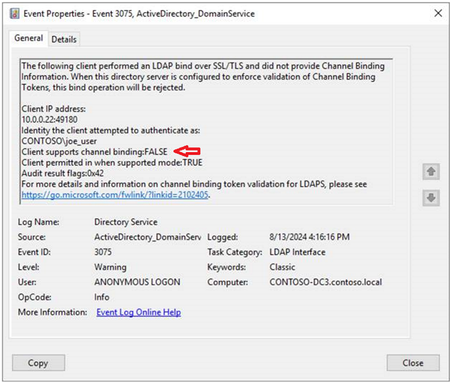
Channel Binding is a LDAP hardening setting that is often misunderstood and as a result is often not enabled. In this post I explain why it is important along with how to leverage some event logging to identify devices which might be impacted.Active Directory Hardening Series - Part 6 – Enforcing SMB Signing
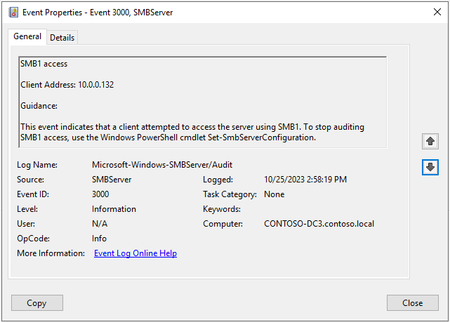
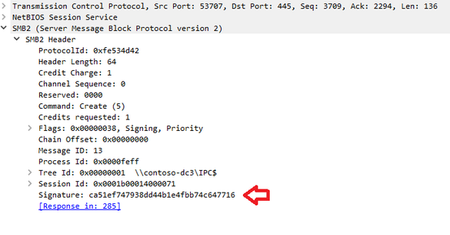
Hi everyone! Jerry Devore here to continue the Active Directory Hardening series by addressing SMB signing. Many of my Microsoft colleagues have already written some great content on SMB signing so I was not going to cover it. However, it is just too critical a security control to skip and a series on Active Directory hardening would not be complete without it. As usual, my goal is to help clear up any confusion so you can enable this setting if you have not already.