Forum Discussion

Basic ssh works but X11 does not
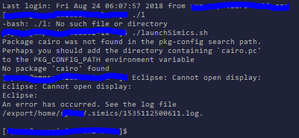


I understand and I agree that should not keep you from connecting. Not sure this is relevant or not but when I was using X11 on some Solaris boxes I could not use X11 until I added the Trusted IPs into one of the config files via ssh console. I believe many hits on a search will say to use Xhost + all but that opens it everyone. even though you are not seeing any security key related errors you might want to check the trusted key pairs. Oh I also forgot to mention that the screen sessions might be numbered differently on the 2 clients. I do remember that being confusing when I was setting up the remote display. Some places it has to be :0 and others it had to be :1.

Can you point me to some sources that would explain what displays mean and how to set them in windows 10? Not sure I'm following you on what that means/entails and could use a bit of an explanation.
Thanks ~S
- Forrest_HAug 24, 2018Iron Contributor
It has been at least 6 years since I had to do this so I am rusty. It took me a few days to get it to work back then.
When you establish a ssh session at the basic level, a terminal console is established as you have seen. BUT if you want to use a graphics mode then you have to use X11 or Cygwin and the DISPLAY variable is used to re-direct the data stream back to the remote. Cygwin may have made some assumptions and been set correctly when you installed it.
I used PuTTY and XMing on Windows 7. But to get it all to work I had to set DISPLAY variable in the connection or config to get it to work.
These should help;
http://x.cygwin.com/docs/ug/using-remote-apps.html
https://aruljohn.com/info/x11forwarding/
https://unix.stackexchange.com/questions/138936/why-wont-x11-display-work-through-ssh-login
and
https://askubuntu.com/questions/432255/what-is-the-display-environment-variable