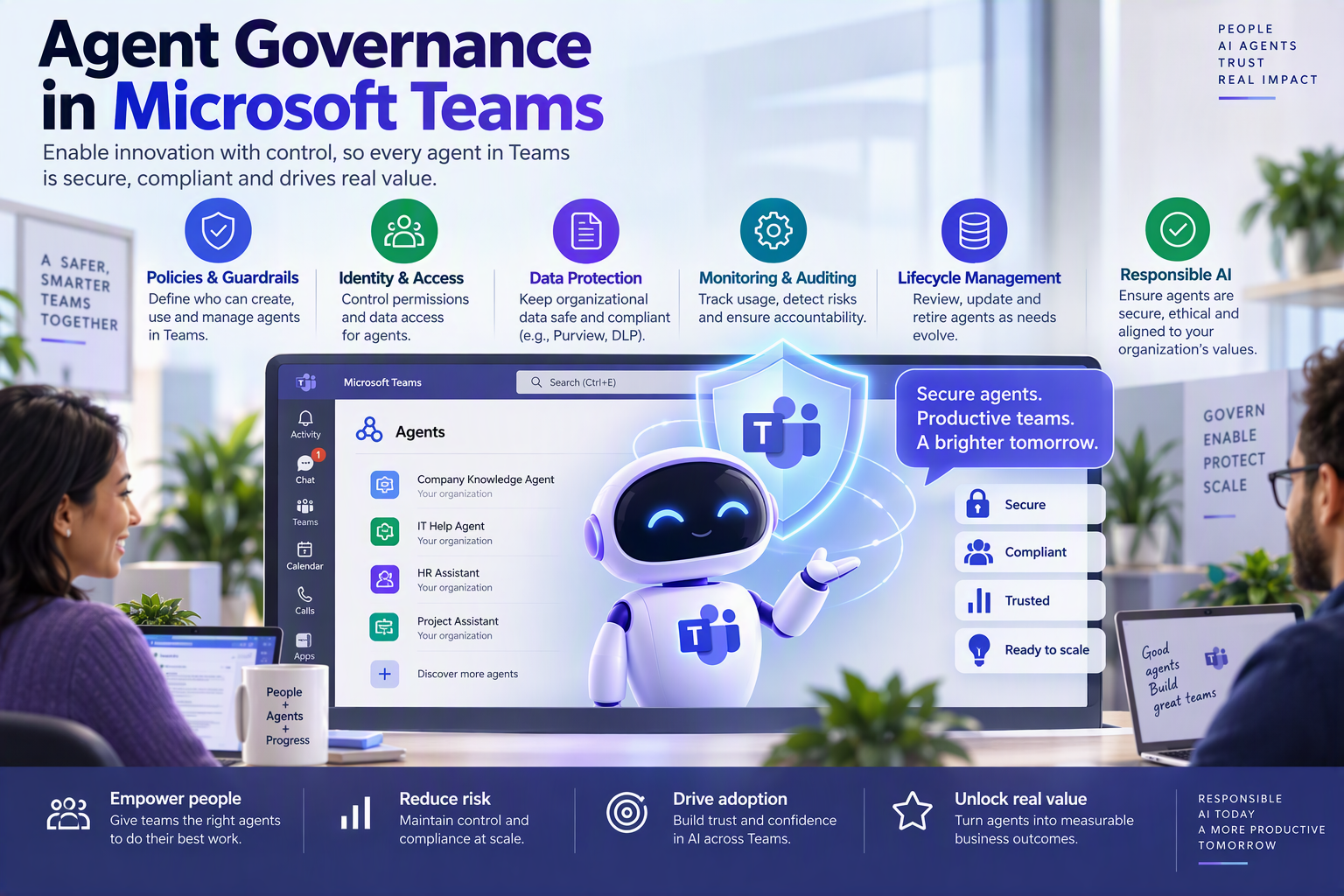
Microsoft has separated governance for built-in Teams agents from the controls traditionally used for Microsoft Teams apps. Following MC1387573 and Microsoft 365 Roadmap ID 564766, administrators now manage built-in experiences such as Channel Agent, Facilitator, and Copilot Agent in Teams from the Teams admin center > Teams apps > Built-in Teams agents. The org-wide Microsoft apps setting no longer governs those agents. Instead, administrators can set each built-in agent’s availability to Everyone, Specific users or groups, or No one. Existing explicit agent-level configurations are preserved, but an agent that previously inherited availability only from the org-wide Microsoft apps setting may now be allowed by default for licensed users. That transition behavior is the most important part of this change.
Current status and scope
MC1387573 was published on June 11, 2026, updated on July 20, and last modified on July 21. It was scheduled General Availability for Worldwide and GCC from early June through mid-July 2026. The latest publicly indexed Roadmap ID 564766 snapshot was updated on July 28, 2026, lists the feature as Launched, and identifies July 2026 as the GA date. The Message Center item subsequently expired on August 25, but the management experience is documented in the current Teams administrator's guidance.
The announcement identifies the administrative platform as the Teams admin center. Roadmap metadata lists Android, desktop, iOS, and Mac because the governed agents surface inside the Teams experiences on those clients; administrators do not perform the governance task from those clients. The published rollout scope explicitly names Worldwide and GCC. It does not explicitly document this rollout for GCC High, DoD, 21Vianet, or air-gapped environments, so administrators should not extrapolate availability to those environments without checking their own service documentation and tenant UI.
Microsoft Learn and Support content has continued to evolve: the central Teams app-management article now documents the dedicated Built-in Teams agents page, while current Facilitator and Copilot documentation provides more detailed licensing, data access, and compliance behavior.
The table reflects the current Message Center copy, roadmap snapshot, and Microsoft Learn description.
What changed administratively
Before MC1387573
Traditional Teams app governance combines several concepts: app status, org-wide defaults, and user-level availability. With app-centric management, administrators assign an app or Copilot agent to Everyone, Specific users or groups, or No one. Org-wide settings continue to provide defaults for conventional apps that administrators have not explicitly managed.
Built-in Teams agents are different. They are embedded in the core Teams experiences rather than installed from the Teams store. Before the dedicated governance experience, a built-in agent without an explicit assignment could derive its effective availability from the org-wide Microsoft apps setting.
After MC1387573
Built-in agents now have their own management page. Administrators select one or more agents, choose Edit availability, and make them available to everyone, selected users or groups, or no one. The general Microsoft apps toggle on the Manage apps page expressly states that it no longer controls built-in Teams agents.
The following diagram illustrates the control-plane change.
Figure 1: MC1387573 separates built-in Teams agent governance from org-wide Microsoft app settings and places availability control for Channel Agent, Facilitator, and Copilot Agent in Teams in a dedicated Teams admin center surface.
The transition rule that can surprise administrators
There are two materially different cases:
- The administrator explicitly configured the agent.
Existing agent-level configurations will remain unchanged after rollout - The administrator never configured the agent individually and relied on the org-wide Microsoft apps setting.
Prior to this change, the organization was not managing the built-in Teams agent directly. Instead, the agent's availability was inherited from the tenant's broader Microsoft app settings. With the introduction of dedicated built-in agent governance in Teams, those org-wide app settings no longer apply to built-in agents, and administrators now manage them through the new Built-in Teams Agents experience.
This does not mean that a blocked explicit assignment was intentionally overwritten. It means that inherited default behavior and explicit configuration are treated differently. Administrators who used an org-wide block as a broad AI-governance control should therefore review the new page rather than infer current state from the old setting.
Microsoft preserved access for users who were already using these built-in agents. With the new governance model, administrators no longer install these agents as apps. Instead, they control whether the agents are available to specific users or groups, making availability the primary management mechanism.
The built-in agents named in MC1387573
Channel Agent
Channel Agent creates an agent associated with a Teams channel and can draw on channel conversations, channel SharePoint files, and relevant meeting information. Microsoft currently documents Channel Agent as public preview, requiring an eligible Microsoft 365 base license, a Teams license, a Microsoft Copilot license, Teams Public Preview participation, and enabled Loop experiences.
Its data access behavior is permission aware. Microsoft states that it does not use file content to answer a user who lacks access to that file. If the requesting user has access but other conversation members may not, the agent asks the requester to review and approve sharing the response. Its documented knowledge sources include channel messages, channel SharePoint files, meetings, transcripts, and optional web search; files shared outside the channel’s SharePoint location are not automatically part of its knowledge.
Channel Agent deserves a focused data governance review because its knowledge can span channel and meeting contexts. Microsoft’s documentation notes that meeting summaries accepted into the agent’s knowledge may subsequently help channel members who did not attend the meeting, and that generated responses do not automatically inherit all controls of a source sensitivity label. These are documented product behaviors not evidence of unauthorized access, but they reinforce the need to validate channel membership, SharePoint permissions, meeting practices, information barriers, and sensitivity-label design during a pilot.
Facilitator
Facilitator is a collaborative meeting agent. Unlike an individual Copilot interaction, prompts Facilitator and its responses are visible within the meeting conversation. Generally available capabilities include collaborative notes, meeting Q&A, timeline markers, document creation, Teams Rooms integration, and mobile capture; Planner task tracking remains documented as preview. Facilitator requires eligible Microsoft 365 and Teams licensing plus a Microsoft Copilot license, with Loop experiences enabled for meeting notes.
Facilitator meeting data is documented as being stored in the initiating user’s OneDrive Meetings folder and treated as meeting transcript data. Microsoft also documents several control limitations: generated notes do not automatically inherit the meeting sensitivity label, meeting prevent copy and watermark settings do not apply to Facilitator responses or notes, and retention labels are not supported for cloud attachments in AI-generated notes. Administrators should incorporate these documented differences into meeting classification and records management guidance.
Microsoft Purview supports auditing, data classification, communication compliance, eDiscovery, retention, DSPM, and Compliance Manager scenarios for Facilitator interactions. Prompts and responses can be captured in the unified audit log; Microsoft recommends Teams chats as the retention location for Facilitator interactions and OneDrive accounts for generated notes. The same documentation currently marks direct sensitivity-label and DLP support for Facilitator AI interactions as unsupported, so administrators should not assume that every Purview control applies uniformly to every artifact.
Copilot Agent in Teams group chats
While the Message Center announcement refers to Copilot Agent in Teams, current Microsoft documentation describes this experience as Copilot in Teams group chats (Teams Mode). Currently available in Public Preview, the experience allows licensed users to add Copilot to group chats and interact with it using @mentions to ask questions, locate relevant information, summarize discussions, and create collaborative content directly within the conversation.
Copilot grounds its responses in the content available to the person asking the question. If all chat participants have access to the same source content, or if the response is based on web data, the response can be displayed directly in the chat. If Copilot uses information not available to every participant, the requester receives a private preview and must approve or reject broader sharing. Users without a Copilot license cannot prompt the agent but can read responses that licensed users share in the conversation.
More broadly, Microsoft states that Copilot surfaces organizational data based on the requesting user’s existing permissions, and that prompts, responses, and Microsoft Graph data are not used to train foundation models. Copilot interaction history is stored and can be managed through Microsoft Purview retention and eDiscovery capabilities.
Governance and security implications
- Treat availability and data access as separate control planes
Making an agent available lets an eligible user invoke it; it does not independently grant the user access to files, chats, or meetings. Microsoft Copilot and Channel Agent document permission-aware grounding. Nevertheless, existing oversharing remains relevant because AI can make information that a user is already authorized to access easier to discover and synthesize. Microsoft’s broader secure-governed Copilot guidance therefore emphasizes remediating oversharing, establishing guardrails, and meeting regulatory requirements.
- Use explicit assignments for controlled adoption
For a tenant that has not completed risk review, assigning an agent to a pilot group is clearer and more auditable than relying on a broad default. The built-in agent page supports selected user or group availability, and Teams app-centric management describes per app assignments to align access with organizational compliance and risk posture. Microsoft does not currently provide a definitive list of built-in agents directly within the Built-in Teams Agents administration page. As a result, administrators should refer to current product documentation and announcements for the latest information on supported agents.
- Apply administrative least privilege
Microsoft documents the Teams Administrator role as capable of managing Teams apps and recommends using the lowest privileged role available rather than Global Administrator. Teams Reader can support read-only validation where its documented limitations are acceptable. Separate operational duties configuration, compliance investigation, and helpdesk support rather than granting standing Global Administrator access to everyone involved in the rollout.
- Fit the page into a broader AI governance model
The dedicated page is an availability control, not a complete AI-governance program. A defensible enterprise model also addresses licensing, data permissions, source hygiene, sharing boundaries, retention, eDiscovery, audit, user training, acceptable use, and lifecycle review. Microsoft’s secure-governed foundation organizes this work around remediating oversharing, setting guardrails, and meeting regulatory obligations, while the Microsoft 365 admin center provides broader agent settings and lifecycle controls for other agent classes.
- Monitor cautiously and document telemetry gaps
Teams app usage reports provide per app usage, active user, active team, platform, and last used information for supported Teams apps. Purview provides more specific interaction level auditing for experiences such as Facilitator and Copilot. Microsoft’s public documentation does not explicitly guarantee that every built-in agent action appears in the generic Teams app usage report, so test each named agent and document which report, audit event, or DSPM view provides evidence in your tenant.
Administrator readiness checklist
Immediate configuration review
- Open Teams admin center > Teams apps > Built-in Teams agents.
- Record every listed agent and its current availability.
- Compare current state with your approved AI and Teams-app governance baseline.
- Identify agents that were never explicitly configured and were previously assumed to be controlled by the org-wide Microsoft apps setting.
- For any unapproved agent, set availability to No one or a defined pilot audience rather than relying on inheritance.
Pilot and validation
- Create a representative pilot covering channel owners, meeting organizers, information workers, administrators, security/compliance teams, and support staff.
- Validate licensing and prerequisites for each agent separately.
- Test positive and negative access scenarios: permitted file, inaccessible file, mixed permission group chat, external participant, labeled content, retained meeting, and agent removal.
- Verify the actual propagation interval before announcing availability; Teams documentation notes that app availability changes can take time to appear.
- Capture screenshots or exports of approved settings as change evidence.
Security and compliance
- Review SharePoint and Teams permissions for pilot workspaces.
- Confirm how sensitivity labels, encryption, DLP, information barriers, retention, eDiscovery, and audit apply to each agent’s inputs and outputs.
- For Facilitator, distinguish meeting-chat interactions from notes stored in OneDrive.
- For Channel Agent, validate how meeting summaries become part of the channel agent’s knowledge.
- Confirm whether public web search is approved and controlled for the pilot audience.
Change management and operations
- Update runbooks that direct administrators only to Manage apps or org-wide Microsoft app settings.
- Brief the helpdesk on the difference between availability, license eligibility, preview enrollment, Loop prerequisites, and underlying data permission.
- Provide users with acceptable-use guidance and remind them to verify generated content.
- Define an escalation path for unexpected availability, missing controls, or inconsistent documentation.
- Establish a recurring owner, review cadence, and evidence-retention process for built-in agent decisions.
Documentation ambiguity administrators should know about
At publication, Microsoft's official Teams management guidance pointed administrators to the dedicated Built-in Teams agents page for configuration and management tasks. However, some product specific setup articles for Channel Agent and Facilitator still show workflows through Teams apps > Manage apps and refer to app policies or app-centric management. Administrators should treat the newer dedicated management article and the actual UI in their tenant as the operational source of truth, while using product-specific pages for licensing, prerequisites, data behavior, and feature limitations.
There is also no single public page that exhaustively enumerates every current and future built-in Teams agent, every agent-specific setting, or the telemetry coverage for every action. MC1387573 names Channel Agent, Facilitator, and Copilot Agent in Teams, while the Learn article refers more generally to “other built-in agents.” Maintain a tenant inventory and validate newly appearing entries rather than treating the three named experiences as a permanent closed list.
Takeaway
MC1387573 changes the governance boundary, not merely the Teams admin center navigation. Built-in Teams agents no longer inherit policy intent from the org-wide Microsoft apps setting. Explicit agent-level configurations survive, but default inherited agents may become allowed for licensed users. Administrators should therefore inventory the dedicated page, set explicit availability, pilot each agent according to its distinct permissions and data behavior, and connect those controls to Microsoft 365 permissions, Purview, records management, and change management processes.
|
Area |
Current documented position |
|
Administrative surface |
Teams admin center > Teams apps > Built-in Teams agents |
|
Built-in examples named |
Channel Agent, Facilitator, Copilot Agent in Teams |
|
Availability controls |
Everyone, Specific users or groups, or No one |
|
Previous org-wide Microsoft apps setting |
No longer controls built-in Teams agents |
|
Existing explicit configuration |
Preserved after transition |
|
No explicit agent-level configuration |
May become allowed for licensed users rather than inheriting the old org-wide setting |
|
Installation model |
Built into core Teams experiences; no separate app-store installation required |
|
Roadmap status |
Launched; GA July 2026 for Worldwide and GCC |
Resources and further reading
|
Manage Apps |
Manage your apps in the Microsoft Teams admin center - Microsoft Teams | Microsoft Learn |
|
App centric management |
App centric management to manage user access to Teams apps - Microsoft Teams | Microsoft Learn |
|
Set up Facilitator |
Set up Facilitator in Microsoft Teams - Microsoft Teams | Microsoft Learn |
|
Manage Facilitator | |
|
Copilot privacy |
Data, Privacy, and Security for Microsoft Copilot | Microsoft Learn |
|
Setup Channel Agents |
Set up a Channel Agent for Microsoft Teams - Microsoft Teams | Microsoft Learn |
|
FAQ’s about Agents in Teams |
Frequently asked questions about agents in Microsoft Teams | Microsoft Support |
|
How to use Microsoft Copilot In Teams group chats |
How to use Microsoft Copilot in Teams group chats | Microsoft Support |
|
Using Admin Roles |
Use Microsoft Teams administrator roles to manage Teams - Microsoft Teams | Microsoft Learn |
|
App usage report |
Microsoft Teams app usage report - Microsoft Teams | Microsoft Learn |

 Microsoft