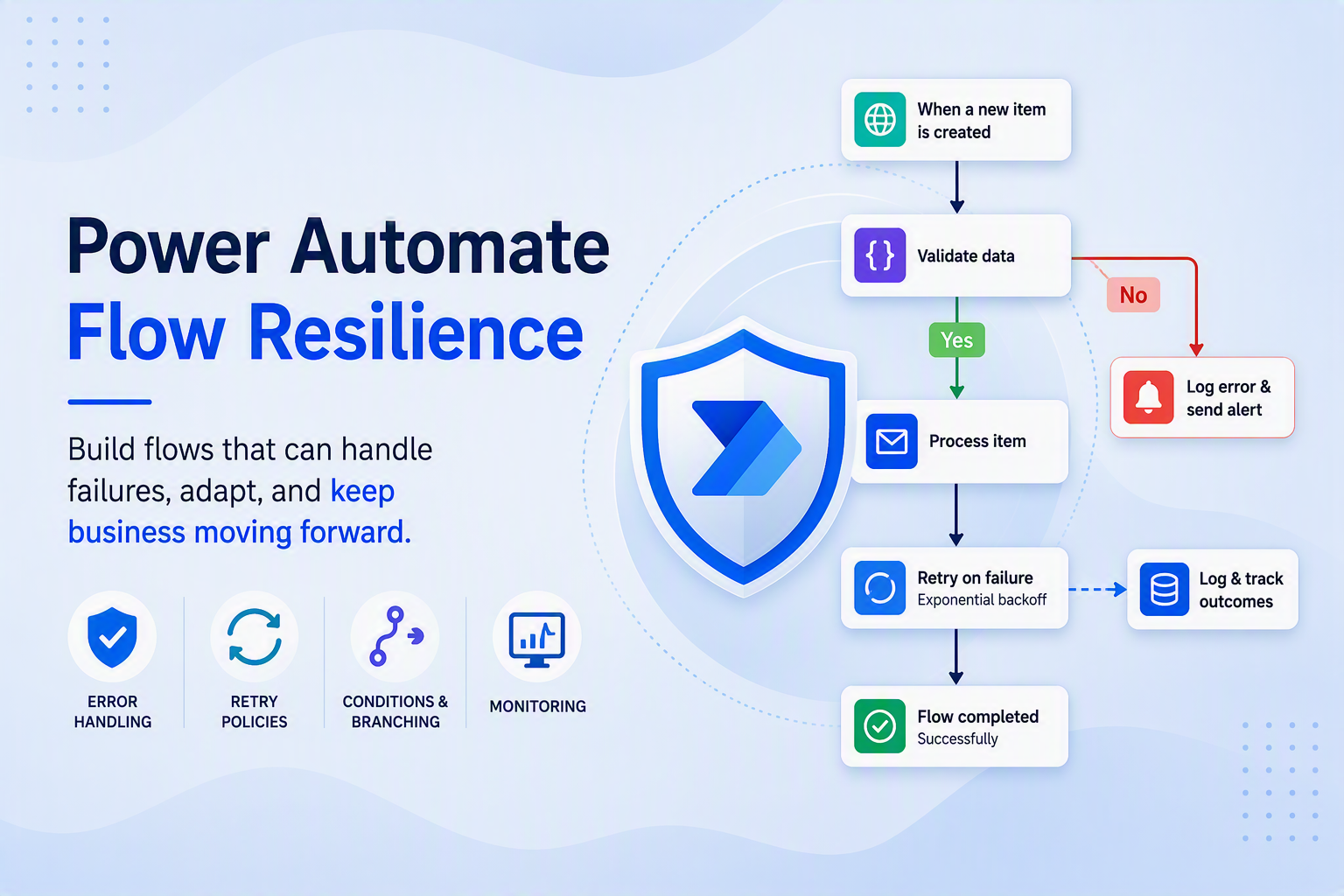
Five Flow-hardening recommendations to limit run failures and admin headaches
If you've spent any time working with Power Automate in enterprise environments, you've seen it happen. A business-critical flow fails on a Friday afternoon. The person who built it left the company six months ago. Nobody gets an alert. Nobody knows until Monday morning when someone notices the reports didn't run. By then, the blast radius is already bigger than it needed to be.
Flow failures aren't inevitable, but unplanned ones usually share the same root causes: personal account dependencies, missing error handling, hardcoded configurations, and no visibility into what's actually happening at runtime. The good news is that most of these are solvable with patterns that aren't especially complex, they just require intentionality.
This post covers 16 recommendations across 5 focus areas that I've found to be the highest-leverage investments for making Power Automate flows more resilient, performant, and easier to operate at scale. I've ordered them roughly by the impact you'll see fastest, with supporting documentation for each section for further reading and implementation guidance.
1. Credential and Connection Resilience
This is where I always start with customers, because it's the most common source of outages and also one of the easiest to fix systematically.
Migrate high-value flows to service principal ownership. Flows owned by user accounts fail when passwords change, MFA prompts fire, or the user leaves the organization. A service principal is a non-human identity that represents an application or service and doesn't have any of those human lifecycle problems. The pattern is to register an Azure AD app registration per workload domain, grant it the required API permissions, and bind the flow to it using connection references rather than a personal connection. For connectors that don't yet support service principals (SharePoint, Outlook, Teams), use a hardened service account protected with Privileged Identity Management.
Service Principal Licensing Requirements
Use connection references for all connections. Embedded personal connections break when flows are exported, imported, or the owner changes. If you're building flows inside solutions, there's no good reason not to be using connection references. Create one per connector type used in your solution and bind every flow to the reference rather than a personal connection. When you deploy through environments, you update the binding once rather than hunting through individual flows.
Use connection references in solutions
Pre-populate connection references for CI/CD
Store secrets in Azure Key Vault, not flow variables. Hardcoded API keys or tokens in flow expressions show up in run history and are a real security exposure. The Key Vault connector has a "Get secret" action you can drop at the top of any flow. Restrict access to the service principal only, and when you rotate a secret in Key Vault, the flow picks it up dynamically with no changes needed.
Azure Key Vault connector reference
Key Vault secrets with environment variables
2. Error Handling and Retry Logic
Unhandled errors in Power Automate produce silent failures. The flow shows red, maybe an email goes out if you're lucky, and whoever is on call has to play detective with limited context. Building proper failure boundaries before flows reach production is one of the highest-ROI things you can do.
Wrap every action in a Scope with "Configure run after." A Scope action groups a logical block of actions and lets you branch on "Has failed." The pattern is straightforward: wrap each logical unit (get data, send notification, write to Dataverse), add a parallel branch configured to run on failure, and in that branch log the error, send an alert, and terminate cleanly. This keeps failure handling isolated and predictable rather than having it bleed across the entire flow.
Use scopes to organize actions
Best practices for using scopes
Enable built-in retry policies on connector actions. Transient HTTP and connector errors are a fact of life. The retry policy setting on any connector action handles them automatically without custom logic. Exponential interval is generally preferable over fixed. Four retries with a PT10S interval is a reasonable starting point. One important caveat: check for idempotency before enabling retries on Dataverse writes, since a write that partially succeeded before a transient error can create duplicate records if blindly retried.
Handle transient faults (Well-Architected)
Flow limits & config (retry settings)
Use "Do until" loops with exit conditions for polling. A polling loop without bounds can run indefinitely or silently miss the exit condition it was waiting for. Set a maximum iteration count and a timeout, and make sure your exit condition is the expected success state and not just the absence of error.
Flow limits: concurrency & looping
Capture and surface error details in failure notifications. Generic failure emails like "Your flow failed" are nearly useless for triage. In the failure branch, use workflow().run.name and actions('ActionName')?['error'] expressions to pull the actual error message, and construct a direct link to the run using the environment name, flow ID, and run ID. Sending this as a Teams adaptive card with structured fields makes triage significantly faster than sifting through the admin center.
3. ALM and Environment Strategy
Environment drift is sneaky. It builds up over time through ad-hoc edits made directly in production, hardcoded values that break on promotion, and manual export/import processes that are just inconsistent enough to cause problems at the worst times.
Deploy only managed solutions to production. Unmanaged solutions in production allow anyone with access to make direct edits that bypass your ALM process. The model I recommend is straightforward: build in Dev with unmanaged solutions, export as managed for promotion, validate in Sandbox, and promote to Production through Pipelines. Use the "Block unmanaged customizations" setting in Environment security policies to enforce this at the platform level.
Solution concepts with Power Platform
Create and update custom solutions for ALM in Power Platform
Use Power Platform Pipelines for automated promotion. Manual export and import is error-prone and doesn't scale. Pipelines automate the full Dev to Sandbox to Production path, support pre-deployment validation before each promotion, and let you restrict production deployment approvals to designated owners. If you're not using Pipelines yet, this is worth the setup investment.
Overview of pipelines in Power Platform
Set up pipelines in Power Platform
Deploy pipelines as a service principal
Eliminate hardcoding with Environment Variables. Flows that reference hardcoded SharePoint site URLs, list names, or IDs break every time they're promoted to a new environment. Replace them with environment variables, set the values at the environment level rather than in the solution itself, and validate bindings as part of your pre-deployment checklist.
Environment variables for Power Platform overview
Use environment variables in Power Automate solution cloud flows
Apply DLP policies scoped per environment. Overly permissive DLP in production is a real risk for data leakage and flow instability. Classify connectors intentionally across Business, Non-Business, and Blocked. Scope policies from the top down, tenant-level first and then environment-level. Use endpoint filtering to restrict rather than wholesale block where possible, and always test DLP policy changes in Sandbox before promoting them to production.
Data loss prevention policies overview
Data policies for Managed Environments
Identify blocked Power Automate flows from data policies
4. Monitoring and Observability
If you don't have visibility into flow health, you're finding out about failures the worst possible way: from users. Most organizations have significantly less monitoring in place for Power Automate than they do for their traditional application workloads.
Enable Power Platform admin center flow analytics. This is the quickest win in the monitoring category. In the Power Platform admin center, navigate to Analytics and enable flow run history and error reporting at the environment level. From there, set up a regular cadence (weekly is a good start) to review failure rates for flows classified as business-critical. Having that baseline gives you something to measure against when you start making resilience improvements.
Best practices for monitor your flows (analytics)
Integrate with Application Insights for deeper observability. For environments running Managed Environments, you can configure the Data Export setting in the admin center to push cloud flow runs, triggers, and actions to an Azure Application Insights resource. Once data is flowing, you get full query and visualization capability for run health, custom diagnostics, and alerting. This is the right long-term destination for any organization that takes operational reliability seriously.
Overview of integration with Application Insights
Set up Application Insights with Power Automate
5. Performance and Throttling
High-volume flows that aren't tuned for throttling will eventually hit API rate limits and start failing or queuing in ways that are hard to predict. Most of the common patterns here are straightforward to address.
Apply concurrency control on trigger-heavy flows. By default, Power Automate concurrency is unbounded. A high-volume trigger can spin up thousands of parallel runs simultaneously and hit API limits quickly. Enable concurrency control on the trigger, set the degree of parallelism based on your connector's rate limits (starting between 10 and 25 is reasonable), and monitor queue depth in the Power Automate portal to tune from there.
Understand limits & avoid throttling
Flow limits: concurrency, looping, debatching
Batch SharePoint and Dataverse operations instead of looping. An "Apply to each" loop that makes an individual API call per item scales linearly in both API call count and runtime. For SharePoint, use the "Send an HTTP request to SharePoint" action with OData $batch to group reads and writes. For Dataverse, use batch actions or FetchXML to pull multiple records in a single call. As a rough target, if a loop is making more than 50 individual API calls per run, it's a good candidate for batching.
Make batch requests with the REST APIs - SharePoint
Execute batch operations by using the Web API - Dataverse
Use chunking for large file or record sets. Flows processing large payloads can hit the 100MB message size limit or simply time out. The pattern here is to split large workloads into pages using OData $top and $skip or Dataverse paging cookies, use a parent flow to orchestrate chunked child flows, and log progress state to Dataverse so the parent can resume if a chunk fails.
Handle large messages in workflows using chunking in Azure Logic Apps (applies to Power Automate)
Message size limits in Power Automate
Where to Start
If you're looking at this list and wondering where to begin, the recommended implementation order is:
- Credential and Connection Resilience first. This eliminates the most common source of outages. Migrate to service principals where supported and harden service accounts with PIM everywhere else.
- Error Handling and Retry Logic second. Low effort relative to the impact. Adding scopes, run-after branches, and retry policies is mostly configuration work, and the payoff is immediate.
- ALM and Environment Strategy third. Managed solutions in production, Pipelines for promotion, and environment variables in place of hardcoded values.
- Monitoring and Observability fourth. Structured logging and failure alerting gives you quantifiable before-and-after visibility on everything else you're doing.
- Performance and Throttling last. Address this for high-volume flows once the foundational reliability work is in place.
You don't need to implement all 16 of these at once. Even getting the first two focus areas locked down will materially reduce the failure rate for most enterprise Power Automate implementations. The goal is to build flows that run reliably, fail visibly when something goes wrong, and don't require a forensic investigation every time they do.
Start there and layer in the rest over time.
Author: Marc Lotorto Contributors: Sheldon Dsouza, Ben Kohler

 Microsoft