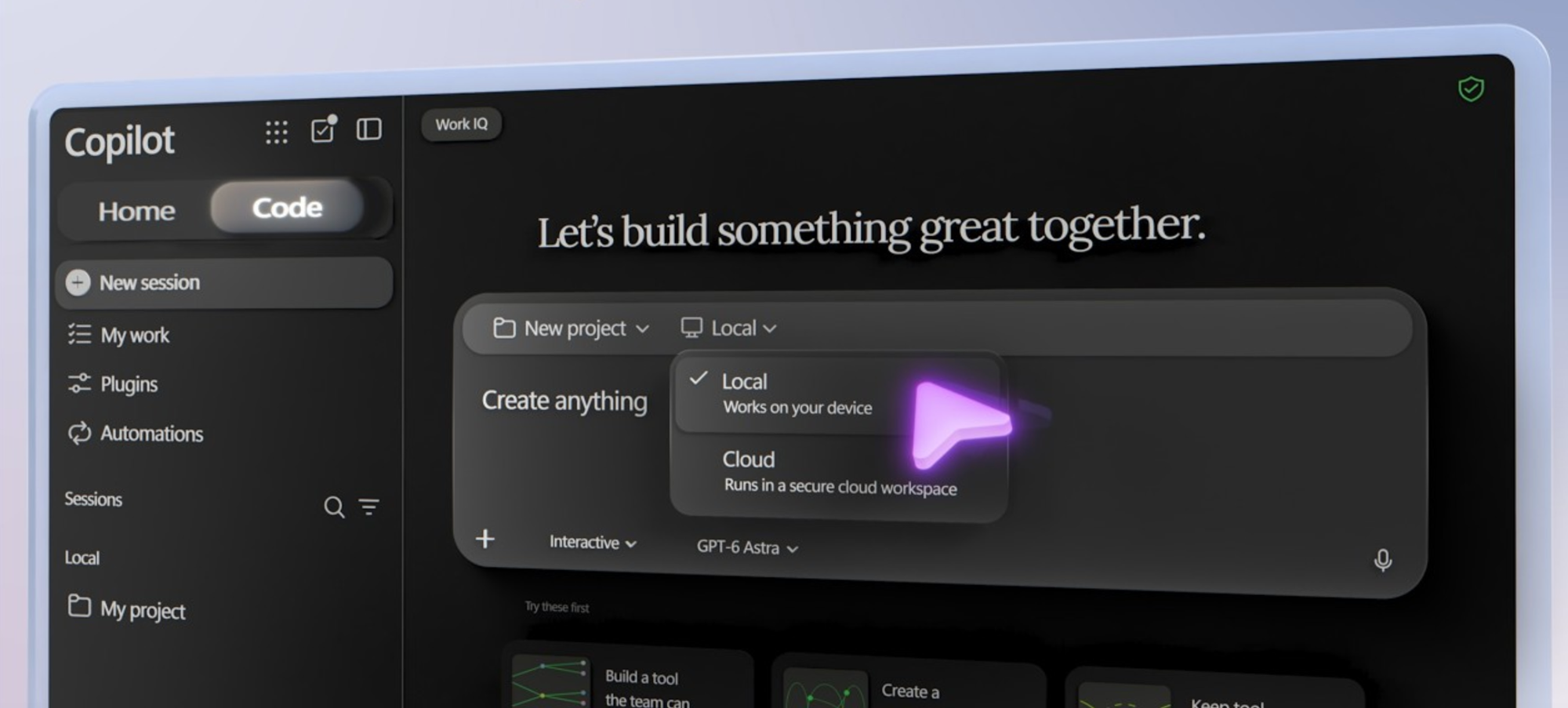
Turn your app idea into a working, interactive web app with Copilot Code.
Describe what you want in plain language, ground it in your work data with Work IQ, build what-if modeling from your own business logic, and refine it prompt by prompt.
Publish and share cloud projects that reside within your company’s Microsoft tenant boundary and respect your organization’s access and security controls. Track usage, health, and connected services, and block or delete any app from the Microsoft 365 admin center.
Anjali Muralidhar, Copilot Code Product Manager, shares how to take an idea from first prompt to a published, governed app.
Describe the app you want and Copilot Code builds it.
Point it at an Excel file in SharePoint and Work IQ grounds a working web app in your real business data. See how it works.
Slide marketing spend up.
Watch revenue uplift, map colors, and rankings recalculate live. Copilot Code builds interactive scenario models from your own business logic. Try it now.
Inventory it. Audit it. Manage it.
The Microsoft 365 admin center surfaces every Copilot Code app, its connected services, and its health. See how it works.
👥 Who it’s for:
Business analysts and team leads who need dashboards built from internal data, Microsoft 365 admins governing who builds apps and what they connect to, and developers who want to inspect AI-generated code.
⏱️ Chapters:
0:00 Build apps by describing what you want
0:57 Pick a cloud or local project and model
1:31 Ground prompts in SharePoint data with Work IQ
2:41 Preview the app and its data model
3:09 Inspect the code Copilot writes
3:36 Refine the app with follow-up prompts
4:14 Explore the finished market dashboard
4:38 Model returns with what-if sliders
5:09 Publish and share the app by link
5:32 How the Copilot Managed Runtime works
6:05 Track apps in the Microsoft 365 admin center
6:51 Block or delete apps that miss policy
7:08 License requirements and how to start
How do you build an app with Copilot Code? Anjali Muralidhar, Copilot Code Product Manager, opens Copilot Code in the Copilot desktop app, starts a new cloud project, and keeps the model on Auto. Her prompt points to the Global Markets sheet in an Excel workbook in SharePoint, describes the business problem, sets layout and color behavior by revenue thresholds, and spells out the logic behind budgeting and capacity estimates.
Copilot reasons through the instructions, builds a data model that reflects that business logic, and shows a preview. Follow-up prompts refine the app instead of rewriting it, and Files exposes the code Copilot writes for anyone who wants to inspect or edit it. The finished dashboard puts the whole portfolio on one screen, with what-if sliders that update top-line numbers, map color coding, and revenue uplift rankings as marketing investment changes.
How does sharing work? Publish the app and share it with a link. Sharing apps built using Copilot Code leverages the Copilot Managed Runtime, which provides compute as well as dedicated storage using a Git repo. Cloud projects reside within your company’s Microsoft tenant boundary and respect your organization’s access and security controls. Local projects on your managed device work within an isolated and protected boundary on your local drive, controlled by your organization’s Copilot Code policies.
How do admins govern Copilot Code apps? The Microsoft 365 admin center lists every published app in a shared inventory with usage, operational health, performance metrics, alerts, and connected services. Admins control which plugins, connectors, and GitHub integrations are allowed, and block or delete apps that miss policy. Blocking disables an app across the organization and leaves its data intact and auditable.
Copilot Code requires a Copilot license and usage-based billing enabled in your Microsoft 365 environment.
🔗 Related links:
— Check out https://aka.ms/CopilotCodeDocs
Unfamiliar with Microsoft Mechanics?
Microsoft’s Official Video Series for IT
— Subscribe https://www.youtube.com/c/MicrosoftMechanicsSeries
— Microsoft Tech Community: https://techcommunity.microsoft.com/t5/microsoft-mechanics-blog/bg-p/MicrosoftMechanicsBlog
— Podcast: https://microsoftmechanics.libsyn.com/podcast
Join us on social:
— https://twitter.com/MSFTMechanics
— https://www.linkedin.com/company/microsoft-mechanics/
— https://www.instagram.com/msftmechanics/
— https://www.tiktok.com/@msftmechanics
Video Transcript:
-Have you ever had an idea for a tool like a dashboard tracker, or even an app, but couldn’t build it yourself or find someone to build it for you? That’s where the new code experience in Microsoft Copilot can take your idea, letting you describe what you want and get to work, pulling the information specified from your work data while respecting your company policies. And it’ll build an interactive app experience, all without you needing to know how to code. In fact, today I’ll show you how it works and how you can use it to build what you want. And if you’re an admin and want an inside look, I’ll walk you through how it works along with your visibility and control options in the Microsoft 365 Admin Center.
-So let’s start with my idea. I want to build a global dashboard as a web app that my team can use to help make decisions based on internal data, like figuring out where it makes the most sense to fund marketing and manufacturing capacity. For that, I’m going to use the Copilot app on my desktop. And there’s a new option on the top left for Copilot Code. Before I get started, I have a couple of choices.
-First, I’ll start with a new project. Because I’m using the Copilot desktop app, I can choose whether the app will run in the cloud or locally on my computer. In this case, I’m going to create a cloud project and share it with my team when I’m done. Then we can all use it. And Code also lets you choose your preferred model. I’m going to keep auto, which will route to the most suitable model for the job. From there, I just need to tell Copilot what I want, so I’ll paste in my prompt. Now I’ll scroll up to explain what’s there. I start with, “Build me a global market performance web app using the global markets sheet in this workbook.”
-Then I’ve specified an Excel file in SharePoint that I want it to use, and this is powered by Work IQ. In the rest of my prompt, you’ll find a lot more specificity. The more detail you give it, the better its results will match your expectations. You can see that I’ve included a description of the business problem, what the app should look like, with instructions for the layout and color behavior I’d like to see based on revenue thresholds. I’m even requesting a slider function in the app to let users see how the level of marketing investment impacts a specific region and its return.
-For the slider to work properly using the workbook data, I’ll give it guidance on the logic we typically use to calculate our budgeting decisions and capacity estimates. And I’ll end by describing how the end dashboard should be formatted overall. With that, I’m ready to send my prompt. And as it runs, Copilot will start to reason through my instructions with everything I’ve asked it to do. This will take several minutes to run, and when it’s ready, it will show you a preview of the app to try it out. And you can keep iterating like I’ll do here, and ask for changes until it’s exactly what you want. From the preview, I can see from the layout and insights it’s pulled, this is a good start.
-For example, I can see five of my six markets have spare capacity right now. It knows my targets and shortfall. Copilot has created a data model that reflects my business logic. And if I want to, or if I have coding experience, I can easily navigate into files to see what it’s built and inspect the code that Copilot writes. In fact, this is the main file for our app. It defines the app source, where it runs, how users can get to it, and more based on what I asked it to build. I can make changes here directly, but personally, I’m not a coder, so I’ll exit out of files. And I’m going to continue just by describing the changes that I want.
-I’ll paste in another prompt to ask Copilot to adjust the app appearance a little and emphasize the most important elements, including the budgets, to draw attention to those KPIs. And I’ll send this prompt. And it’s not going to completely rewrite the app unless you ask it to. Instead, it’s going to take your input and refine the app. You can keep iterating until you’re happy with the output. I’ve iterated a few more times with shorter prompts to refine the map, and make the app use a dark theme to match our other line of business apps. The start to finish process took several minutes, so to save some time, I’ll show you the final app. Immediately, I can see the numbers look a little different because it’s added modeled scenarios to start testing it out.
-Now we’ll expand the view. Here’s the whole portfolio on one screen. And here I can see that Brazil and Latin America and Eastern Europe have the most marketing spend, but capacity is still underutilized. And the sliders I asked for in my initial prompt are fully functional. If I move this one for the United States to the right, you’ll see it impacts our top line numbers, the map color coding, and ranking for revenue uplift per million in the lower right. So I can easily see which markets will return more as our investment increases. And in this case, it doesn’t make sense to add more marketing spend in the US, so I’ll slide it back to its initial position.
-Now the app is what I wanted and everything looks accurate from a data and insights perspective, so it’s ready to publish and share with my broader team. I just need to select Publish, and I could share the app with my team like I would any Microsoft 365 file with a link to my app. I won’t do that here, but instead I’ll open the app to show you what my team would see. And here’s my app in full screen. It does exactly what I need it to, and I created it with just a few prompts.
-Now that you’ve seen it in action, let me describe how it all works under the hood. Sharing apps built using Copilot Code leverages the Copilot Managed Runtime, which provides compute as well as dedicated storage using a Git repo. Cloud projects reside within your company’s Microsoft tenant boundary, and respect your organization’s access and security controls. Local projects on your managed device work within an isolated and protected boundary on your local drive, controlled by your organization’s Copilot Code policies. So that’s how it works.
-Now let’s switch gears to look at your options as a Microsoft 365 admin, where you have control over who can use Copilot Code as well as manageability over the apps published. From the Microsoft 365 Admin Center, you can find a shared inventory alongside other managed applications. There’s the app we just created at the top of the list. And clicking into any app shows more details like how it’s being used, the operational health of the app, including performance metrics and alerts. And importantly, admins can also see connected services configured for the app along with the actions the app can perform against them.
-And as an admin, you have control over which plugins, connectors, and GitHub integrations are allowed in your organization. From here, if an app does not meet your policy requirements, you can delete or block the app. In fact, if I choose to block this app, it will disable it across my organization while leaving its underlying data intact, still auditable, and the app can be unblocked later as well. So that’s the new Copilot Code experience in Microsoft Copilot, which lets you bring your app ideas to life just by describing what you want. To access Copilot Code, you’ll need a Copilot license and usage-based billing enabled in your Microsoft 365 environment.
-To get started, just head over to Copilot Code and describe your first app. Or to learn more, check out aka.ms/CopilotCodeDocs. Keep watching Microsoft Mechanics for the latest tech updates, and thank you for watching.
