The Model Context Protocol (MCP) is becoming a richer foundation for agent experiences. Though most servers return plain text from their tool calls, MCP servers can also return binary results and provide interactive apps in clients that support those features, like VS Code.
In this post, I'll use both capabilities to build an MCP server that searches a collection of nature photos with natural language, lets the model inspect the matching images, and presents selected results in an interactive gallery. The same approach can be adapted to product catalogs, digital asset managers, photo archives, and other multimedia libraries.
Searching the image library
Let's start with the search experience from a user's perspective, then dive into the code behind it.
After connecting VS Code to the deployed MCP server, I can ask a question in GitHub Copilot about the images:
Find landscape photos that show dramatic terrain and water. Show me the strongest options for a nature gallery.
The GitHub Copilot agent realizes that it can use the image search MCP tool to answer that question. Here's what it looks like in the chat interface:
The tool results include rendered thumbnails. I can click a thumbnail to inspect it directly in VS Code, much like a file in the workspace, while the Copilot agent can review both the image binary data and their textual descriptions.
Behind the scenes, the agent called the image_search tool with these arguments:
{
  "query": "dramatic natural landscapes with mountains and water",
  "max_results": 5
}
The tool call returned a mix of binary files and structured data: a thumbnail for each matching image, plus JSON containing its filename, display name, and generated description. The thumbnails let a multimodal model inspect the actual pixels, while the structured content gives the agent compact metadata it can reference in later tool calls.
{
  "results": [ {
    "filename": "Picture1.jpg", "display_name": "Picture1.jpg",
    "description": "A clear mountain lake surrounded by pine forest and steep rocky peaks." },
    ...]
}
Returning images from MCP tools
Now let's look at the code powering that tool call.
I built the server with FastMCP, a popular Python framework for writing MCP servers. I declare each tool by decorating a function with mcp.tool() and annotating its arguments with types and helpful descriptions. FastMCP converts the function signature into a JSON Schema that helps GitHub Copilot decide when and how to call image_search:
@mcp.tool(annotations={"readOnlyHint": True})
async def image_search(
  query: Annotated[ str, "Text description of images to find (e.g., 'sunlit mountain lake')" ],
  max_results: Annotated[int, "Maximum number of images to return (1-20)"] = 5)
  -> ToolResult:
  """ Search for images matching a natural language query. Returns the image data and descriptions. """
Inside the function, I use Azure AI Search to perform hybrid retrieval, combining the text query with its vector embedding. The target index contains multimodal image embeddings and LLM-generated descriptions. Then I retrieve the image from Azure Blob Storage and resize it to a thumbnail. The tool returns both the binary image data for the thumbnails and structured metadata with image details.
results = await search_client.search(search_text=query, top=max_results,
    vector_queries=[VectorizableTextQuery(k_nearest_neighbors=max_results, fields="embedding", text=query)],
    select=["metadata_storage_path", "verbalized_image"])

blob_service_client = get_blob_service_client()
images: list[Image] = []
image_results: list[dict[str, str]] = []

async for result in results:
    url = result["metadata_storage_path"]
    description = result.get("verbalized_image")

    container_name, blob_name = get_blob_reference_from_url(url)
    blob_client = blob_service_client.get_blob_client(container=container_name, blob=blob_name)

    stream = await blob_client.download_blob()
    image_bytes = await stream.readall()
    image_format = get_image_format(url)

    display_name = os.path.basename(blob_name)
    file_basename = Path(display_name).stem
    thumbnail_bytes = resize_image_bytes(image_bytes, image_format)

    images.append(Image(data=thumbnail_bytes, format=image_format))
    image_results.append({"filename": blob_name, "display_name": display_name, "description": description})

return ToolResult(
    content=images,
    structured_content={
        "query": query,
        "results": image_results,
    },
)
Displaying selected images
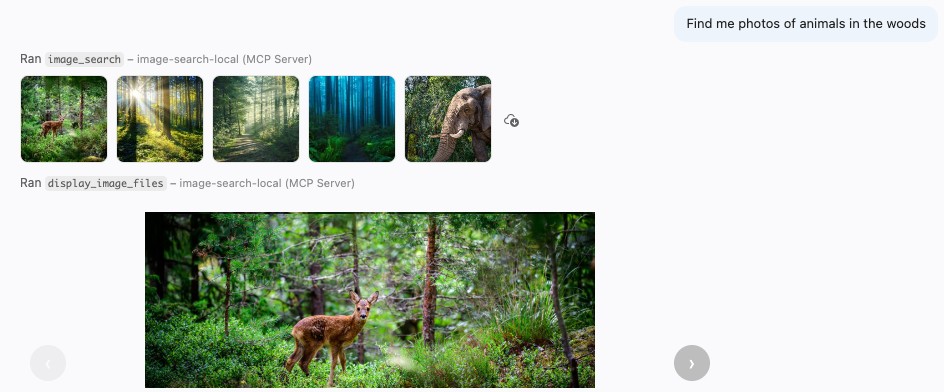
Finding the right images is only the first half of the experience. Once the agent has review the thumbnails and their generated descriptions, it needs a better way to present its favorite selected images to the user. That is where MCP apps come in. An MCP app renders an interactive webpage inside a sandboxed iframe in the MCP client. For this server, the app is a small, JavaScript-powered carousel for browsing the selected images.
GitHub Copilot calls the display_image_files tool when it wants to render the carousel app:
Returning apps from MCP tools
Let's check out the code that powers that MCP carousel app.
An app is associated with a tool, so I once again decorate a Python function with mcp.tool(). This time, I pass an AppConfig that points to the image viewer's HTML resource.
@mcp.tool( app=AppConfig(resource_uri=IMAGE_VIEW_URI), annotations={"readOnlyHint": True}, )
async def display_image_files(
  filenames: Annotated[list[str], "List of image filenames to retrieve and display in a carousel."],
  descriptions: Annotated[list[str], "Image descriptions, in the same order as filenames."] )
  -> ToolResult:
  """Fetch images by filename and render in carousel with filenames, descriptions, and file details."""
Inside the function, I fetch the selected images from Azure Blob Storage by filename, then return both the binary image data and structured content describing each image—its filename, generated description, MIME type, dimensions, format, and size.
blob_service_client = get_blob_service_client()
image_blocks: list[types.ImageContent] = []
image_results: list[dict[str, str | int]] = []

for image_index, filename in enumerate(filenames):
    blob_client = blob_service_client.get_blob_client(container=IMAGE_CONTAINER_NAME, blob=filename)

    stream = await blob_client.download_blob()
    image_bytes = await stream.readall()
    mime_type = get_image_mime_type(filename)

    with Image.open(io.BytesIO(image_bytes)) as image:
        width, height = image.size
        image_format = image.format

    image_blocks.append(types.ImageContent(
      type="image",
      data=base64.b64encode(image_bytes).decode("utf-8"),
      mimeType=mime_type))

    image_results.append(
        {
            "filename": filename,
            "description": descriptions[image_index],
            "mimeType": mime_type,
            "width": width,
            "height": height,
            "format": image_format,
            "sizeBytes": len(image_bytes),
        }
    )

return ToolResult(
    content=image_blocks,
    structured_content={
        "images": image_results,
    },
)
Next, I define the resource that serves the image viewer HTML page. I decorate a Python function with @mcp.resource, assign it a ui:// URL that is unique to the MCP server, and use its Content Security Policy (CSP) to declare which external domains the app may load resources from:
@mcp.resource(IMAGE_VIEW_URI, app=AppConfig(csp=ResourceCSP(resource_domains=["https://unpkg.com"])))
def image_view() -> str:
  """Render images returned by display_image_files as an MCP App."""
    return load_image_viewer_html()
The final piece is the HTML that renders inside the app's iframe. This small page imports ext-apps, a JavaScript package that manages bidirectional communication with the MCP client. The JavaScript creates an App instance, defines the ontoolresult callback, and connects the app. That callback receives images from the tool result and renders them in the carousel. MCP apps can also send messages back to the host, although this read-only viewer does not need to.
<!DOCTYPE html>
<html lang="en">
  <body>
    <div id="carousel">
      <button id="prev" type="button" aria-label="Previous">‹</button>
      <div id="frame"></div>
      <button id="next" type="button" aria-label="Next">›</button>
      <span id="counter" aria-live="polite"></span>
    </div>

    <script type="module">
      import { App } from "https://unpkg.com/@modelcontextprotocol/ext-apps@0.4.0/app-with-deps";

      const app = new App({
        name: "Image Viewer",
        version: "1.0.0",
      });

      let images = [];
      let index = 0;

      const frame = document.getElementById("frame");
      const prevBtn = document.getElementById("prev");
      const nextBtn = document.getElementById("next");
      const counter = document.getElementById("counter");

      function show(i) {
        index = i;
        const img = images[index];

        frame.innerHTML = "";

        const el = document.createElement("img");
        el.src = `data:${img.mimeType || "image/jpeg"};base64,${img.data}`;
        el.alt = "Blob image";
        frame.appendChild(el);

        prevBtn.disabled = index === 0;
        nextBtn.disabled = index === images.length - 1;
        counter.textContent =
          images.length > 1 ? `${index + 1} / ${images.length}` : "";
      }

      prevBtn.addEventListener("click", () => {
        if (index > 0) {
          show(index - 1);
        }
      });

      nextBtn.addEventListener("click", () => {
        if (index < images.length - 1) {
          show(index + 1);
        }
      });

      app.ontoolresult = ({ content }) => {
        images = (content || []).filter((block) => block.type === "image");

        if (images.length > 0) {
          show(0);
        }
      };

      await app.connect();
    </script>
  </body>
</html>
Try it yourself!
The full MCP server code is available in Azure-Samples/image-search-aisearch, along with a minimal image search website and an Azure AI Search indexing pipeline. The indexer uses an Azure OpenAI model to describe each image and Azure AI Vision to create multimodal embeddings. The repository includes a sample nature dataset, but you can replace it with any image collection.
Here are more ways you could extend it it:
- Support more media types: add transcript search and a video or audio player app, while keeping the same search-then-display tool pattern.
- Enrich the metadata: index dates, locations, creators, accessibility text, or domain-specific tags alongside generated descriptions and embeddings.
- Optimize token consumption: images require many tokens, so returning too many thumbnails can quickly consume the model's context window. Experiment with smaller previews, higher compression, metadata-only search results, or a two-stage retrieval flow.
- Add authentication: many media libraries contain private or licensed assets. You can add key-based authentication or OAuth with the FastMCP auth providers, as I described in the MCP auth livestream.
Once search results can carry both structured metadata and real media, an agent can do more than locate files: it can compare, curate, and present them in the same conversation. I hope you'll try the sample with a multimedia collection of your own!

 Microsoft
