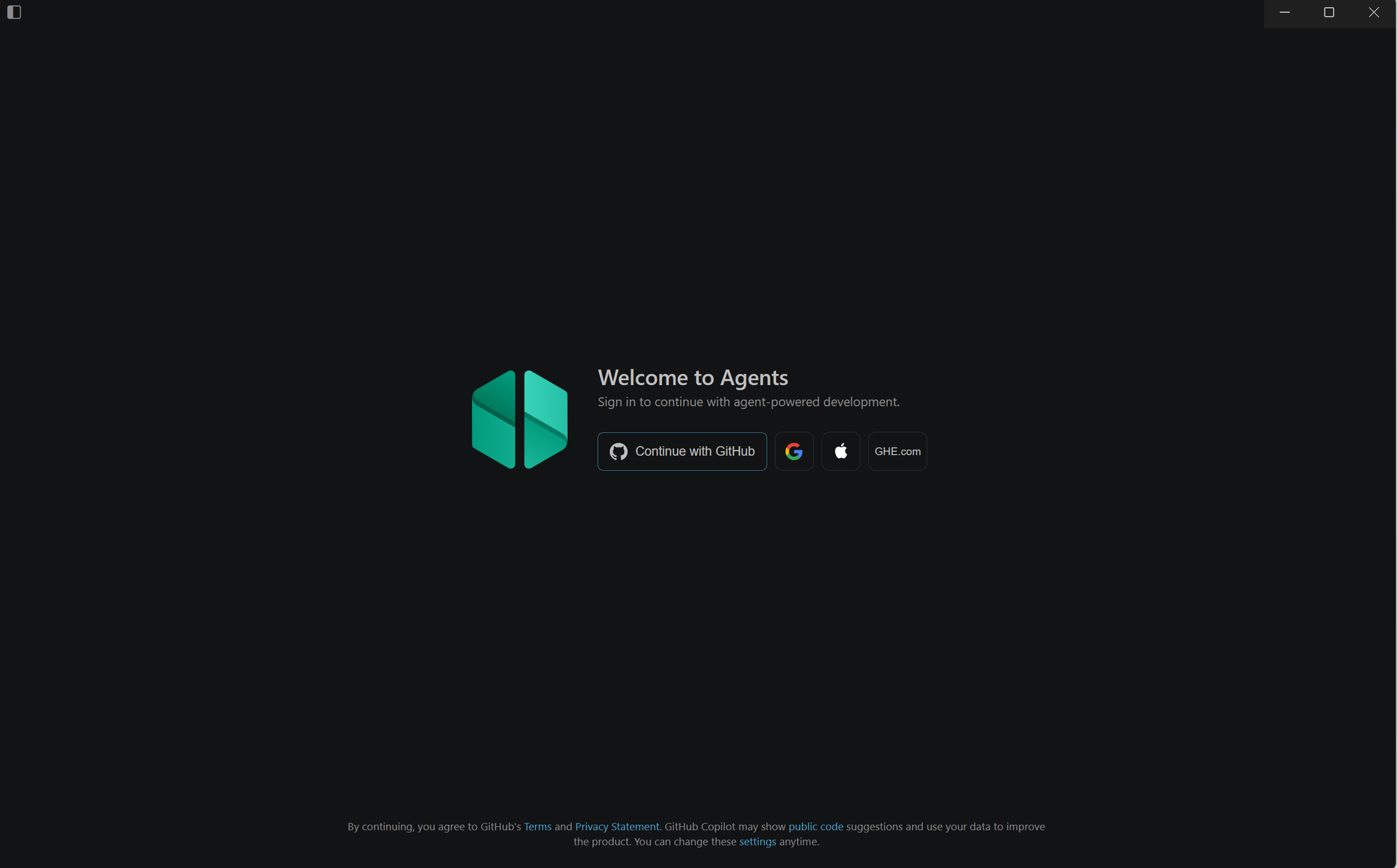
There is a new application on the block, and it is not just VS Code with a plugin. https://code.visualstudio.com/updates/v1_115#_visual-studio-code-agents-previewis a dedicated, standalone editor application purpose-built for working with AI agents. Where regular VS Code treats the editor as the primary surface and adds AI on top, VS Code Agents flips that relationship: agents are the primary way you get work done, and the editor is the surface where you review and guide their output.
If you are a student, AI developer, or engineer stepping into the world of agentic software development, this is the tool Microsoft has designed for you. This post explains what it is, how it differs from VS Code Insiders, and walks you through a real student project to show exactly what agents can do when they have a well-defined goal and the right tools.
What Is VS Code Agents - Insiders?
VS Code Agents - Insiders is the pre-release channel of a new, purpose-built agent application from Microsoft. Just as VS Code Insiders is the nightly pre-release build of VS Code, VS Code Agents - Insiders is the pre-release build of an application whose entire design is organised around agent-driven development.
It ships as a completely separate application with its own profile, settings, and data store. You can install it alongside your existing VS Code or VS Code Insiders without any conflict. The key architectural difference is the agent-first UI: instead of opening files and navigating source code directly, you open the Chat view, pick an agent and an execution environment, describe your goal, and the application manages the rest.
VS Code vs VS Code Insiders vs VS Code Agents - Insiders
| Application | Release Channel | Primary Workflow | Agent Support |
|---|---|---|---|
| VS Code | Stable | Edit code, use Copilot completions and chat | Agent mode available (opt-in via setting) |
| VS Code Insiders | Pre-release (nightly) | Same as stable, experimental features earliest | Agent mode, latest experimental agent features |
| VS Code Agents — Insiders | Pre-release (dedicated app) | Agent-first: describe goals, agents execute them | Full agents platform: Local, CLI, Cloud, Third-party |
The Agents Platform: Four Ways to Run an Agent
One of the most powerful aspects of VS Code Agents - Insiders is that it is not limited to a single mode of agent execution. You choose where and how the agent runs based on what you need from it right now.
1. Local Agent
The local agent runs interactively inside the editor on your machine. It has full access to your workspace files, the integrated terminal, your installed extensions, and any MCP servers you have configured. This is the best choice for:
- Interactive brainstorming and prototyping
- Tasks where you need real-time feedback and want to stay in control
- Work that requires context from your local environment — test failures, linting output, debug traces
- Accessing tools from VS Code extensions or custom MCP servers
2. Copilot CLI Agent
The Copilot CLI agent runs in the background on your machine, launched from the command line. It supports Git worktrees for isolation, meaning it can work on a task in a separate branch without touching your main working tree. Use this when:
- You want to implement a well-defined task while continuing other work
- You want to explore multiple proof-of-concept approaches in parallel
- You prefer a headless, scripted workflow
3. Cloud Agent (GitHub Copilot Coding Agent)
The cloud agent runs remotely and integrates with GitHub. You can assign GitHub issues directly to Copilot (by assigning the issue to copilot or mentioning it in a comment), and the cloud agent will implement the changes and open a pull request for team review. Use this when:
- You want a PR created with no local setup required
- The task is well-defined and does not require access to your local environment
- You want team collaboration baked into the output
4. Third-Party Agents
VS Code Agents — Insiders supports agent harnesses from Anthropic (Claude) and OpenAI, allowing you to bring your own model and run agents either locally or in the cloud. This is the choice when:
- You have a specific AI provider preference or API key
- You are building and testing agents that target a non-Microsoft model
You switch between execution environments using the Agent Target dropdown in the Chat view. Your conversation history carries over when you hand off between environments, so you never lose context.
The Three Built-In Agents: Agent, Plan, and Ask
Within any execution environment, you choose which agent persona to use. VS Code Agents — Insiders ships with three built-in agents, each optimised for a different kind of task.
Agent: Execute
The Agent persona is the workhorse. Give it a high-level goal and it will autonomously determine which files to read, what changes to make, which terminal commands to run, and how to recover from errors. It applies code changes directly in your editor and loops until the task is complete or it needs your input. This is what most developers reach for when they say "agent mode".
Plan: Think First
The Plan agent is designed for complex tasks where you want a structured implementation plan before any code is written. You describe a feature or change, and the Plan agent breaks it into numbered steps with clarifying questions. Once the plan looks right, you hand it off to the Agent persona (or the Copilot CLI) to implement. This two-step flow produces significantly better outcomes for large features because the agent has a map to follow.
Ask: Understand
The Ask agent answers questions about your codebase, coding concepts, and technology decisions without making any file changes. It uses agentic capabilities to search your workspace and gather context, but writes nothing. Use Ask when you want to understand a system before you start modifying it.
| Agent Persona | Makes Code Changes? | Runs Terminal Commands? | Best For |
|---|---|---|---|
| Agent | Yes | Yes | Building, fixing, refactoring, migrating |
| Plan | No (produces plan only) | No | Breaking down complex features before implementation |
| Ask | No | No | Understanding code, exploring options, answering questions |
Permission Levels: How Much Autonomy Should the Agent Have?
VS Code Agents - Insiders gives you explicit control over how autonomously the agent operates. The permissions picker in the Chat view offers three levels:
- Default Approvals — The agent asks for your confirmation before running terminal commands. Read-only operations (file reads, searches) are allowed without prompting. This is the recommended starting point for new users.
- Bypass Approvals — All tool calls are auto-approved, but the agent may still ask clarifying questions mid-task. Good for trusted, well-scoped tasks.
- Autopilot (Preview) — All tool calls are auto-approved and clarifying questions are answered automatically. The agent works fully autonomously until the task is complete. Use with care on tasks whose scope you fully understand.
For students and first-time users, start with Default Approvals. Watching each tool call appear in the UI before you approve it is the fastest way to understand how agents actually work under the hood.
Getting Started: Installing VS Code Agents - Insiders
Step 1: Download the Application
VS Code Agents - Insiders is available from the Visual Studio Code Insiders download page at https://code.visualstudio.com/insiders/. Look for the Agents - Insiders download option alongside the standard Insiders build. It installs as a completely separate application, its own executable, its own profile, its own data store — and does not interfere with your existing VS Code installation.
Step 2: Sign In with GitHub and Activate Copilot
On first launch, sign in with your GitHub account. GitHub Copilot is required to use the agents. If you are a student, you can access GitHub Copilot for free through the GitHub Student Developer Pack a collection of free developer tools for verified students that includes a full Copilot subscription at no cost.
Step 3: Understand the Application Layout
When VS Code Agents - Insiders opens, the layout is noticeably different from regular VS Code. The Chat view is the primary surface, not the file explorer. On the left you will see the Sessions pane a persistent list of every agent session you have started, whether local, CLI, or cloud, and whether still running or complete. This pane is the control centre of the application. You navigate between sessions here, see their status, and pick up where you left off.
The Chat input at the bottom of the Chat view has three key controls:
- Session type dropdown — selects where the agent runs: Local, Copilot CLI, or Cloud
- Agents dropdown — selects what the agent does: Agent, Plan, or Ask
- Permissions picker — controls how much autonomy the agent has: Default Approvals, Bypass Approvals, or Autopilot
The code editor appears on the right and is where you review, accept, or reject the changes the agent proposes. You do not navigate to files manually — the agent opens them as it works, and you review the inline diffs it surfaces.
Step 4: Open a Workspace
Use File → Open Folder to open an existing project or create a new one from the terminal first. The application needs a folder open to give agents workspace context — this is the root the agent uses when reading files, running terminal commands, and creating a Git worktree for background tasks.
Core Concept: The Agent Loop
When you submit a prompt to the Agent persona, it enters an autonomous loop:
- Plans — determines which files are relevant and what steps are needed
- Selects a tool — file reader, file editor, terminal, web fetch, symbol search, or an MCP tool
- Executes — runs the tool and observes the result
- Evaluates — checks whether the result is correct; reads compile errors, test output, and linting warnings
- Iterates — if something is wrong, it revises and retries without requiring a new prompt from you
- Stops — when the goal is achieved or a decision requires human judgement
Every tool call is shown transparently in the Chat view. You can use Undo Last Edit in the view title bar to revert any change the agent made. This combination of autonomy and reversibility is what makes the application practical for real development work.
Session Management
All agent sessions — local, CLI, and cloud — are tracked in the Sessions list within the Chat view. You can switch between active sessions, review the history of any session, and hand off a session from one agent type to another. For example: start a Plan session locally to design a feature, hand it off to the Copilot CLI to implement in the background, then delegate to the Cloud agent to open a pull request, all from the same conversation thread.
Custom Instructions: Teaching the Agent About Your Project
The agent does not know your project's conventions by default. You teach it by adding a .github/copilot-instructions.md file to the root of your repository. Every agent session in that workspace automatically reads and applies these instructions.
# .github/copilot-instructions.md

## Project: study-summariser
- Language: Python 3.11+
- Package manager: uv (pyproject.toml)
- AI calls: Azure OpenAI via the openai SDK v1.x (AzureOpenAI client)
- Model deployment: gpt-4o
- Use Pydantic v2 for structured outputs
- Never hard-code credentials; always use python-dotenv and a .env file
- All functions must have docstrings
- Tests live in tests/ and use pytest
- CLI entry point: src/summariser/main.py
- Add everything sensitive to .gitignore
With this file in place, you never need to repeat these rules. The agent will follow them across every prompt in every session for that project.
Model Context Protocol (MCP): Extending the Agent's Toolbox
MCP is an open protocol that standardises how agents connect to external tools and data sources. Think of it as a USB standard for AI: any MCP-compatible server plugs in and the agent can call it as naturally as it calls built-in tools like the terminal or file editor.
Add MCP servers to your workspace in .vscode/mcp.json:
{
  "servers": {
    "exam-db": {
      "type": "stdio",
      "command": "python",
      "args": ["tools/exam_db_mcp_server.py"]
    },
    "github": {
      "type": "stdio",
      "command": "npx",
      "args": ["-y", "@modelcontextprotocol/server-github"],
      "env": {
        "GITHUB_PERSONAL_ACCESS_TOKEN": "${env:GITHUB_PAT}"
      }
    }
  }
}
Once configured, the agent can query your local exam database or call the GitHub API mid-task without any additional setup. The ${env:GITHUB_PAT} pattern keeps secrets out of source control by reading from environment variables at runtime.
Student Project Walkthrough: AI Study Notes Summariser
Let us put the application to work on a project every student will recognise. It is exam season. You have twelve weeks of machine learning lecture notes, a stack of research paper PDFs, and about two days to make sense of all of it. We will use VS Code Agents — Insiders to build an AI-powered study notes summariser: a Python CLI tool that takes raw lecture notes and returns structured summaries with key concepts, definitions, and practice exam questions.
This walkthrough deliberately uses all three session types in the application exactly as they are designed to be used together: Plan to think, Copilot CLI to build in the background while you continue working, and Cloud to open a pull request. This is the workflow VS Code Agents — Insiders is built for — not a chat panel bolted onto an editor, but a coordinated multi-agent system you control from a single Sessions pane.
Project Goal
- Python CLI:
study-summariser - Input: a plain-text notes file
- Output: structured Markdown with key concepts, definitions, and three exam questions
- AI: Azure OpenAI gpt-4o with Pydantic structured outputs for reliable, machine-readable responses
Before You Start: Create the Project and Add Custom Instructions
Open a terminal and scaffold the project folder with Git version control before launching the application. The Copilot CLI agent requires a Git repository to create a worktree later:
mkdir study-summariser
cd study-summariser
git init
In VS Code Agents — Insiders, use File → Open Folder to open the study-summariser directory. Then create .github/copilot-instructions.md in the editor. This file is automatically read by every agent session opened in this workspace — you write these conventions once, and every agent follows them without being asked:
# .github/copilot-instructions.md

## Project: study-summariser
- Language: Python 3.11+
- Package manager: uv (pyproject.toml)
- AI calls: Azure OpenAI via the openai SDK v1.x (AzureOpenAI client)
- Model deployment: gpt-4o
- Use Pydantic v2 for structured outputs
- Never hard-code credentials; always use python-dotenv and a .env file
- All functions must have docstrings
- Tests live in tests/ and use pytest
- CLI entry point: src/summariser/main.py
- Add everything sensitive to .gitignore
Phase 1: Plan Agent: Design First, Code Later
Look at the Chat input bar at the bottom of the application. You will see three dropdowns. Set them as follows before sending any message:
- Session type: Local
- Agents: Plan
- Permissions: Default Approvals
The Plan agent does not write any files. Its job is to produce a structured, reviewable implementation plan before any code is generated. Enter:
I want to build a Python CLI tool called study-summariser.
It should accept a plain-text lecture notes file and call Azure OpenAI
to return a structured summary with: topic, key concepts (5–10 bullets),
definitions (term → definition), three practice exam questions, and
a difficulty level (beginner / intermediate / advanced).

Use uv for package management, Pydantic v2 for structured outputs,
and python-dotenv for secrets. The CLI entry point should be
src/summariser/main.py with argparse.

Please create a detailed implementation plan.
The Plan agent produces a numbered plan in the Chat view — covering project scaffolding, Pydantic model design, Azure OpenAI integration, CLI wiring, test coverage, and environment setup. It may ask clarifying questions. Answer them in the same thread. The plan stays editable: you can ask the Plan agent to revise any step before committing to implementation.
When the plan is ready, a Start Implementation button appears at the bottom of the plan output in the Chat view. Select it and choose Continue in Copilot CLI. The full plan and all conversation context are handed off automatically — you do not need to copy anything.
Phase 2: Copilot CLI Agent: Implement in the Background
After selecting Continue in Copilot CLI, look at the Sessions pane on the left side of the application. A new session entry appears, labelled with your task. The Copilot CLI agent has immediately created a Git worktree — an isolated checkout of your repository on a new branch — and started working inside it. Your main workspace is untouched.
A prompt asks whether to Copy Changes to the worktree. Select it to ensure the agent has access to the .github/copilot-instructions.md file you created. The agent reads it and applies your conventions throughout.
You can now do anything else you want. Open another session with the Ask agent to research a library, review a different project, or step away entirely. The CLI agent's progress is visible in the Sessions pane — select the session entry to see a live activity log of file creates, terminal commands, and test runs as they happen.
The agent runs uv sync and pytest, reads any test failures, edits the relevant files, and re-runs — all in the worktree, all without blocking you. Here is the Pydantic model it writes for src/summariser/models.py:
# src/summariser/models.py

from typing import Literal
from pydantic import BaseModel, Field


class StudySummary(BaseModel):
    """Structured summary of study notes produced by the AI."""

    topic: str = Field(description="The main subject or topic of the provided notes.")
    key_concepts: list[str] = Field(
        description="A list of 5 to 10 key concepts from the notes.",
        min_length=5,
        max_length=10,
    )
    definitions: dict[str, str] = Field(
        description="A dictionary mapping important terms to their definitions."
    )
    practice_questions: list[str] = Field(
        description="Exactly 3 exam-style practice questions based on the notes.",
        min_length=3,
        max_length=3,
    )
    difficulty_level: Literal["beginner", "intermediate", "advanced"] = Field(
        description="The estimated difficulty level of the content."
    )
And the Azure OpenAI integration in src/summariser/summarise.py:
# src/summariser/summarise.py

import os
from dotenv import load_dotenv
from openai import AzureOpenAI
from .models import StudySummary

load_dotenv()


def summarise_notes(text: str) -> StudySummary:
    """Call Azure OpenAI to produce a structured study summary.

    Args:
        text: Raw study notes text to summarise.

    Returns:
        A populated StudySummary Pydantic model.

    Raises:
        ValueError: If required environment variables are not set.
    """
    endpoint = os.getenv("AZURE_OPENAI_ENDPOINT")
    api_key = os.getenv("AZURE_OPENAI_API_KEY")
    deployment = os.getenv("AZURE_OPENAI_DEPLOYMENT", "gpt-4o")

    if not endpoint or not api_key:
        raise ValueError(
            "AZURE_OPENAI_ENDPOINT and AZURE_OPENAI_API_KEY must be set in your .env file."
        )

    client = AzureOpenAI(
        azure_endpoint=endpoint,
        api_key=api_key,
        api_version="2024-08-01-preview",
    )

    completion = client.beta.chat.completions.parse(
        model=deployment,
        messages=[
            {
                "role": "system",
                "content": (
                    "You are an expert academic tutor. Analyse the provided study notes "
                    "and produce a structured summary with key concepts, definitions, "
                    "and practice questions."
                ),
            },
            {"role": "user", "content": f"Study notes:\n\n{text}"},
        ],
        response_format=StudySummary,
    )

    return completion.choices[0].message.parsed
When the Sessions pane shows the CLI session as complete, the agent has finished all work in the worktree.
Phase 3: Review the Changes in the Multi-File Diff Editor
Select the completed CLI session in the Sessions pane. Two options appear: View All Changes and Apply. Always select View All Changes first.
This opens a multi-file diff editor — a view unique to VS Code Agents — Insiders that shows every file the agent created or modified side by side: pyproject.toml, all source modules, test files, .env.example, and README.md. You are reviewing an entire feature branch, not a single file. If anything looks wrong, send a follow-up prompt directly in the CLI session to ask the agent to adjust a specific file before you commit to applying anything.
When you are satisfied, select Apply. The agent merges the worktree changes into your main workspace and cleans up the worktree branch automatically.
Sample Output
Run against lecture notes on neural network backpropagation:
## Topic
Backpropagation in Neural Networks

## Key Concepts
- Gradient descent minimises the loss function by iteratively updating weights
- The chain rule decomposes gradients through each layer of the network
- A forward pass computes predictions; a backward pass computes gradients
- The learning rate controls the step size during each weight update
- Vanishing gradients reduce the training signal in very deep networks

## Definitions
- Gradient: The partial derivative of the loss with respect to a model parameter
- Epoch: One complete pass through the entire training dataset
- Activation function: A non-linear transformation applied after each network layer

## Practice Questions
1. Explain why the chain rule is essential for computing gradients in a multi-layer network.
2. What happens to model training if the learning rate is set too high?
3. Name and describe two techniques used to address the vanishing gradient problem.

## Difficulty Level
intermediate
Phase 4: Cloud Agent: Open a Pull Request
Select New Chat (+) → New Chat in the Chat view. Your Plan session and CLI session remain intact and visible in the Sessions pane — this is a fundamental difference from Copilot Chat in VS Code, where starting a new chat means the old one is gone. In VS Code Agents — Insiders, every session is a persistent, navigable record that you can return to, continue, or hand off at any time.
Change the session type dropdown to Cloud. Enter:
Open a pull request against the main branch with the title
"feat: add AI study notes summariser CLI" and a description
explaining what was built, how to configure the .env file,
and how to run the CLI.
The Cloud agent runs on remote GitHub infrastructure. It creates a branch in your GitHub repository, commits all the project files, and opens a pull request — without touching your local machine at all. A new entry appears in the Sessions pane showing the cloud session status. When the PR is ready, the session displays a direct link to it on GitHub.com. If you have the GitHub Pull Requests extension installed, the PR also appears in the Copilot on my Behalf view.
Right-click the cloud session in the Sessions pane to see further options: Checkout pulls the branch locally for testing, and Apply brings the cloud changes directly into your local workspace.
Responsible AI Considerations
AI agents that operate autonomously across your workspace deserve the same careful thought you would apply to any automated system. Keep these principles in mind from day one:
- Start with Default Approvals. Reading every tool call approval prompt teaches you what the agent is actually doing. Move to higher autonomy levels only once you understand the agent's behaviour on your specific codebase.
- Do not include sensitive data in prompts. Avoid pasting exam answers, assignment submissions, or data containing student names into the chat. Treat anything you send to the model as potentially stored or logged by the provider.
- Validate AI-generated code and summaries. Structured outputs via Pydantic enforce format correctness, but factual accuracy still requires your review — especially before submitting academic work.
- Never commit secrets. Always use
.envfiles, reference secrets with${env:VAR_NAME}in MCP configuration, and add.envto.gitignore. Include a.env.examplewith placeholder values instead. - Undo is always available. The Undo Last Edit control in the Chat view title bar reverts the most recent agent edit. Use it freely while you are learning how the agent behaves on your project.
Custom Agents: Building Your Own AI Persona
VS Code Agents - Insiders supports custom agent definitions that you can share with your team or publish as VS Code extensions. A custom agent is defined by a role, a set of available tools, a language model, and optionally a system prompt. You could create a Code Reviewer agent that only reads files and posts inline comments, a Documentation Writer agent that generates and updates docs, or a Test Generator agent scoped to your test framework.
Custom agents appear in the agent picker alongside the built-in Agent, Plan, and Ask personas. See the VS Code custom agents documentation for the full authoring guide.
Key Takeaways
- VS Code Agents - Insiders is a standalone application, not an extension or a mode inside VS Code. It is purpose-built for agent-first development workflows.
- Four execution environments — Local, Copilot CLI, Cloud, and Third-party let you choose the right trade-off between interactivity, autonomy, and collaboration for each task.
- Three built-in agent personas — Agent, Plan, and Ask cover the full development lifecycle: understand, design, implement.
- Permission levels let you dial autonomy from fully supervised to fully autonomous (Autopilot Preview) without changing anything else about your workflow.
- Custom instructions in
.github/copilot-instructions.mdare the single most effective way to improve agent output quality on your specific project. - MCP is the extensibility standard: connect any data source, API, or tool to your agent using an open, vendor-neutral protocol.
- Session handoff preserves full conversation context when you move between agent types — from local planning to CLI implementation to cloud PR creation, all in one thread.
References and Next Steps
- Download VS Code Agents — Insiders
- VS Code Docs: Agents Overview — Types, Personas, and Permission Levels
- VS Code Docs: Local Agents — Agent, Plan, and Ask
- VS Code Docs: Cloud Agent — GitHub Copilot Coding Agent
- VS Code Docs: Building Custom Agents
- VS Code Docs: Agent Tools and MCP Servers
- Azure OpenAI: Structured Outputs with Pydantic
- GitHub Student Developer Pack — Free Copilot Access for Students
- VS Code Blog: Introducing Copilot Agent Mode
Download VS Code Agents - Insiders, open a project you are already working on, and try the Plan agent on your next feature. The gap between "I need to build X" and "X is built and tested" narrows dramatically once you start working with agents that understand your codebase, respect your conventions, and handle the implementation loop on your behalf.

 Microsoft