Practice is where learning actually happens. It’s one thing to read through a unit or sit through a lesson; it’s another to retrieve that knowledge on demand. But building good practice materials takes time that educators rarely have, and most students don’t know where to start when it comes to studying on their own.
Learning Activities is designed to close that gap for both.
With Learning Activities, educators can paste in lesson content and generate a shareable practice activity in under three minutes. Students can do the same with their own notes to study independently, or dive straight into an activity a teacher shared with them. The AI does the heavy lifting: creating flashcards, fill-in-the-blank exercises, matching games, and quizzes from whatever content you bring.
Today we’re walking through everything that’s available, who it’s for, and how to get started.
What are Learning Activities?
Learning Activities is a web-based tool powered by Microsoft AI. You bring the content, and it generates four types of interactive practice activities:
- Flashcards: Term and definition, question and answer, or multiple-choice cards. Great for vocabulary, concepts, and content review.
- Fill in the Blanks: AI removes key words from your content and learners drag them back into the correct blanks. Adjustable difficulty: Easy, Medium, or Challenging.
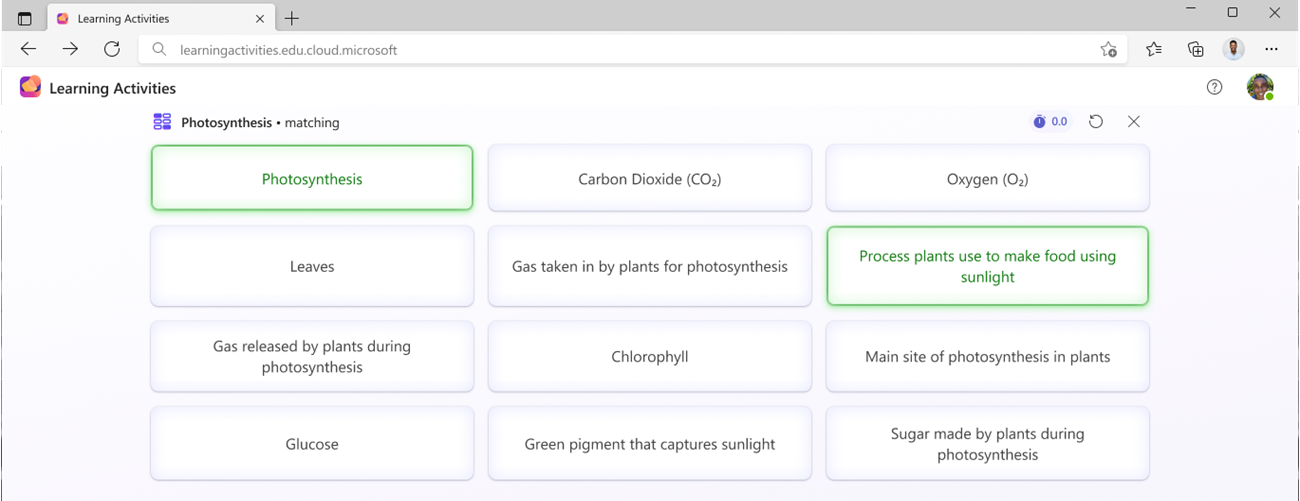
- Matching: A timed game where players match terms with definitions, with a leaderboard for friendly competition.
- Quizzes: Students generate their own multiple-choice quizzes from study materials or even just a topic description. A powerful self-study tool.
Each activity type targets a different learning moment, from first-pass recognition with flashcards to timed recall under pressure with Matching. Because the AI handles the generation, the whole thing takes seconds.
Four activity types, one seamless experience
Flashcards
Educators can create a set of flashcards from lesson notes or an uploaded document and share them with the class in minutes. Students can also create their own sets to study independently. Choose from term and definition, Q&A, or multiple-choice card formats, or mix and match them in a single set.
During practice, students flip through cards and sort them into “I know this” and “Still learning” piles. After finishing, they see a summary of where they stand and can retry only the cards they missed.
Fill in the Blanks
AI analyzes your content, removes key words, and builds exercises where learners drag the correct words back into the blanks. Educators can choose to let the AI lightly rephrase content for better exercises or keep the original text exactly as written. Three difficulty levels give you control over the challenge.
Learners get immediate feedback after each exercise: correct answers appear in green, missed ones in red. Then they move on to the next passage.
Matching
The Matching game generates term-and-definition pairs from your content and turns them into a timed race. Each round randomly selects six terms from the full set, so replaying the same activity stays fresh. A leaderboard shows the top five fastest times, and players can use a custom nickname or stay anonymous.
Quizzes (students only)
Quizzes are created by students, for students. They paste in their study notes, describe a topic they want to be tested on, or upload a file, and the AI generates a multiple-choice quiz. Students pick 10, 15, or 20 questions and can turn on Practice mode for question-by-question feedback with instant retries, rather than waiting until the end to see results.
No teacher setup required. Students can go from “I have a test tomorrow” to practicing in about a minute.
End-to-end demo of Learning Activities
Who can use Learning Activities?
Learning Activities is built for three audiences:
Educators can create and share Flashcards, Fill in the Blanks, and Matching activities with their students. After students practice, educators see lightweight insights on completions, average scores, and which specific items gave students the most trouble.
Students (all ages) can practice activities shared with them by an educator using a join code or direct link.
Students (age 13+) who have access to Copilot chat can create their own Flashcards, Fill in the blanks, Matching activities and Quizzes for independent study.
Creating activities requires access to Copilot Chat. Practicing activities shared by others does not.
Enterprise users can use Learning Activities to build practice materials for onboarding, training, or personal development. Same tools, same AI, applied to professional content.
Where to find Learning Activities
Start on the web
The best place to get started is the Learning Activities web app, accessible in the education and productivity sections of the Microsoft apps list and at:
learningactivities.edu.cloud.microsoft
From the home screen, you can create a new activity, browse everything you’ve created or saved, and join an activity using a code a teacher shared with you.
In the Teach module
If you already use the Teach module in Microsoft 365, Learning Activities is built right in. Select Learning Activities in Teach and generate an activity directly from your content without switching apps.
Coming soon: Study and Learn agent
We’re actively integrating Learning Activities into the Study and Learn agent, so students will be able to generate practice activities inline as part of their AI-assisted study sessions, right where they’re already working.
Also available in Classwork in Teams for Education
Learning Activities is also available through Classwork in Teams for Education, so teachers who work primarily in Teams can create and share activities without leaving the apps they’re already in.
Any activity you create, whether from the web app, the Teach module, Teams, or the Study and Learn agent, shows up in your Learning Activities home screen. Everything stays in one place.
Getting started: educators
- Go to learningactivities.edu.cloud.microsoft.
- Select + New Activity and choose a type: Flashcards, Fill in the Blanks, or Matching.
- Paste in your content or upload a file (Word, PDF, PowerPoint, or text, up to 100,000 characters).
- Select your language and any format options, then select Generate.
- Review the output, make any edits, and select Save Activity.
- From the activity overview page, select Share to get a join code or share link for your students.
That’s it. First activity typically takes under three minutes.
Getting started: students
- Go to learningactivities.edu.cloud.microsoft.
- If your teacher shared an activity: select Join in the upper right, enter the join code, or open the direct link they sent you.
- To create your own study set: select + New Activity, choose Flashcards, Fill in the blanks, Matching or Quiz, paste in your notes, and generate.
Getting started: enterprise users
Enterprise users can access Learning Activities at learningactivities.edu.cloud.microsoft with their Microsoft 365 account. Create activities from internal documents, onboarding materials, or training content the same way an educator would. Activities live in your My Activities tab and can be shared with teammates using a join code or link.
For IT admins: managing Learning Activities for your organization
Learning Activities is enabled by default for eligible Microsoft 365 tenants. As an admin, you can turn it on or off for your entire organization from the Microsoft 365 admin center. Directions are here: Manage Microsoft 365 for Education AI Features - M365 Education | Microsoft Learn.
View insights after your students practice
Once students complete activities you’ve shared, head back to the activity overview page to see how it went.
Insights available today:
- Students started and completed
- Average score
- The specific cards, blanks, or questions students found most challenging
We’re continuing to build on this over time based on what educators tell us they need.
Helpful links
- Learning Activities: Learning Activities - Microsoft Support
- Flashcards: Create Flashcards with AI - Microsoft Support
- Fill in the blanks: Create Fill in the blanks with AI - Microsoft Support
- Matching: Create Matching game with AI - Microsoft Support
- Quizzes: Create Quizzes using AI for Students - Microsoft Support
- Manage Microsoft 365 for Education AI Features - M365 Education | Microsoft Learn
- Learning Activities web app
Have questions or feedback? Share them in the comments below — our team reads every one.

 Microsoft