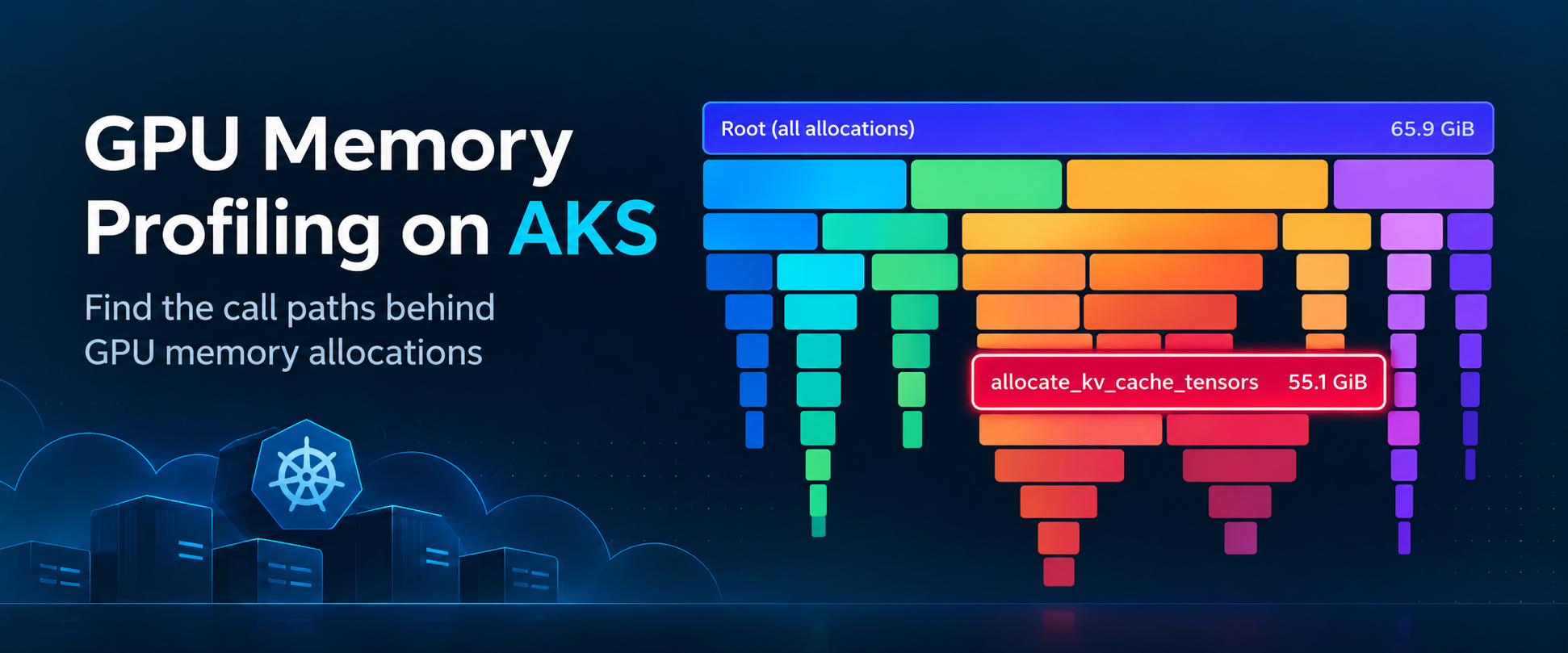
See which functions in your AI workloads allocate GPU memory, understand memory usage patterns, and make informed decisions about GPU capacity and AI workload optimization.
By Brian Benz, Paul Yu, Maya Singh, Johnson Shi
GPU memory allocation can be tricky to get right. Allocate too little and your AI workload can slow down or fail with an out-of-memory error, often during peak traffic when reliability matters most. Allocate too much and expensive GPU capacity sits unused. Getting an informed view of your workload's actual memory needs from the start helps you avoid both problems.
Kubernetes dashboards can show that GPU memory is under pressure, but they cannot tell you which functions in your AI workload are responsible. Without that detail, teams are left shrinking the workload, moving it to a larger GPU, or restarting it and hoping the problem does not return. That guesswork gets expensive fast.
GPU memory profiling on Azure Kubernetes Service (AKS) provides the evidence to show which functions allocate GPU memory while the workload runs. You can use that visibility to size memory with an informed perspective from the beginning, troubleshoot unexpected pressure, and validate that later adjustments work as intended.
Preview
This preview covers GPU memory allocations, not GPU compute utilization. Your existing GPU metrics tell you that something is going on; the profile gives you specific details on where it is happening.
From guessing to seeing
A GPU memory profile is a record of where allocations occur across your application's function call paths while the workload runs. Instead of showing only how much memory is in use, it connects that memory to the functions that requested it. This gives you a path from the symptom to the code responsible.
In Grafana, the profile is visualized as a flame graph displayed in an icicle-style, top-down layout. Each block represents a function in a call path, and wider bars represent more attributed GPU memory. That helps you identify where to investigate and make targeted changes.
GPU memory profile flame graph showing allocation call paths
You don't add profiling code to your app, and you don't need a sidecar or pod restart to turn it on. Enable profiling on the cluster before deploying your workload, or enable it while an existing workload is running so its CUDA allocation calls can be captured. Profiling won't decide for you that an allocation is wasteful, and it won't tune your workload automatically. It gives you the evidence to decide what your workload needs.
How it works
GPU memory profiling on AKS runs on Inspektor Gadget, an open-source, eBPF-based observability framework for Kubernetes and a CNCF project that Microsoft helps maintain. For GPU profiling, it traces CUDA memory-allocation calls directly from the node, which is why there's no profiling code or sidecar container needed. Enable profiling before deploying the workload, or restart it afterward when you need to capture allocations that occurred during startup.
It's also secure: the Inspektor Gadget project recently completed its first independent security audit; three issues were found and fixed in version 0.51.1.
Results flow into Pyroscope and show up in Grafana as flame graphs rendered in a top-down layout. Pair that with Azure Monitor managed service for Prometheus, and you get memory pressure in one panel and the code path behind it in another.
For more details and to get started, check out the AKS GPU profiling documentation, which covers the prerequisites, extension installation, and wiring up Pyroscope, Grafana, and the dashboard.
A real before and after
A GPU memory flame graph shows which function call paths are responsible for GPU memory allocations. Unlike a distributed trace, it doesn't show operations in chronological order. Instead, it combines many allocation call stacks into a single aggregated view.
The diagram below illustrates the basic idea in the same top-down orientation used by Grafana. Each block represents a function in a call path, stacked blocks show caller-to-callee relationships, and wider blocks represent more attributed GPU memory. The diagram is conceptual, not an actual AKS profile; its colors and example hotspot are illustrative rather than indicators of memory waste.
Conceptual top-down flame graph diagram showing function call paths as stacked bars and bar width as attributed GPU memoryConceptual flame graph illustration in the same top-down, icicle-style orientation used by Grafana. Read from top to bottom. Wider blocks mean more GPU memory is attributed to that function or call path.
In the Grafana view below, read the graph from top to bottom. Start at the total allocation at the top and follow the function calls downward. Each horizontal bar represents a function. Its width represents the memory attributed to that function and the functions it calls, while horizontal position does not represent time. A tall stack of equally wide bars does not mean each function allocated that memory separately; the same allocation is attributed through the call path.
The AKS documentation includes a vLLM inference example. At the top, the profile shows 65.9 GiB of attributed allocations. One wide branch accounts for 55.1 GiB. Follow that branch downward through the Python and vLLM call stack to find where the memory was allocated.
Expanded Grafana flame graph for a vLLM workload showing GPU memory allocation call stacks
Expanded flame graph from the AKS documentation. Read from top to bottom, following the widest allocation path toward the function with high self memory allocation.
Two terms help you interpret the bars:
- Total: memory attributed to a function, including allocations made by functions it calls.
- Self: memory allocated directly by that function, rather than deeper functions in the recorded stack.
A bar can show 55.1 GiB of total allocation with little or no self allocation because the memory was allocated further down its call path. Keep following the branch downward until you find high self allocation. In this example, that leads to GPUModelRunner._allocate_kv_cache_tensors, which the profile attributes with approximately 55.1 GiB of self allocation. This function creates the KV cache tensors that vLLM uses to reuse previously computed attention keys and values during inference.
The flame graph identifies where memory was allocated, not whether that allocation is unnecessary or the underlying cause of an out-of-memory error. The profile also describes recorded allocations, which are not necessarily the same as the amount of GPU memory simultaneously in use.
A large KV cache isn't automatically a problem; it's doing real work. The real question is whether it's sized for the traffic you actually serve. For a vLLM service, that usually means comparing your configured context length and concurrency against real-world usage, then right-sizing the settings that control them.
Here's a loop to find and fix issues in the flame graph data:
- See the memory pressure.
- Find the allocation path in the flame graph.
- Change one setting, based on what your workload actually needs.
- Run the same load again, and profile it again.
- Compare memory, performance, and reliability before you call it done.
What this means for reliability, capacity, and cost
Reliability is the most direct win. When you can trace an out-of-memory failure back to a specific allocation, you fix the actual cause instead of guessing, and you can prove it by profiling again.
Memory efficiency comes next. You might find memory you can safely give back, or confirm the workload genuinely needs what it has. Both answers are useful: one frees up headroom, the other stops you from "optimizing" something that didn't need it.
Capacity and cost are downstream of both. A validated drop in memory use might let you fit more work on the GPUs you already have, or reconsider the GPU size you're requesting; call it responsible resourcing. The profiler isn't a cost calculator and won't resize nodes for you, so you still have to test the change and do the math yourself.
Either way, the decision is now backed by a real allocation path and a repeatable test, not a hunch.
One more example: fine-tuning Stable Diffusion XL on KubeRay
Everything so far has focused on inference, but the same workflow applies to training. The KubeRay GPU profiling demo for AKS with Anyscale spins up an AKS Automatic cluster with GPU Node Autoprovisioning, Inspektor Gadget, Pyroscope, Azure Monitor managed Prometheus, and Azure Managed Grafana.
The demo runs Anyscale's Fine-tuning Stable Diffusion XL with Ray Train template: DreamBooth LoRA fine-tuning across four GPU workers, moving through model loading, training, checkpointing, and image generation.
It's a useful reminder that profiling isn't just for inference. Watch the metrics, find the allocation path, make one change, profile again; the loop works whether you're serving a model or training one.
Try it yourself
Start with the GPU profiling documentation on Microsoft Learn for setup. Once you're running, it's worth exploring the open-source contributions:
Preview
GPU memory profiling on AKS is in preview, so there could be breaking changes as the product evolves in response to feedback. Point it at a workload, see what the flame graph can tell you, fix your GPU allocation issues, and share feedback with us on what you find useful and what could be improved.

 Microsoft