Azure Container Registry adds Data Transfer and Transactions metrics with an integrated Grafana dashboard to analyze API traffic, regional activity, request outcomes, and throttling.
Azure Container Registry now provides two new platform metrics that make it easier to understand outbound data transfer, inspect API traffic, and investigate throttled or failed requests without first opening a support request.
We're excited to share the general availability of the Data Transfer and Transactions metrics for Azure Container Registry (ACR). Both metrics are emitted automatically through Azure Monitor and include dimensions that help you move from “something changed” to the operation, response, and region that explain the change.
Available to all ACR customers today: The Data Transfer and Transactions metrics are available automatically for every registry, with no additional configuration or cost for the metrics themselves.
Deeper visibility into registry activity
ACR's existing platform metrics provide useful high-level signals such as total and successful pull and push counts, along with storage usage. However, those aggregate signals don't tell you which API operation changed, which region served the traffic, or whether requests were successful, rejected, or throttled.
Answering those questions often required you to configure diagnostic settings, query logs, correlate client-side telemetry, or contact support. The new metrics add built-in dimensions for common operational investigations, so you can identify the traffic pattern first and then decide whether to tune clients, adjust deployment behavior, change capacity, or investigate a failure.
| Before | What the new metrics unlock |
| Aggregate pull and push counts | Transaction volume split by registry API operation. |
| HTTP 429 responses visible primarily from client failures | Throttled transactions filtered by response type and split by API or region. |
| Limited attribution for outbound transfer | Outbound bytes split by operation and serving registry region. |
| Separate log and client-side investigations | Built-in metric charts, alerts, and Grafana dashboards without custom instrumentation. |
This visibility is especially useful for shared registries and geo-replicated environments. If request volume increases, outbound transfer changes, or clients begin receiving HTTP 429 responses, you can investigate the activity directly in Azure Monitor or the integrated Grafana experience.
What is new
Data Transfer: understand outbound registry traffic
The Data Transfer metric measures total outbound data transferred from your registry in bytes. Split the metric by ApiName to distinguish client blob and manifest downloads, geo-replication traffic, and data read when another registry imports content from this registry. Split by Region to see where that transfer originated.
Transactions: understand registry API activity
The Transactions metric counts registry API operations. Use its dimensions to identify which operations are generating traffic, where requests are served, and whether the response succeeded, redirected, failed, or was throttled.
| Dimension | Available on | What it tells you |
ApiName |
DataTransfer/Transactions | The registry operation represented by the metric. |
Region |
DataTransfer/Transactions | The region that served the request or from which data was transferred. |
ResponseType |
Transactions | The request outcome, including success, redirect, authorization failure, not found, throttled, and other client or server errors. |
For the complete list of API names and response classifications, see the Azure Container Registry monitoring data reference .
Questions you can answer
Which APIs are busiest?
Split Transactions metric by ApiName to compare manifest, layer, metadata, and authentication operations.
How is traffic distributed across my registry geo-replications?
Split Transactions and DataTransfer metrics by Region to monitor transaction volume and outbound data transfer across the registry's geo-replications.
Are my requests being throttled?
Filter Transactions by ResponseType = Throttled, then split by ApiName or Region to find the affected traffic.
What operations are driving outbound data transfer from my registry?
Split DataTransfer by ApiName to compare client downloads, replication, and import-source traffic.
You can explore these new insights in two ways. Start with the integrated Grafana dashboard for a curated, customizable view of registry health and activity. For quick questions or focused investigations, use Azure Monitor Metrics to filter and split the underlying metrics by API, region, and response type.
Start with the integrated Grafana dashboard
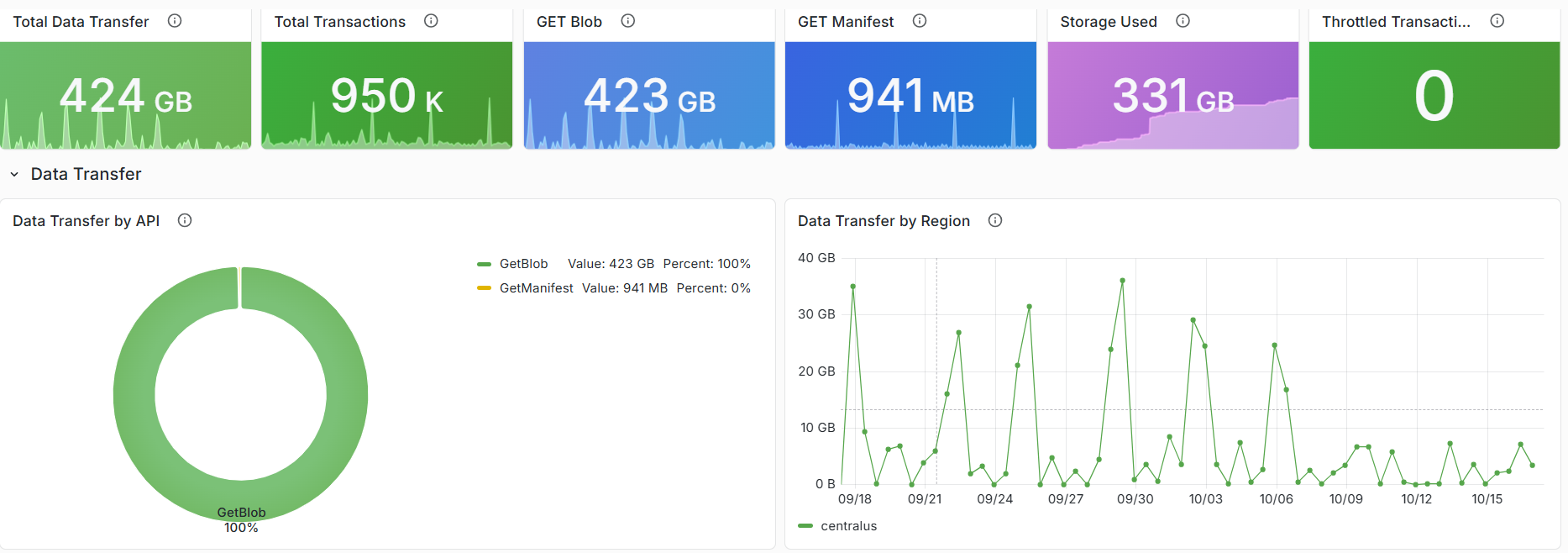
Alongside these metrics, we're introducing a new visualization experience for ACR customers: Dashboards with Grafana. The experience is enabled by Azure Managed Grafana and brings a prebuilt, customizable Grafana dashboard into the registry's Azure portal experience. The dashboard provides out-of-the-box panels for key operational insights, including transaction activity and request outcomes by region, outbound data transfer, throttled requests, and storage consumption.
To get started, open your registry in the Azure portal and select Monitoring > Dashboards with Grafana. The gallery includes the Azure Container Registry observability dashboard with views for data transfer, transaction trends, throttling, and storage consumption. You don't need to deploy or manage a separate Grafana instance. For teams that already use Grafana, the ACR Observability dashboard is also available in the public Grafana dashboard gallery, where it can be imported and customized for existing monitoring environments.
Use the prebuilt dashboard as a starting point, then add panels and customize the views to surface and save the insights most important to your team. You can also use Grafana Explore for ad hoc analysis.
Access the new Grafana dashboard directly from your registry in the Azure portal.The integrated observability dashboard brings key registry metrics together in one view.
The dashboard is broken down into sections: Overview, Data Transfer, Transactions, and Storage.
Explore the dashboard sections, including Transactions, to view overall request breakdown and audit throttle activity.
For dashboard creation, customization, access, and deployment guidance, see Use Grafana dashboards in Azure Container Registry.
Run ad hoc metric queries in Azure Monitor
For a quick question or focused investigation, open your registry and select Monitoring > Metrics. Select Data Transfer or Transactions, then use filtering and splitting to analyze the relevant API, region, or response dimensions.
Investigating throttling? Start with Transactions, filter ResponseType to Throttled, and split by ApiName. After you identify the traffic pattern, review the mitigation guidance in Azure Container Registry SKU features and limits .
Use the Transactions dimensions to investigate operation volume, regional traffic, and outcomes.
Use Data Transfer dimensions to identify the operations and regions generating outbound transfer.
Learn more
- Monitor Azure Container Registry
- Azure Container Registry monitoring data reference
- Use Grafana dashboards in Azure Container Registry
- Azure Container Registry API request rate limits
Engineering deep dives
For a closer look behind the scenes, these engineering deep dives explain how our team designed and implemented the capabilities that make these new insights possible.
- Making ACR Data Transfer Visible: The Storage Activity Platform Behind GetBlob Metrics
- Making Registry Activity Visible at Scale
Start exploring the metrics today
Open your registry in the Azure portal and select Monitoring > Dashboards with Grafana to explore transaction trends, outbound data transfer, throttling, and storage in one integrated view. Use the built-in dashboard as a starting point, then add panels and customize the views to surface and save the insights most important to your team.
This integrated experience gives registry teams a self-service path from signal to explanation, helping you understand usage patterns and investigate failed or throttled requests before turning to logs or opening a support request.

 Microsoft