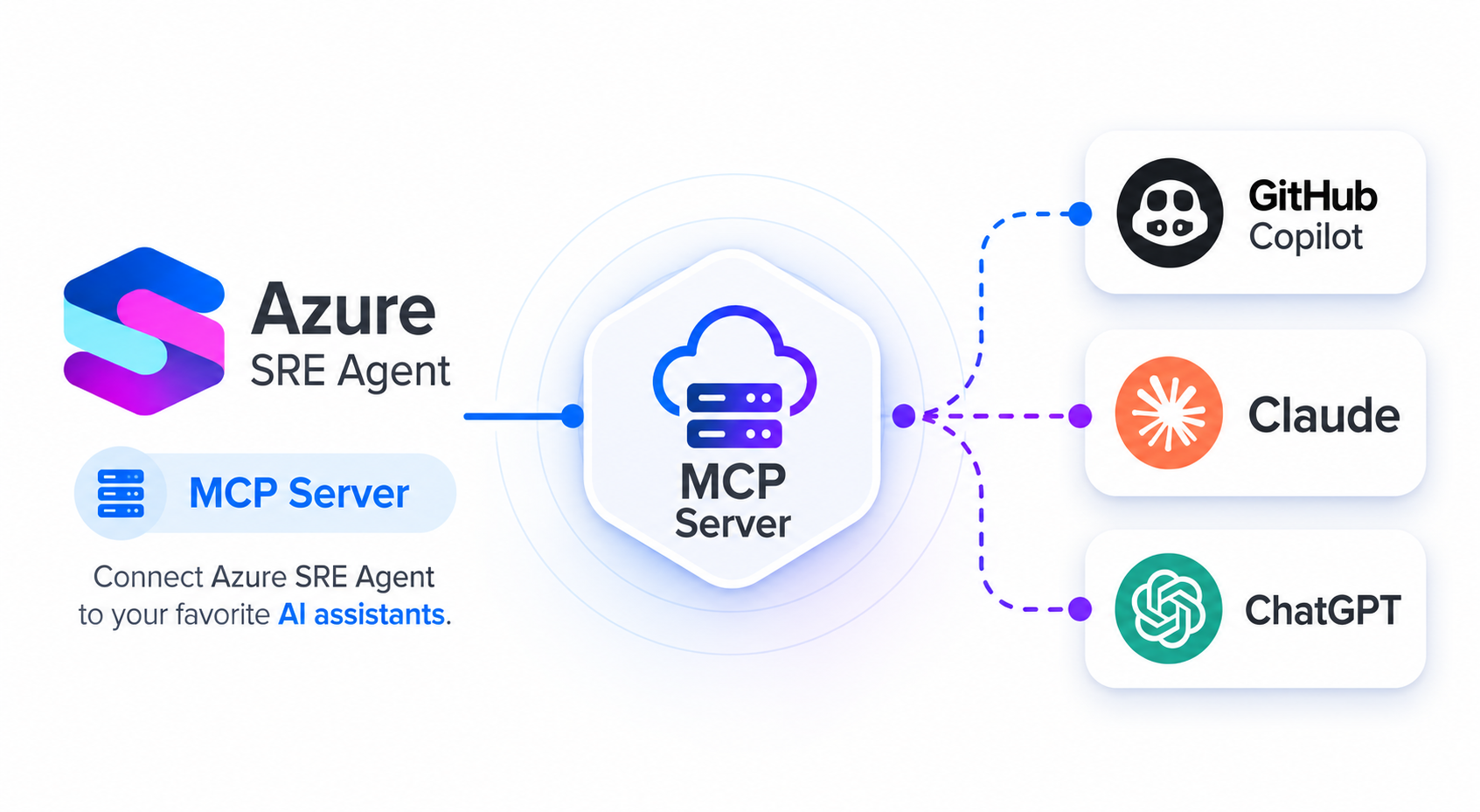
Manage and operate Azure SRE Agents from any MCP-compatible client through the Azure MCP Server.
Your team already uses an SRE Agent — it monitors your services, learns your architecture, and handles operational tasks. Now developers can talk to that agent in natural language from the interfaces they already use every day: their editor, their terminal, their AI assistant. Check what the agent knows, ask it a question, search its memories, wire it into a workflow — all without leaving the tool where they're already writing code.
What we're announcing
Azure SRE Agent tools are now shipping in the Azure MCP Server. The azure/mcp package includes a full set of SRE Agent tools that let you manage and operate your SRE Agents from any MCP-compatible client — GitHub Copilot CLI, VS Code Copilot, Cursor, Claude Desktop, or any agent framework that speaks MCP. No separate CLI. No portal tab. No custom integration code. Your SRE Agent becomes accessible wherever you already think and work.
This is about meeting developers where they are. Your SRE Agent has deep context about your systems — incident history, architecture knowledge, operational patterns. Now that expertise is accessible from VS Code, from your terminal, from any MCP-compatible AI assistant. Just type a question in natural language and your agent responds, right inside the workflow you're already in. Your SRE Agent stops being a destination you visit and becomes part of how your team works every day.
This post walks through what you can do and how to get it running, using GitHub Copilot CLI as the example. The same setup works in VS Code Copilot, Claude Desktop, Cursor, and any other MCP-compatible client.
What this unlocks
Once the Azure MCP Server is connected to Copilot CLI, you can talk to your SRE Agent infrastructure the same way you'd ask a colleague:
- "List my SRE agents in subscription
<sub-id>" - "Create a Kusto connector named
prod-logson agentmyagentpointing at clusterhttps://help.kusto.windows.net, databaseSamples" - "Search memories on agent
myagentfor 'deployment failures'" - "Pause the nightly scheduled task on agent
myagent" - "Generate an architecture plan for a multi-region web app"
The full capability set breaks down into seven areas:
- Manage SRE Agents. List, get, and create
Microsoft.App/agentsresources in your subscription. Discover which tools a given agent has access to. Resource groups are resolved automatically via Resource Graph. - Configure connectors. Create and manage Kusto connectors, MCP connectors (both
httpandstdiotransports), Azure Monitor connectors, and more. Connectors go through ARM and show up in the Azure portal alongside anything you created there. MCP connectors default to system-assigned managed identity. - Run and inspect threads. Create and list conversation threads, get thread details, send messages, and manage hooks on a thread. This is how you talk to the agent programmatically or inspect what it's doing mid-run.
- Schedule recurring work. Create, list, pause, resume, and delete scheduled tasks.
- Manage incidents. List active incidents and run incident setup commands for PagerDuty and ServiceNow.
- Knowledge and prompts. Manage common prompts like safety rules and standing instructions. Search, upload, and delete memories. List and delete skills. Fetch agent docs by topic.
- Author workflows. Generate architecture plans from requirements. Generate, validate, and apply YAML workflows.
Safety
Giving an AI assistant broad management access to your SRE Agents means it's worth knowing what guardrails are in place:
- Destructive operations require
--confirm true. Any delete (connectors, hooks, memories, skills, scheduled tasks, sub-agents) refuses to run without the explicit flag. There's no way to accidentally tear something down through an autocompleted command. - Secrets are stripped before they reach your client. Bearer tokens, API keys, passwords, connection strings, and
Authorizationheaders are redacted from connector and tool responses. - Error messages are sanitized. Upstream error bodies are scrubbed for secrets and truncated before surfacing, so credentials don't leak through error text.
- Data-plane calls are pinned to
*.azuresre.ai. HTTPS is required; the host suffix is enforced to prevent SSRF.http://is only allowed forlocalhost. - Third-party hosts are pinned. ServiceNow connectors are restricted to
.service-now.comand.servicenowservices.com. PagerDuty subdomains must be valid DNS labels. - MCP connector secrets must be env-referenced. Header and environment values for MCP connectors must use
${env:NAME}syntax — literal secrets are rejected so they never enter LLM context.
Prerequisites
Before connecting anything, make sure you have the following installed and authenticated.
Node.js LTS
node --version
If you're not on a current LTS, update via nodejs.org or your package manager. The Azure MCP Server is tested against the active Node.js LTS releases.
Azure CLI
The MCP server uses DefaultAzureCredential, which picks up credentials from az login. You need the Azure CLI installed and signed in.
Install: https://learn.microsoft.com/cli/azure/install-azure-cli
az --version
az login
If you work across multiple tenants:
az login --tenant <tenant-id>
If you have multiple subscriptions, set a default:
az account set --subscription <subscription-id>
GitHub Copilot CLI
Install Copilot CLI following the official instructions: https://docs.github.com/en/copilot/how-tos/use-copilot-agents/use-copilot-cli
Once installed, launch it and authenticate with your GitHub account.
Connect the Azure MCP Server to Copilot CLI
The Azure MCP Server runs as an npm package (azure/mcp) and launches via npx. The easiest way to add it is interactively from within Copilot CLI:
/mcp add
Follow the prompts: name it azure, set the command to npx, and args to -y azure/mcp@latest server start.
Or add it manually to your MCP config file (~/.copilot/mcp.json or .copilot/mcp.json in your repo):
{
  "mcpServers": {
    "azure": {
      "type": "stdio",
      "command": "npx",
      "args": ["-y", "@azure/mcp@latest", "server", "start"]
    }
  }
}
Restart Copilot CLI after saving. On the next launch, npx fetches azure/mcp and starts the server automatically.
If you'd rather install globally:
npm install -g @azure/mcp
azmcp server start
Keeping it up to date
@latest means npx pulls the newest version on each launch, but npx caches aggressively. If you upgrade and the old version is still running:
npx clear-npx-cache
# or:
rm -rf ~/.npm/_npx
Then restart Copilot CLI. For environments where you want version stability, pin an exact version instead:
"args": ["-y", "@azure/mcp@0.x.y", "server", "start"]
Bump the version string when you're ready to upgrade.
Set up access to your SRE Agents
The MCP server doesn't pin to a specific agent. It discovers agents dynamically from your subscription and you target one per command. Two steps to get access working.
Assign RBAC
You need two roles on the Microsoft.App/agents resource (or at the resource group or subscription level):
| Role | What it covers |
|---|---|
| Reader | Control-plane: list and get agents and connectors via ARM |
| SRE Agent Administrator | Data-plane: threads, memories, scheduled tasks, prompts, and everything on the agent's own endpoint |
az role assignment create \
  --assignee <your-upn-or-objectid> \
  --role "Reader" \
  --scope /subscriptions/<sub>/resourceGroups/<rg>/providers/Microsoft.App/agents/<agentName>

az role assignment create \
  --assignee <your-upn-or-objectid> \
  --role "SRE Agent Administrator" \
  --scope /subscriptions/<sub>/resourceGroups/<rg>/providers/Microsoft.App/agents/<agentName>
On Windows PowerShell, use a single line or backtick continuations instead of \.
Find your agents
From Copilot CLI, ask:
"List my SRE agents in subscription
<sub-id>"
This returns each agent's name, resource group, and endpoint. Once you have that, you're ready to work.
How the calls work under the hood
Two distinct layers, worth knowing which is which.
- Control-plane (agents, connectors): goes through Azure Resource Manager at
Microsoft.App/agents, API version2025-05-01-preview. Anything you create or modify shows up in the Azure portal. - Data-plane (threads, memories, scheduled tasks, incidents, prompts, skills, hooks, docs, workflows): goes through the agent's own endpoint at
https://<name>--<hash>.<region>.azuresre.ai.
The server handles the SRE Agent token audience automatically. You don't need to manage separate credentials for the data plane. Your az login session covers both.
When things go wrong
| Symptom | What's happening | Fix |
|---|---|---|
| 401/403 on data-plane calls | Missing SRE Agent Administrator role | Assign the role at the agent scope |
| 403 on ARM calls | Missing Reader role | Assign Reader at subscription, RG, or agent scope |
| "No agent endpoint" | Agent not fully provisioned | Check provisioningState in the portal |
sreagent_* tools not showing up | npx cache is stale | npx clear-npx-cache, restart Copilot CLI |
| Wrong tenant errors | Credentials from a different tenant | az login --tenant <id>, restart Copilot CLI |
Verify it's working
Ask Copilot CLI: "List my Azure subscriptions" or "List my SRE agents." If sreagent_* tools appear in the tool list and return results, you're connected and on a version that includes this release.
Get started with Azure SRE Agent
If you don't have an SRE Agent yet, you can create one in minutes from the Azure portal or through the CLI. Connect it to your code, your logs, and your incident sources — and it starts building expertise from day one. Once you've added the Azure MCP Server to your editor, your agent is one sentence away in every session.
Resources
- SRE Agent documentation — https://aka.ms/sreagent/newdocs
- SRE Agent overview — https://aka.ms/sreagent/newdocsoverview
- Azure MCP Server — https://aka.ms/azmcp
- Azure MCP Server get-started — https://learn.microsoft.com/azure/developer/azure-mcp-server/get-started
- Deep Context blog — https://aka.ms/sreagent/blogs/deepcontextblog

 Microsoft