Forum Discussion

sowjanyaravikrishna3
Jul 31, 2024Copper Contributor
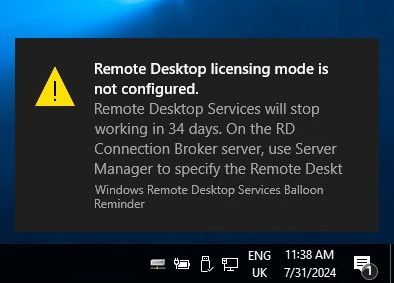
Remote desktop licensing mode is not configured
We have a Windows 2019 Server. It is workgroup server & not part of domain. Its been running fine since 3 to 4 years. We are seeing below message when trying to RDP to server since last 3 mo...

kyazaferr
Nov 13, 2024MCT
Step 1: Check Remote Desktop Licensing Mode
Since you only need two concurrent RDP sessions and don't require additional licenses, the best approach is to configure the server to use the Per User or Per Device licensing mode, or simply to leave it without configuring a licensing mode if you don't need to enforce licensing.
- Open the Local Group Policy Editor:
- Press Win + R, type gpedit.msc, and press Enter.
- Navigate to the RDS Licensing Settings:
- In the Group Policy Editor, go to the following path:
- Computer Configuration > Administrative Templates > Windows Components > Remote Desktop Services > Remote Desktop Session Host > Licensing
- Configure the Licensing Mode:
- Look for the "Set the Remote Desktop licensing mode" policy.
- Set this policy to Per User or Per Device, depending on your needs.
- Note: Even though you only need two connections, configuring licensing to "Per User" or "Per Device" should prevent the licensing mode from triggering issues.
- Configure the Licensing Server (Optional, if you decide to install a Remote Desktop License Server):
- If you ever decide to install a license server, configure the licensing server by setting the "Use the specified Remote Desktop license servers" policy. You can point to a local RDS License Server, but since you don't need more than two concurrent sessions, this step may not be necessary.
Verify Licensing and Grace Period
If your system is still in the grace period, you should be able to log in. However, once the grace period expires, it will block additional sessions unless a valid license server is configured.
- Check the RDS Licensing Grace Period:
- Run the following PowerShell command to check the licensing status
- Get-WmiObject -Class Win32_OperatingSystem | Select-Object Caption, LicenseStatus
Check Event Logs:
- Open Event Viewer and navigate to
- Applications and Services Logs > Microsoft > Windows > TerminalServices-RemoteConnectionManager > Operational
- Check the RDS Licensing Grace Period: