Forum Discussion

Start Menu Layout Group Policy
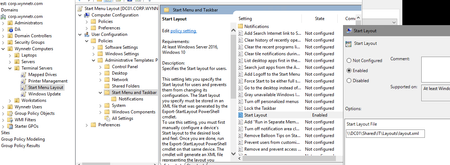

so the start menu layout on the right with the tiles is correct, however, the start menu list on the left is incorrect. Please see screenshot below. Any ideas?? Thank you.

Startmenu Layout group policy is only for the tiles on the right side. The left side is the "All Programs" view. You can either hide it or edit it in the filesystem (no gpo needed).
The "All Programs" list follows this rules:
- It's always alphabetical and grouped by letter
- It's a sum-view of the following locations:
- C:\ProgramData\Microsoft\Windows\Start Menu\Programs
- %APPDATA%\Microsoft\Windows\Start Menu\Programs
- It only supports one folder, no subfolders. Content in subfolders will be compressed to the top folder
So if you want the "All Programs"-List to contain only specific items, go to "C:\ProgramData\Microsoft\Windows\Start Menu\Programs" and edit the shortcuts and folders in there. A user still has his own personal startmenu-shortcuts which get merged with this location.
- Tim HunterMar 10, 2020Steel Contributor
So I have one user who's start menu tiles are not following the GPO. However, when I do gpresult, it shows that the computer and user are both following the GPO. Any other ideas to get the users Start menu to grab the GPO setup? Thank you!
- dretzerFeb 26, 2020Iron Contributor
Sorry, but your user profile managmenet has nothing to do with RDP or not.
If you never set anything up to manage user profiles centrally, then they are local. Meaning each user has a local user profile on each of your session host servers.
You would know if you had roaming profiles, because they need to be set up in your active directory environment. So, if you never did anything special regarding profiles, all your user profiles will be local to the session host.
User profile disks would be most modern way for session host deployments. They also need setup though, so by default you would have no roaming/mandatory or upds.
If you really don't know, you should try fo figure out if any group policies regarding user profiles are active, where your profiles are stored and how they should be managed. I can't really help you there much because there are many different ways how your environment could be configured.
You can at least look inside sysdm.cpl as I told you earlier. There you can see if a profile is local or roaming. Also, if it is local, just look inside C:\Users if inside there are normal folders per user, or if those "folders" have a disk-icon instead. If they have disk-icons, you are using user profile disks.
- Tim HunterFeb 26, 2020Steel Contributor
I have no local users setup. They are all RDP users, so to me that would make them raoming profiles. where is the central store? His user profile is 13GB, so it may take some time to delete, I imagine.
- dretzerFeb 26, 2020Iron Contributor
That depends on your setup. Are your userprofiles local, roaming, mandatory or user profile disks?
Either way, to remove his profile, you have to make sure the user not logged on.
If the profile is local, just logon with an administrative account and open sysdm.cpl -> advanced -> user profiles settings button. There you wait until the list is populated and then you can delete the users profile there (depending on the size, this can take some time).
If it's a roaming or mandatory profile, remove the profile from your central store and remove the local cache (this can be more complicated, strongly dependand on your setup).
If you are using user profile disks (best case), just rename the vhdx-file of the disk (if you are sure about it, you can delete it instead of renaming).
Make sure you have a backup of the user profile before deleting anything!
- Tim HunterFeb 26, 2020Steel Contributor
How do I remove his user profile so he gets a new one when he logs in next time? Thank you!!!
- dretzerFeb 26, 2020Iron Contributor
As I said, keepass brother and malwarebytes are part of the users personal startmenu. This is not the same as you are looking at. They are part of his user profile and you have to clean them there. If they do not open, then he already removed the associated applications.
For the Wynne-links: check the ACL on those shortcuts and make sure the user has full read access to this shortcuts.
It is also possible that the user profile of this user has some more serious problems (if he uses malwarebytes some day in the past, this may very well be the case).
You could move his userprofile somewhere else so that he gets a completely new profile the next time he logs on. If the startmenu works as expected with the new profile, you know that his current profile is faulty.
- Tim HunterFeb 26, 2020Steel Contributor
This user also shows Firefox in the Start Menu. Firefox is not even installed on the server.
- Tim HunterFeb 26, 2020Steel Contributor
There are still a bunch at the bottom of the list that do not show up in the Start Menu left side. I show the same apps and shortcuts for every other user and all of them show up in the Start Menu. And the folders like Brother, KeePass and MalwareBytes do not open when I click on them in the Start Menu and they do not show up when I go to the folder directory.
- dretzerFeb 26, 2020Iron Contributor
Not strange at all. You have to look into the personal startmenu of the user as well. I'm sure you find the additional links and folders there. The only one missing in his start menu in the screenshot is the "AMS"-link. This one is an Interne-Shortcut instead of a normal shortcut. Only normal shortcuts will work in the startmenu. So if you want this "AMS"-Internetshortcut to be visible inside the startemenu, you have make a normal shortcut to your prefered internet browser and edit it so that it opens the URI directly.
The startmenu you see on the left is the SUM of the all users startmenu (C:\ProgramData\Microsoft\Windows\Start Menu\Programs) AND the current user startmenu (%APPDATA%\Microsoft\Windows\Start Menu\Programs).
Your user clearly has some software installed in his userprofile that is not installed on the server itself (Brother, keepass and malwarebytes for example).
I guess he used some user-only installers for those applications. I recommend looking at applocker to stop your users from installing software without your knowledge.
- Tim HunterFeb 26, 2020Steel Contributor
When I go to C:\ProgramData\Microsoft\Windows\Start Menu\Programs, it shows the correct programs and shortcuts. However, as you can see in the screenshot below the items listed in the start menu are different. Very strange.