Forum Discussion

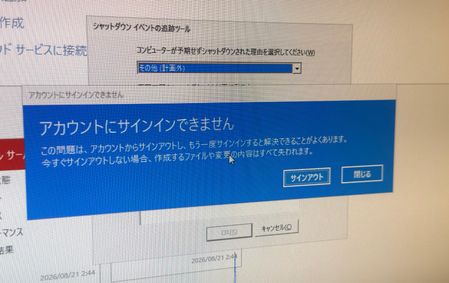
Issue with Temporary Profile on Windows Server 2025 after renaming built-in Administrator account

Hi Fuma ,
The issue you're encountering is a known Windows profile loading problem. The forced shutdown likely caused a registry conflict where the system is trying to load your renamed Administrator profile from an incorrect or corrupted registry entry, so it defaults to a temporary profile instead.
Here is the standard and most effective way to resolve this by editing the registry and reconnecting your profile.
Important Preparation
Before you begin, it's crucial to have a backup plan.
- Backup the Registry: Before making any changes, open the Registry Editor (regedit), select Computer at the top, and use File > Export to save a full backup of your registry. This allows you to restore it if something goes wrong.
- Alternative Admin Account: Sign in to the Web Server using another account with administrative privileges. This could be:
- Another domain admin account.
- A different local admin account on the server.
- If no other admin account exists, you may need to use a recovery method to enable the built-in Administrator account.
Step-by-Step Resolution
- Open Registry Editor: Log in with your alternative admin account, press Windows Key + R, type regedit, and press Enter.
- Navigate to the ProfileList Key: In the Registry Editor, go to the following path:
HKEY_LOCAL_MACHINE\SOFTWARE\Microsoft\Windows NT\CurrentVersion\ProfileList
- Identify the Conflicting SIDs: Under the ProfileList key, you will see several subkeys (folders) named with long strings of numbers, known as Security Identifiers (SIDs). Look for the SID that corresponds to your renamed Administrator account.
- Click on each SID and look at the ProfileImagePath value in the right pane. This value will show the path to the user profile folder, such as C:\Users\Administrator or the new name you gave it.
- For the problematic account, you will likely see two entries with the same SID: one with the original name (e.g., S-1-5-...-500) and another with the same name but ending with .bak (e.g., S-1-5-...-500.bak). The .bak entry is your original, working profile that Windows has backed up.
- Repair the Registry Entries: The goal is to make the system point to your real profile again. You need to delete the temporary profile entry and rename the .bak entry.
- Right-click and delete the SID entry that does not have the .bak extension. This is the temporary profile entry.
- Right-click the SID entry that has the .bak extension (your real profile) and select Rename. Remove the .bak from the end of the name so it matches the SID of the original entry you just deleted.
- Verify Profile Path: Click on the newly renamed SID. In the right pane, double-check the ProfileImagePath value. Make sure it correctly points to the profile folder for your renamed account (e.g., C:\Users\RenamedAdmin). If you changed the folder name as well, you might need to update this path to match.
- Restart the Server: Close the Registry Editor and restart the Web Server. The User Profile Service should now correctly load your renamed Administrator profile during the next sign-in.
This method essentially tells the User Profile Service to discard the bad temporary profile entry and use the backup entry for your real Administrator profile, resolving the conflict.
 FumaAug 23, 2026Tin Contributor
Hello hasanemresatilmis,
Thank you for the detailed guide, and sorry for the delay in getting back to you.
I checked the registry as instructed, but the SID key for the local Administrator account (including any .bak entries) was completely missing. Only the SIDs for the Domain User and Default profile were present.
Even after logging out and back in, the key still hasn't been created, and I'm stuck with a temporary profile. Since the SID key is entirely missing from ProfileList, is there a way to manually recreate this registry key, or is there another recommended way to fix this issue?
Thank you again for your time and support!
- Aug 27, 2026
Hi Fuma ,
I’m sorry for the delay in replying.What is the output when you type the following command in the command line?
whoami /userIf you can see a username and SID in the output of this command and share them with me, I think we can create the correct key under ProfileList in the registry.