Forum Discussion

strange behavior when selecting multiple values in GridView
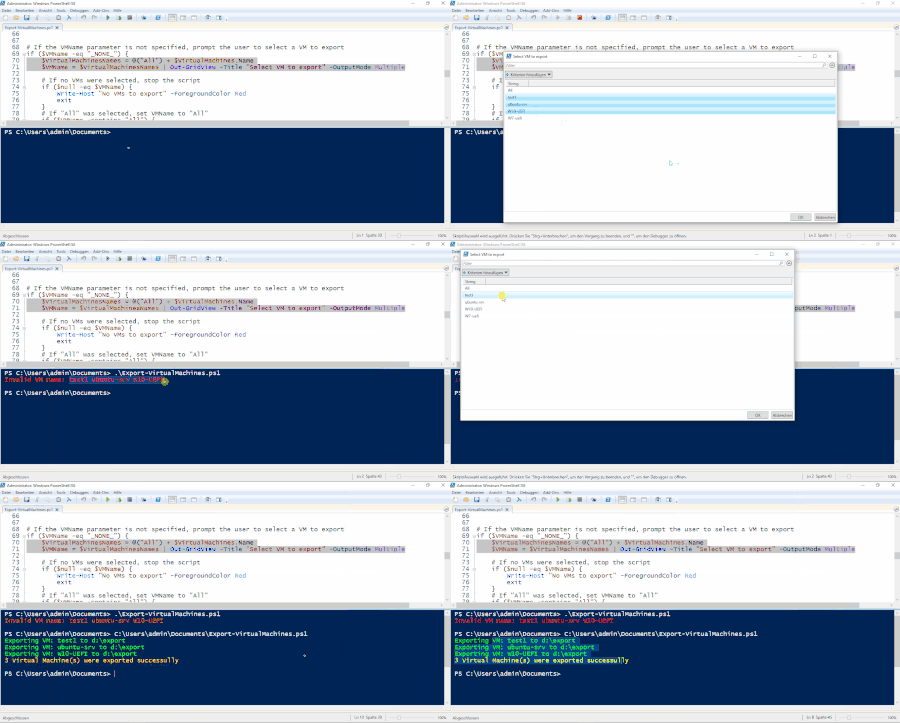

Are you able to post the code down to and including the remote call to the hypervisor?
Also, which version of PowerShell are you running within the ISE session? (Type $PSVersionTable in the blue section.)
I can't reproduce the behaviour of Output-GridView producing a string when multiple list values have been selected.
Cheers,
Lain

Thanks for the response, sure, here is the link to complete code on github: https://github.com/fahidsh/hyper-v-exporter/blob/main/vm-exporter.ps1
But I think it has to run on a Computer where Hyper-V is installed and probably has a few VMs (can be dummy/empty ones), since it uses the Get-VM command to get the VMs configured.
the way I am building my array for the GridView is through Get-VM, in the code
# Get All Virtual Machines on the Hyper-V Host
$VirtualMachines = Get-VM

# Add 'All' to the start of array of VM Names
$VirtualMachinesNames = @("All") + $VirtualMachines.Name

# Display the list in Grid
$VMName = $VirtualMachinesNames | Out-GridView -Title "Select VM to export" -OutputMode Multiple

# Print the Selected VM Names
foreach($vm in $VMName){
  Write-Host $vm
}

# Print the number of elements selected
Write-Host $VMName.Count
I know if use a static list, it works fine, i.e.
# a static list/array
$VirtualMachines = @("VM1", "VM2", "VM3", "VM4")

# Add 'All' to the start of array of VM Names
$VirtualMachinesNames = @("All") + $VirtualMachines

# Display the list in Grid
$VMName = $VirtualMachinesNames | Out-GridView -Title "Select VM to export" -OutputMode Multiple

# Print the Selected VM Names
foreach($vm in $VMName){
  Write-Host $vm
}

# Print the number of elements selected
Write-Host $VMName.Count
- LainRobertsonOct 02, 2023Silver Contributor
Actually, let me add some context to what I just said.
I tested using the script you posted in here rather than the full script from git, which I read just now and can see has other issues, not the least of which is the if statement splitting on commas, since that can cause issues given a comma can be part of a virtual machine name as shown below.
If you're using the script from git as-is, then I can have a proper read, but at this stage, it's either a very unique issue local to your computer; an oddity with PowerShell (as distinct from Windows PowerShell); or an issue with something else in the git script (likely that cumbersome if block). My feeling is it's most likely to be the latter.
Conversely, if your script is different to the one on git, we'd probably need to see it to learn more.
Cheers,
Lain
- ShehzadOct 02, 2023Copper Contributor
yes you are right about splitting from Comman, it was either to be semi-colons or comman, but since there are rarely commas in VM-Names, especially in the case where I wanted to use the script. So I went with commas.
The script on github is my script, I have posted it this morning myself
- Oct 02, 2023If I read the script, it does seem like something you would run on the host containing the VMs, and it has a local path for exporting the VMs. You might be able to change that to a UNC (\\server\share) path, but not sure if that will work
- LainRobertsonOct 02, 2023Silver Contributor
That git script is basic but fine and doesn't explain the behaviour you're seeing.
Can you run the following command within the ISE session (blue) window and let us know what the output is?
$PSVersionTable
Additionally, if you run that git script using F5 and then also as a command from within the session window, does the same issue occur?
I've run it the following three ways from within Windows PowerShell (aka version 5.1) and cannot get Out-GridView to behave the way you're suggesting it is:
- Within ISE using F5;
- Within ISE as a command directly within the session panel;
- From a PowerShell prompt.
Cheers,
Lain
- ShehzadOct 02, 2023Copper Contributor
Output of $PSVersionTable
$PSVersionTable

# Output
--------------------------------------------------
Name                           Value
----                           -----
PSVersion                      5.1.19041.3031
PSEdition                      Desktop
PSCompatibleVersions           {1.0, 2.0, 3.0, 4.0...}
BuildVersion                   10.0.19041.3031
CLRVersion                     4.0.30319.42000
WSManStackVersion              3.0
PSRemotingProtocolVersion      2.3
SerializationVersion           1.1.0.1
I also thought that maybe ISE is using a different Version of Powershell, but $PSVersionTable return the same output no matter how it is run:
- from a script file opened in ISE (Within ISE using F5)
- in the Terminal Windows within ISE (Within ISE as a command directly within the session panel)
- from normal PS Terminal Window
- executed as a script in normal PS Terminal Window
also for my script, it only produces the desired behavior when run from ISE with F5 or pressing the Run button (Within ISE using F5). The rest of three ways produce the above mentioned strange behavior
- in the Terminal Windows within ISE (Within ISE as a command directly within the session panel)
- from normal PS Terminal Window (From a PowerShell prompt)
- executed as a script in normal PS Terminal Window
- Oct 02, 2023You don't need to have Hyper-V installed on the machine, and you need to have the management tools installed. You can do that by running: Enable-WindowsOptionalFeature -Online -FeatureName Microsoft-Hyper-V-Management-PowerShell -NoRestart:$true
Afterwards, the Get-VM cmdlet should work, and you can use the -ComputerName parameter to specify a remote host.- ShehzadOct 02, 2023Copper ContributorYou are right that the script can only be executed on a Hyper-V Host (or remoting into Hyper-V host) and that's exactly what I am doing, I am runningit on Hyper-V Host. I have no issues with the command Get-VM, it is giving me a list of VM-Objects and I am extracting the names using (Get-VM).Name
- LainRobertsonOct 02, 2023Silver Contributor
I still cannot make Out-GridView do what you suspect it of doing - which is actually a good thing, so I've taken a look at your script and provided an alternative below.
It's not identical but similar and maybe gives you some ideas for your own script.
The version I'd dropped below:
- Can work locally on a hypervisor or remotely (so long as you have the Hyper-V tools components installed);
- Leverages the fact that the -Name parameter from the native Export-VM command is actually a string array type, not just a string (so I've skipped the per virtual machine looping altogether, which is more efficient).
Anyhow, it's just something else to review given I can't find any issues at all with Out-GridView.
[CmdletBinding()]
Param (
  [Parameter()][string[]] $VMName           # Name of the VM to export
  , [Parameter()][string] $Path = "D:\Data\Temp\Forum\Export"       # Path to export VM to
  , [Parameter()][switch] $AppendDate       # Whether to append datetime to export path
  , [Parameter()][string] $ComputerName     # The hypervisor you want to connect to
)

function Export-VirtualMachine
{
    Param (
        [Parameter(Mandatory=$true)][ValidateNotNullOrEmpty()][string[]] $Name  # Name of the VM to export
        , [Parameter()][string] $Path = "D:\Export"                             # Path to export VM to
        , [Parameter()][string] $ComputerName                                   # The hypervisor you want to connect to
    )

    try
    {
        if ([string]::IsNullOrWhiteSpace($ComputerName))
        {
            Export-VM -Name $Name -Path $Path;
        }
        else
        {
            Export-VM -ComputerName $ComputerName -Name $Name -Path $Path;
        }
    }
    catch
    {
        throw;
    }
}

#region Set up some variables.
$Err_NoMachines = "No virtual machine names found. Aborting."
$Timestamp = [datetime]::Now.ToString("yyyyMMdd-HHmmss");
$Names = [System.Collections.Generic.List[string]]::new();
#region

try
{
    #region Validate the parameters.
    if ([string]::IsNullOrWhiteSpace($Path))
    {
        # We'd only be in here if someone deliberately passed "-Path $null" into the script. Unlikely but possible.
        throw "-Path cannot be null.";
    }

    if ($AppendDate.IsPresent)
    {
        if ($Path.EndsWith("\"))
        {
            $Path = $Path.Substring(0, $Path.Length-1);
        }

        $Path += "-$Timestamp";
    }

    foreach ($Entry in $VMName)
    {
        if (-not [string]::IsNullOrWhiteSpace($Entry))
        {
            $Names.Add($Entry);
        }
    }
    #endregion

    if ($Names.Count -gt 0)
    {
        # Being in this block means we have names passed in from the calling process. We get to play dumb here as it's up to the caller to have ensured the $VMName and $ComputerName parameters are correct.

        Export-VirtualMachine -ComputerName $ComputerName -Path $Path -Name $VMName -ErrorAction:Stop;
    }
    else
    {
        # Being in this block means no names were passed in from the calling process.

        #region Fetch the virtual machine names from the nominated $ComputerName (or local host if $ComputerName is empty). Note: We're not splitting on commas as it's one name per line, not a character-separated single line.
        $AllNames = [System.Collections.Generic.List[string]]::new();

        if (-not [string]::IsNullOrWhiteSpace($ComputerName))
        {
            (Get-VM -ComputerName $ComputerName -ErrorAction:Stop).Name |
                ForEach-Object {
                    $AllNames.Add($_);
                };
        }
        else
        {
            (Get-VM -ErrorAction:Stop).Name |
                ForEach-Object {
                    $AllNames.Add($_);
                };
        }

        if (0 -eq $AllNames.Count)
        {
            Write-Warning -Message $Err_NoMachines;
            return;
        }

        $AllNames.Sort();
        $AllNames.Insert(0, "All");     # Cram a value of "All" at the start.

        # Prompt the user to choose.
        $Names = [string[]] ($AllNames | Out-GridView -OutputMode Multiple);    # Notice here that we're forcing a typecast of a string array ([string[]]). This avoids unwieldly "if..else" checking.

        if (0 -eq $Names.Count)
        {
            Write-Warning -Message $Err_NoMachines;
            return;
        }
        elseif ($Names.Contains("All"))
        {
            $AllNames.RemoveAt(0);
            $Names = $AllNames;
        }
        #endregion

        if (-not [string]::IsNullOrWhiteSpace(($NewPath = (Read-Host -Prompt "Enter an export path or leave empty to use the default ($Path)"))))
        {
            $Path = $NewPath;
        }

        Export-VirtualMachine -ComputerName $ComputerName -Path $Path -Name $Names -ErrorAction:Stop;
    }
}
catch
{
    # We could perform some other actions here, but for this example, we're just going to re-throw the exception up to the caller and let them worry about it.
    throw;
}
Edit #1: To include the "All" option handling (which I'd missed in the original.)
Edit #2: Correction on line 61 where I'd missed "-not".
Cheers,
Lain
