Forum Discussion

SERVER MONITORING
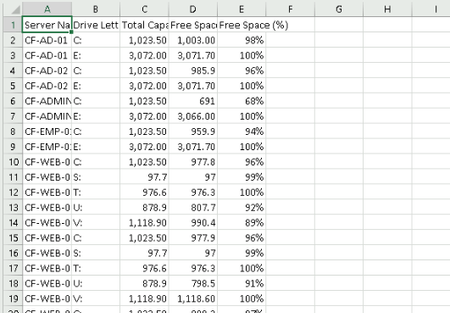

Hi.
Point 1
PowerShell isn't designed to work as a monitoring system (such as System Center Configuration Manager, Nagios, etc.) and won't adequately satisfy point 1. This is particularly true for memory and CPU where you really need to be taking data samples at small intervals, not a point-in-time snapshot from PowerShell.
PowerShell can provide you with point-in-time memory and CPU statistics but not the kind of ongoing monitoring you're referring to. The best information for memory and CPU utilisation will come from the Get-Counter commandlet, which is more useful and better performing than WMI. Still, neither are a good substitution for a proper monitoring system.
Get-Counter (Microsoft.PowerShell.Diagnostics) - PowerShell | Microsoft Docs
You might be tempted to create scheduled tasks to automate the running of the reporting script. This would be best suited to monitoring disk space (which generally doesn't rapidly change), somewhat suited to monitoring memory, but completely useless for monitoring CPU since it's purely demand-driven. In short, scheduled tasks just aren't worth the effort.
You might be better off looking at an event-driven model like performance alerts (linked below), though this doesn't scale very well as you look to monitor more and more servers. It's better suited to very small environments.
Create performance counter alert and send email - Windows Server | Microsoft Docs
Point 2
Worksheets are from Excel (XLSX files). CSV files are nothing like XLSX files at all and do not support worksheets.
There are a number of third-party PowerShell modules available (a sample list can be found below) that work with Excel files, and worksheets specifically, but as they are not part of the Windows operating system, you'd have to invest time into learning how to best make use of them.
One command I have seen other people use before is Export-Excel, which comes from the module (listed below) named "ImportExcel" (ironic choice of name.) I don't personally use third-party modules but there are other people in this community who do and may be able to explain how to make the best use of the Export-Excel commandlet.
| Module name | Author | Version |
| BitTitan.Runbooks.Excel | BitTitan | 0.1.6 |
| BitTitan.Runbooks.Excel.Beta | BitTitan | 0.1.6 |
| ExcelBDD | ExcelBDD Team | 0.5.1 |
| ExcelCmdlets | CData Software Inc. | 21.0.8137.1 |
| Excelimo | Przemyslaw Klys | 0.0.4 |
| ExcelOnlineCmdlets | CData Software Inc. | 21.0.8137.1 |
| ExcelPSLib | Philip Tomson | 0.6.9 |
| ExcelServicesCmdlets | CData Software Inc. | 21.0.8137.1 |
| ExcelTools | Brent Denny | 0.1.0 |
| IIE-Excel | David Rikkoert | 0.1.0 |
| ImportExcel | Douglas Finke | 7.5.3 |
| ProductivityTools.ImportExcelToSQL | Pawel Wujczyk | 0.0.5 |
| PSExcel | Warren Frame | 1.0.2 |
| PSWriteExcel | Przemyslaw Klys | 0.1.14 |
| Read-ExcelFile | Pascal Rimark | 2.1 |
Point 3
Same comments as point 1. PowerShell just isn't the right tool for this job.
Summary
What you've achieved so far with disk space monitoring is about as much as you can achieve through PowerShell - unless you're prepared to spend months writing a system from the ground up (which you can do since PowerShell natively consumes .NET), but it's highly unlikely you'd be able to adequately address points 1 and 3 by Saturday.
Cheers,
Lain