Forum Discussion

Device Health Status - Out of date/Unknown
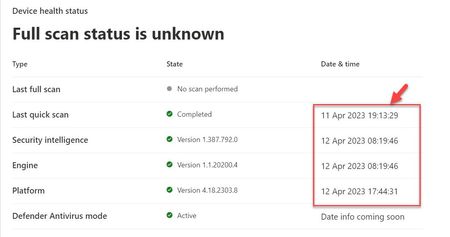

I understand your frustration with the lack of specific information and outdated help articles. When troubleshooting the issue with device health status not updating in Microsoft 365 Defender, there are several steps you can take:
1. Check Defender for Endpoint service status: Ensure that the Microsoft Defender for Endpoint service is running properly. You can check the service status on the Microsoft 365 Defender Service Health dashboard or the Microsoft 365 admin center. Look for any reported service disruptions or issues that could affect device health reporting.
2. Review event logs on affected servers: Check the event logs on the affected servers to see if there are any error messages or warnings related to the Defender for Endpoint service or device health reporting. Look for any specific events or patterns that could help identify the cause of the issue.
3. Verify network connectivity: Confirm that the affected servers have proper network connectivity to the Defender for Endpoint service. Ensure that there are no firewall rules or network configurations blocking the communication between the servers and the Microsoft 365 Defender service endpoints.
4. Update Defender for Endpoint: Make sure that the Defender for Endpoint software is up to date on the affected servers. Check for any available updates and install them. It's possible that an outdated version of the software could be causing the issue.
5. Review Defender for Endpoint configuration: Double-check the configuration settings for the Defender for Endpoint service on the affected servers. Ensure that the required features and settings are enabled and properly configured.
6. Contact Microsoft Support: If the issue persists and you're unable to identify the root cause or resolve it on your own, it's recommended to contact Microsoft Support for assistance. They can provide more in-depth troubleshooting steps and guidance specific to your environment.
When contacting support, be prepared to provide details about the affected servers, any error messages or event logs, and steps you've already taken to troubleshoot the issue. This will help the support team to better understand the problem and provide appropriate assistance.
Remember to document any relevant information or findings during the troubleshooting process, as it may be useful for future reference or when working with support.
If I have answered your question, please mark your post as Solved If you like my response, please give it a like |