Forum Discussion

Setting the security event option - 'Common' events
- Feb 14, 2021
Set up the Windows Security Events connector
To collect your Windows security events in Azure Sentinel:
- From the Azure Sentinel navigation menu, select Data connectors. From the list of connectors, click on Security Events, and then on the Open connector page button on the lower right. Then follow the on-screen instructions under the Instructions tab, as described through the rest of this section.
- Verify that you have the appropriate permissions as described under the Prerequisites section on the connector page.
- Download and install the Log Analytics agent (also known as the Microsoft Monitoring Agent or MMA) on the machines for which you want to stream security events into Azure Sentinel.For Azure Virtual Machines:
- Click on Install agent on Azure Windows Virtual Machine, and then on the link that appears below.
- For each virtual machine that you want to connect, click on its name in the list that appears on the right, and then click Connect.
- Click on Install agent on non-Azure Windows Machine, and then on the link that appears below.
- Click on the appropriate download links that appear on the right, under Windows Computers.
- Using the downloaded executable file, install the agent on the Windows systems of your choice, and configure it using the Workspace ID and Keys that appear below the download links mentioned above.
For additional installation options and further details, see the Log Analytics agent documentation.
Select which event set (All, Common, or Minimal) you want to stream.
Click Update.
To use the relevant schema in Log Analytics for Windows security events, type SecurityEvent in the query window.
Validate ConnectivityIt may take around 20 minutes until your logs start to appear in Log Analytics.
Full documentation : Connect Windows security event data to Azure Sentinel | Microsoft Docs

Thank you for taking the time to reply to my question, appreciated!
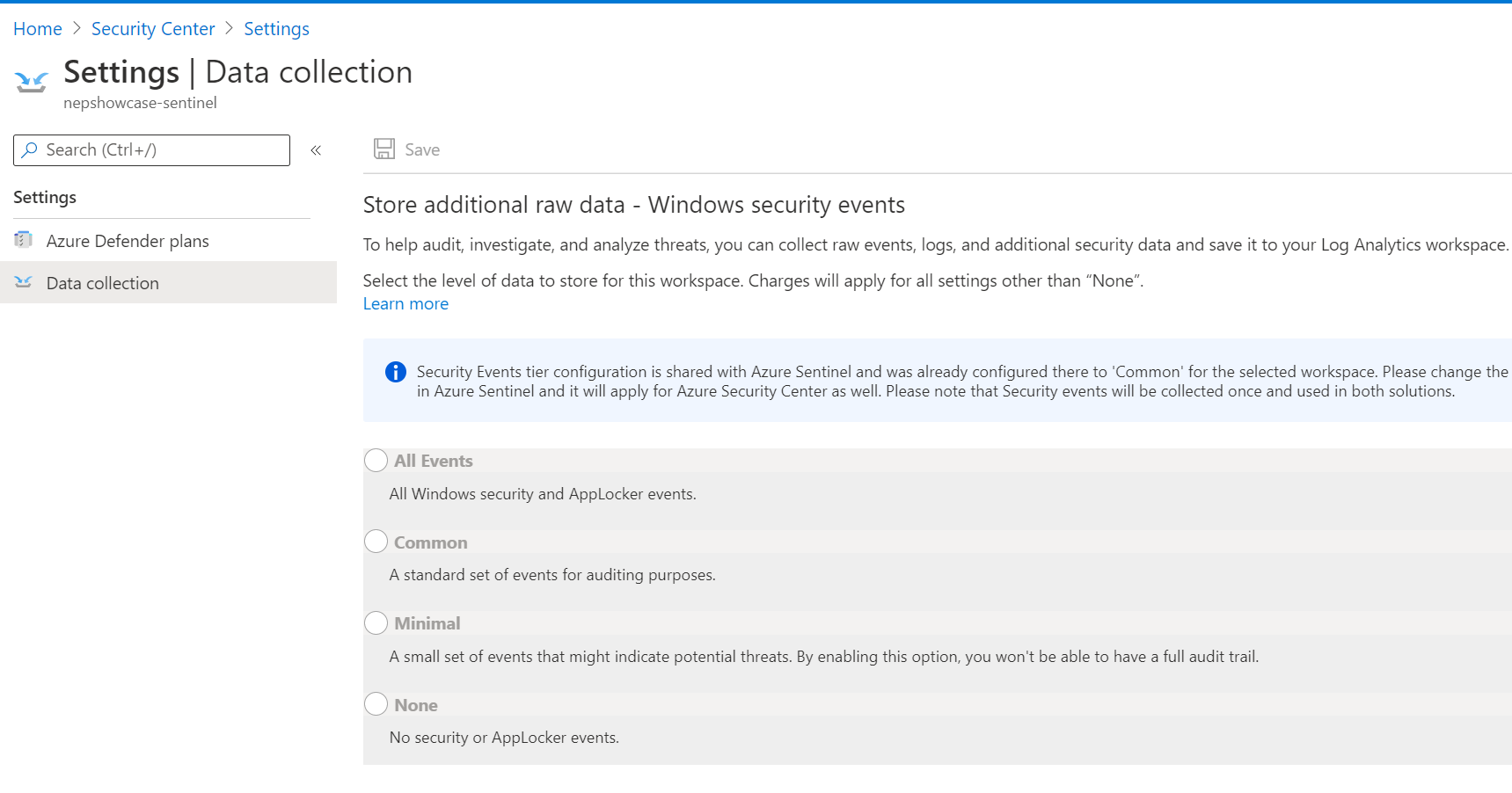
I understand that those security event settings need to be either ASC or Sentinel and not both.
How do we instruct the client agents to use Common or All events? This is the part I'm not understanding as I cannot find where we make that 'choice' from the Sentinel blade / config pages.
If I want my client Agents to use 'common' (over all, minimal or none) - where is this defined? And how do I determine what the configuration is set to (for example, where I inherit an existing Sentinel deployment etc)
thank you.

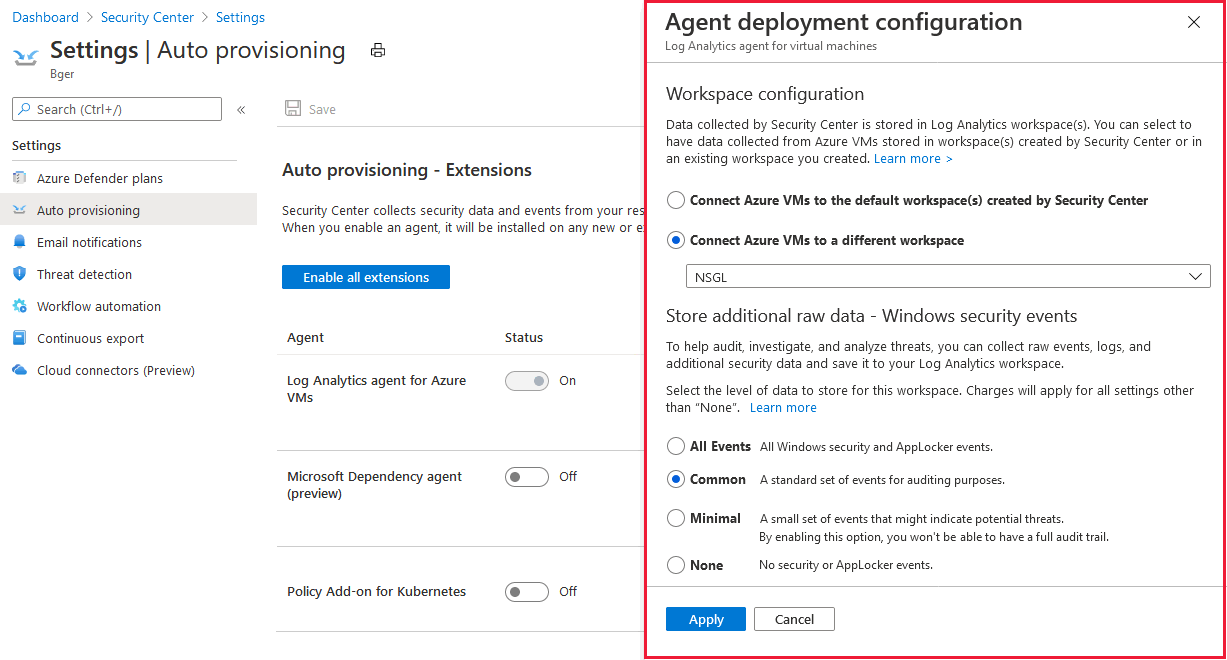
Hi it is defined in Security Center so you need to disable it from security center to be able to use it in Sentinel .
Disable Security event collecton in Azure Security Center
- From Security Center's menu, select Pricing & settings.
- Select the relevant subscription.
- In the Auto provisioning page, set the agent's status to On.
- From the configuration options pane, define the workspace to use.
Ref : Auto-deploy agents for Azure Security Center | Microsoft Docs