Forum Discussion

W11 Black screen on Desktop. Explorer issue
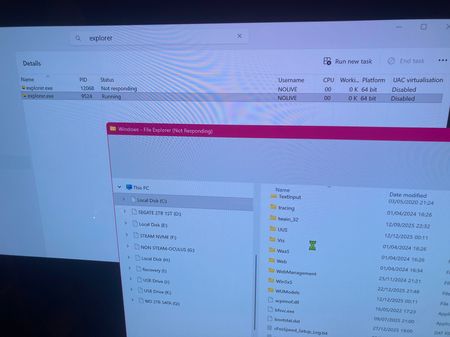

hi Tartanpion That’s a frustrating situation, but the fact that Task Manager, keyboard, and mouse still work is a good sign. This is almost certainly an Explorer shell failure, not a full OS collapse. Below are the realistic recovery options to try before reinstalling Windows—in the order that usually works in the real world.
Check below steps and try
Step 1: Try launching Explorer manually
From Task Manager → File → Run new task:
explorer.exe
If:
- Nothing happens → shell load issue
- Task appears briefly then dies → profile or extension problem
- Black screen remains → continue below
Step 2: Check the Shell registry key
Explorer depends on this registry value.
- Task Manager → File → Run new task
- Type:
regedit
- Navigate to:
HKEY_LOCAL_MACHINE
\SOFTWARE
\Microsoft
\Windows NT
\CurrentVersion
\Winlogon
- Check Shell
It must be exactly:
explorer.exe
If you see anything else (blank, additional paths, malware remnants) → fix it
Close Regedit and reboot
Step 3: Create a new local user (this often solves it)
This is the highest success-rate fix when Explorer won’t load.
From Task Manager → Run new task → cmd (Run as administrator)
net user testuser Temp123! /add
net localgroup administrators testuser /add
Reboot and log in as testuser.
If Explorer works:
Your original user profile is corrupted
You can migrate data from C:\Users\OldUser
No reinstall needed
This is extremely common after Explorer crashes during file transfers.
Step 4: Disable non-Microsoft shell extensions
Explorer may be hanging on a broken extension (phone drivers are frequent culprits).
If you can boot into Safe Mode and Explorer works there:
Confirms shell extension or driver issue
Once logged in:
• Uninstall phone sync software
• Uninstall OEM file transfer tools
• Uninstall 3rd-party context menu tools
• Reboot normally
If Safe Mode also black screens, skip to Step 6.
Step 5: Reset graphics driver (often overlooked)
From the black screen, press:
Win + Ctrl + Shift + B
If the screen flashes or resets:
Explorer sometimes recovers immediately
If not, update/reinstall GPU driver once accessible
Step 6: System Restore (still valid on Windows 11)
If restore points exist, this can undo shell damage.
Task Manager → Run new task → cmd (admin)
rstrui.exe
Restore to before the file transfer incident.
Step 7: In-place repair (NOT a reinstall)
This keeps apps, files, and settings.
- Download Windows 11 ISO (same build or newer)
- Mount ISO
- Run setup.exe
- Choose Keep personal files and apps
This fixes Explorer, registry, and user shell issues without wiping anything.
 TartanpionJan 01, 2026Copper Contributor
thank you for taking the time to provide advice.
In the end I reset fully my BIOS and it fixed the issue. no idea what really happened but my PC is back up and running which is the most important.
thanks again