Forum Discussion

DavidW
Nov 06, 2024Copper Contributor
Failed Testing Connection to ECMA Application
I've been trying to follow this guide: https://learn.microsoft.com/en-us/entra/identity/app-provisioning/on-premises-sql-connector-configurein order to test provisioning users to an SQL-based server,...

Kidd_Ip
Nov 12, 2024MVP
Try this:
- Verify Credentials: Double-check that the credentials (username and password) you entered are correct, including case sensitivity and special characters. Ensure they match the credentials set up on your SQL Server.
- SQL Server Configuration: Verify that the SQL Server authentication mode is set up correctly. SQL Server provides two authentication modes: Windows authentication and SQL Server authentication (mixed mode). Make sure you select the correct authentication mode and configure the appropriate credentials.
- ECMA Connector Configuration: Double-check the ECMA connector configuration to ensure that the SQL Server domain name, instance name, port number, and authentication credentials have been correctly specified.
- Microsoft Entra Configuration: Verify that you have properly configured the ECMA Enterprise application in Microsoft Entra and that the connection information to SQL Server is set up correctly.
- Check Logs and Error Messages: Review the logs of the ECMA connector host and Microsoft Entra for more detailed information about credential errors. Look for any possible error codes or messages that may help diagnose the problem.
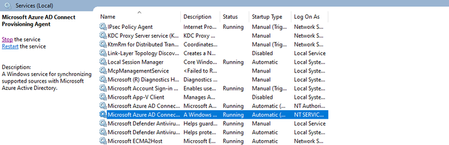
- Restart Services: Restart the provisioning service and the ECMA connector host service. Sometimes, a simple restart can resolve connectivity issues.
- Test Connection Script: Use the TestECMA2HostConnection.ps1 script to validate that the ECMA Connector Host is operating and responding to requests. You can find this script in the Troubleshooting subdirectory of the ECMA host installation folder.