Build a fully working model-driven app from your existing Dataverse, Excel, SharePoint, or SQL data in under a minute—screens, navigation, and forms included.
Generate new pages from a natural language prompt with Generative Pages, auto-populate records from any document in seconds with Automatic Form Fill, and embed Copilot to query your app data directly.
Layer in an Agent Feed to proactively surface decisions, missing data, and action items, then connect to Outlook and Microsoft 365 through Work IQ to act on your app data without leaving your inbox.
Jed Brown, Power Platform Group Product Manager, shares how to turn existing business data into a modern, AI-powered app.
Create a simple app from existing data.
Power Apps generates a fully working model-driven app in under a minute. Get started.
Describe what you want.
Power Apps generates the page — map controls, filtered list views, and click-to-assign interactions wired up automatically. Take a look.
Power Apps connects to Microsoft 365 through Work IQ.
Prompt Copilot to pull contact details from an email and add them directly to your Power App. Check it out.
QUICK LINKS:
00:00 — Create apps using Power Apps
01:07 — Create an app from existing data
02:26 — Copilot + Form Fill Assist
03:46 — AI-generated pages from a prompt
04:53 — Agent feed for proactive intelligence
06:16 — M365 integration via Work IQ
06:46 — Wrap up
Link References
Build your first Power App today at https://make.powerapps.com
Unfamiliar with Microsoft Mechanics?
Microsoft’s Official Video Series for IT
— Subscribe https://www.youtube.com/c/MicrosoftMechanicsSeries
— Microsoft Tech Community: https://techcommunity.microsoft.com/t5/microsoft-mechanics-blog/bg-p/MicrosoftMechanicsBlog
— Podcast: https://microsoftmechanics.libsyn.com/podcast
Join us on social:
— https://twitter.com/MSFTMechanics
— https://www.linkedin.com/company/microsoft-mechanics/
— https://www.instagram.com/msftmechanics/
— https://www.tiktok.com/@msftmechanics
Video Transcript:
-With Power Apps, you can create apps using the data that your business already runs on in seconds with modern experiences using AI, Copilot, and agents, all without writing a single line of code. And you can also transform your existing model-driven apps into automated agentic experiences without needing to rewrite them. Today, I’ll show you just how fast it is to do that. Starting with spinning up your first model-driven app on top of existing business data, then how you can take that app or any Power App you already have and modernize it with generated pages using AI. Then add Copilot Chat experiences to your app, letting users interact with it using natural language, as well as an agent feed that brings proactive intelligence right into your app.
-For a lot of workflows, the data is already there, whether it’s in Dataverse, SharePoint list, SQL Server, or longstanding line-of-business systems. The challenge has always been turning that data into something that people can easily interact with. That’s where Power Apps comes in. You bring the data and it builds the app structure for you, screens, navigation, relationships included. Let’s start by creating a simple app from existing data. I’m in the Power Apps maker portal at make.powerapps.com, and I want to build a model-driven app for our human resources team. They’ve been tracking open roles and candidates in the spreadsheet for far too long, and that data is already imported into Dataverse. I’ll click create and choose to start from a blank page with navigation. I’ll give it a name.
-Now, I can set up new data and I already have a Dataverse table for candidates, so I’ll search for that. This data can be from SharePoint lists, Dataverse, Excel, SQL databases, or you can even upload a CSV file as a data source. Power Apps connects directly to my table. In just a second, it inspects the schema and it generates a fully working model-driven app. Even calculated columns appear instantly. I can see all of my candidate data, their roles, profile completion percentage, current status, days on current stage, and more based on the underlying table. I automatically get a top navigation bar for each page as well as forms for adding and editing records. This looks good, and to make it a working app, I can just save and publish and then I’ll open the app full screen. And you’ll see that I can drill into each candidate and view their details. And this is the same view you get if you were to add new candidates as well.
-So it’s a real app built on real business data in under a minute. And here’s where it gets interesting. Whether you just built this app or you have a Power App that’s been running in production for years, you can modernize it and you don’t even need to start over. For example, I can give this app Copilot and automatic data entry capabilities in just a few clicks. On my new HR app, I’ll just navigate into the settings. From there, in Features, I’ll enable M365 Copilot in model-driven apps. So I’ll change that from default to on and below that, for form fill assist toolbar, I’ll turn that one on as well.
-Now, I’ll save those settings and if we run the app, it adds a Copilot control. This capability uses a Microsoft 365 Copilot paid license. This works with data in the app. So for example, I can use a prompt for a candidate, Ellis Turner. I’ll ask it to help me identify where there are hiccups in the process and why is it taking so long. And it takes a moment to reason over the data. It lists several different issues and summarizes that the root cause is related to securing specific interviews amid fluctuating schedules. Now, let me show you the form fill assist toolbar. Back from the candidate’s view, I can create a new candidate. I have this resume ready to go as you can see here. And to enter the corresponding data into all my fields, I just need to drag and drop this resume file in. And in just a few seconds, AI fills in all of the corresponding fields.
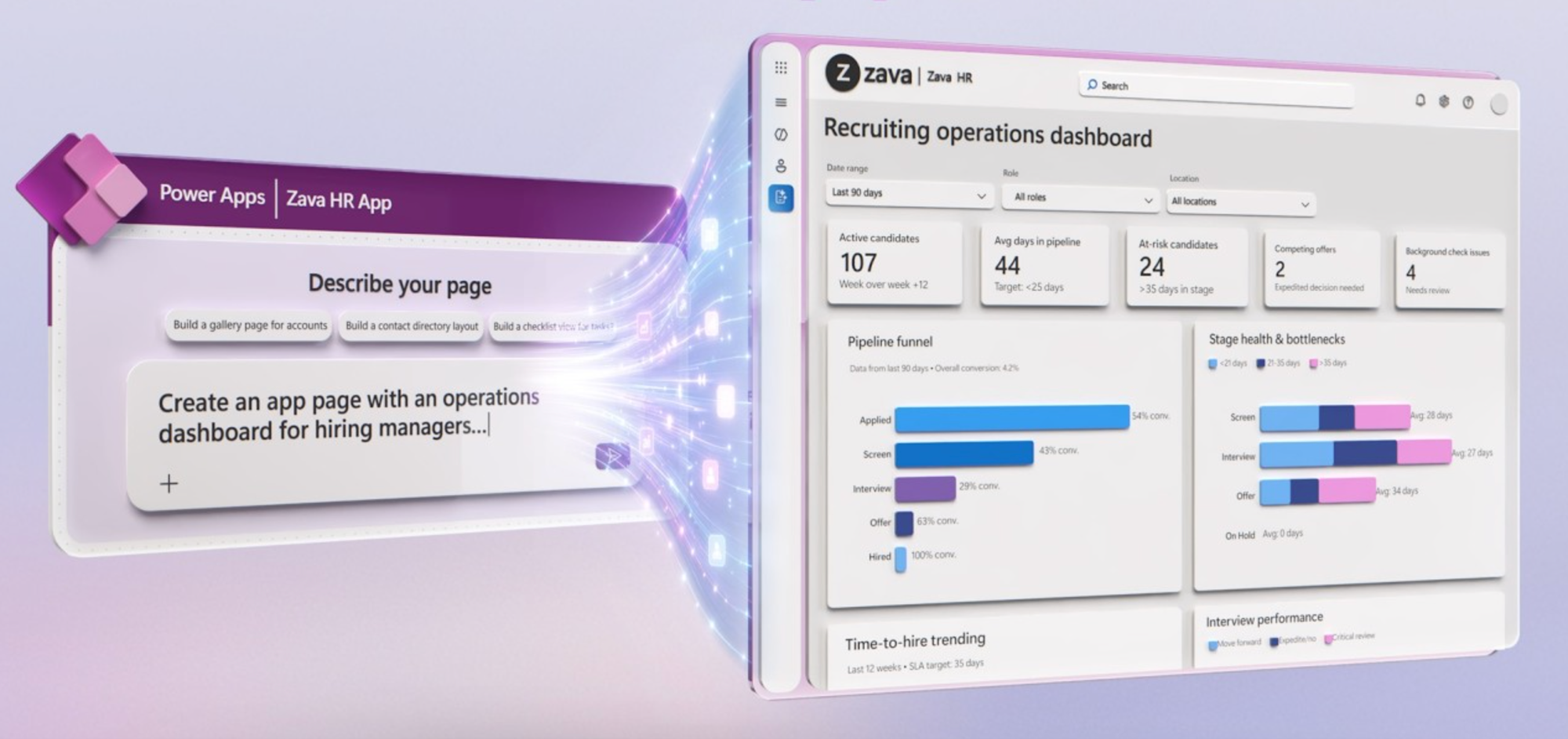
-Next, let’s take this app to the next level using AI-generated pages. Back in my app, I’ll select from the navigation menu, and I’ll select new page followed by the generative page option. Here, I just need to describe what I want instead of dragging controls onto a form. I’ll paste in my request to create a recruiting operations dashboard for hiring managers. And here, it’s important to be specific about what you want generated. So I describe that in the rest of the prompt. The app agent reads my data model, figures out which tables and columns to use and generates the page. It also gives me a preview of the code it’s using to generate the report so that I can review its logic. The nice thing with these pages is that you can continue iterating with additional prompts to build out everything that you want to see.
-Moving now to my finished page, I’ve asked the agent to add a few more tiles and visuals to track the status of my recruiting operation with pipeline funnel, stage health and bottlenecks, time to hire trending, interview performance and more. And this doesn’t just work on new apps. For your existing apps, you can layer in new pages like I just showed so that you can add new experiences without having to move to a whole new app.
-Next, I want to add the agent feed. Here, instead of waiting for users to ask questions, it proactively surfaces what matters like decisions to make, items to review, actions to take, and this is all powered by AI agents working behind the scenes using your instructions. To do that, I’ll move over to agent controls. And in my case, using Copilot Studio, I’ve already created a few agents in advance as you can see. And to add any of these to my new feed, I just need to select them and hit add to feed.
-Now, I’ll choose a few agents in this case. In addition to the onboarding agent, I’ll add the data quality agent followed by the screener agents. And then last, I’ll add the Zava HR agent. Finally, I’ll save the changes to my app. At this point, the agents will start populating my feed. This takes a few moments, so I’ll move forward a little bit in time to show their work.
-Now, I have all four agents working for me to prioritize the actions that I need to make. These, for example, are new candidates who don’t have enough data entered to meet our quality bar in order for them to move to the next stage. And if I click on the filter for needs attention, these are agents that are requesting human intervention to resolve issues. And if I open an item in the agent feed, I can directly take action on the missing data for this candidate. And for an app you already have in production, adding an agent feed or other AI features is just as easy as what I showed with the new app.
-Also, since these apps connect through Work IQ, you can access interact with the same data and context from your favorite Microsoft 365 apps. For example, from Outlook, when a candidate email comes into your inbox with a resume attached, you can use Copilot along with your agent to add the candidate details directly to your app. I’ll prompt it to add the details from this email to a new candidate record. And in just a moment, it adds Mona’s details right into the Zava HR app, and I just need to accept and save to confirm.
-Whether you’re building a brand new model-driven app or modernizing one that’s been part of your business for years, Power Apps now makes it much faster to get there with generated pages, embedded Copilot, and proactive agent feeds built right in, plus seamless integration across Microsoft 365. To go deeper, the best way to learn this is by building. So head over to make.powerapps.com, pick a data set you already got, and build your first Power App today. Keep watching Microsoft Mechanics for the latest on low-code and AI. Thank you for watching.
