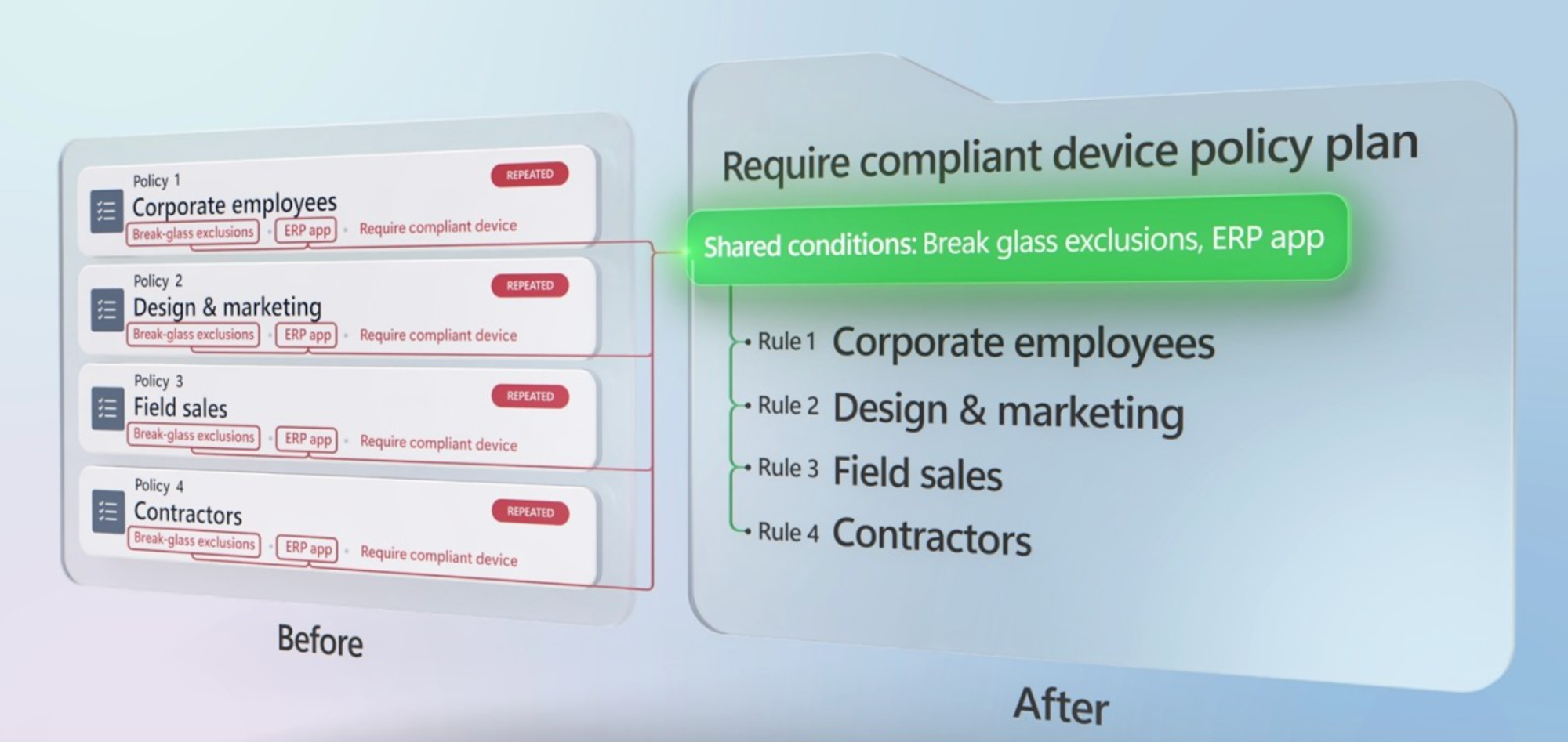
Define access intent once, share conditions across rules, and reduce policy sprawl with Microsoft Entra Conditional Access policy plans.
Today we’re announcing the public preview of Microsoft Entra Conditional Access policy plans—a new framework for enterprise-scale access control. Instead of managing dozens of individual policies, policy plans let you define your access intent once and enforce it consistently across every identity. Scale and control are now complementary, not mutually exclusive.
This evolution moves Conditional Access from administrative configuration toward policy management without sacrificing granularity or manageability. It helps identity teams close coverage gaps faster, improve policy clarity, and bring emerging identity types, such as AI agents, into the same trusted model. Policy plans run side by side with your existing Conditional Access policies, so you can start with one plan and expand from there.
Check out this Microsoft Mechanics video for a first look at Conditional Access policy plans in Microsoft Entra and see the latest features in action.
How it works
Let's start with what a policy plan is. A policy plan groups related Conditional Access policies around one security objective, such as requiring compliant devices or securing agent activity. Every plan has three parts:
|
Part |
What it is |
What it enables |
|
Plan details |
Name, description, optional tags, and owners. |
Clear accountability. Identity admins can see what the plan is for, who owns it, and what a change could affect. |
|
Shared conditions |
Targeting you define once for the whole plan, such as users in scope and emergency access exclusions. |
Consistent coverage across every rule. Users, apps, and exclusions are defined once instead of repeated in each policy. |
|
Rules |
Individual enforcement scenarios that inherit shared conditions and add their own controls. |
Granular enforcement for each requirement, so the plan grows with your requirements without increasing your policy count. |
You'll now see a new Policy plans (preview) experience under Entra ID > Conditional Access in the Microsoft Entra admin center, next to your existing policies. From here, you can create a plan from scratch or from a template and manage every rule from a single view. To bring existing policies into a plan, select Migrate to Conditional Access policy plans from the Policies page.
You can explore the new Conditional Access policy plans experience alongside your existing policies in the Microsoft Entra admin center.
Next, let's look at how policy plans help with four everyday tasks: defining your access intent once, tracing every access decision to its rule, bringing AI agents into the same model, and modernizing your estate at your own pace.
Define access intent once
As security requirements grow, Conditional Access policies grow with them, often repeating the same users, exclusions, and conditions. Take an organization that wants its identity admins to use phishing-resistant MFA, sign in from a compliant device, and remediate risk when their account is flagged. Until now, that meant three policies with the same scope. With a policy plan, the identity team defines the identity admin group and emergency access exclusions once, then adds a rule for each requirement.
The difference is inheritance: granularity now lives in rules instead of duplicated policies. Each rule adds only the conditions and controls it needs, so the plan grows with your requirements while your policy count doesn't. Plan-level exclusions can't be removed by any rule, which lowers the risk of accidental lockouts. The same approach works for Global Secure Access, where many network-scoped rules can share one set of users and apps.
You can now define shared conditions and exclusions once in a Conditional Access policy plan, then add a rule for each requirement without rebuilding the same targeting.
Policy plans simplify how you scale access controls: instead of adding a policy for every new requirement, you add a rule to a plan that already defines what it protects.
Trace every access decision to its rule
When a sign-in is blocked or prompted, you need to know what applied and why. Each rule appears as its own entry in the Conditional Access tab of the sign-in log details, evaluated alongside your existing policies. You can see exactly which rule applied, and its plan shows the shared conditions and related rules together, so you can explain why access was allowed, blocked, or remediated.
Every plan also has a name, description, owner, and tags. A reviewer, auditor, or incident responder can open a single plan and see who owns it, what it protects, and which rules it contains.
Extend Zero Trust to every AI agent
AI agents now access apps and data alongside the people they support, whether they act with their own permissions or on behalf of a user. They need the same Zero Trust protection, under the same model you already trust for users.
Take an identity team that wants to block access whenever an agent's risk is high. With a policy plan, the team sets high agent risk once as a shared condition, then adds a rule for each type of agent, such as agent users and autonomous agents. Templates make it faster to get started by creating the plan, its shared conditions, and its rules in one flow. Rules created from a template start Off, so nothing changes until you review and enforce them.
You can secure the different types of AI agents in your organization with one policy plan, without starting from scratch in the template gallery.
Agents join the same trusted model as everyone else. With policy plans, you define your access intent once and enforce it consistently across every identity, even as the number of AI agents in your organization keeps growing.
Modernize what you’ve built at your own pace
Most organizations have built their policy estate over several years, and related ones are often connected only by a naming convention. Moving to policy plans shouldn't mean rebuilding from scratch or weakening your identity security posture along the way.
To start migrating your Conditional Access policies, go to the Policies page, select Migrate to Conditional Access policy plans, and choose related policies, such as those that protect the same applications or target the same users. The migration tool analyzes the selected policies and moves the assignments and conditions they share into the plan's shared conditions. Each original policy becomes a rule that keeps its own identities, resources, locations, and controls.
Your original Conditional Access policies aren't changed and keep enforcing access, while the new rules start Off. You can validate the rules in report-only mode, evaluate their impact using the built-in policy impact metrics, and turn off the original policies only when you're ready
You can start migrating your Conditional Access policies with the migration tool and preview how they map shared conditions and rules before you create a plan.
You don't have to migrate everything at once. Bring in one group of related policies at a time, and your Conditional Access policies become easier to govern with every group you add. We'll continue to expand migration tooling and guidance based on your feedback during Public Preview.
To learn more, see Migrate Conditional Access policies to a policy plan.
Scale adaptive access controls without policy sprawl
As your policy estate grows and AI agents join your workforce, securing and governing access requires a model that can evolve with your organization. Policy plans provide that foundation, giving you a scalable way to express your access intent and enforce it consistently across every identity.
Policy plans simplify management across your organization without sacrificing granular control, helping you close coverage gaps, strengthen your security posture, and enforce Zero Trust at scale.
Get started today
Conditional Access policy plans are available today in public preview. If you’re a Microsoft Entra customer with a Microsoft Entra ID P1 or P2 license, you can start using these capabilities immediately in the Microsoft Entra admin center. To get started, sign in to the Microsoft Entra admin center as a Conditional Access Administrator and go to Entra ID > Conditional Access > Policy plans (preview).
We'll keep expanding these capabilities and will evolve policy plans based on your feedback.
Swaroop Krishnamurthy, Principal Product Manager, Microsoft Entra
Swaroop Krishnamurthy | LinkedIn
Etan Basseri, Principal Product Manager, Microsoft Entra
Additional resources
- Watch the introductory Microsoft Mechanics video New Conditional Access policy plans in Microsoft Entra
- Read the docs article What are Microsoft Entra Conditional Access policy plans
- Learn more about migrating your existing policies to a plan. Visit Microsoft Learn: Migrate Microsoft Entra Conditional Access policies to a policy plan.
- Register for the webinar Scale secure, adaptive access without policy sprawl to see Conditional Access policy plans in action and get your questions answered by the product team.
Learn more about Microsoft Entra
Prevent identity attacks, ensure least privilege access, unify access controls, and improve the experience for users with comprehensive identity and network access solutions across on-premises and clouds.

 Microsoft