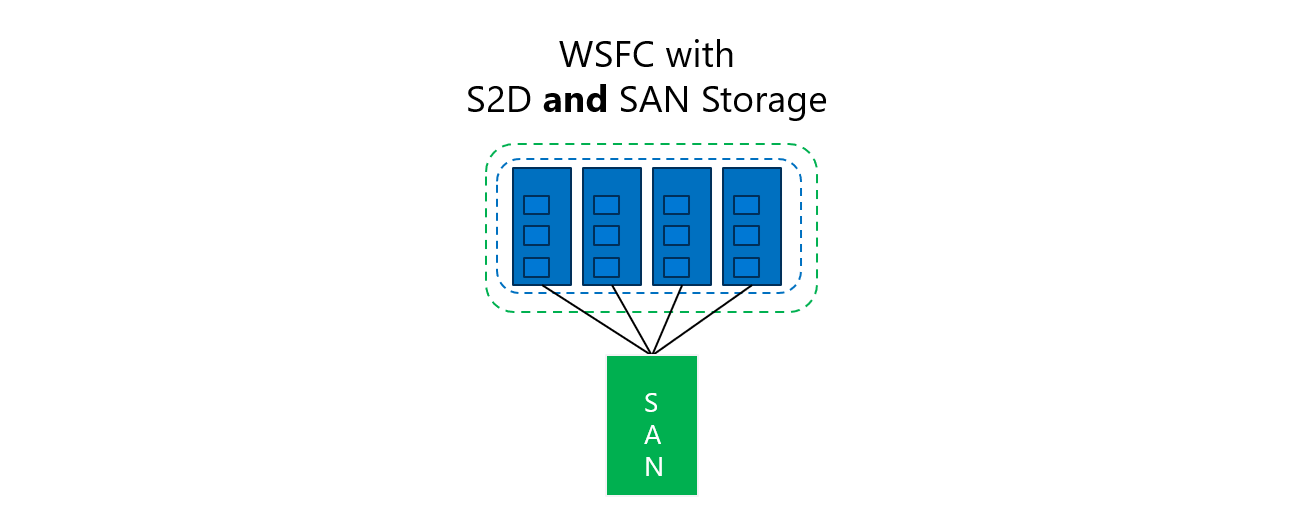
Storage Spaces Direct (S2D) and SAN storage can now operate side-by-side in the same single rack failover cluster - so you can take advantage of S2D speed for some volumes, and SAN features for OTHER volumes. This allows you to run Hyper-V VMs or SQL Server Failover Cluster Instance (FCI) scenarios on fast S2D storage or on your SANs to take advantage of SAN features like snapshots, backups, and deduplication.
Applies to: Windows Server 2022 and Windows Server 2025 Failover Clustering
Failover Clustering has supported SAN storage since Windows NT 4.0 Server, Enterprise Edition was released in 1997!
In addition, Failover Clustering has supported Storage Spaces Direct (S2D) since Windows Server 2016!
Many customers have been asking if they can use (or reuse) their existing iSCSI and Fibre Channel SANs together with S2D – and now the answer is Yes!
Now Windows Server 2022 and Windows Server 2025 Failover Clusters can use both S2D Cluster Shared Volumes (CSVs) and separate SAN CSVs (Fiber Channel, iSCSI connected LUN’s) together in the same single rack cluster.
This is more evidence that we listen to your feedback! 😊Customers with existing SANs – many of them looking for a new virtualization platform – have told us that they want to use their SANs with Hyper-V and S2D.
Note that Hyper-V VM Storage Live Migration (“Move Virtual Machine Storage”) works great for moving VMs between S2D and SAN storage without any VM disruption!
Why are we adding support for S2D and SAN coexistence in the same single rack failover cluster?
- If you want to use your SAN(s) to migrate data and VMs to and from S2D storage. For example, over time, workload requirements can change, and you may use your SAN(s) to move data and VMs between clusters, or you might choose to move data and VMs from SAN storage to S2D for faster data access for the workloads depending on usage or demand.
- If you want to use your SANs for backup and restore data and VMs, which can add protection against ransomware.
- If you want to use S2D storage and/or SAN storage for data ingestion for AI and ML training and inference. For example, AI model training may be faster using S2D storage in some cases, but SAN storage could be used to store multiple versions of the model as it’s being developed and validated. More choices for data management!
What are the support requirements for using SAN storage (SAN LUNs) (Fibre Channel, iSCSI, and iSCSI Target) together with S2D storage CSVs in the same single rack cluster?
- SAN disks are not included in a Storage Spaces Direct storage pool. Ensure that only Direct Attached Storage (DAS) drives are used in S2D:
-
- PowerShell: Get-PhysicalDisk -CanPool $True
-
- SAN volumes should be formatted as NTFS before being added to CSV.
- S2D volumes should be formatted as ReFS before being added to CSV.
How can I create a single rack failover cluster with both S2D and SAN storage?
- Create a failover cluster that initially doesn’t use storage:
-
- PowerShell: New-Cluster -Name <clustername> -Node <node1name>,<node2name>,<node3name> -NoStorage
-
- Enable Storage Spaces Direct – this will add eligible non-boot DAS drives to the S2D Storage Pool:
-
- PowerShell: Enable-ClusterS2D
-
- Create volumes from the S2D Storage Pool, format using ReFS, and add the Cluster Shared Volumes:
-
- PowerShell: New-Volume -StoragePoolFriendlyName S2D* -FriendlyName S2DVDisk01 -FileSystem CSVFS_REFS -Size 200GB
-
- Configure MPIO (if required) for SAN LUNs, add them to the failover cluster’s Available Storage (“Add Disk”), and then add them to CSV (“Add to Cluster Shared Volumes”)
How can I validate both S2D and SAN storage in the same single rack failover cluster? It’s important to check that all the nodes in the cluster are connected to the SAN LUNs and that S2D is configured correctly. Here’s how you can check:
- Schedule a maintenance window when VMs and other roles running on the SAN LUNs can be stopped – OR - move the VMs and other roles off the CSV disks based on SAN LUNs and onto the CSV disks based on S2D.
- Take CSV disks based on the SAN LUNs Offline, I.E., “Take Offline”
- CSV disks using S2D can remain online:
- Run cluster validate for both “Storage” and “Storage Spaces Direct” validation suites:
-
- PowerShell: Test-Cluster –Include “Storage”, “Storage Spaces Direct”
-
- Both SCSI-3 PR tests for SAN storages and S2D tests will be performed and a validation report generated.
- Bring SAN LUNs Online, I.E., “Bring Online”, and restart VMs or other roles if they were stopped.
Note – remember to avoid renaming or evicting cluster nodes using S2D storage.
We recognize that some management features are different between S2D and SAN LUNs, but we think that most users will benefit from being able to combine S2D and SAN storage.
For more details on Failover Cluster storage architectures, see this article: Failover Clustering Storage Architectures in Windows Server | Microsoft Learn
To see SAN Storage systems that have qualified for the Windows Server 2022 or Windows Server 2025 logo, browse the Windows Server Catalog Hardware: Hardware | Windows Server Catalog
If you would like to see additional scenarios supported, please let us know so that we can prioritize development and validation and address your business needs!
Please send your questions, comments, and feature requests about S2D and SAN Coexistence to: WSFC_S2DandSAN@microsoft.com
-Rob.

 Microsoft


