We have put together a step-by-step walkthrough on how to run the Exchange Calendar Update Configuration Tool (MSExTMZCFG.EXE). This is a server-side tool that can be used as part of the 2007 DST process for Exchange. We have also included some information about solutions for commonly seen errors when running the tool.
Please note that the KB article that talks about this package (KB 930879) has additional information about the tool as well as prerequisites and possible complications.
There are 2 files that are downloaded in the above package:
MSEXTMZ.exe - This file extracts time zone information from mailboxes on a server that is running Exchange Server. This file also updates mailbox calendars for a specified list of users by invoking the Outlook tool against each specified user.
MSEXTMZCFG.exe - This file is a configuration tool that describes most of the steps when you update an Exchange Server server.
Step 1: Prerequisites to running the Exchange Calendar Update Tool
1) Pick a client operating system. The Exchange tool will run on any of the following operating systems:
- Microsoft Windows Server 2003
- Microsoft Windows XP
- Microsoft Windows 2000 (must have OS fix or must import registry entries from KB 914387).
2) Install Outlook 2003 or Outlook 2007. Create a profile that has rights to log in to any mailbox in the organization.
3) Install the OS DST Patch (KB 931836).
4) Install the Outlook Time Zone Update Tool (TZMOVE). Download from the Microsoft Download Center or from KB 931667.
5) Make sure that the .NET Framework v2.0 has been installed
Now you are ready to proceed. Click on screenshots below to see bigger versions if they are cut off in your browser window.
Step 2: Run the MSExTMZCFG.EXE, it opens up like this:
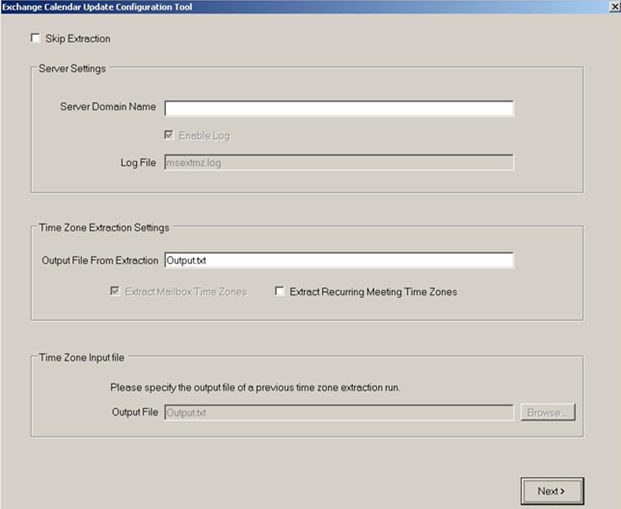
The "Server Domain Name" value is the server's LegacyExchangeDN from Active Directory. In order to get this information, you can use the utility such as LDP.EXE or ADSIEdit. The LegacyExchangeDN is in the following format:
/o=<Exchange organization name>/ou=<Administrative group name>/cn=Configuration/cn=Servers/cn=<Server name>
So something like this:
/o=Contoso/ou=First administrative group/cn=Configuration/cn=Servers/cn=E2003BE1
Step 3: Enter the Server Domain Name and press Next:
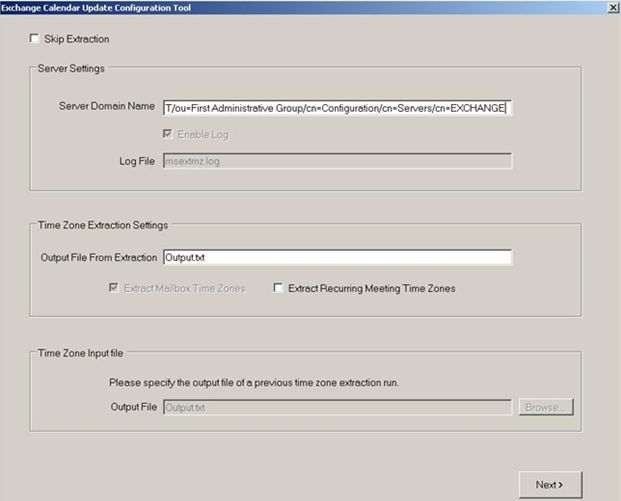
Possible issues at this stage:
- You might receive "Please Select the Valid Server" message box if the LegacyExchangeDN is not specified or is not in a valid format (extra spaces would be a problem too).
- You might receive the following errors in the MsExTMZ.log due to LegacyExchangeDN mismatch:
Unable open mailbox table for server /o=Contoso/ou=First Administrative Group/cn=Servers/dn=E2003BE1. Error 0x80070057.
Unable open mailbox table for server /o=Contoso/ou=First Administrative Group/cn=Servers/dn=E2003BE1. Error 80040115.
Step 4: Now you will get prompted for the Outlook profile name:

Possible issues at this stage:
1. Make sure that you select a profile with administrator privileges and the profile is configured in online mode.
2. You might receive "Unable to find mailbox timezone: Error 0x80004005" (you can check the msextmz.log for errors). This might happen if the mailbox has never been logged into. To resolve this, login to OWA for the user specified in the error message and create a meeting request or an appointment and try re-running the tool again.
Step 5: The tool names the text files it will create
1. Conflictusers.txt - this file will contain users that have Conflicting TimeZone entries
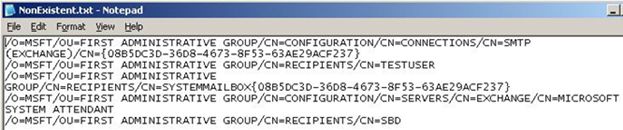
2. NonExistent.txt - will contain users who do not have their TimeZone information set.
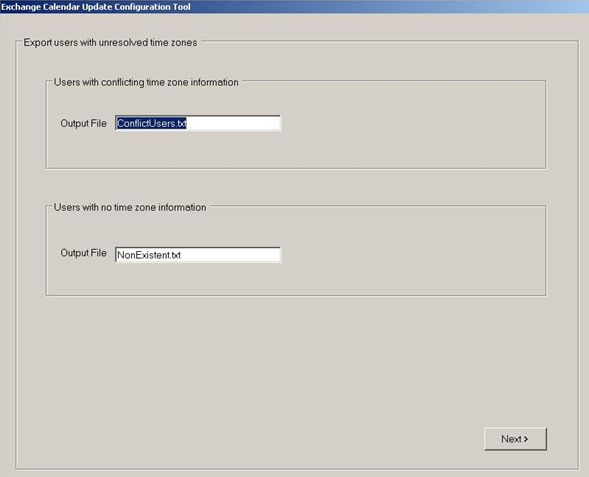
Press Next.
Step 6: Specify the Time Zone and paths needed
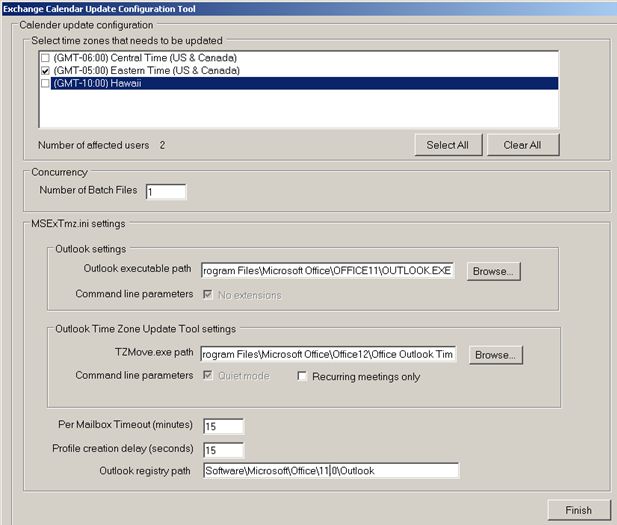
Next you will get to Select Time Zones and specify the path to Outlook.exe and TZMove.exe:
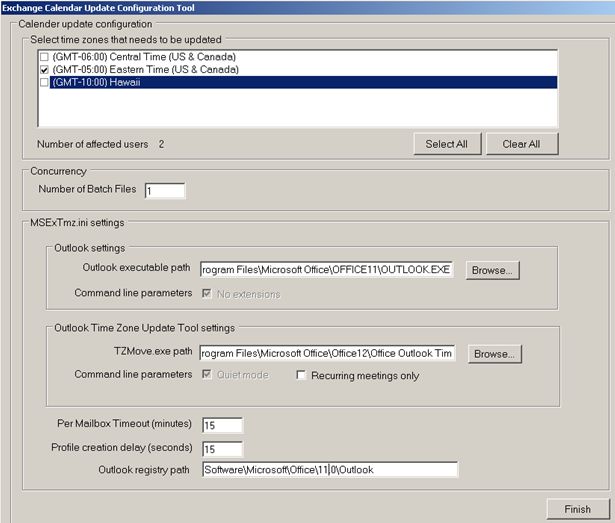
Possible issues at this stage:
- When specifying the Outlook Time Zone Update Tool, make sure you select the TZMOVE.EXE which is about 304 KB in size rather than the download itself, which is about 8 MB in size.
- The TZMove.exe can be found in the following location: C:\Program Files\Microsoft Office\Office12\Office Outlook Time Zone Data Update Tool
- The Outlook registry Path should be pointed to the following location if you are using Outlook 2003 to run the utility:
HKEY_CURRENT_USER\Software\Microsoft\Office\11.0\Outlook
So after you specified the paths you should have something like this:
Step 7: Press Finish to finish the configuration
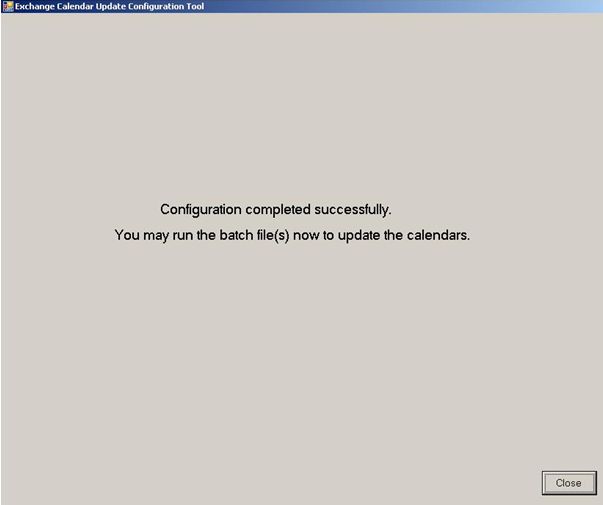
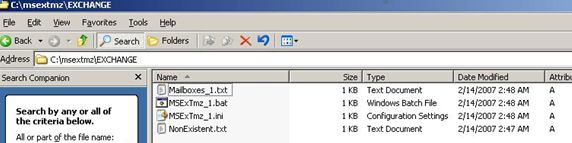
After you press Close on the above screen, the Configuration tool creates a folder named by the server name in the C:\MSEXTMZ directory. This folder will contain the following files:
Mailboxes_1.txt - This is the list of mailboxes that will be processed when the batch file is run.
MSExTmz_1.bat - This is a batch file that will call the C:\msextmz\msextmz.exe to process the MSExtmz_1.ini file
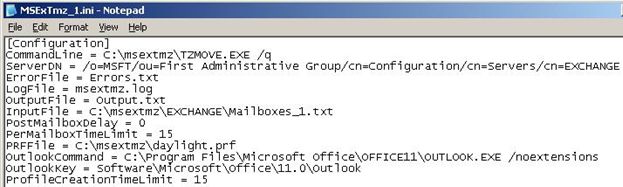
MSExTmz_1.ini - This is the INI file which is created by the utility based upon the input specified by us while running steps 1-6 above. If for some reason the update doesn't run, this ini file can simply be modified instead of running through the entire config tool again.
NonExistent.txt - This file contains the list of mailboxes which do not have Time Zone Information (like System Mailbox / SMTP Mailbox / System Attendant mailbox etc) or any mailboxes that have not been logged into yet.
The folder will look like this:
A sample snapshot of MSExTmz_1.bat:

A sample snapshot of MSExTmz_1.ini:
A sample snapshot of NonExistent.txt:
Step 8: run the MSExtmz_1.bat file:
Successful processing of the MSExtmz_1.bat will look something like this:

All of this information is also being logged into the msextmz.log (as specified in the .ini file).
Possible issues at this stage:
If you get a bunch of errors with a code of 0x80004005, there are a few things to check:
- That the Outlook tool is installed
- Make sure the correct TZMOVE.exe has been selected in step #5 above
- Try to run the tool from the following location: C:\Program Files\Microsoft Office\Office12\Office Outlook Time Zone Data Update Tool
For steps that you should do before and after running of the Exchange tool, other options that you have and related FAQ, please see the Exchange Server and Daylight Saving Time (DST) 2007 TechNet article.
- Ben Winzenz, Nino Bilic, thanks also to Suresh Babu D

