Assignments in Microsoft Teams and through the Microsoft 365 LTI app has shipped a set of updates that connect interactive learning content directly into the assignment workflow, improve content quality across English-speaking regions, and give educators more control over AI-generated output.
All of these features are available now for every Microsoft Education license (A1, A3, A5) at no extra cost.
Watch a quick walkthrough of all the updates: What's new in Assignments
Learning Zone interactive lessons in Assignments
Educators using a Copilot+ PC can turn any teaching idea into an interactive lesson — with slides, quizzes, and activities — using the Learning Zone app. Those lessons now connect directly into the assignment workflow.
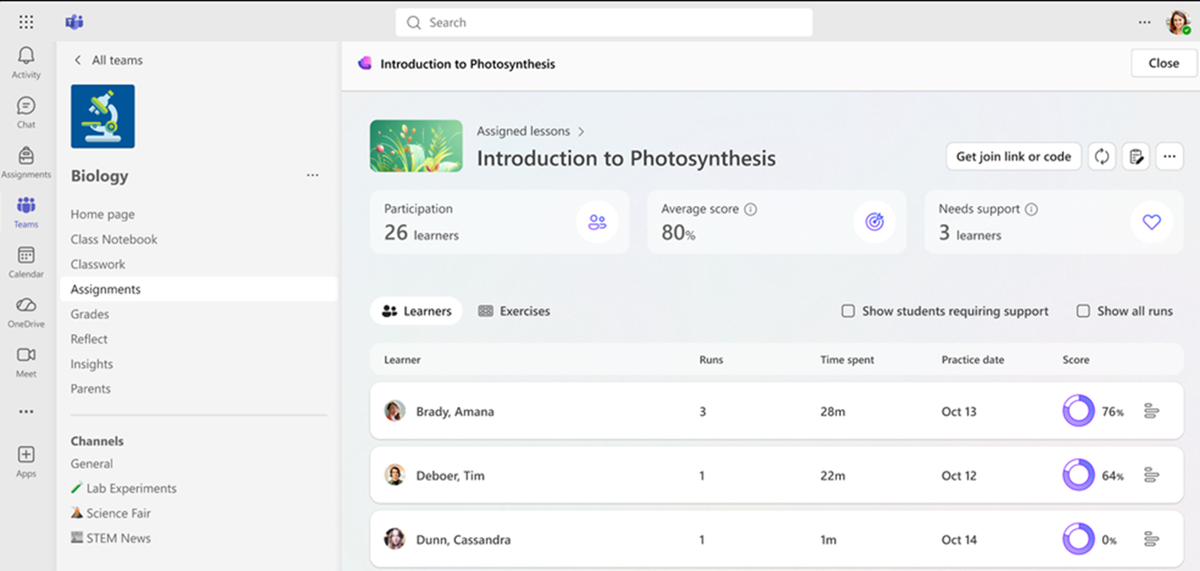
When creating an assignment, educators see a new Learning Zone resource option. Pick a lesson, and it's attached to the assignment. Students complete the interactive lesson right inside their assignment in Teams or through the LMS, without leaving. When they finish, scores sync automatically — the student's completion percentage becomes their assignment grade.
A few things to know:
- You need a Copilot+ PC to create lessons. Students can complete them on any device.
- If you don't have any lessons yet, the picker will link you to download the Learning Zone app.
- Students can also open the lesson in the Learning Zone app on Windows if they prefer.
Learn more: Add a Learning Zone lesson to an assignment
Student feedback view update
We've updated how students see feedback on returned assignments. The view now reorganizes to put what matters most front and center:
- Feedback, feedback resources, rubric, and grades take the main space.
- Instructions and resources collapse into side sections — still accessible, just not competing for attention.
Before this change, students saw everything at once — feedback mixed in with instructions, attachments, and rubrics. Many students struggled to find the feedback you spent time writing. Now it's the first thing they see when they open a returned assignment.
This is already active for everyone. Nothing to turn on.
Standards alignment across Instructions and Rubrics
Educators can now add educational standards directly to their assignment. When you use AI to enhance your instructions, it takes those standards into account. And when you generate a Rubric for the same assignment, it pulls in those same standards as input — so your instructions and rubric stay aligned without extra work.
We've also made a few other improvements to AI Instructions:
- Describe changes to tweak the output. After the AI generates a suggestion, you can describe what you want changed in a text field and re-generate. Want it shorter? More scaffolded? Focused on a specific concept? Type what you'd like changed and get an updated version — no need to start over.
- Shorter, more focused suggestions. When you use Add Detail, Add Sparkle, Add Hints, or other enhancements, the output stays closer to what you actually need rather than over-expanding your instructions.
Learn more: Standards in Assignments and the Teach module
English locale support across Assignments and the Teach module in Microsoft 365 Copilot
AI features across both Assignments and the Teach module in Microsoft 365 Copilot now support English (UK), English (Canada), and English (Australia) in addition to English (US).
Language is automatically selected based on your browser language settings. If your browser is set to en-GB, the AI generates content using British English. If you've used Teach before, it defaults to your previously used language. You can switch anytime from the Language dropdown when creating content.
We've also updated the age/year selection to match what's appropriate for each locale — so you'll see "Year 9" instead of "Grade 9" when using English (UK), for example.
Resources

 Microsoft

