Azure Monitor issues are created from saved investigations or automatically by the Azure Copilot Observability Agent. You can now connect them to ServiceNow ITOM through a simplified integration.
Operational problems rarely stay within one monitoring tool. Azure Monitor may detect and investigate a service degradation, while operations teams manage ownership, escalation, and resolution in an IT Service Management (ITSM) system. Without a connected workflow, responders must copy context between systems and keep two records current throughout the incident.
Azure Monitor issues now provide a simplified integration with ServiceNow IT Operations Management (ITOM). You can configure Azure Monitor to create a corresponding alert in ServiceNow ITOM whenever an issue is created. ServiceNow can then create an incident in ServiceNow ITSM, or in another ticketing system connected to your ServiceNow ITOM instance.
The integration can also keep the Azure Monitor issue, its related alerts, the ServiceNow ITOM alert, and the resulting incident connected. A ServiceNow pull connector fetches related Azure context. When bidirectional sync is enabled on that connector, ServiceNow can also update Azure Monitor after incidents or alerts close. Responders can therefore continue working in their established tools without manually reconciling each update.
Move from issue context to the response workflow
An Azure Monitor issue is more than an individual alert. It is a shared technical workspace where on-call engineers and other responders can collaborate throughout a service degradation. It can include issue metadata, investigation results produced by the Azure Copilot Observability Agent, related alerts, and affected resources.
Because the issue is integrated into Azure Monitor, the Observability Agent, and related monitoring flows, responders can work together from the Azure context already available. Team members can review and refine the investigation, gather more evidence, understand affected resources, and coordinate mitigation through the appropriate tools.
The ITSM incident provides the operational record for managing the degradation. It supports assignment, priority, escalation, service-level tracking, communications, and closure. Teams use the Azure Monitor issue to collaborate on technical investigation and mitigation, while they use the ITSM incident to manage the broader response process.
An issue can be created from a saved investigation or, in public preview, by autonomous operations in the Observability Agent. Connecting it to an ITSM incident lets each audience use its primary workspace without separating the technical investigation from the operational record.
Issue actions provide the connection point. When an issue is created or updated, Azure Monitor triggers the action groups configured as default actions on the Azure Monitor Workspace that stores the issue. You can use email, SMS, voice, Logic Apps, Event Hubs, Azure Functions, Automation Runbooks, secure webhooks, or webhooks.
This means Azure Monitor issues can integrate with a variety of ticketing and ITSM systems. You can use a Logic App or Azure Function to transform and route issue data, or use a webhook when the target system exposes an endpoint. The ServiceNow ITOM integration extends this actions and notifications model with an end-to-end connector designed specifically for Azure Monitor issues.
Learn more about the available notification and workflow options in Azure Monitor issue actions.
A connected path from Azure Monitor to ServiceNow
After you configure the integration, a newly created Azure Monitor issue triggers the default action groups on its Azure Monitor Workspace. A secure webhook sends the issue to the ServiceNow ITOM instance, where an Azure Monitor push connector receives it.
The result is a connected operational flow:
- Azure Monitor creates an issue from a saved investigation or an autonomous operation.
- The workspace's default action group sends the issue through its secure webhook action.
- The ServiceNow push connector receives the issue and creates a corresponding ITOM alert.
- The ServiceNow pull connector fetches the issue's related alerts and resources from Azure Monitor.
- ServiceNow creates an incident in the connected ticketing system, and responders use the linked records throughout the response.
The push connector only carries issues and alerts from Azure Monitor to ServiceNow. The pull connector is also required to fetch an issue's related alerts and resources. This gives responders a view of the broader problem instead of a ticket containing only a single signal.
The Azure Monitor issue can also contain investigation results produced by the Observability Agent. In the current integration, those investigation results aren't synchronized to ServiceNow. Adding them to the ServiceNow context is planned for a future iteration.
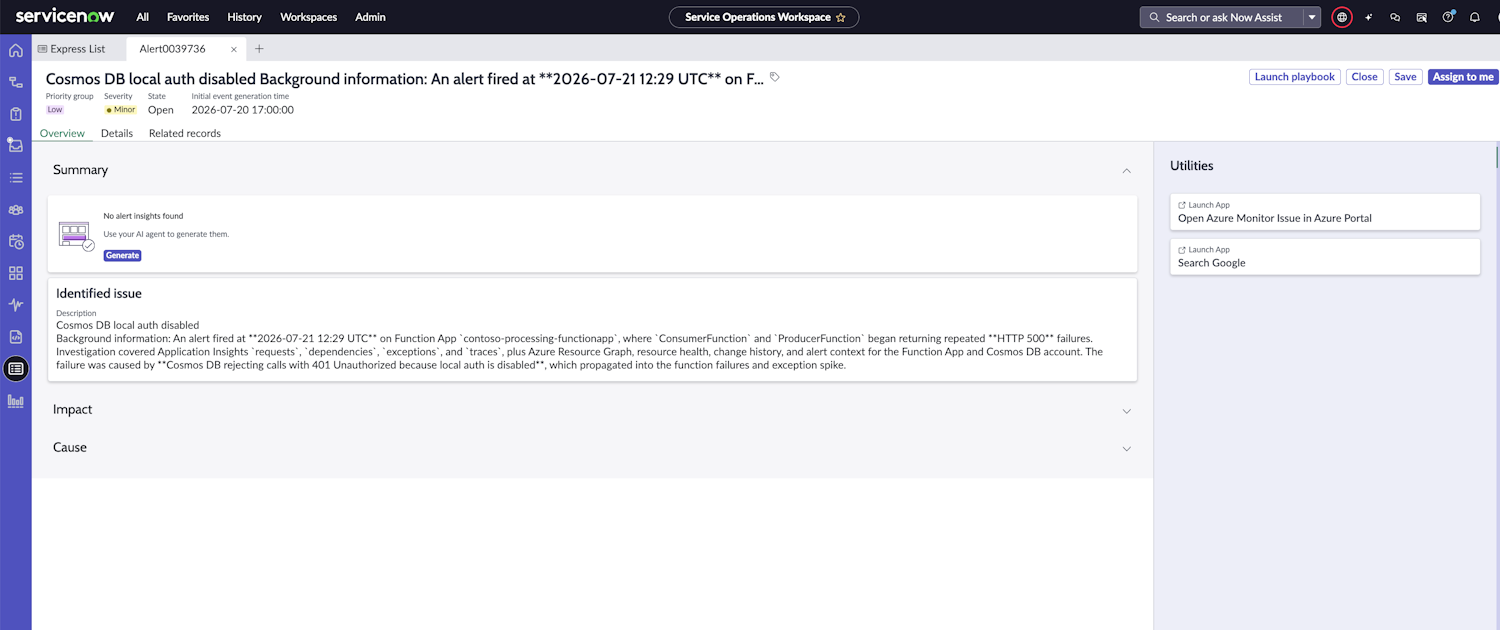
To move from ServiceNow back to the technical investigation, open the corresponding ITOM alert in Service Operations Workspace. In the Utilities pane, select Open Azure Monitor Issue in Azure Portal. The link opens the connected issue so the on-call engineer can continue working with its Azure Monitor context.
An Azure Monitor issue with its status, related alerts, and affected resources.
The corresponding ServiceNow ITOM alert and its link to the Azure Monitor issue.
The incident created in ServiceNow ITSM from the ServiceNow ITOM alert.
Configure the integration
The setup connects an issue action in Azure Monitor with push and pull connectors in ServiceNow ITOM. At a high level, complete these steps:
- Create or reuse an Azure Monitor action group. Add a secure webhook action that targets the inbound endpoint of your ServiceNow ITOM instance. Secure webhooks use Microsoft Entra ID authentication to protect the connection. If an existing action group already sends Azure Monitor alerts to ServiceNow ITOM through a secure webhook, you can use that same action group for issues.
- Assign the action group to the Azure Monitor Workspace. Configure the action group as a default action group on the workspace where Azure Monitor issues are stored. Azure Monitor then triggers it when an issue is created or updated.
- Configure both ServiceNow connectors. Use an Azure Monitor push connector to receive issues and alerts. Configure a pull connector to fetch related alerts and resources. Enable bidirectional sync on the pull connector so ServiceNow can update Azure Monitor when incidents or alerts close.
- Validate creation and context. Create a test issue and confirm that the ITOM alert, ticketing incident, related alerts and resources, and Azure Monitor issue link appear.
- Validate status synchronization. Close a test ServiceNow incident and alert, then confirm that the corresponding Azure Monitor statuses change.
For detailed secure webhook prerequisites and ServiceNow configuration, refer to Connect ServiceNow to Azure Monitor.
Keep both systems current during response
Creating the incident is only the start of the workflow. During an active response, an issue can change severity or status, related alerts can be resolved, and the ServiceNow incident can move through assignment and closure.
With bidirectional sync enabled, the integration keeps those lifecycle changes connected:
- Changes to the Azure Monitor issue are reflected in the corresponding ServiceNow records.
- Related Azure Monitor alerts and resources are represented in ServiceNow.
- When a ServiceNow incident is resolved or closed, the corresponding Azure Monitor issue status is updated.
- When related ServiceNow alerts change status, their Azure Monitor equivalents are updated.
This model lets monitoring teams continue using Azure Monitor for issue context and investigation. Service management teams can continue using ServiceNow for assignment, escalation, and incident governance. Each team works in its primary system while the integration reduces duplicate updates and status drift.
The integration does not replace the broader issue-actions model. It adds a ServiceNow-specific path alongside the webhooks, Logic Apps, Azure Functions, and other actions you can already use to connect Azure Monitor issues to operational workflows.
Next steps
- Review Azure Monitor issues and issue actions to understand what an issue contains and when actions run.
- Follow Connect ServiceNow to Azure Monitor for secure webhook prerequisites and ServiceNow connection guidance.
- Follow Azure Monitor issue integration in the ServiceNow documentation to configure the ServiceNow side of the integration by using a pull connector.
We'd love your feedback
The Observability Agent continues to evolve based on real-world usage and operator feedback. Share your thoughts directly through the Give Feedback option in the experience, or reach us at azureobsagent@microsoft.com.

 Microsoft