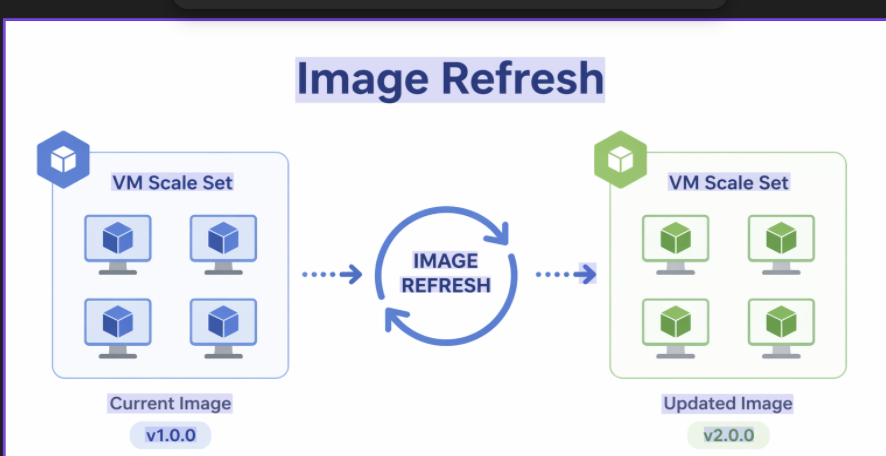
As cloud environments grow, so does the complexity of managing infrastructure. Keeping systems patched, secure, and consistent across environments becomes increasingly difficult when relying on traditional “update in place” approaches. To address this, many organizations—including large-scale enterprise platforms—are adopting the Golden Image Refresh strategy. This approach shifts infrastructure management from reactive patching to proactive replacement using standardized images. Whether managing standalone Virtual Machines (VMs) or fleet-based Virtual Machine Scale Sets (VMSS), golden image refresh has become a key enabler for modern, cloud-native operations.
Overview:
A golden image is a prebuilt, approved system template that represents the ideal baseline for deployment. It includes:
- Hardened operating system configuration (e.g., RHEL)
- Preinstalled software and dependencies
- Security patches and updates
- Organizational compliance standards
Architecture:
Golden Image Refresh for VM Scale Sets (VMSS):
Instead of updating instances individually:
- A new image version is published
- The VMSS is updated to reference the new image
- Instances are gradually replaced through a controlled rollout
- New instances (based on updated image) are introduced
- Traffic is gradually shifted to these new instances
- Old instances are decommissioned in phases
- Minimizes service disruption
- Enables safe rollout of updated environments
- Allows real-time validation of new image versions
Virtual Machine Scale Set (VMSS) deployments use a custom image that is baked on top of a Golden Image.
The Golden Image version is pinned in the environment-specific Packer variables (pkrvariables) files.
Refreshing a VMSS Golden Image involves baking a new custom image using an updated Golden Image version and deploying it via the VMSS pipelines.
Image Dependency Flow
- Golden Image
- Published and versioned by the Golden Image Team.
- Source OS image, pinned in pkrvariables per environment.
- Custom Image
- Created by the custom image pipeline.
- Built on top of the pinned Golden Image.
- Used by VMSS deployments.
- VMSS Deployment
- Deploys or updates scale sets using the selected custom image version.
Golden Image Version Management (VMSS)
- Each environment pins the Golden Image version in its respective pkrvariables file.
- Golden Image versions are selected from the same Golden Image Galleries:
- Dev
- PPR
- Prod
- No automatic upgrades occur; changes are explicit and controlled via Git.
VMSS Golden Image Refresh Procedure
1.Select Golden Image Version
- Navigate to the appropriate Golden Image Gallery for the target environment.
- Identify the Golden Image version to be used for the refresh.
2. Update Packer Variables
- Create a feature branch.
- Update the pinned Golden Image version in the environment-specific pkrvariables file.
3.Merge Changes
- Raise a Merge Request (MR) for the updated version.
- After approval, merge the MR into the target branch.
Custom Image Creation
- Trigger the custom image pipeline.
- This pipeline:
- Uses the updated Golden Image version
- Bakes a new custom image
- Publishes a new custom image version for VMSS consumption
VMSS Deployment
Once the custom image is successfully created, deploy it using one of the following approaches:
Option 1: Operational Pipeline
- Use the operational pipeline to deploy the newly created custom image to the VMSS. Operational Pipeline is separate pipeline which will refresh the image.
option 2: Infrastructure Pipeline Update
- Update the infrastructure (Terraform) pipeline code with the new custom image version.
- Run:
- terraform plan to review VMSS updates
- terraform apply to roll out the new image
Terraform Behavior
- VMSS instances are updated to use the newly created custom image.
- The same remote Terraform backend is used to preserve state consistency.
Validation and Verification
After deployment:
- Validate VMSS instance health
- Confirm successful instance provisioning
- Verify application and service functionality
- Monitor scale set upgrade status and error metrics
Image Team will provide the golden image and then we need to create custom image.
After retrieval of Custom image used in Infra code.
The Golden image refresh in infra code, requires a activity which is called upgrade and there are 2 kinds of upgrade in VMSS :
Automatic upgrade - VMSS instances will upgrade automatically, and this requires downtime.
All VMSS instances will start upgrading simultaneously and application will be down till VMSS instances is up and running.
Manual upgrade - VMSS instances need to be manually upgraded, and this requires 10 - 15 minutes of degradation.
As part of this Upgrade - we need to manually upgrade VMSS instance one by one and so other instances will be up. There will be no downtime for the application.
Bydefault VMSS will consider automatic upgrade which requires downtime. If we do not require Automatic upgrade then we need to change the setting in provider like below.
provider "azurerm" {
features {
virtual_machine_scale_set {
reimage_on_manual_upgrade = false
roll_instances_when_required = false
}
}
After updating above code in provider.tf as part of manual upgrade then update the terraform code for new golden image.
- Create a New Image: Start by creating a new golden image with the latest updates and configurations using YAML pipeline.
- Update Terraform Configuration: Modify your Terraform configuration to reference the new image. This involves updating the source_image_id or image_reference in your azurerm_virtual_machine_scale_set resource to point to the new image version.
Example:
source_image_id = "/subscriptions/subscriptionid/resourceGroups/rgname/providers/Microsoft.Compute/images/confluence-prd-v-24052450"
data_disks = [
{
storage_account_type = "Premium_LRS"
caching = "ReadWrite"
create_option = "FromImage"
lun = 0
disk_size_gb = "500"
disk_encryption_set_id = null
ultra_ssd_disk_iops_read_write = null
ultra_ssd_disk_mbps_read_write = null
}
]
instances = 3
automatic_instance_repair = [{
enabled = false
grace_period = "PT30M"
}]
computer_name_prefix = "Appname-prd"
overprovision = false
edge_zone = null
health_probe_id = null
upgrade_mode = "Manual"
single_placement_group = true
secure_boot_enabled = false
Apply Terraform Configuration: Run terraform apply to apply the updated configuration. This will update the scale set to use the new image.
After the Apply - Upgrade type is Manual then upgrade the VMSS instances one by one to make the service up and running.
Golden Image Refresh for VM Scale Sets (VM)
Scope
- Linux VMs:
- VMs use RHEL 7.9
- VMs use RHEL 8.10
For RHEL 7.9 , there is no golden image hence needs to create custom image. To refresh the image, change the image from (example from 1.0 to 1.1)
Resource Changes (VMTRF):
- VM: will be replaced (source_image_id changed)
- OS disk: azapi_update_resource.disk ⇒ replaced
- Data disk attachments: will be replaced
- Network interface: updated in-place
- Disk encryption set: updated in-place
- Role assignments: will be replaced
- VM extension (Custom Script Extension): will be replaced
RHEL 8.10
To refresh the image, change the image from (example from 1.0 to 1.1)
Resource Changes (VM STD):
- VM: will be replaced (source_image_id changed)
- OS disk: azapi_update_resource.disk ⇒ replaced
- Data disk attachments: will be replaced
- Network interface: updated in-place
- Disk encryption set: updated in-place
- Role assignments: will be replaced
- VM extension (Custom Script): will be replaced

 Microsoft