Managing AI costs at scale is one of the top challenges facing modern engineering organizations. With GitHub Copilot’s transition toward usage-based billing—where advanced AI capabilities consume pooled and metered "AI Credits"—cloud administrators and FinOps teams need a clear mental model of how budget limits interact.
If your team is confused about why developers are getting blocked early or how group-level caps work, you aren't alone. This guide breaks down the budget evaluation hierarchy, architectural flow, and real-world scenarios to help you configure your enterprise correctly.
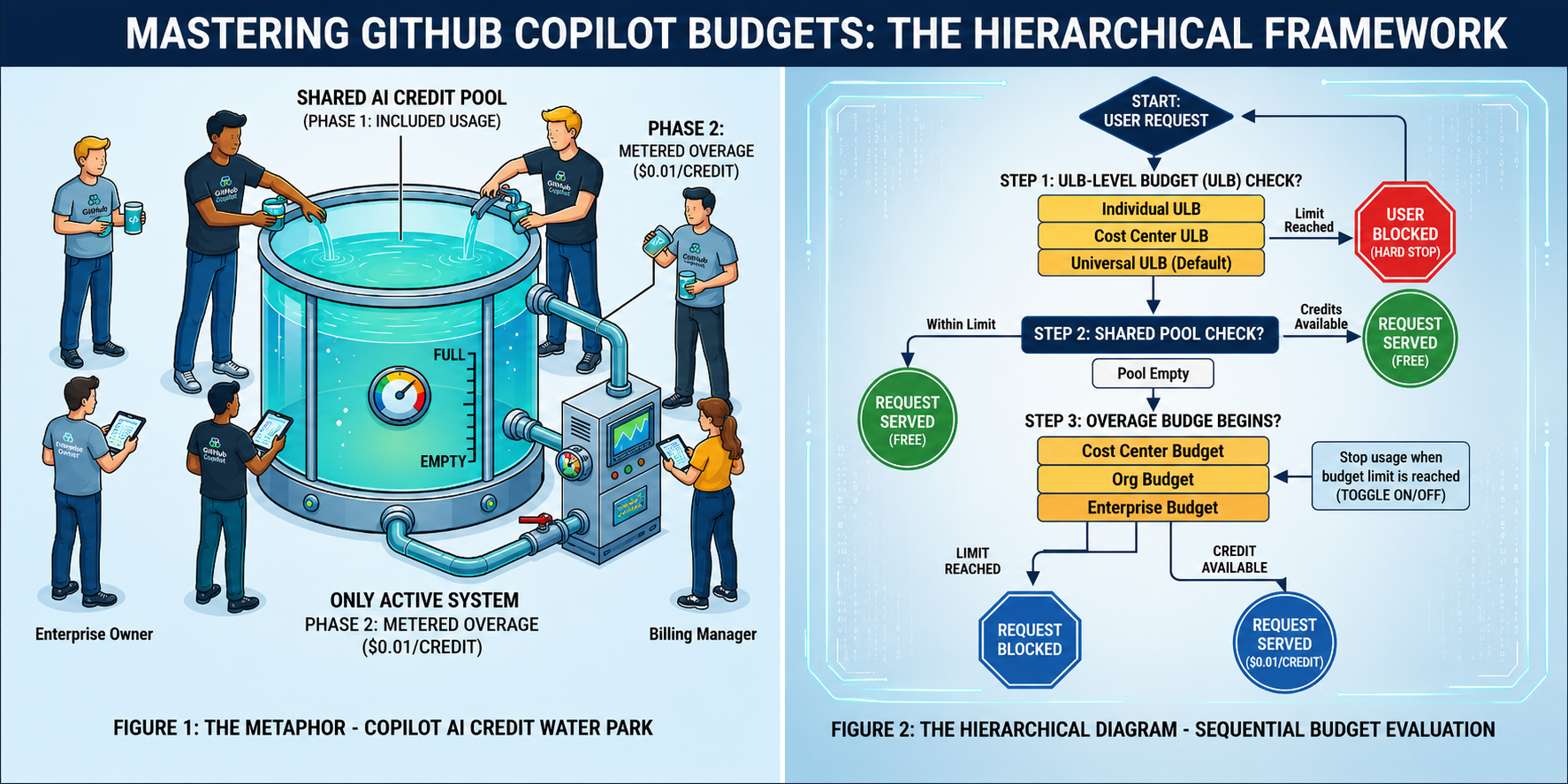
1. The Core Mental Model: The Water Park Analogy
To understand Copilot billing, think of your enterprise as a water park:
The Shared Pool (Included Usage): Every Copilot Business ($19/mo) and Enterprise ($39/mo) seat license adds a set number of free AI credits into a shared corporate water tank (1,900 or 3,900 credits/seat, respectively).
Phase 1 (Pool Phase): All licensed developers drink from this central pool for free until it runs empty.
Phase 2 (Metered Overage): Once the pool is dry, extra water costs $0.01 per credit. This phase only activates if your enterprise explicitly enables the "AI Credit Paid Usage" policy.
User-Level Budgets (ULBs): Personal wristbands limiting how much water one person can consume across both Phase 1 and Phase 2 combined.
Group / Enterprise Budgets: Group bar tabs that kick in only during Phase 2 to cap overage spending.
2. How GitHub Evaluates Requests (The 3-Step Decision Flow)
Every time a developer uses an AI credit feature (like GitHub Copilot Chat or custom Agents), GitHub evaluates the request through a 3-step hierarchy:
Step 1: The Personal Guardrail (User-Level Budgets)
ULBs cap total consumption (Pool + Metered). These are always hard stops. The system selects the most specific rule:
Individual ULB: Overrides everything (e.g., $50 for a Lead Data Scientist).
Cost Center ULB: Overrides Universal (e.g., $20/dev for Engineering, $5/dev for Marketing).
Universal ULB: The global baseline for all licensed users.
Step 2: The Included Pool Check
If the user hasn't hit their ULB, the system checks if pooled credits remain. You can also configure Included Usage Controls on Cost Centers to ring-fence a team's pool draw to match their contributed seats.
Step 3: Group & Enterprise Overage Caps
Once the pool is empty, metered charges begin ($0.01/credit). The system checks overage budgets in order:
Cost Center Budget
Organization Budget
Enterprise Budget
⚠️ Critical FinOps Note: Group/Enterprise budgets do NOT stop usage by default. You must explicitly enable the setting:
Stop usage when budget limit is reached
Without this setting toggled ON, overage charges will accrue uncapped!
3. Key Takeaways & Common Pitfalls
Budget Control
What It Limits
Active Phase
Hard Stop Built-In?
Individual / Cost Center / Universal ULB
Single user total credits
Pool + Metered
Yes (Always)
Cost Center Budget
Team overage spend
Metered Only
Only if Stop Usage is ON
Org Budget
Organization overage spend
Metered Only
Only if Stop Usage is ON
Enterprise Budget
Enterprise overage spend
Metered Only
Only if Stop Usage is ON
The "Lowest Headroom Wins" Rule
If a developer has $10 remaining on their personal ULB, but the Enterprise Overage Budget only has $1 left before hitting its limit, the Enterprise limit will block the user. Whichever budget hits its ceiling first wins.
What Gets Blocked vs. What Keeps Working?
When a developer hits a budget limit:
❌ Blocked: Copilot Chat, CLI, Agents, and complex reasoning models (anything consuming AI credits).
✅ Unblocked: Standard inline code completions and next edit suggestions (included free with seat licenses).
Conclusion: Best Practices for Admins
Establish a Universal ULB First: Set a reasonable baseline (e.g., $10–$15/user) to ensure fair pool access.
Use Cost Center ULBs for Group Granularity: Avoid managing thousands of individual budgets by setting per-user caps at the Cost Center level.
Always Turn On "Stop Usage": Ensure your enterprise and cost center overage budgets have the hard stop toggle enabled to prevent unexpected monthly bills.
Isolate R&D with Cost Center Exclusion: Use exclusion rules for teams that require independent spending authority outside the general enterprise cap.

 Microsoft