Now available on Azure Skills marketplace for native discovery within your coding agent. Explore on github.com/microsoft/GitHub-Copilot-for-Azure
What if you could start troubleshooting without first figuring out how to assemble the entire observability toolbox?
Your API is slow. Your agent is failing. An alert just fired. Before you can investigate, you may need to work out which telemetry source, MCP server, API, or skill can answer your question and how to connect them.
Azure Observability skills plugin brings together troubleshooting instructions, specialist guidance, and connection workflows to help GitHub Copilot turn your question into the next useful action. Built on Azure Monitor, with Microsoft Foundry guidance for AI-specific scenarios, it helps Copilot identify relevant evidence, choose an investigation path, explain remediation options, and check recovery. You don’t need every observability integration installed in your workspace, or to know which one to request. Copilot starts with what is available, explains the advantage of any additional capability, checks prerequisites and access, and asks for applicable approval before tools execute operations.
Its growing capability inventory helps Copilot discover which tools, MCP servers, APIs, or specialist skills could help with your particular problem. Connection guidance helps it reuse existing integrations and identity, confirm the application’s telemetry sources, and offer a supported setup path when a useful capability is missing.
Start with a simple question
Once you have the plugin, you can start with a simple prompt:
“Investigate this alert that just fired on my app.”
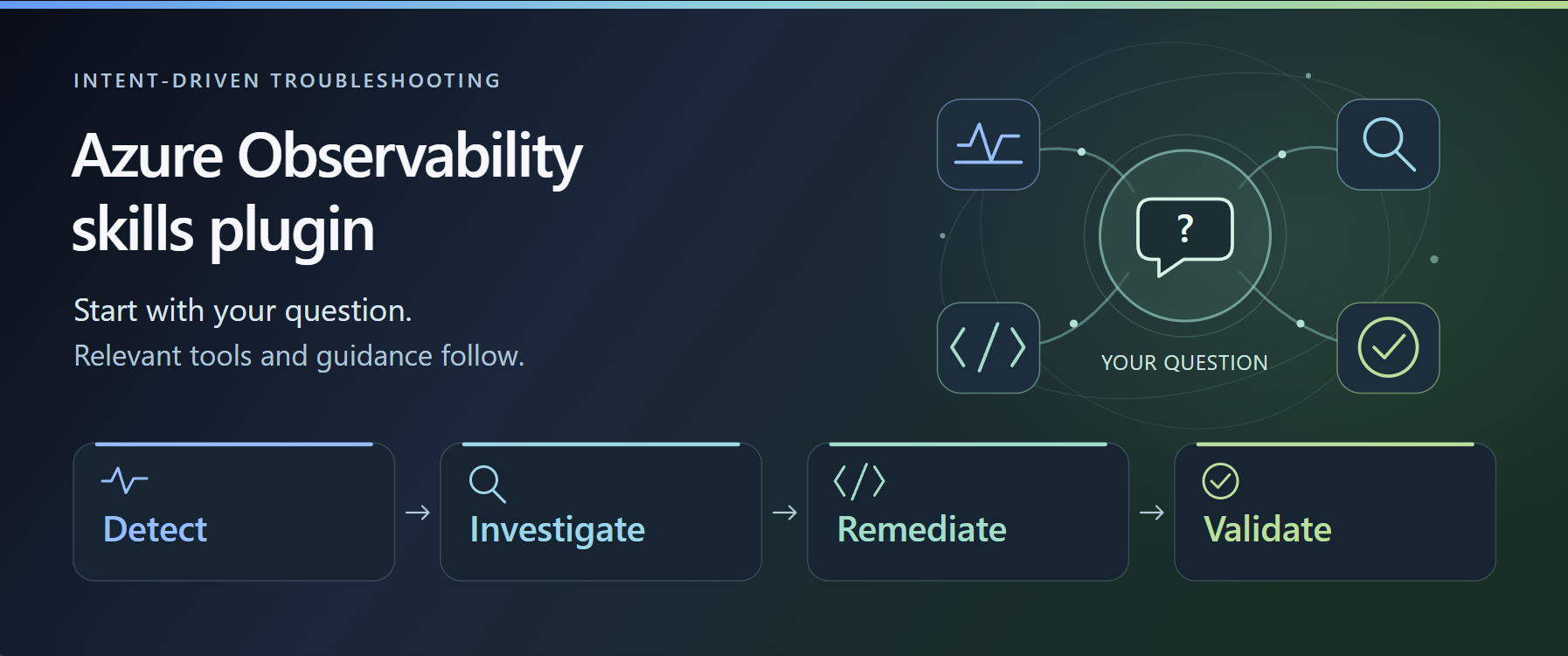
Copilot can help find the relevant evidence, follow the affected path, explain your remediation options, and compare recovery evidence: all while retaining context and asking for applicable approvals. The journey is Detect → Investigate → Remediate → Validate, but your question determines where it starts. A specific failure can go straight to investigation; a web API doesn’t need Foundry; and an answer supported by existing telemetry doesn’t require another MCP server.
The plugin brings these questions into one troubleshooting journey while letting developers enter at the stage they need.
Detect: find what deserves attention
For a broad health question, Copilot follows guidance to assess bounded evidence, identify supported issues, and prioritize findings. Missing telemetry is not a healthy result. If the required evidence is insufficient, the assessment remains INCONCLUSIVE. For a named failure or alert, Copilot can skip the broad assessment and investigate directly.
Investigate: follow the affected path
The next step depends on the issue. A web API may need request and dependency evidence. An AKS workload may need resource signals. A Foundry agent may need model, tool, and trace analysis. The plugin guides Copilot to retain confirmed application scope, source associations, time windows, findings, and approval limits as it moves between specialists. Developers should not have to repeatedly reconstruct the investigation.
It also keeps observations separate from hypotheses. Two events occurring together can support further investigation; they do not, by themselves, establish root cause.
Remediate: explain the options
Once the evidence supports an actionable finding, the next question is: “What should I do about it?”
Copilot follows guidance to explain applicable options, which may include:
- - Correcting the issue: a reviewed code or configuration change, potentially prepared as a diff or PR proposal.
- - Mitigating impact: a reversible operational workaround or rollback plan.
- - Detecting recurrence: issue-specific alert or collection guidance.
Each option should make its supporting evidence, expected benefit, risks, acceptance criteria, and rollback clear. An alert can help detect a recurring failure; it does not correct the underlying problem. A proposed PR is not a deployed fix. Choosing an option starts planning. Reading source, editing files, publishing a PR, changing alerts, or deploying requires applicable separate approval.
Validate: check recovery, then choose how to keep watching
After a change takes effect, Copilot can compare supplied before-and-after evidence against agreed symptom and guardrail criteria. A successful deployment, quiet alert, or better evaluation score is useful context but not sufficient recovery proof.
The recovery comparison returns a scoped result:
- VERIFIED_RECOVERED: supplied evidence meets the agreed recovery gates.
- NOT_RECOVERED: sufficient evidence shows a required post-change violation.
- INCONCLUSIVE: required evidence or comparability is insufficient.
After reporting that result, Copilot can help you choose how to continue: an existing or new Azure Managed Grafana dashboard, alert guidance, a later developer-initiated health check, or simply finishing. Monitoring remains optional. A dashboard does not change an inconclusive recovery result, and a suggested later check does not silently schedule background work.
Discover capabilities when they offer an advantage
The plugin’s value extends beyond the four bundled skills.
Its growing inventory helps Copilot consider relevant capabilities without requiring developers to know their names in advance. The selection starts with the question: what can this capability help answer that the current path cannot?
For example:
- Relevant Azure Monitor Trace Store operations may help investigate a material trace retrieval or correlation gap.
- An existing connected Azure SRE Agent may offer useful operational context for an unresolved question when its relevant coverage and controls are established.
- Azure Managed Grafana may help turn the investigation’s signals into a reviewed monitoring view.
- Applicable instrumentation or collection guidance may help when explicitly requested, or when evidence establishes a genuine gap.
An inventory entry is a discovery lead and not proof that the integration is installed, authorized, or usable. Copilot must check those conditions. An additional integration is also not always necessary. If existing authorized telemetry answers the question, that remains the preferred sufficient path.
Get started
- Install Azure Observability Skills Plugin using the instructions in the README.md
- Open your application’s workspace in VS Code and start a fresh GitHub Copilot chat. Use an existing deployed Azure application, API, AKS workload, or Microsoft Foundry agent.
- Ask your troubleshooting question. For example: "Investigate this alert that just fired on my app."
- You don’t need to name a skill, choose an MCP server, or write a query. Share the alert or affected application details if they aren’t already in the conversation.
- Confirm the scope and review the next action. Copilot helps identify relevant telemetry and available capabilities. If a required integration is missing, it can guide you through a supported setup path. Live reads require authorized access; setup and changes need applicable separate approvals.
- Choose how to continue. Review findings, select a remediation option, compare recovery evidence after an effective change, and decide whether you want dashboard or alert guidance.
No cloud access? You can also provide evidence with sensitive details removed and start with:
"Explain these failed requests using only the evidence I’ve shared. Don’t query Azure."
Built on Azure Monitor's operational foundation
Application signals, logs, metrics, and traces that help developers understand their workloads. The plugin helps Copilot navigate those capabilities through the problem you are trying to solve. It brings together three complementary layers:
- Troubleshooting instructions: guidance for choosing the next stage, interpreting evidence, preserving context, and distinguishing supported findings from unanswered questions.
- Specialist guidance: focused workflows for application and resource diagnostics, agent and tool behavior, health assessment, remediation planning, and recovery comparison.
- Connection and capability-discovery workflows: guidance for finding the application’s telemetry, checking available tools and task-specific access, reusing existing connections, and identifying additional capabilities when they offer a specific advantage.
These layers work together. For example, “Why is my agent slow?” can lead Copilot to confirm the relevant telemetry, examine model and tool behavior, identify a material trace gap, and consider a suitable trace-retrieval capability. The developer shouldn’t have to independently discover each component or rebuild the investigation context between steps.
The current package organizes that guidance into four independently usable skills where the value is the connected troubleshooting experience rather than the number of skills. Detailed instructions load when relevant to the selected task, rather than requiring every workflow to be loaded at once.
The plugin reuses adapted Azure diagnostics and Microsoft Foundry guidance and incorporates contributed health and investigation resources. It does not introduce a new telemetry backend or bundle every connector. Copilot follows the instructions, existing connected tools execute approved operations, and the host and services enforce access.
You remain in control
You're the human in the observability loop: skills provide instructions, Copilot applies them, connected tools execute operations, developers approve applicable actions, and the host and services enforce access controls. Read-only investigation is the default path. Setup, sign-in, sensitive-content access, persistence, jobs, traffic, edits, and production changes retain their own approval requirements.
For live investigation, you need the relevant telemetry tools and authorized source access. You can also start with evidence you provide: "Explain these failed requests using only the evidence I’ve shared. Don’t query Azure."
Note: Keep credentials, connection strings, sensitive prompts, and unredacted telemetry out of shared evidence and feedback. Skill instructions do not replace least-privilege access or host approval controls.
Here are some scenarios you can try out:
1. Investigate an application alert
Investigate this alert that just fired on my app.
An alert is a starting point rather than a diagnosis. Copilot can help confirm the affected application and time window, identify relevant telemetry, and select a focused investigation path. Depending on the question and available capabilities, that might involve application requests, dependencies, exceptions, metrics, or platform diagnostics.
The goal is to explain what the evidence supports, what remains unknown, and what to do next. A specific alert does not require a broad health assessment of every resource first. What to look for: source-labeled findings, a clear affected scope, explicit evidence gaps, and a concrete next action.
2. Review an agent and its dependencies
Can you help me observe the end-to-end health of my agent and its dependencies, and tell me the top issues, prioritizing by impact?
Agent health is more than whether a request returned successfully. A useful assessment may need to consider agent activity, model calls, tool failures, downstream dependencies, trace continuity, and existing evaluation results. A successful parent operation can still contain a failed tool call, retries, or a fallback that affected the customer’s experience.
Copilot follows guidance to assess the relevant evidence and rank supported findings by observed impact. Where attribution or coverage is incomplete, it should say so rather than invent an application-wide conclusion. Microsoft Foundry provides the optional AI-specific branch of the journey. It is not required for web/API troubleshooting, and reviewing existing evaluation evidence does not automatically create new evaluation jobs.
What to look for: prioritized findings with their evidence and ranking rationale, plus a choice of which issue to investigate further.
3. Investigate AKS memory failures
Why is this cluster throwing OOMKill errors? Help me fix it.
This question should lead to the affected workload rather than an indiscriminate scan of the entire Azure environment.
Copilot can help establish the relevant cluster, workload, and incident window, then use available evidence to investigate memory pressure, container termination, and applicable configuration or change context. The remediation discussion should distinguish a supported correction from a temporary mitigation. For example, a resource configuration adjustment and an application memory investigation have different risks and verification needs. Neither should be recommended as a proven fix without supporting evidence.
What to look for: an explanation grounded in the affected workload, applicable fix or mitigation options, and a plan for validating the chosen change.
Help shape the growing plugin
We want to grow this collection around the questions developers actually ask.
Try one of the scenarios above and tell us:
- Did Copilot identify the right evidence and capabilities?
- Did you have to repeat context between steps?
- Were the remediation options useful and actionable?
- Was it clear what the recovery result established?
- Which additional capability would have helped?
Useful troubleshooting should start with your question rather than requiring you to know every tool and assemble the toolbox yourself.

 Microsoft