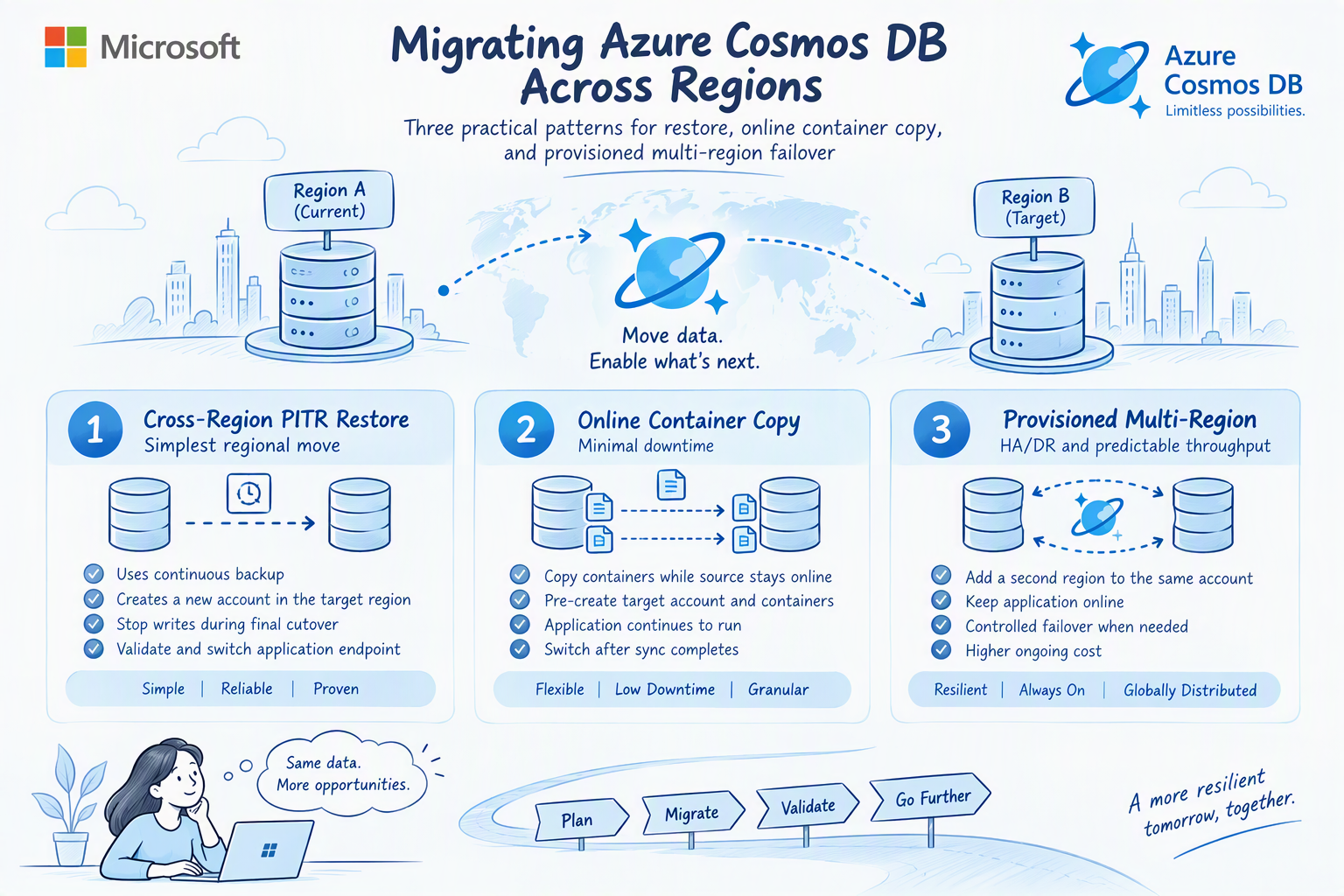
What this article delivers? A decision-oriented, implementation-ready walkthrough based on a hands-on Azure Cosmos DB for NoSQL lab. It corrects the online copy sequence, includes the required Azure CLI snippets, and separates migration duration from application cutover downtime.
Regional migration in Azure Cosmos DB is not a single operation. The correct pattern depends on whether the priority is the simplest supported move, the smallest application outage, or a durable multi-region architecture.
The Three Migration Patterns at a Glance
|
Pattern |
Best fit |
App impact |
Destination |
Primary caution |
|
1. Cross-Region PITR restore |
Simplest regional move |
Stop writes during final cutover |
New account created by restore |
Target-region capacity and restore-point readiness |
|
2. Online copy |
Minimal downtime |
Source stays online until cutover |
Pre-created account and empty target containers |
Preview prerequisites, RBAC, RU limits, one job per container |
|
3. Provisioned multi-region |
HA/DR and predictable throughput |
Online while adding region; controlled failover |
Same account, second region |
Higher ongoing cost; conversion back to serverless is not a standard self-service path |
Before you migrate: establish the decision inputs
A reliable migration plan starts by separating total data-movement time from business downtime. Online copy can run for hours or days without requiring the application to stop. Restore may complete quickly, but the application still needs a controlled write freeze, validation, endpoint change, and restart. Define both measures explicitly.
Capacity is a migration dependency: A restore that creates a new account still requires the target region to accept the deployment. Validate region availability early, keep an escalation path ready, and avoid treating a successful small-environment test as a capacity guarantee for production.
Current Environment Setup
Cosmos DB Environment with Capacity Mode= Serverless:
Current CosmoDB Topology:
Data Count in current database pre-migration:
Approach 1: Cross-region point-in-time restore
This is the preferred first option when the customer can accept a short write outage and is comfortable moving to a new Cosmos DB account. The restore operation creates the target account; you do not pre-create the destination account as you do for online container copy.
Conceptual Plan:
Execution flow
- Confirm the source account uses continuous backup and that the required restore point is available.
- Validate target-region readiness and prepare the target account name, resource group, networking, identity, and application configuration plan.
- Schedule the cutover and stop application writes.
- Start the restore into the target region. Azure creates the new account.
- Validate account state, databases, containers, policies, item counts, networking, private endpoints, and data-plane RBAC.
- Update the application endpoint and credentials or managed-identity assignments.
- Start the application and validate reads and writes.
- Keep the source account unchanged for an agreed rollback window, then retire it after sign-off.
Pre-checks and validation snippets
RG="CosmoDB_Demo"
SRC_ACCOUNT="demotestingenvironment"
az cosmosdb show \
--resource-group "$RG" \
--name "$SRC_ACCOUNT" \
--query "{Account:name,BackupPolicy:backupPolicy.type,Locations:locations[].locationName,State:provisioningState}" \
-o json
Review BackupPolicy Type:
Note Follow Restore an Account That Uses Continuous Backup Mode - Azure Cosmos DB | Microsoft Learn to update to restore option
In the Azure Portal: Cosmos DB → testingenvironmentfordemo → Backup & Restore. Periodic → Continuous
Referesh the page and fill in Restore requirements. Cross region restore incurs additional charges on top of the normal point-in-time restores, the price depends on the regions that you are restore from and to. Learn more
New Account is created, with data:
Testing and Validation
Check if the deployment is successful:
Count of data across both databases are the same:
Approach 2: Online container copy with minimal downtime
Online container copy is a container-by-container migration. The application continues reading and writing to the source during the initial copy and incremental synchronization. At cutover, the team stops source writes, waits for the job to catch up, calls the completion operation, validates the target, and then switches the application. The Azure CLI command group and the feature are preview capabilities, so production adoption should include preview acceptance, current limitation review, and a tested fallback.
Reference topology used in the lab
|
Component |
Source |
Destination |
|
Account |
demotestingenvironment |
demotestingenvironmentrestore |
|
Database |
demotestingDB |
demotestingDB |
|
Container |
demotestingDBID |
demotestingDBID-copy |
|
Partition key |
/category |
/category |
|
Mode |
Serverless |
Serverless in the lab |
Step 1: Define reusable variables
RG="CosmoDB_Demo"
SRC_ACCOUNT="demotestingenvironment"
DEST_ACCOUNT="demotestingenvironmentrestore"
SRC_DB="demotestingDB"
SRC_CONTAINER="demotestingDBID"
DEST_DB="demotestingDB"
DEST_CONTAINER="demotestingDBID-copy"
JOB="online-copy-hls-final-04"
Install the copy extension
az extension add --name cosmosdb-preview --upgrade
Step 2: Verify source
az cosmosdb show -g "$RG" -n "$SRC_ACCOUNT" --query "{Backup:backupPolicy.type,Capabilities:capabilities[].name,State:provisioningState}" -o json
Confirm that Backup is Continuous. Confirm that the source has All Versions and Deletes change feed enabled, and review compatibility limitations before applying the capability to an existing production account.
Step 3: Create the empty destination container
az cosmosdb sql container create -g "$RG" -a "$DEST_ACCOUNT" -d "$DEST_DB" -n "$DEST_CONTAINER" -p "/category"
Configure source identity and destination access
az cosmosdb identity assign -g "$RG" -n "$SRC_ACCOUNT"
SRC_PRINCIPAL=$(az cosmosdb show -g "$RG" -n "$SRC_ACCOUNT" --query "identity.principalId" -o tsv)
az cosmosdb update -g "$RG" -n "$SRC_ACCOUNT" --default-identity "SystemAssignedIdentity"
az cosmosdb sql role assignment create -g "$RG" -a "$DEST_ACCOUNT" --role-definition-id "00000000-0000-0000-0000-000000000002" --principal-id "$SRC_PRINCIPAL" --scope "/"
Step 4: Start Online Copy
az cosmosdb copy create --resource-group "$RG" --job-name "$JOB" --src-account "$SRC_ACCOUNT" --dest-account "$DEST_ACCOUNT" --src-nosql database="$SRC_DB" container="$SRC_CONTAINER" --dest-nosql database="$DEST_DB" container="$DEST_CONTAINER" --mode Online
Monitor
az cosmosdb copy show -g "$RG" -a "$DEST_ACCOUNT" -n "$JOB" --query "{Status:status,Processed:processedCount,Total:totalCount,Error:error}" -o table
Query the destination container
SELECT *
FROM c
WHERE c.id = "HLS-ONLINE-COPY-001"
Also review via CLI
The record appearing in the destination proves both the initial copy and the incremental-change path. Also compare source and target counts, but do not rely on count equality alone; validate representative documents, partition-key values, updates, deletes, TTL behavior, and application queries.
Note: Perform the production cutover correctly
- Stop all writes to the source container.
- Wait for the online job to catch up and confirm Error is null.
- Run the complete operation to finalize the online copy job.
- Validate target counts, representative records, updates/deletes, indexing behavior, networking, identity, and application connectivity.
- Switch the application endpoint to the destination account and container.
- Run read/write smoke tests and monitor 429s, 403s, latency, and error rates.
- Keep the source unchanged for the approved rollback window, then retire it.
Approach 3: Convert to provisioned throughput and use multi-region replication
This pattern changes the question from “How do I copy data into a second account?” to “How do I extend the existing account into a second region and fail over?” It is appropriate when the workload needs predictable throughput, stronger regional resiliency, or serverless limits make copy-based approaches impractical.
- Convert the existing serverless account to provisioned throughput.
- Review and right-size the initial manual throughput assigned to each container or database.
- Add the target region as an additional region on the same account.
- Wait for replication and validate application connectivity.
- Change failover priority or initiate the approved failover method so the target region becomes the write region.
- Decide whether to retain the original region for HA/DR or remove it after validation.
Convert: Azure Portal → Cosmos DB → demotestingenvironment → Overview → Change capacity mode to provisioned throughput and confirm. Refresh and the capacity mode should change.
Under Settings, select Replicate data globally, Select West US 2 as the existing region and under Additional regions, select North Central US.
Change the write region:
Validate current write region
Decision framework
|
Decision question |
Restore |
Online copy |
Provisioned multi-region |
|
Can the app stop writes briefly? |
Best fit |
Not required during bulk copy |
Not required while adding region |
|
Must the target be an existing account? |
No; restore creates a new account |
Yes; pre-create target account/container |
Same account |
|
Need to remain serverless? |
Supported if target deployment is accepted |
Possible, but throughput can slow copy |
No; account becomes provisioned |
|
Need built-in regional HA after migration? |
Single target account unless redesigned |
Single target account unless redesigned |
Best fit |
|
Main production risk |
Target capacity and cutover validation |
Preview prerequisites, RBAC, 429s, copy duration |
Cost, throughput sizing, irreversible architecture choice |
References

 Microsoft