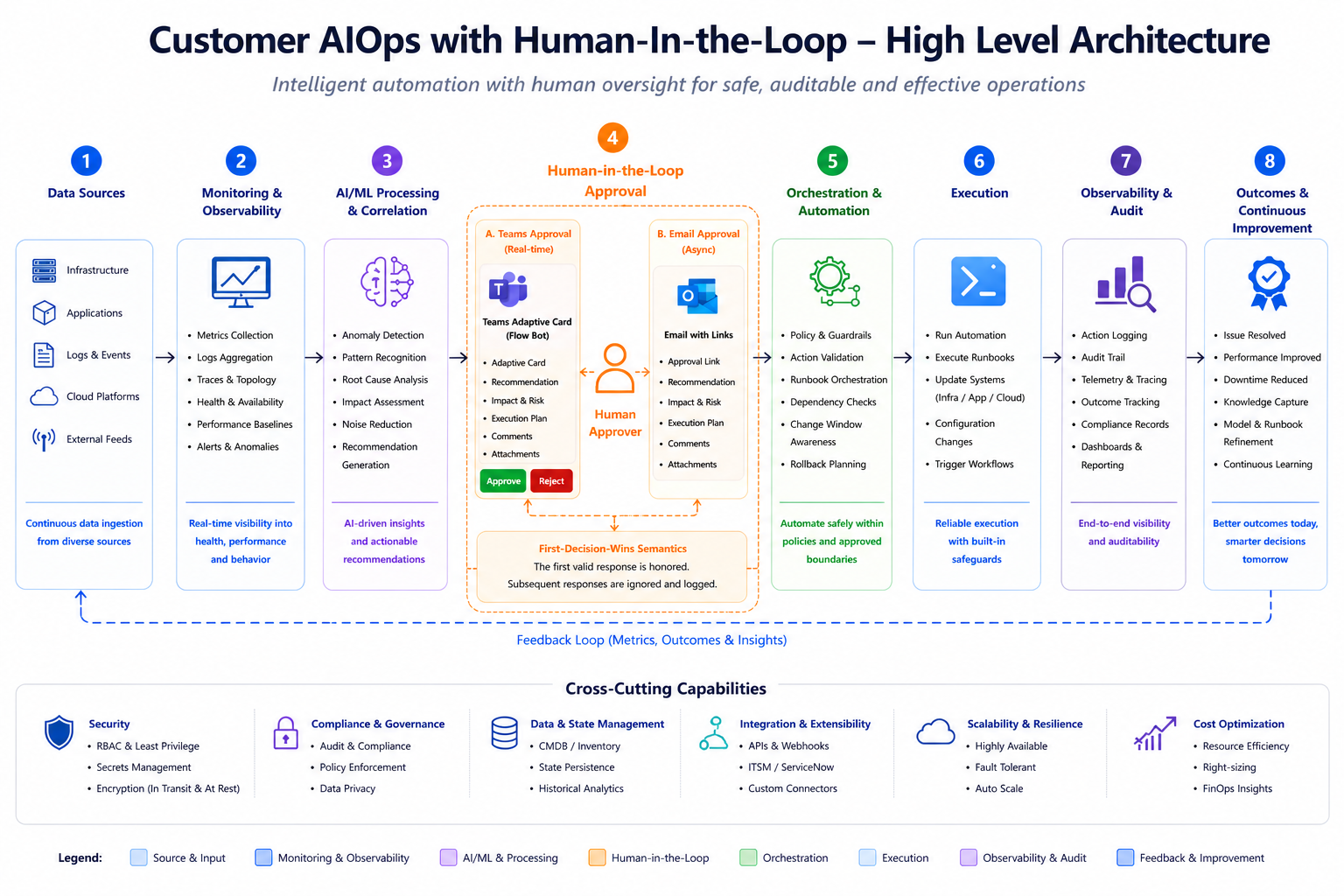
Modern cloud operations are no longer just about collecting metrics and reacting to alerts. Customers are running increasingly complex, business-critical workloads where every environment has its own architecture, performance profile, operational constraints, approval process, and risk tolerance.
This means a generic monitoring dashboard is not enough. What customers demand is a controlled operating model that can turn platform signals into explainable recommendations, route those recommendations through the right approval path, execute only within agreed guardrails, and preserve a complete audit trail.
In many customer environments, an observability dashboard is used to review platform summaries, operational signals, health trends, and deep-dive assessments across critical Azure workloads. The next opportunity is to take one of those observations and turn it into a governed AIOps workflow.
In this example, I use Premium SSD v2 performance tuning to show how a customer can begin with one measurable operational signal, apply clear policy, use AI to generate an explainable recommendation, request human approval, and then perform controlled execution using Azure-native automation.
The goal is not to automate every operational scenario on day one. The goal is to establish a safe, repeatable pattern:
Observe → Assess → Recommend → Approve → Execute → Validate → Learn
This pattern can later be extended to other operational scenarios such as VM rightsizing, backup failure triage, capacity risk detection, configuration drift, application health checks, and workload-aware performance recommendations.
Why this matters
Most operations teams already have monitoring. The challenge is turning monitoring insight into safe, repeatable, governed operational action.
For example, a platform team may observe that a disk repeatedly crosses an IOPS threshold. In a traditional model, an engineer reviews metrics, checks disk configuration, validates policy, raises a change, waits for approval, applies the update, and then validates the result. That process is reliable, but it can be manual, inconsistent, and slow.
A customer-specific AI Operational Agent can help convert that process into a controlled workflow. The agent does not need to own the full change lifecycle from the beginning. A safer first step is for the agent to collect evidence, calculate utilisation, generate a recommendation, explain the rationale, request approval, and only then trigger execution through a governed automation path.
Premium SSD v2 is a useful first scenario because disk size, IOPS, and throughput can be adjusted independently, making it a practical candidate for performance-efficiency automation where policy guardrails are clearly defined.
Scenario: Premium SSD v2 performance tuning
Premium SSD v2 is a useful first scenario because disk size, IOPS, and throughput can be adjusted independently, making it a practical candidate for performance-efficiency automation when used with appropriate guardrails. Microsoft documentation describes Premium SSD v2 as a managed disk type where performance can be configured flexibly, including IOPS and throughput characteristics. (Microsoft Learn)
The objective is to identify tagged Premium SSD v2 disks, review recent performance, detect disks crossing configured utilisation thresholds, generate an explainable recommendation, and route the decision through a human-in-the-loop approval process before any change is applied.
A practical reference implementation should support these outcomes:
Select only approved disks using tags.
Read disk IOPS and throughput from Azure Monitor Metrics.
Compare observed utilisation against policy thresholds.
Generate a recommendation, such as ScaleUpRecommended, ScaleDownCandidate, or NoChange.
Send a daily/weekly operational summary with threshold observations and charts.
Trigger approval only for actionable candidates.
Capture approval or rejection through Teams and/or email.
Execute immediately or schedule the change based on policy.
Record decisions, execution status, and audit data.
Validate post-change impact and feed the outcome back into the process.
This keeps the design focused. It does not try to build a generic “auto-fix everything” agent. It starts with one measurable operational scenario and builds a reusable pattern.
High-level architecture
A high level architecture for custom AIOps Agent scenario:
Reference Architecture: Premium SSD v2 Customer AIOps Agent WorkflowThe key design principle is that the agent can recommend, explain, and orchestrate, but the change path remains governed. Policy controls what can be changed, approval controls when it can be changed, and audit records why the change was made.
Model used in the example
In this reference implementation, the AI explanation layer uses an Azure OpenAI GPT-4o [gpt-4o, mini, gpt-4.1 or new version can be leveraged based on the requirement] deployment to generate the natural-language recommendation summary, risk statement, approval text, and daily operational summary.
The important design point is that the model is not the only decision-maker. The recommendation is generated through a combination of deterministic policy logic and AI-assisted explanation.
The recommended split is:
Deterministic policy engine:
- Discovers eligible disks.
- Reads Azure Monitor metrics.
- Calculates IOPS and throughput utilisation.
- Applies customer thresholds.
- Determines whether the disk is NoChange, ScaleUpRecommended, or ScaleDownCandidate.
- Enforces tags, policy caps, approval requirement, dry-run mode, and execution mode.

AI model:
- Converts technical evidence into a clear recommendation narrative.
- Explains why the recommendation was generated.
- Summarises impact, risk, and required approval.
- Produces email or Teams approval text.
- Generates daily or weekly operational summaries.
- Does not directly execute Azure changes.
- Does not override customer policy.
This separation is important for enterprise trust. The model helps operations teams understand the recommendation, but the actual eligibility, threshold crossing, and execution guardrails remain deterministic and auditable.
Step 1: Select disks using tags
The agent should not scan and act on every disk in a subscription by default. A safer pattern is to require explicit tagging.
Example tag model:
az tag update `
  --resource-id "<disk-resource-id>" `
  --operation Merge `
  --tags `
    aiops-enabled=true `
    aiops-profile=database `
    aiops-approval-required=true `
    aiops-max-iops=5000 `
    aiops-max-mbps=250 `
    aiops-report-threshold-pct=80 `
    aiops-execution-mode=immediate-after-approval `
    aiops-apply-dry-run=true
Suggested meaning:
aiops-enabled=true
Allows the disk to be included in the AIOps workflow.

aiops-profile=database
Groups disks by workload profile or operational policy.

aiops-approval-required=true
Requires human approval before execution.

aiops-max-iops
Defines the maximum IOPS policy cap.

aiops-max-mbps
Defines the maximum throughput policy cap.

aiops-report-threshold-pct
Defines when a disk should appear in the threshold report.

aiops-execution-mode
Controls whether approval leads to immediate or scheduled execution.

aiops-apply-dry-run=true
Allows safe validation without changing the disk.
For early testing, keep aiops-apply-dry-run=true. Move to real execution only after the recommendation logic, approval flow, audit trail, and rollback process have been validated.
Step 2: Discover eligible disks
The daily summary function can use Azure Resource Graph or Azure Resource Manager to discover tagged disks. The query should return only resources explicitly opted into the workflow.
Example Resource Graph query:
Resources
| where type =~ 'microsoft.compute/disks'
| where tostring(tags['aiops-enabled']) =~ 'true'
| where tostring(tags['aiops-profile']) =~ 'database'
| project id, name, resourceGroup, location, sku, properties, tags
This makes the design scalable. Adding a disk to the agent does not require changing workflow code. Operations teams apply the approved tag set, and the next scheduled run discovers the resource.
Step 3: Collect disk metrics
For each selected disk, the agent queries Azure Monitor Metrics. Azure Monitor provides a Metrics REST API that lists metric values for a resource through the Microsoft.Insights/metrics endpoint. (Microsoft Learn)
Example resource-level pattern:
GET https://management.azure.com/<resource-id>/providers/Microsoft.Insights/metrics
?api-version=2023-10-01
×pan=<start-time>/<end-time>
&interval=PT1H
&metricnames=<metric-list>
&aggregation=Average,MaximumTypical disk metrics for this scenario include:
Composite Disk Read Operations/sec
Composite Disk Write Operations/sec
Composite Disk Read Bytes/sec
Composite Disk Write Bytes/sec
For larger estates, consider the Azure Monitor Metrics Batch API. Microsoft documents that the batch API can list metric values for multiple resources, which is useful when querying many resources in the same subscription, region, and resource type. (Microsoft Learn)
The agent should collect metrics over a practical time window, such as the last 24 hours, and aggregate into time buckets. This avoids making recommendations based on a single short spike.
Example approach:
Metric window: Last 24 hours
Aggregation: Average and Maximum
Bucket size: 5 minutes or 15 minutes
Signal required: Sustained threshold crossing across multiple buckets
Step 4: Calculate utilisation
The agent calculates total observed IOPS and throughput, then compares those values against the current provisioned settings and customer-defined thresholds.
Example calculations:
Total IOPS = Read IOPS + Write IOPS
IOPS utilisation % = Peak Total IOPS / Provisioned IOPS × 100
Total throughput MiB/s = Read MiB/s + Write MiB/s
Throughput utilisation % = Peak Total MiB/s / Provisioned MBps × 100
Example output:
{
  "diskName": "<disk-name>",
  "resourceGroup": "<resource-group>",
  "provisionedIops": 3000,
  "provisionedMbps": 125,
  "peakTotalIops": 3059.6,
  "iopsUtilisationPercent": 102.0,
  "peakTotalMiBps": 42.95,
  "throughputUtilisationPercent": 34.4,
  "thresholdObservation": "IOPS crossed the configured threshold",
  "recommendation": "ScaleUpRecommended",
  "approvalRequired": true
}
Step 5: Generate a recommendation
The recommendation should be generated using transparent policy logic first. For a first implementation, avoid complex or opaque decision-making. Start with simple rules and make the reason visible.
Example deterministic logic:
If IOPS utilisation is above threshold:
  Mark as threshold crossed.

If throughput utilisation is above threshold:
  Mark as threshold crossed.

If threshold is crossed and policy allows a higher target:
  Recommend scale-up.

If utilisation remains low for a sustained period:
  Mark as a scale-down candidate.

Otherwise:
  Recommend no change.
Example recommendation rule:
def generate_disk_recommendation(
    peak_iops,
    provisioned_iops,
    peak_mbps,
    provisioned_mbps,
    threshold_pct,
    max_iops,
    max_mbps,
    sustained_bucket_count
):
    iops_utilisation = (peak_iops / provisioned_iops) * 100 if provisioned_iops else 0
    mbps_utilisation = (peak_mbps / provisioned_mbps) * 100 if provisioned_mbps else 0

    threshold_crossed = (
        iops_utilisation >= threshold_pct or
        mbps_utilisation >= threshold_pct
    )

    if threshold_crossed and sustained_bucket_count >= 3:
        target_iops = min(max_iops, int(provisioned_iops * 1.25))
        target_mbps = min(max_mbps, int(provisioned_mbps * 1.25))

        return {
            "recommendation": "ScaleUpRecommended",
            "reasonCode": "SustainedThresholdCrossing",
            "currentIops": provisioned_iops,
            "recommendedIops": target_iops,
            "currentMbps": provisioned_mbps,
            "recommendedMbps": target_mbps,
            "approvalRequired": True
        }

    return {
        "recommendation": "NoChange",
        "reasonCode": "WithinPolicyThreshold",
        "approvalRequired": False
    }
The output from this policy logic becomes the grounded input to the AI model.
Example AI prompt pattern:
You are an Azure operations assistant helping explain a disk performance recommendation.

Use only the evidence provided in the JSON payload.
Do not invent missing metrics.
Do not recommend a change if approvalRequired is false.
Explain the recommendation in a concise operational style.
Include:
1. Recommendation summary
2. Evidence
3. Risk or operational consideration
4. Approval request
5. Validation step after execution

Input JSON:
<recommendation_payload>
Example AI-generated recommendation narrative:
Recommendation: Scale up Premium SSD v2 performance for <disk-name>.

Reason: The disk crossed the configured IOPS utilisation threshold across multiple observed time buckets. Peak IOPS reached 3,596 against the current provisioned value of 3,000, representing 120% utilisation. Throughput utilisation remained within the configured policy range.

Proposed action: Increase provisioned IOPS within the approved customer policy cap. No throughput increase is recommended at this stage.

Risk consideration: The change should follow the approved maintenance or execution policy for this workload. Post-change validation should confirm that IOPS pressure has reduced and no negative workload signal is observed.

Approval required: Yes.
Example recommendation result:
{
"recommendation": "ScaleUpRecommended",
"reason": "IOPS utilisation exceeded the configured threshold for multiple time buckets.",
"approvalRequired": true,
"executionMode": "immediate-after-approval",
"dryRun": true,
"executionBlockers": [ "ApprovalRequired" ]
}
This is important for trust. Operations teams should be able to see why a recommendation was made and which policy guardrails apply.
Step 6: Send a daily operational summary
The daily summary workflow should run on a schedule, call the summary function, and send a concise email to the operations team.
The email should include:
Eligible disk count
Disks crossing threshold
Actionable recommendations
Approvals in the last 24 hours
Rejections in the last 24 hours
Scheduled actions
Completed actions
Failed actions
For the disk summary table, keep the content compact:
Disk
Resource group
Provisioned IOPS
Provisioned throughput
Peak total IOPS
IOPS utilisation
Peak total MiB/s
Throughput utilisation
Threshold observation
Recommendation
Avoid putting every raw metric value into the email. Instead, attach or link charts only for disks that crossed the threshold, or for the top N disks by utilisation.
Step 7: Trigger approval only for actionable candidates
The summary function can return an approvalCandidates array. The daily workflow should trigger the approval workflow only for those candidates.
Example candidate payload:
{
"diskResourceId": "<disk-resource-id>",
"diskName": "<disk-name>",
"resourceGroup": "<resource-group>",
"triggerSource": "DailySummaryThresholdDetection",
"assessmentMode": "recommendation-only",
"alertContext": {
        "thresholdObservation": "IOPS crossed the configured threshold",
        "peakTotalIops": 3059.6,
        "iopsUtilisationPercent": 102.0
    }
}
This avoids sending unnecessary approvals for resources that do not need action.
Step 8: Use human-in-the-loop approval
The approval workflow should perform a fresh assessment before asking for approval. This prevents stale decisions if metrics, tags, or policy have changed since the daily summary was generated.
A practical design can support both:
Primary channel: Teams Adaptive Card
Fallback channel: Email approval links
Microsoft Teams supports actions that post an adaptive card and wait for a response, allowing a workflow to pause until a user responds. (Microsoft Learn)
The Teams card should include:
Disk name
Resource group
Recommendation
Reason
Peak utilisation
Execution mode
Execution blockers
Approve / Reject buttons
Optional comments
The approval flow should use first-decision-wins semantics:
If Teams approval is received first:
     Record the Teams decision.
     Ignore later email link clicks.

If email approval is received first:
     Record the email decision.
     Ignore later Teams responses.

If a duplicate response is received:
     Return AlreadyProcessed and do not execute again.
This avoids duplicate execution and gives a clean audit model.
Step 9: Capture who approved or rejected
Every decision should be written to an audit store.
Example approval record:
{
    "assessmentId": "<assessment-id>",
    "diskResourceId": "<disk-resource-id>",
    "approvalStatus": "Approved",
    "approverEmail": "<approver@contoso.com>",
    "approvalSource": "TeamsAdaptiveCard",
    "comments": "Approved for the agreed maintenance window.",
    "processedUtc": "<timestamp-utc>",
    "executionStatus": "Scheduled"
}
For production, prefer authenticated approval channels such as Teams Adaptive Cards or an authenticated approval workflow rather than relying only on email links with query-string identity.
Step 10: Execute immediately or schedule
After approval, the agent checks execution policy.
Example immediate execution policy:
aiops-execution-mode=immediate-after-approval
aiops-apply-dry-run=true
Example scheduled execution policy:
aiops-execution-mode=schedule-in-change-window
aiops-change-window-utc=22:00-02:00
aiops-apply-dry-run=true
Execution behaviour:
Approved + immediate-after-approval:
    Execute now if dry-run is false.
    Otherwise record a dry-run execution.

Approved + schedule-in-change-window:
    Store a scheduled action.
    Execute when the approved window opens.

Rejected:
    Record rejection.
    Do not execute.

Duplicate response:
    Return AlreadyProcessed.
Premium SSD v2 performance should only be adjusted within documented limits and customer-defined policy. The workflow should validate the target IOPS and throughput before calling Azure Resource Manager. Microsoft documentation describes Premium SSD v2 performance characteristics and configuration considerations, including IOPS and throughput behaviour. (Microsoft Learn)
Step 11: Use managed identity and least privilege
The Function App or workflow should use managed identity where possible. Azure Logic Apps supports managed identities for authenticating to Microsoft Entra-protected Azure resources, which avoids storing credentials or access tokens in workflow definitions. (Microsoft Learn)
A reference implementation needs permissions for:
Resource discovery
Metric query
Tag read
Disk read
Disk update, only if controlled execution is enabled
Audit write
For a proof of concept, a broad role might be used temporarily in a test environment. For production, use a custom least-privilege role that allows only the specific read and update operations required.
Step 12: Store audit state
The agent should maintain an audit table or equivalent state store.
Suggested fields:
AssessmentId
DiskResourceId
DiskName
ResourceGroup
Recommendation
ApprovalRequired
ApprovalStatus
ApproverEmail
ApprovalSource
ExecutionMode
ExecutionStatus
DryRun
CreatedUtc
ProcessedUtc
ExecutionResult
This state is useful for:
Daily/Weekly reporting
Duplicate decision prevention
Scheduled execution
Audit review
Operational troubleshooting
Post-change validation
Step 13: Validate post-change impact
Execution is not the end of the workflow. The agent should validate whether the change produced the expected operational outcome.
Post-change checks may include:
Was the disk update successful?
Did provisioned IOPS or throughput change as expected?
Did observed utilisation reduce?
Did latency or queue depth improve?
Was there any negative workload signal?
Should the recommendation logic be adjusted?
This closes the loop:
Action → Validation → Learning → Improved recommendation
Technical reference flow
A simplified end-to-end flow:
Scheduled workflow runs every 24 hours.
Workflow calls the summary function.
Function selects disks by approved tags.
Function queries Azure Monitor Metrics.
Function calculates utilisation and threshold crossings.
Deterministic policy logic generates the recommendation.
Azure OpenAI generates the explanation, summary, and approval text.
Daily summary email or Teams message is sent.
Approval workflow is triggered only for actionable candidates.
Approval workflow performs a fresh assessment.
Teams and/or email approval is sent.
First valid approval or rejection is recorded.
Approved actions are executed immediately or scheduled.
Audit state is updated.
Post-change validation is performed.
Next daily summary reports decisions and outcomes.
Why this pattern is reusable
Premium SSD v2 tuning is only one example. The same pattern can be reused for other customer-specific operational scenarios:
VM rightsizing recommendations
Disk latency investigation
Backup failure triage
Capacity threshold management
Configuration drift detection
Network health assessment
Application health checks
Workload-aware operational recommendations
The reusable pattern is:
Customer-specific signal
+ Policy-aware recommendation
+ AI-generated explanation
+ Human-in-the-loop approval
+ Controlled execution
+ Audit and feedback
Test the flow (Start with Dry-Run)
1. Set disk tags for safe dry-run
$diskId = "/subscriptions/xxxxx-xx-xx-xxxxx/resourceGroups/jtrg-sap-prod/providers/Microsoft.Compute/disks/jtdisk-aiops-pssdv2-test-001"

az tag update `
  --resource-id $diskId `
  --operation Merge `
  --tags `
    aiops-enabled=true `
    aiops-profile=database `
    aiops-approval-required=true `
    aiops-report-threshold-pct=80 `
    aiops-target-utilisation-pct=70 `
    aiops-max-iops=5000 `
    aiops-max-mbps=250 `
    aiops-execution-mode=immediate-after-approval `
    aiops-apply-dry-run=true
2. Trigger the approval Logic App
Replace <PASTE_LogicApp_AIOPS_APPROVAL_HTTP_TRIGGER_URL> with the HTTP trigger URL for your Logic App URL.
$logicAppUrl = "<PASTE_LogicApp_AIOPS_APPROVAL_HTTP_TRIGGER_URL>"

$payload = @{
    schemaId       = "aiops-premiumssd-v2-approval-test-v1"
    diskResourceId = "/subscriptions/xxxxx-xx-xx-xxxxxx/resourceGroups/jtrg-sap-prod/providers/Microsoft.Compute/disks/jtdisk-aiops-pssdv2-test-001"
    diskName       = "jtdisk-aiops-pssdv2-test-001"
    resourceGroup  = "jtrg-sap-prod"
    triggerSource  = "ManualApprovalWorkflowTest"
    assessmentMode = "recommendation-only"
    alertContext   = @{
        alertRule                    = "Manual test - Premium SSD v2 IOPS threshold"
        severity                     = "Sev3"
        monitorCondition             = "Fired"
        thresholdPercent             = 80
        peakTotalIops                = 3059.6
        peakTotalMiBps               = 42.95
        iopsUtilisationPercent       = 102.0
        throughputUtilisationPercent = 34.4
        thresholdObservation         = "Manual test: IOPS crossed 80% threshold"
    }
}

$response = Invoke-RestMethod `
  -Method Post `
  -Uri $logicAppUrl `
  -ContentType "application/json" `
  -Body ($payload | ConvertTo-Json -Depth 10)

$response | ConvertTo-Json -Depth 20
3. Expected result
In the approval Logic App run history, you should see:
Run Disk Assessment → Succeeded
Send Approval Email → Succeeded
If Teams Approval Enabled → True
Post Teams Approval Card And Wait → Running / Waiting
4. Test real disk update only after dry-run works
Change only this tag:
az tag update `
  --resource-id $diskId `
  --operation Merge `
  --tags aiops-apply-dry-run=false
Then trigger the same payload again and approve the new Teams card.
An email notification will also be sent, with approval handled on a first-approval basis, as discussed earlier.
5. Validate the disk after approval
az disk show `
  --ids $diskId `
  --query "{name:name, iops:diskIOPSReadWrite, mbps:diskMBpsReadWrite, sku:sku.name}" `
  -o table
Expected result after real approval:
{
  "approvalStatus": "Approved",
  "executionStatus": "Executed"
}
Daily Summary email example
Conclusion
Customer specific AIOps should not start with an expectation of full automation across every operational scenario. A safer and more sustainable approach is to start with one measurable signal, clear guardrails, human-in-the-loop approval, and controlled execution.
Premium SSD v2 performance tuning is a practical first use case because it has clear metrics, configurable performance settings, and measurable post-change outcomes. By combining Azure Monitor, Azure Functions, Azure Logic Apps, Teams approval, Azure OpenAI, managed identity, and audit storage, platform teams can move from passive visibility to safe, governed operational action.
The outcome is not just a disk tuning workflow. It is a reusable operating model for building customer-specific AI Operational Agents that improve performance efficiency while preserving control, compliance, and trust.

 Microsoft

