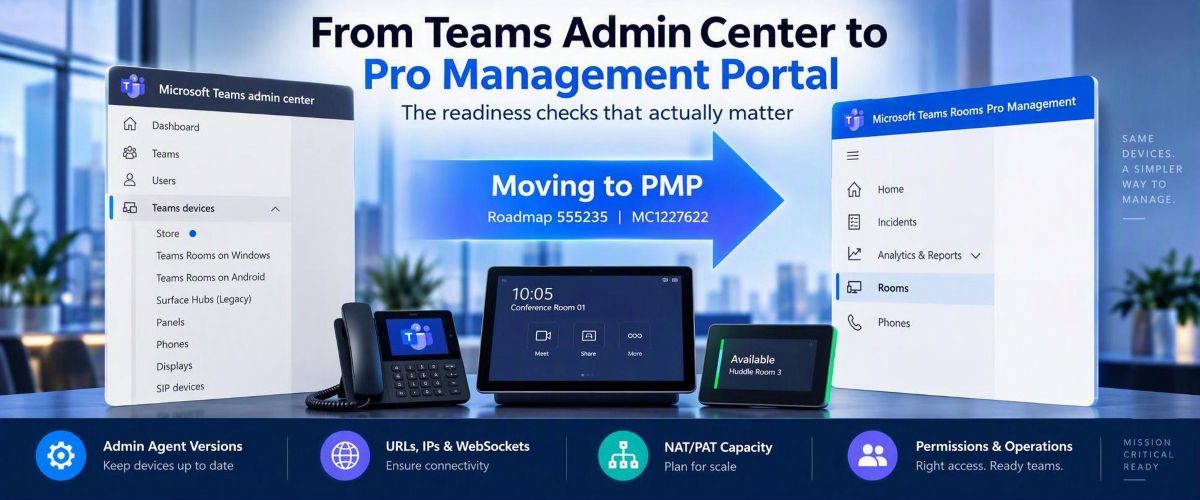
The move to Pro Management Portal isn't just a portal migration. It's a management-plane migration.
If you've managed Teams Rooms, Teams Phones, or Teams Panels for any length of time, you've probably noticed the steady shift towards the Teams Rooms Pro Management Portal (PMP). The deadline for this move from Teams Admin Center (TAC) to PMP is currently this month. October 2026. We're just waiting on the Android background for feature parity between the two portals.
What started as a roadmap item earlier this year is now becoming reality. Android device management is moving out of Teams Admin Center (TAC) and into PMP, making PMP the primary management experience for Teams Rooms on Android, Teams Phones, Teams Panels, and SIP devices.
At first glance, this looks like a portal migration, but I think that's the wrong way to think about it.
The biggest risk isn't learning where Microsoft moved a button. The biggest risk is assuming a device is manageable because it can still join a meeting.
Over the last few months I've spoken with customers managing hundreds, and sometimes thousands, of Teams devices. Very few were worried about the portal itself. Most were asking much more practical questions:
- Are all our devices actually ready?
- What happens to devices that have been offline for months?
- Do we need firewall changes?
- How do we know PMP is really working?
- What breaks if we miss something?
Those are the questions worth focusing on.
What Is Actually Changing?
Microsoft is consolidating Teams Android device management into a single administration experience.
For organisations today, that means inventory, health monitoring, update management, configuration management, and remote actions are increasingly moving into PMP.
The affected devices include:
- Teams Rooms on Android
- Teams Phones
- Teams Panels
- SIP Phones
For end users, very little changes (a recurring theme!). For the teams supporting hundreds or thousands of devices, quite a lot changes.
Three things to check now
1. Check Admin Agent Versions
Microsoft has introduced Admin Agent requirements as part of the PMP transition and unsupported versions may prevent devices from onboarding or communicating correctly with PMP.
My recommendation is simple: don't plan around the minimum supported version. Plan around the latest supported version available for your platform.
Also remember to check:
- Spare devices
- Devices in storage
- Rooms under refurbishment
- Recently factory-reset devices
Those are usually the ones that cause surprises later.
2. Validate Network Connectivity
The migration succeeds or fails based on connectivity.
Review:
- Teams device networking requirements
- PMP connectivity requirements
- Microsoft 365 endpoints
- Firewall policies
- Proxy configuration
- TLS inspection policies
One lesson I've learned repeatedly is that "reachable" doesn't necessarily mean "manageable". A device can happily join meetings while management traffic is being blocked somewhere else in the network path. Oh, and don't cherry pick the the IPs/URLs that you allow - this can cause pain later. Follow the recommendations.
3. Validate Permissions
Before making PMP your primary management portal, make sure the right people can actually manage the estate.
Validate that:
- Operations teams can manage devices
- Regional teams can see their assigned rooms
- Escalation teams have the access they need
Don't wait until TAC functionality disappears to discover a permissions issue.
The Gotchas We've Seen in the Field
Most of the issues I've seen aren't portal issues. They're networking and operational issues that become visible once devices start relying on PMP.
WebSocket Inspection
One common mistake is validating HTTPS connectivity and assuming everything is ready.
PMP relies on long-lived management connectivity. Devices can still sign in and join meetings while management communications are being disrupted elsewhere.
Typical symptoms include:
- Devices repeatedly going online and offline
- Delayed health reporting
- Failed remote actions
- Stale inventory information
If you're using TLS inspection, secure web gateways, or deep packet inspection technologies, test actual PMP functionality, not just connectivity.
Proxy Authentication
This continues to catch organisations out. Teams Rooms have limited support for proxy authentication. If your environment uses authenticated proxies, make sure Teams devices are appropriately exempted.
NAT and PAT Pool Exhaustion
This one surprises people.
Nobody worries about NAT when they have ten devices. The conversation changes when they have a thousand.
Large Teams estates create lots of long-lived outbound connections. When Teams Rooms, Teams Phones, VDI environments, and user devices all share centralised internet egress, source-port exhaustion can become a genuine operational issue.
Warning signs include:
- Random onboarding failures
- Different behaviour across sites
- Intermittent disconnects
- Unexplained connectivity issues during busy periods
Offline Devices
Every migration looks healthy until somebody opens a cupboard.
The devices most likely to cause problems are often:
- Spare phones
- Unused rooms
- Devices awaiting deployment
- Recently factory-reset systems
Before declaring success, actively look for devices that aren't currently reporting. These are usually the last blockers discovered.
What Good Looks Like
Before declaring the migration complete, I'd want confidence that:
- Every supported Android device appears in PMP
- Health telemetry updates consistently
- Remote actions execute successfully
- Devices are running supported Admin Agent releases
- Required Microsoft endpoints are accessible
- WebSocket traffic is functioning correctly
- Proxy and firewall policies have been validated
- NAT/PAT capacity has been reviewed
- Administrators have the right permissions
- Operational runbooks reference PMP rather than TAC
If you're there, you're probably ready. If you're only checking whether rooms can still join meetings, you're validating the user experience, you're not validating the management plane. Remember, they're not the same thing.
Final Thoughts
My advice is simple: stop thinking about this as a portal migration, treat it as an entire management-plane migration.
For most organisations, the experience inside the room won't noticeably change. The experience for the people supporting hundreds or thousands of devices absolutely will.
The customers that have the smoothest transition won't be the ones who learned PMP first. They'll be the ones who validated Admin Agent versions, networking, WebSocket behaviour, permissions, monitoring, and operational processes long before the final TAC management capabilities disappear.
That's what readiness looks like.
And that's where the real fun starts!
Useful links
PG Blog: https://learn.microsoft.com/en-us/microsoftteams/rooms/aboutunifieddevicemanagement-pmp1
M365 Roadmap: https://www.microsoft.com/en-gb/microsoft-365/roadmap?searchterms=555235
Teams Devices Network Security Requirements: https://learn.microsoft.com/en-us/microsoftteams/rooms/security?tabs=Android
Our old friend Microsoft 365 URLs and IP Address Ranges: https://learn.microsoft.com/en-us/microsoft-365/enterprise/urls-and-ip-address-ranges?view=o365-worldwide

 Microsoft