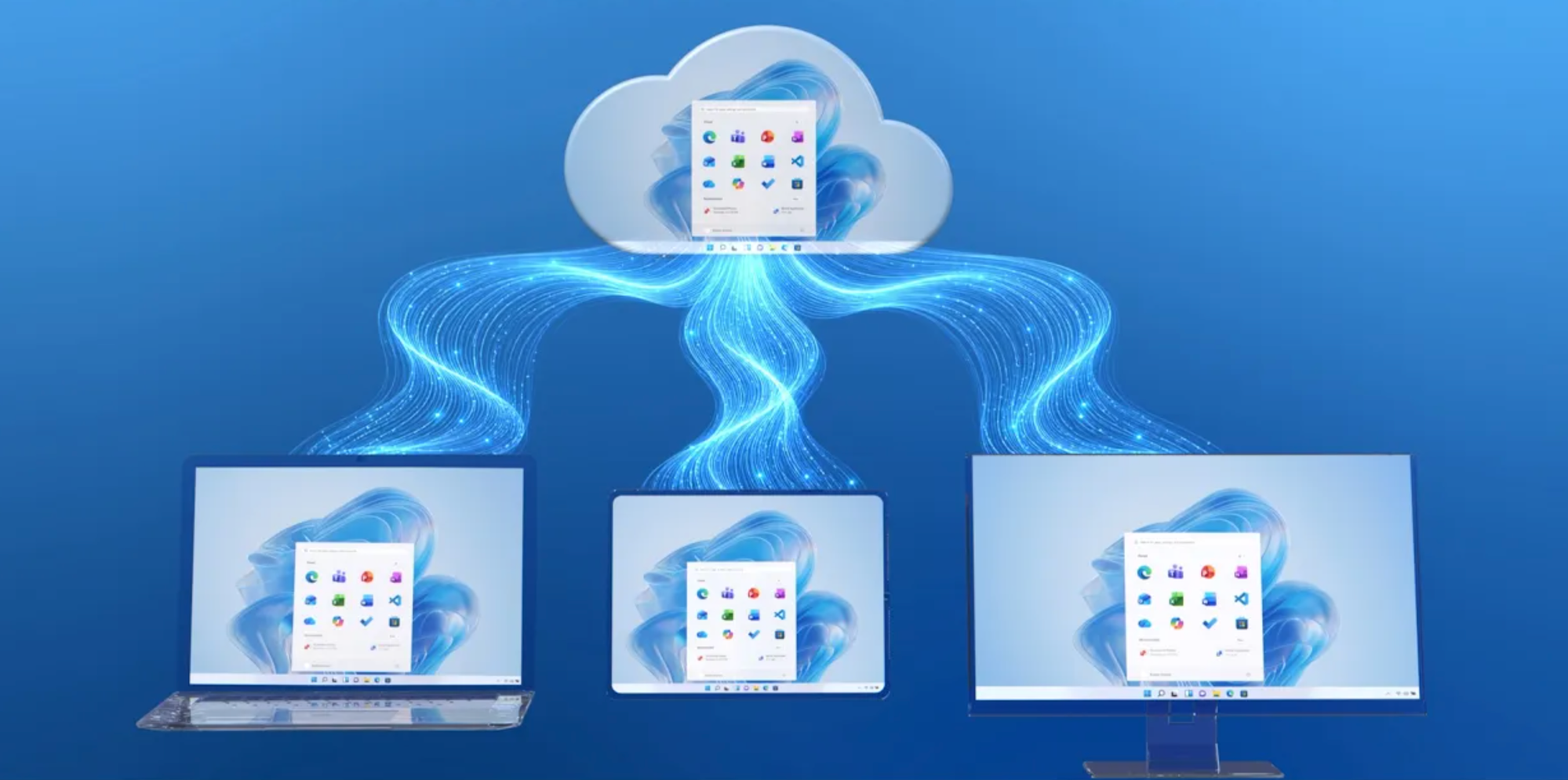
Windows 365 allows you to access Cloud PC experiences from almost any device. Now you can even use AI agents that work from inside your Cloud PC and interact with them from a Teams chat on your phone — finding downloaded files, editing documents, and drafting emails with your laptop lid closed. Microsoft Scout, a new Autopilot agent powered by the open-source OpenClaw project, runs on your own Cloud PC using your identity, your files, and your apps.
Developers get a Developer Optimized Cloud PC preloaded with GitHub, VS Code, and Node.js that runs Foundry Local for token-free AI coding, and input and output protection capabilities black out the screen when anyone tries to capture a sensitive file.
Bhavya Chopra, Windows 365 Partner Director, joins Jeremy Chapman, Microsoft 365 Director, to show how Windows 365 now covers every seat — end users, developers, admins, and the AI agents working alongside them.
Safeguard displayed content from screen scrapers.
Input and output protection capabilities keep you covered. Check out what’s new in Windows 365.
Select text inside a picture. Copy it. Paste into Excel & run the numbers.
Click to Do turns static images into live data on AI-enabled Windows 365 Cloud PCs. Get started.
Close your laptop. Send one Teams message.
Microsoft Scout finds the file on your Cloud PC, summarizes it, and drafts the email for your review. Check it out.
👥 Who it’s for:
Architects and IT teams deploying AI agents like Scout and Windows 365 for Agents, developers who want a pre-configured cloud coding environment with local AI, security and compliance teams enforcing data loss prevention on remote desktops, and admins managing Cloud PC connection health.
⏱️ Chapters:
0:00 What’s new across Windows 365 Cloud PCs
0:59 Why Cloud PC adoption keeps accelerating
2:04 Healthcare and telecom Windows 365 case studies
3:14 Sign in to a full Windows desktop anywhere
4:10 Block screenshots with input and output protection capabilities
4:35 Pull table data from images with Click to Do
5:19 Resume your Cloud PC session on an iPad
5:52 Publish Cloud Apps with Windows 365 Flex
7:01 Give AI agents a dedicated Cloud PC
7:27 Run Microsoft Scout from a Teams chat
9:43 Code on a Developer Optimized Cloud PC
10:11 Run local AI with Foundry Local and Phi-4
11:57 Track Cloud PC connection health in Intune
13:03 Troubleshoot connection issues with an AI agent
14:03 What’s next for Windows 365
Microsoft Scout takes instructions from a Teams chat and carries them out inside your Cloud PC — locating a report in the Downloads folder that never synced to OneDrive, summarizing it, appending the summary to the file, saving it, then drafting an email with the document attached and holding it for review. It reports progress back in Teams the whole time, so nothing requires touching the physical device. For agent workloads that need isolation instead, Windows 365 for Agents provisions a dedicated Cloud PC with its own unique identity and scoped access, and the same agentic infrastructure powers Computer Use in Researcher.
Developer Optimized Cloud PCs skip the environment build entirely: sign in to a machine already loaded with GitHub, VS Code, and Node.js, then run Foundry Local against the Phi-4-mini small language model to generate an app and run it — CPU spikes visible in Task Manager and Windows Machine Learning profiling in VS Code confirm inference is local, with no cloud tokens spent to code or to run the finished app.
Input and output protection capabilities black out the Cloud PC screen the instant someone attempts a screenshot from the accessing device, and extends the same block to third-party screen recorders and key loggers. Alongside it, AI-enabled Cloud PCs running at least 8 vCPUs add Click to Do, which lifts text out of non-selectable images and graphical tables straight into Excel, plus Semantic Search across the desktop. Sessions roam: disconnect on a laptop, reconnect on an iPad, and apps and display settings come back as you left them. Windows 365 Cloud Apps with Windows 365 Flex publishes individual apps from a shared Cloud PC pool with user experience sync across Windows, macOS, iOS, Android, and the browser. And in the Intune admin center, new monitoring dashboards track connection health, failures, round trip times, and license utilization in near real time, while an admin agent in preview triages issues to a root cause — like a regional cohort set to TCP-only transport instead of UDP with RDP Shortpath.
🔗 Related links:
► Check out https://aka.ms/windows365
► See the latest Windows 365 updates at https://aka.ms/Windows365Turns5
Unfamiliar with Microsoft Mechanics?
Microsoft’s Official Video Series for IT
— Subscribe https://www.youtube.com/c/MicrosoftMechanicsSeries
— Microsoft Tech Community: https://techcommunity.microsoft.com/t5/microsoft-mechanics-blog/bg-p/MicrosoftMechanicsBlog
— Podcast: https://microsoftmechanics.libsyn.com/podcast
Join us on social:
— https://twitter.com/MSFTMechanics
— https://www.linkedin.com/company/microsoft-mechanics/
— https://www.instagram.com/msftmechanics/
— https://www.tiktok.com/@msftmechanics
Video Transcript:
- Five years ago, we introduced Windows 365 to enable any organization to deliver Cloud PCs easily at scale. This provided a full Windows experience running in the Microsoft Cloud, along with all of your apps, and streamed to any internet-connected device. It required minimal admin setup, adhered to your existing configuration and security controls, and could be managed using the same tools you use for the rest of your devices. No VDI knowledge and infrastructure needed. Fast forward five years, Windows 365 has since won over many early skeptics concerned about connectivity and trade-offs compared to on-device experiences. Now it’s used by tens of thousands of organizations today, and joining me to show the latest updates and experience and everything in action is Bhavya Chopra, who now leads the Windows 365 engineering team. Welcome.
- Thanks, Jeremy. It’s great to be here.
- So, Cloud PCs, they’re really getting adopted across industries. Now, before we go into what’s new, what’s behind the momentum?
- Yeah, I think with Windows 365, what we’ve really solved for, as you touched on, is complexity. Traditionally, delivering virtual desktops required specialized infrastructure and expertise, which limited adoption. Windows 365 changed that by making Cloud PCs dramatically easier to deploy and manage. For IT, it’s as simple as creating a provisioning policy and assigning the right licenses. Within minutes, users have a personal Cloud PC managed with the same familiar tools that you already use today, like Microsoft Intune. And for your users, it’s just their Windows desktop with the apps, the files, and settings available from any device.
- And that simplicity became even more important when remote work drove demand for secure access to Windows really from anywhere.
- Exactly. When people started using their Cloud PCs day in and day out, the conversation really shifted from, “Will this work?” to, “How much more can we do with it?” And we’ve spent the last five years making that experience even better for our users and our admins. Windows 365 is already meeting the cost and security needs of any sized organization. For example, Northumbria Healthcare. It’s part of the National Health Service in the UK and uses Windows 365 to give their radiologists secure hospital-grade access to diagnostic imaging from anywhere. It’s dramatically reducing their image loading delays, and it’s enabling faster, more flexible patient care. And then we have the telecommunications provider, One New Zealand. They replaced their traditional desktops and VDI environments with Windows 365 to reduce overall IT costs, simplify management, and provide employees with a consistent, secure desktop experience.
- And I really like that last example because it brings home how Windows 365 can really improve the management complexity. And I think now’s probably a good time to really bring everyone watching up to date on the latest updates. But if you haven’t had any experience with Windows 365, the first question I think a lot of people have is, “Will this behave like a local PC?” So why don’t you show us where the experience is today?
- Exactly. That everyday Windows experience is at the very foundation of what we build. You can access your Windows 365 Cloud PC from virtually any internet-connected device. And let me show you how that works. I’m going to sign into the Windows App, and here you can see that there’s Cloud PCs that are available for me, and they’re listed right here alongside my apps. Let’s connect to one of the Cloud PCs. As I do that with single sign-on, I’m signed right into the full Windows desktop immediately. As you can see, connections are faster and more resilient than ever. The display adapts to my local resolution settings. So even if you have a high-resolution screen or multiple monitors, the experience works across them. And if you see, I’m opening my Teams app, and you can see that I have a Cam Link USB webcam, which in this case is connected to our studio camera. And I also have an audio headset running over USB. And just like that, any other USB peripherals will also work with the redirection capabilities that we’ve already built. And everything is working without any latency. Now, of course, as I work, security is also baked into Windows 365. For example, we recently introduced Cloud IO Protection. You see that I have a financial document here. And behind the scenes, policies have been set to block screenshots from the device that’s accessing the Cloud PC. So as I try to take the screenshot, you see that the Cloud PC screen is blacked out. And this policy will also protect against third-party screen recorders and key loggers. Next, let me show you how your experience as a user gets even better with AI-enabled Cloud PCs, which can work on configurations with at least 8 vCPU. And you can take advantage of all the AI features like Semantic Search and Click to Do in the Cloud PC. As you can see, I’m opening the browser with an image open, and the text here isn’t selectable on this graphical table. With Click to Do, which I can invoke using Windows key + Q, I can select all of the text that I want to grab from this table and use the option to copy it. Now let’s move this over to Excel, and I’ll paste in the contents of the table. And as you can see, I can now work with this data like any other data set on Excel, calculate a sum for the fields in the first row, and it all just works. And I can always disconnect from my Cloud PC on one device and reconnect where I left off from another device, like this iPad. You’ll see even if I log in with my iPad like I’m doing now, it’s just like I left it. All of my apps are open. It’s adjusted the display settings to match the iPad. And the whole experience feels like a local PC, regardless of the physical device you’re using, even in a browser.
- Okay, so here you’re on the iPad with access to a full Windows desktop and all the apps that were in Windows. But this is a mobile-first device, so can I launch just the app window itself?
- Exactly. And that’s where Windows 365 Cloud Apps came in. If you don’t need a fully persistent desktop, we introduced Windows 365 Cloud Apps, which is very powerful when used with Windows 365 Flex, which goes beyond the one user to one Cloud PC model and lets you share Cloud PC pools. Using Windows 365 Flex instead of desktop, you can now publish Cloud Apps. And these run from a shared pool of Cloud PCs. Now, I can open any of these apps, and you only see the window of that app full screen, like a native mobile app. So what you see on the screen right now is actually a Windows app running in the cloud. And with user experience sync, my settings, files, and app data roam with me, even if I’m connected to a different Cloud PC in the background. And as you can see here, it’s listing the previous expense approvals from my roaming user profile. And this works from a browser and from the Windows App on macOS, iOS, Android, and of course Windows.
- So that’s the user experience, but increasingly it’s not just people using Cloud PCs, it’s AI agents too.
- Yes, it’s a very rapidly evolving space. And we have a few options for our customers here. We can either give an AI agent its own provisioned Cloud PC with the apps and scoped access that it needs to perform its task. And as it works, it’ll use its own unique identity and access resources with Windows 365 for Agents or something brand new. We can now let it work alongside you on your own Cloud PC to help you get work done. For that, I’ll use Microsoft Scout, our latest Autopilot agent powered by OpenClaw. First, back on my Cloud PC, I’ve downloaded this report on the rise of agentic work in the enterprise, and we’ll use that for this demo. Now I’ll show you an example of how you can use Scout without leaving your physical device running and connected. In fact, to prove this, I’m going to close my laptop lid and use my phone. And no, I don’t have Windows 365 on my phone, but I’m able to interact with Scout running on my Cloud PC directly from my Teams chat. And Scout can work with files and apps that are only accessible on my Cloud PC in addition to what is available in the cloud, of course. For example, I just showed you a report on my Cloud PC. And as you know, the downloads folder doesn’t sync to OneDrive, and that’s okay. I can ask Scout to find the report I downloaded and create a summary of it. Then once it’s complete, I want it to append the summary to the same file and save it, and then author an email for my team, attach the document, and just save it as a draft so that I can review it before I send the email. And I’m going to send that chat message. And you see Scout will perform these tasks within my Cloud PC using and modifying files as I instructed, whether they’re local or saved in the cloud, and it will report the progress back to me on Teams. In fact, now that it’s finished, I’ll open my laptop again to show you. Here’s my Cloud PC that Scout was working in. And in the downloads folder, there’s our updated report. When I open it, we can see the summary that was added by Scout up top. And now we’re going to head over to Outlook to the drafts folder. And there’s the email Scout wrote for me. Of course, Scout could have sent it too, but I wanted to review it before it was sent out. I never touched my laptop or interacted with Windows. Everything ran in my Cloud PC from a simple Teams chat request that I sent to Scout from my phone. And these agentic operations in Windows 365 are already running at scale, where we are helping power multiple Microsoft agents. For example, with the Computer Use capability in Researcher, you can use a Cloud PC to interact with websites and applications on your behalf.
- Now, of course, beyond using agents, you know, someone has to actually build them, which is another area where we’ve enabled Windows 365.
- You’re exactly right. At Build, we announced that Windows 365 is now dev-maxed. Instead of building out a development environment from scratch, developers can sign into a Cloud PC that’s already configured and ready to code. This time, I’ve got a Developer Cloud PC running. When I open the Start menu, you’ll see that it’s preloaded with the dev tools: GitHub, VS Code, Node.js, and more. And you can also run unmetered local AI from this device. From VS Code, I’m going to use Foundry Local, and I’ve already pulled down the Phi 4 mini small language model. I’m going to move over to my Playground tab, which I’ve set up in advance with my local model, tokens configured. And on the right, I have my prompt. I’m going to have it build an agent that summarizes meetings automatically with a summary, key decisions, action items, risks, and open questions. I’ll have it build an app and let it run for a moment. And to show you that it’s all running on the Cloud PC, I’m going to open Task Manager, where you’ll see the CPU spike from the local model that it’s using. We can also view this from Windows Machine Learning profiling in VS Code. Now, if I go back to the Playground tab, you can see that it’s generated the code for my app. From the terminal, I’m going to go ahead and test it out. And there’s my app. But it gets even better because the app itself runs on the Phi local model too. I’m going to generate an executive brief and let that run, and show you that in Task Manager, there’s our CPU activity that’s coming from the response generation. And its results, we can see that the meeting summary with the details were created like I asked for, and no cloud tokens were used to code or run the app.
- And again, this all used the Microsoft-managed, developer-optimized image. And now developers, they can be up and running in minutes with the right tools and the right access right from day one. In fact, why don’t we switch gears to another IT admin topic, which is connectivity. And it’s really a key part of managing Cloud PCs.
- Yeah, we actually released two big capabilities there. First is a new modern monitoring and reporting platform. And the second is the new admin agent, which is in preview to help admins troubleshoot connectivity issues. From the Intune admin center, the monitoring and reporting dashboards give you a view of Cloud PC connection health, where the data actually updates at near real-time. This is a new centralized location for aggregate views of active connections, connection failures, health trends, average round trip times, which you know is an excellent measure of user experience. We’ll investigate the spike on July 17th in just a minute, but let’s move over to the next tab, which gives you the per-user or per-device views where you can filter on individual devices. And it gives you similar details across the key metrics that we were just talking about. If I want to see what a single user is experiencing, I can filter and drill down from a summary all the way down to a single user session. Configuration monitoring shows connection health, OS, and app versions to include overall insights into the end-to-end configurations associated with these connections. And then in license and utilization, you can find the license usage and trends. From there, let’s actually go troubleshoot what’s going on using an agent to help guide me to a fix. Back in the monitoring and reporting dashboard, I’ll open up the agent. Here, I’m going to describe the issue in natural language, that users are reporting connection issues that we saw before, and ask whether this is widespread or isolated. The agent then triages the information. It’s pulling in the relevant signals, looking across different trends and regional cohorts, and walking through the device and session configs. Then in its findings, we can see that it’s actually a regional issue, not tenant-wide. And it looks like the underlying reason is that these users and devices are configured for TCP-only transport, which tends to not perform as well as UDP with RDP Shortpath. So the monitoring and reporting platform exposes if something’s gone wrong, and the new admin agent helps you figure out why and recommends a resolution faster.
- So five years into Windows 365, the service has evolved on many fronts. It’s the Cloud PC that you know, familiar for end users, ready to code for developers, simple to manage for admins, and ready to run AI agents. So where do you see things going in the next five years?
- Yeah, I think we will redefine what Windows can be for our users. Windows will remain the platform where work happens, whether it’s done by people or by agents. And over the next few years, we’ll increasingly blur the lines between the client and the cloud. Your Windows experience will become more personal, more intelligent, and more adaptive, giving you the power, the performance, and the experiences you need wherever work happens.
- And we’re off to a great start. Windows 365 untethered Windows from the device, and the best is yet to come. So where can everyone watching now go to learn more and get started?
- Yeah, head over to aka.ms/windows365 for details on everything we showed you today and to follow on what’s coming next.
- Thanks for stopping by today, Bhavya, and showing us all the Windows 365 updates. And thank you for joining us online. Be sure to subscribe to Microsoft Mechanics, and we’ll see you again next time.
