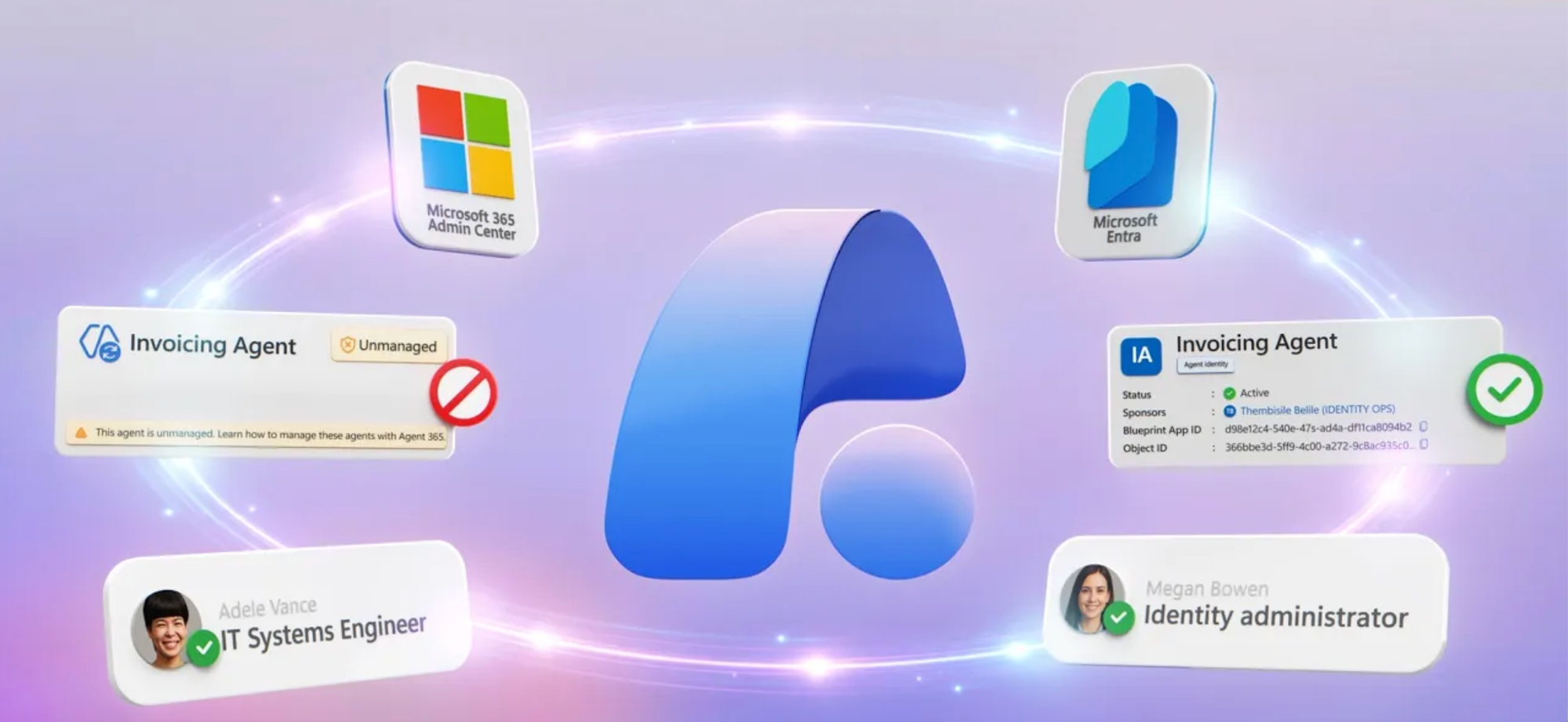
Take control of every AI agent, managed or not, running in your environment using Agent 365 and Microsoft Entra.
Surface agents across AWS Bedrock, Google Vertex, Databricks, and Salesforce in one registry, assign Entra Agent IDs via CLI or SDK, and enforce least-privilege access through Conditional Access policies and Agent Blueprints, all without rebuilding your existing identity infrastructure.
Lock down agent activity with sign-in logs that capture every authentication attempt, policy hit, and failure. Govern agents as first-class identities alongside your users, apps, and devices, and draw a hard line between managed and unmanaged AI in your organization.
Vince Smith, Microsoft Entra Principal Product Manager, shares how to establish full visibility, access control, and lifecycle governance for AI agents using Microsoft Entra and Agent 365.
Transform unmanaged agents into a managed agent identity.
CA policy enforcement, lifecycle controls, & full audit trail—start with Agent ID in Microsoft Entra.
One Agent blueprint. Multiple agent identities.
Use Agent blueprints in Microsoft Entra to enforce least-privilege access for agent identities at scale. Start here.
Lock down agent activity in Microsoft Entra.
Get full audit visibility into every sign-in, Conditional Access decision, and failure reason. See how it works.
QUICK LINKS:
00:00 — Visibility and control with Agent 365
01:39 — Multi-platform registry sync
02:29 — Assign Agent ID
04:14 — Agent Blueprints
05:24 — Conditional Access for agents
06:24 — Sign-in logs audit trail
07:03 — Unblock the agent
07:54 — Wrap up
Link References
Check out https://aka.ms/EntraforAgents
Unfamiliar with Microsoft Mechanics?
As Microsoft’s official video series for IT, you can watch and share valuable content and demos of current and upcoming tech from the people who build it at Microsoft.
- Subscribe to our YouTube: https://www.youtube.com/c/MicrosoftMechanicsSeries
- Talk with other IT Pros, join us on the Microsoft Tech Community: https://techcommunity.microsoft.com/t5/microsoft-mechanics-blog/bg-p/MicrosoftMechanicsBlog
- Watch or listen from anywhere, subscribe to our podcast: https://microsoftmechanics.libsyn.com/podcast
Keep getting this insider knowledge, join us on social:
- Follow us on Twitter: https://twitter.com/MSFTMechanics
- Share knowledge on LinkedIn: https://www.linkedin.com/company/microsoft-mechanics/
- Enjoy us on Instagram: https://www.instagram.com/msftmechanics/
- Loosen up with us on TikTok: https://www.tiktok.com/@msftmechanics
Video Transcript:
-Ensuring agents don’t operate unchecked in your environment means making sure their access to data and apps, along with other agents and resources, is appropriately scoped, and no more than necessary, so they’re never overprivileged. Agent 365 gives IT and security teams a unified control plane for agent activity. They can work together using the tools they already work in every day to see which agents are in use, understand the risk, and act before issues escalate. Today, in part 3 of this Agent 365 series, we look at how, as an identity admin using Microsoft Entra, you can establish the critical foundation to prevent agents from being both overprivileged or running without the right level of visibility.
-This all starts with Agent 365, which gives you visibility into your agents, control over what they can access, and governance across the entire lifecycle. As a developer, you can use the Agent 365 CLI and SDK to create and integrate an Agent ID into your agent. This ensures your agents can be managed across their lifecycle, with continuous risk evaluation and least privileged conditional access controls in Microsoft Entra, ensuring that agents can only connect to and act on the resources they truly need, for as long as they need, no more, no less.
-Just like with your users and apps today, with Agent ID, agents become explicitly manageable and governable, including conditional access policies and access packages. And by assigning an Entra identity to your agents, you establish a clear boundary between managed and unmanaged AI, which makes it much easier to detect which agents need to be brought under control. Let’s start in the Microsoft 365 Admin Center to see this in action. As an IT admin, you can access Agent 365 controls to view your agents, find unmanaged AI in use, and configure tools and settings. I’m in the Agent 365 overview page, where I can find top-level insights and metrics, as well as common actions. In fact, the Registry sync controls let me configure these options, so let’s take a look. And you can see that we’ve already configured sync for AWS Bedrock and Google Vertex, which gives us visibility into agents running on those platforms.
-Just to show you what’s behind this and your options, I’ll click Connect a platform. And under External platforms, we can see Bedrock and Vertex here, along with Databricks Genie and Salesforce AgentForce. The respective agents will peer in the agent registry once I sync from these platforms. That said, while we were able to see the agents from those platforms running in our environment, without respective Agent IDs, we won’t have visibility into exactly what those agents are accessing. In fact, here we can see that all of our Amazon Bedrock agents are currently unmanaged. And when I click in, we can see a few details about the agent creation date and publisher, but not much else. So we know these agents exist, but again, without an Agent ID, we don’t know exactly what these agents are accessing to be able to apply the right controls for their needs.
-Practically speaking, our first step here is to work with the unmanaged agent creators to get their agents an Entra ID. This is where, as a developer creating and updating agents, we can use the agent 365 CLI and SDK to create an assign and Agent ID, which also includes an Agent Blueprint. I’ve used a simple prompt here to generate the code and enter configuration needed. The cool thing about Agent Blueprints is that permissions granted on the blueprint can be inherited by all agent IDs using that blueprint, and I’ll explain more about this in a moment. And because this is standard OAuth, it is interoperable across agent platforms. In fact, the agent we’re updating is the one I showed earlier that’s running on AWS Bedrock. And once the agent is republished to Agent 365, it’s ready for management.
-In fact, going back to the agent registry in Agent 365, viewing the details of the agent, we can move over to the right and expand this field for identity information. We can see it has an Agent ID along with a Blueprint ID, which wasn’t there when we looked at the unmanaged agent card before. And scrolling back up and opening the Security tab, I can see that the agent already has default protections applied from Microsoft Purview and Entra, including sensitive data protections and compliance evaluation as part of the Agent 365 platform. Because the agent is an object in our directory, provided we are entitled with the right management permissions, we can grant the appropriate level of access and get visibility into its details and activities.
-I’ll start by first looking at what resources the developer has configured for the agent to access. In the agent identities page, we can see our agent. Importantly, this agent now has an agent sponsor assigned. This is the person responsible for the agent, and can be the agent builder themselves or someone they designate. And viewing its access and granted permissions, we can see a list of the requested permissions the agent has configured. Notice that the grant source is inherited from the parent, which is our Agent Blueprint. A blueprint is the template for a class of agents. It holds the credentials that associated agents use for authentication. The credentials can be managed in Entra, or federated outside of Entra, or even system managed, such as with an Azure Managed Identity. It also provides a way to define identity and permissions for agents at scale.
-Here we see in this case, the agent’s permissions aren’t set directly on the agent itself. They come from its parent blueprint. The first permission for Agent365.Observability is a default to capture agent telemetry. And under that, you’ll see Microsoft Graph permissions to read groups, users, and mail. Under Developer settings in the Manifest, we can view and optionally edit the details as JSON that we saw earlier in the code.
-As an Entra admin, I can control who is able to consent to the agent’s permissions, which gives me both security and scale, but I also want defense in depth. In our organization, as a blanket control, we have conditional access policies to block access to all unverified agents. Under conditional access, when I click into the AWS Bedrock policy, you’ll notice that this policy targets all agent identities and blocks their access to Entra-managed resources by default. To give our now verified agent access, we’ll need to exclude it from this conditional access block policy.
-Before we do that, I’ll show you this policy in action from the agent testing experience in Amazon Bedrock. I’ll have the agent perform a simple look up for a user account in our tenant. And you’ll see that it’s blocked from retrieving the user information. In fact, if I move over to this agent’s logs, I can see all the invalid grant errors. And expanding on the first one and then scrolling down to the error description, it gives more specific detail about the conditional access block and what happened.
-Now, if I move back to Microsoft Entra and look at the sign-in logs, we can see all of the sign-in activities for this agent. I’ll expand the same request we just saw in the Bedrock portal and move into this specific instance. And you’ll see the failure reason is exactly what the agent developers saw in Bedrock. In fact, digging into this Conditional Access tab, we can see the corresponding policies listed that apply to this agent, along with AWS Bedrock policy on top and the corresponding failure result. Now let’s look at how we can unblock this agent. As a Microsoft Entra administrator, once we verify that this agent’s identity is established and its permissions are appropriate, we can exclude it from our conditional access block policy to allow it access.
-Back in our conditional access policy settings, under Assignments, I can set up an exclude condition. Then I search for my agent by its name. Here I’m typing, “widget.” There it is. Now I’ll select it and confirm, then I just need to save my policy. That’s it. With our exclusion setup, the agent will be able to perform its operation with least privileged access and Entra. So let’s test it out. Back in the Amazon Bedrock portal, I’ll run the same prompt that failed last time, our account look up. And as you can see, this time it works, and it was able to access and display the account information for this user from our tenant.
-There we have it. That’s how easy it is to integrate Entra Agent ID into your agents and bring them under management. Agent 365 with identity and access controls in Microsoft Entra provides IT and security teams the management and visibility to assess and respond to agent risks. This lets you efficiently integrate agents into your existing systems and infrastructure as first-class identities, alongside existing users, applications, and devices. To learn more, check out aka.ms/EntraforAgents. Keep checking back to Microsoft Mechanics for the latest tech updates, and thanks for watching.
