Picture this. A user types something sensitive into Copilot. Now you're left wondering what happens to it, how to prevent it from going out, and what to do after the fact.
That's a conversation I have with customers a lot. How do you get proactive about securing what goes into Copilot and stop sensitive information from going out, instead of just cleaning up after it happens.
Copilot's web grounding sends prompts out to Bing Search when it needs more context to answer a question. That's useful. It's also the problem, because once a prompt crosses your tenant boundary to Bing, it sits outside the privacy and security terms in your Microsoft agreements.
For a while, the fix was to turn off web grounding entirely. That closed the gap but left users with a weaker Copilot.
Microsoft's answer was to extend Purview's data loss prevention into Copilot prompts, giving IT teams the proactive controls they've been asking for. I talked through this with Arlie, one of our Purview solutions engineers and a former CISO, and walked through how it works.
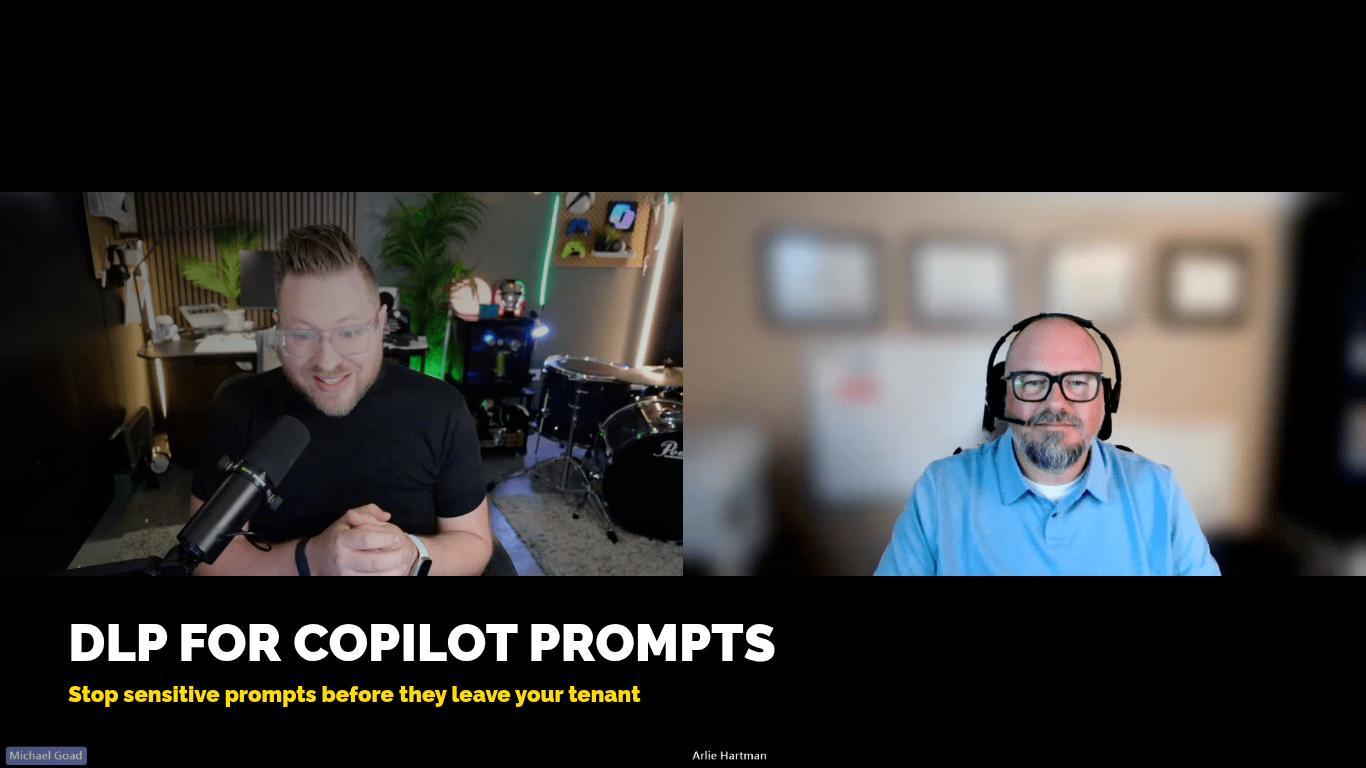
I sar down with Principal Solution Engineer Arlie Hartman to talk about DLP for Copilot Prompts
Two ways to block a prompt
The first version Microsoft shipped stops Copilot from processing a prompt at all. If the prompt matches a DLP rule, conditioned on a sensitive information type or a custom keyword list, the user gets a flat response: "This request cannot be completed because your organization has blocked Copilot from processing or responding."
That worked, but customers wanted more. They wanted Copilot to keep reasoning and responding using its existing knowledge and whatever's already in the tenant's Microsoft Graph data, just without invoking a web search. So Microsoft added a second action: block web grounding only. Copilot still answers, but tells the user it can't use web search because of the org's security policy.
Building the policy
You build this as a DLP policy in Purview, scoped to the Microsoft 365 Copilot and Copilot Chat workload, then scoped to users or groups. Inside the policy, you create rules made of a condition and an action: if the prompt contains a sensitive information type, a custom keyword list, or matches a sensitivity label, then either block the prompt or block web search.
One catch worth knowing up front: each rule can only take one of those two actions, and you can't combine a sensitivity label condition with a sensitive information type condition in the same rule. If you want both, build two policies. Arlie splits these out: one policy for keyword-based blocking, one for sensitivity-label-based web search restriction.
Sensitivity labels add another layer. Tag a document "Highly Confidential" and you can stop Copilot from touching it at all, or let it summarize and reformat that document but never let it trigger a web search from that content.
What you can see in the logs
With the full Purview suite, every Copilot interaction lands in Activity Explorer under AI activity. You can see the prompt, the matched rule, the confidence score, and whether it got blocked or just flagged. Filter by policy and date range to see how a rule is performing.
That's where simulation mode comes in. Before turning a rule on for real, run it in simulation for a week or so. You'll get the DLP violation logged without blocking anything for the user. Tune the rule until you're catching real violations without burying your admins in false positives.
Licensing
DLP for Copilot prompts requires Information Protection and Governance, one of the mini-SKUs that make up the Purview suite under E5. E3 won't get you there.
One policy covers both Copilot Chat and full Microsoft 365 Copilot. Roll out Copilot Chat broadly on E5 but only license some users for full Copilot, and the DLP policy still applies to everyone, regardless of which Copilot license they're on.
Where this fits
Most security around AI tools has been reactive: something goes out, you audit it, you coach the user after the fact. This gives IT teams a way to balance user ability with protection of the organization, stopping sensitive data from leaving in plain text before it happens, while users still get value from Copilot.
If you're on E5 and haven't looked at this, set up one policy in simulation mode this week and see what you're working with.

 Microsoft