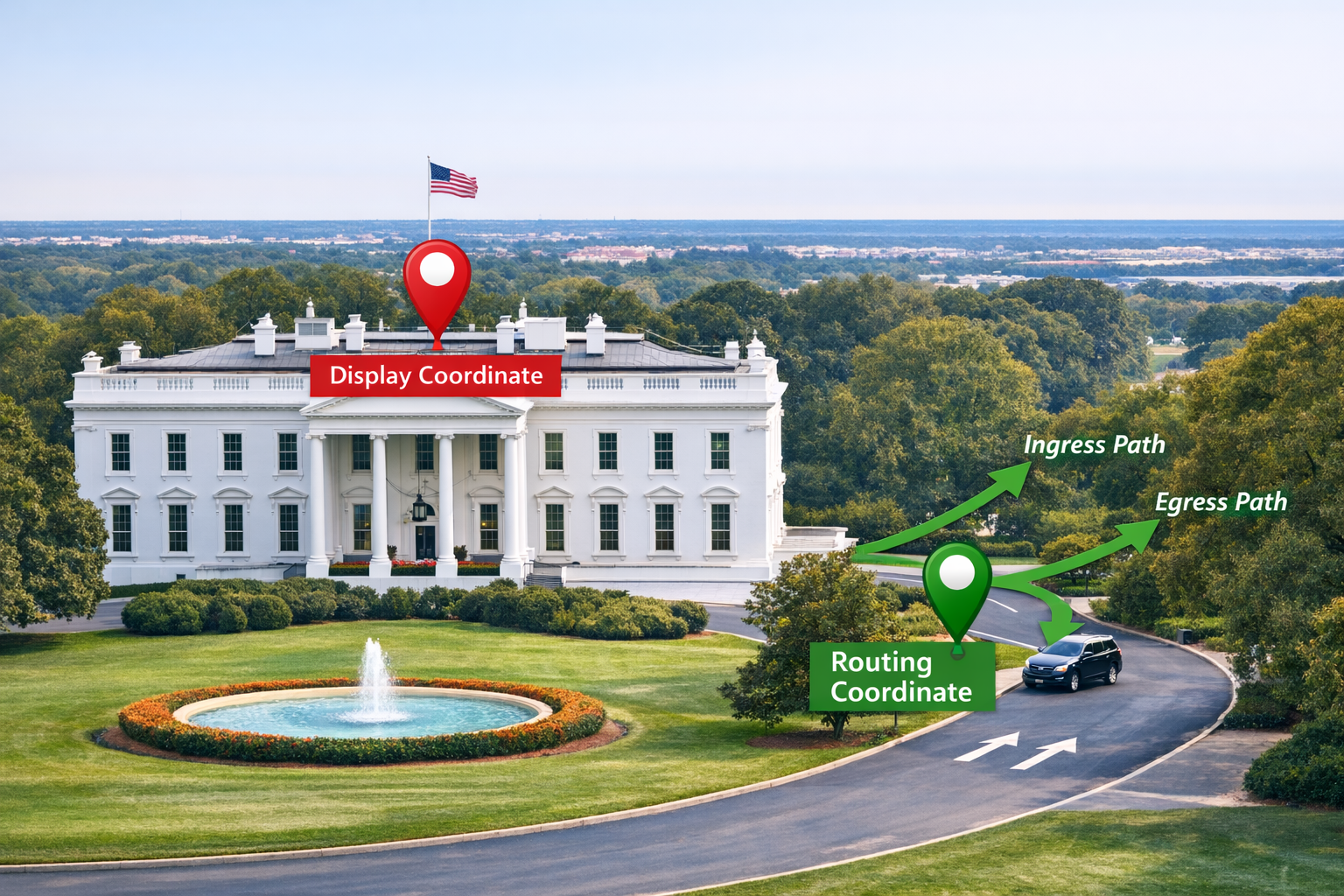
When geocoding, it’s easy to assume that each address has one coordinate. However, Azure Maps intentionally produces different coordinates for display (what you see on the map) and separate coordinates for navigation (where a vehicle or pedestrian should actually enter/exit the location). If you’ve ever tried to find a driving route to a location inside a building footprint or on the wrong side of a divided road, you’ve already experienced the difference. Let’s take a look at what these different coordinates are and how you can use them to make better experiences.
When you work with Azure Maps long enough, you will eventually run into a subtle but important detail: the platform returns two different types of coordinates for the same address. And while they may look interchangeable, they behave very differently once you start routing, calculating travel times, or dropping pins on a map.
Let’s break down what each represents and how to use them correctly when building location‑intelligent applications.
Why Azure Maps Has More Than One Coordinate for a Place
Geocoders, including Azure Maps, are designed to satisfy two competing needs:
- Show the place in the visually “accurate” spot on a map.
- Get people or goods to a real, accessible point on the road network.
The coordinate that satisfies the first need is rarely the same answer for the second, in fact it can be wildly off. If you have ever visited a National Park or other large location where the entrance is far from where you would display the center of the park, you will note that the difference between these coordinates can be many miles apart and often you can't drive to the exact center, so we would say the View coordinate is not Routable. So Azure Maps provides them separately; one to power the visual map experience, the other to power the routing engine.
The View Coordinate: Your Visual Anchor Point
Think of the Azure Maps view coordinate as “the place where the map pin should sit.” It may come from an address parcel, a building footprint centroid, or a point-of-interest geometry. Azure Maps will provide whatever option that produces the most natural visual representation of the feature on the map.
This is the important part for our topic: a view coordinate is not guaranteed to land on a road or even near one. It might be in the center of a large warehouse, deep inside a shopping mall footprint, or somewhere else that makes sense visually but is effectively unreachable from the road network.
View coordinates are great for anything that involves visual context such as placing a point on the map, centering the map on a search result, running spatial clustering on data values, or doing proximity lookups. They’re simply not intended for navigation.
The Routing Coordinate: Your Navigable Access Point
Routing coordinates serve a very different purpose. Azure Maps generates them to represent an access point. The point where a vehicle, pedestrian, or cyclist can legally and realistically approach or leave the location from the road network.
This usually means:
- The point is snapped to the closest routable road segment.
- It’s positioned where a driver or pedestrian can actually arrive (e.g., the driveway, street entrance, or legal access point).
- It includes the orientation and topology needed for the routing engine to produce correct ETAs, distance calculations, and directions.
When you're calling Azure Maps Routing APIs—calculateRoute, routeRange, distance matrices, isochrones, multi‑itinerary optimization—you should always feed the routing coordinate into the engine. Feeding a view coordinate instead may cause the service to snap to the wrong part of the network, or worse, find no viable route at all.
How Azure Maps Exposes These Coordinates
Azure Maps surfaces routing coordinates and view coordinates through structured fields in its search and geocoding responses. The naming varies by API, but you will often see:
- "usageTypes": [ "Display" ] denotes position or displayPosition → View coordinate
- "usageTypes": [ "Route" ] denotes routePosition, accessPoint, or entryPoints → Routing coordinate
Azure Maps provides both and should your scenario involve travel movement (even indirectly), the routing coordinate is the authoritative choice.
What Goes Wrong When You Swap Them
If you use a view coordinate for routing, you can be asking for routes that terminate inside a building footprint, on the wrong side of the street, or at an incorrect driveway. You might also see unexpected route endpoints because the routing engine is forced to snap the point to whichever road segment it thinks is closest, which might not be the correct one.
On the other hand, if you use a routing coordinate for display, your pins may look "off" because the access point for an address could be far from the building’s center.
This is why the distinction matters: one is about realism, the other about navigability.
The Upside: Using Them Correctly in Your Applications
When building an end‑to‑end Azure Maps experience, a good mental model is:
- Map UI? Use the view coordinate.
- Anything involving routing logic? Use the routing coordinate.
That includes distance calculations, service‑area modeling, route planning, delivery optimization, pickup/drop-off flows, fleet operations, and anything else where “how the user gets there” matters just as much as “where it is.”
With this separation of geocode results, you can trust Azure Maps to keep your visual experience clean while ensuring the routing engine has the precision it needs to get users where they actually need to go.
To find out more about Azure Maps Geocoding and our new Azure Maps AutoComplete experience, check out Search for a location using Azure Maps Search services | Microsoft Learn

 Microsoft