Microsoft's Cloud Architects: Manu Mehta manumehta, Chris Walk cwalk, Eduardo Dos Santos eduardomdossantos, Maria Hito mariahito, Kiran Raja Ch KiranRaja, Paul Singh PaulSingh, Aladdin Alchalabi AladdinAlchalabi and Rafia Aqil Rafia_Aqil
Start Here: Engage Microsoft
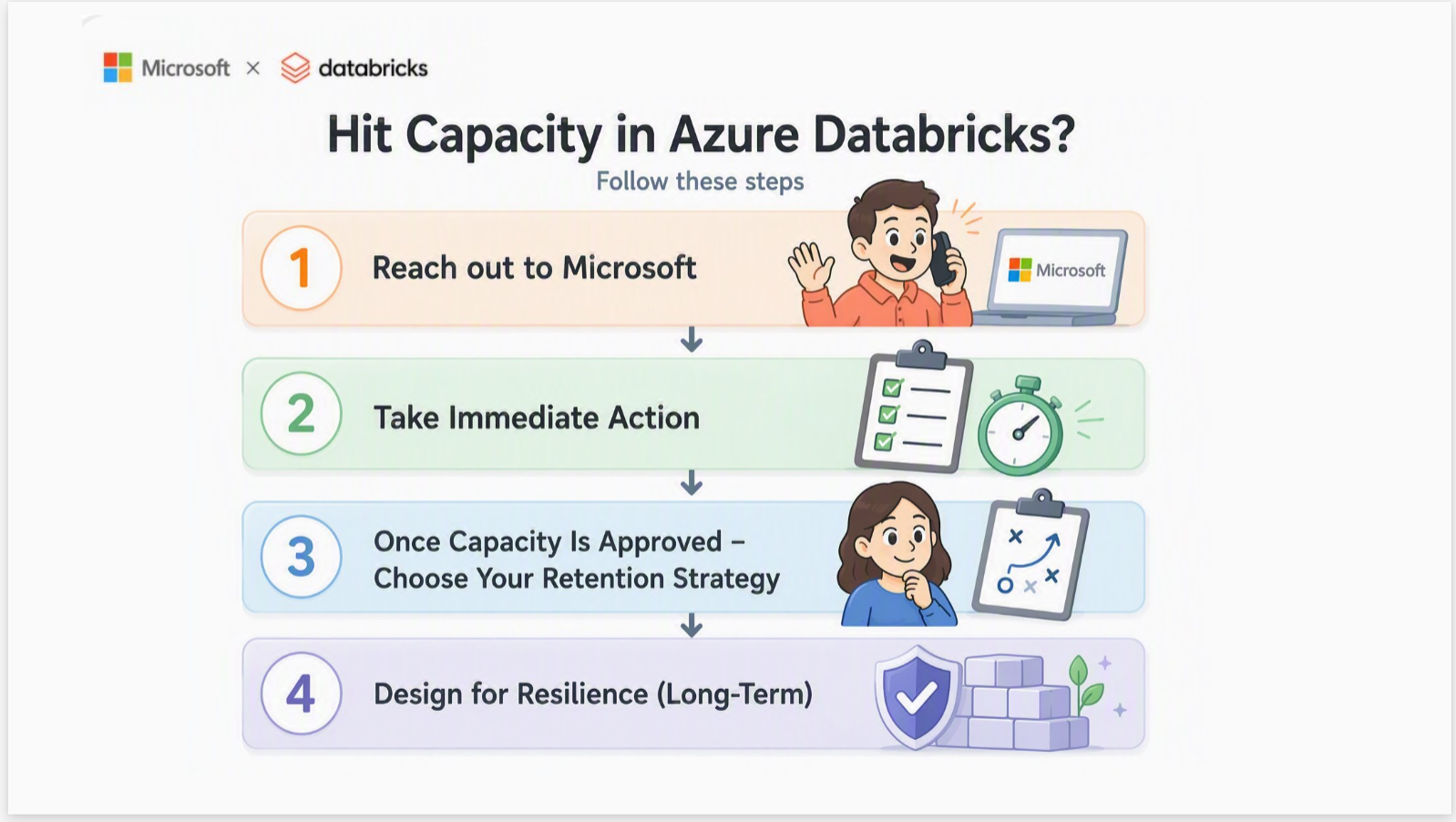
Capacity constraints in Azure Databricks are not an Azure Databricks product issue. Azure Databricks does not own or reserve compute, it dynamically provisions VMs from Azure when clusters are created or scaled. This means cluster creation, autoscaling, or job execution can stall when the underlying VM SKUs are constrained at the regional level. The fastest path to resolution is a structured conversation with your Microsoft account team, who can engage the Azure capacity intake process on your behalf.
Create a Quota Support Ticket via Microsoft Support and bring the following to your account team with your Support Ticket Number. Each field maps directly to what capacity intake teams will ask for: missing fields slow the request.
What to Prepare Before You Reach Out Your Account Team
|
Field |
What Capacity Intake Needs |
Example |
|
Subscription IDs |
The exact Azure subscriptions that will host the workspaces and clusters |
7ebee83d-7923-426c-8449-59fd4dff25ab |
|
Region(s) |
Primary region, plus any acceptable alternates |
East US 2 |
|
VM family / SKU |
Specific series and version requested |
Eadsv5, ESv4, DSv4, DSv2 |
|
Core count / new limit |
Total vCPU or core count per SKU |
10,000 cores for Eadsv5 |
|
Workload characteristic |
CPU-bound vs. memory/shuffle-heavy vs. IO-heavy; batch vs. streaming vs. SQL |
“Memory-intensive ETL with large joins and shuffles” |
|
Scale and timing |
When you need it, ramp profile, peak vs. steady state |
“Need by month-end; ramp from 2,000 to 9,650 cores over Q3” |
|
Business context |
Business use case |
“Migration off AWS” |
What “Capacity” Really Means: A Layered Mental Model
Before diving into fixes, it is important to understand what is actually happening behind the scenes. Capacity constraints can occur at three distinct layers, and solving them requires addressing each one.
Layer 1: Azure Infrastructure
This is the layer most teams underestimate. Capacity here is governed by:
- VM SKU availability in the region. D-series and E-series: the two most common Databricks worker families: have repeatedly hit capacity constraints across multiple Azure regions, causing cluster creation failures, autoscale stalls, and provisioning delays.
- Regional supply constraints, which are dynamic and shared across all Azure tenants.
- vCPU quotas and limits per subscription, which are separate from regional supply. Quota is your subscription’s limit to deploy resources (like a credit card limit); regional capacity is the underlying infrastructure available. Both must be sufficient.
|
Mechanism |
Guarantees Capacity |
Costs Money when idle |
Discount |
|
vCPU quota |
No |
No |
N/A |
|
Instance pool |
Best effort |
Yes (VM only, no DBU) |
No |
|
Reserved Instance |
No |
N/A |
Yes |
|
Savings Plan |
No |
N/A |
Yes |
|
CRG |
Yes, within SLA |
Yes |
No, but RI/SP can apply |
|
Serverless |
Platform-Managed |
No |
N/A |
Layer 2: Azure Databricks Platform
The Azure Databricks control plane has its own published ceilings that your architecture must proactively respect. Key limits from the official Azure Databricks resource limits documentation:
|
Resource |
Limit |
Scope |
|
Jobs created per hour |
10,000 |
Workspace |
|
Tasks running simultaneously |
2,000 |
Workspace (Run Job and For Each parent tasks excluded) |
|
Parent tasks running simultaneously (Run Job / For Each) |
750 |
Workspace |
|
SQL warehouses |
1,000 |
Workspace |
|
Attached notebooks or execution contexts |
145 |
Cluster |
|
Virtual machines |
25,000 |
Per subscription per region |
Note: For limits marked as non-fixed in the official documentation, you can request an increase through your Azure Databricks account team. Reference: https://learn.microsoft.com/en-us/azure/databricks/resources/limits
Layer 3: Workload (Spark Execution)
Even when both lower layers cooperate, Spark’s own execution model can produce capacity-like symptoms:
- Parallelism and task distribution, which dictate how many cores a job can usefully consume.
- Memory pressure from joins, shuffles, and skewed keys.
- IO demand and caching behavior, including Delta cache effectiveness and Spark cache misuse.
Understanding these layers is critical. Retries sometimes succeed because capacity is dynamic: as other workloads complete, nodes are released back to Azure and briefly become available.
Recognizing When You’ve Hit Capacity
Capacity issues rarely present as a single clean error. Instead, they appear as inconsistent behaviors:
- Clusters stuck in Pending state
- Autoscaling fails or never reaches the desired size
- Jobs intermittently fail to start
- Retry attempts sometimes succeed
These inconsistencies occur because capacity is shared across Azure tenants and fluctuates throughout the day. Running workloads outside peak business hours in the impacted region’s time zone is one of the most effective short-term mitigations. Inconsistent symptoms are not the same as unknowable ones. Before escalating, confirm what you are actually looking at. Several very different problems produce the symptoms above, and only one of them is a regional capacity shortage.
1. Where to look first
-
- Start with the cluster's termination reason and event log in the Azure Databricks workspace.
- Then cross-check the Azure Activity Log for the workspace's managed resource group over the same time window, which shows the VM allocation attempt and its result.
2. Match signal to the clause
-
What you observe
Points to Review
What to do
Cluster-provider launch or stockout failure
Regional capacity for that VM size
Immediate Actions, below
Quota, core, or vCPU limit referenced
Subscription quota, not capacity
Request a quota increase — capacity may be fine
VM size unavailable in the region or zone
Availability restriction, not a transient shortage
Switch VM SKU or Family below, retrying will not help
Pool returns INSTANCE_POOL_MAX_CAPACITY_FAILURE
A Databricks pool ceiling you configured
Raise the pool's maximum capacity
Cluster starts normally but jobs run slowly, spill, or OOM
Workload design, not capacity
Why Adding more Nodes is Not Always the Answer, below
-
- Only the first row is a genuine Azure capacity constraint. The others are resolved without any capacity conversations
3. Check quota before you conclude capacity
-
- Quota and capacity fail in similar ways but are resolved through entirely different paths.
- Compare current usage against the limit for the VM series and region in question. If usage is below the limit and allocation still fails, the constraint is regional capacity. If usage it at the limit, it is quota and an increase may resolve it outright.
Immediate Actions: How to Unblock Your Workloads
When you are actively hitting capacity constraints, speed matters. Please reach out to your Microsoft Account team and try these mitigations that are ordered from quickest to most involved.
- Retry and Run During Off-Peak Hours
-
- Capacity availability changes throughout the day as workloads complete and release VMs. Running outside peak business hours for the impacted region significantly improves success rates.
- Retrying is bounded, not unlimited. As a rule of thumb, retry two or three times across different hours, including at least one off-peak window in the impacted region's time zone. If the same VM size and region fall consistently across a full business day, stop treating it as transient; open a support ticket, engage your account team, and evaluate VM families in parallel.
- If the workload is production critical with a fixed deadline, or if failures are blocking a migration or cutover already in flight, escalate immediately without waiting for the retry window.
- Switch VM SKU or Family
If a specific VM SKU is constrained, switching to another can immediately unblock provisioning.
-
- Move within the same family (for example, DSv4 → DSv5)
-
- Or switch families entirely (for example, D-series → F-series or L-series)
Choosing the Right VM Family
Most Databricks environments default to D-series (general purpose) and E-series (memory optimized). These are also the most heavily used and most capacity-constrained VM families. Consider alternatives based on your workload:
|
VM Family |
Best For |
When to Use |
Trade-off |
|
D-series |
General workloads |
Default choice |
Often constrained in high-demand regions |
|
E-series |
Memory-heavy Spark jobs |
Joins, shuffles, analytics |
High demand; higher cost |
|
F-series |
CPU-intensive jobs |
Parsing, transformations |
Lower memory per core |
|
L-series |
IO-heavy workloads |
Delta caching, large datasets |
Higher cost; large local NVMe |
Practical decision framework:
-
- Memory-bound workloads (joins, shuffles): Move from E-series to L-series. Similar memory per core, plus large local NVMe for Delta caching.
-
- CPU-bound workloads: Move from D-series to F-series. Higher CPU performance at lower cost.
-
- IO-heavy or cache-sensitive workloads: L-series can significantly improve performance and reduce shuffle pressure.
- Implement Regional Diversity in your Databricks workload
-
- As Azure capacity constraints are region and SKU-specific, it is important to build architectural flexibility into your Databricks deployments.
-
- For critical or large-scale workloads, consider deploying multiple Databricks workspaces across different Azure regions to reduce dependency on any single region’s capacity.
This approach enables:
-
-
- improved resilience to regional capacity constraints
-
-
-
- greater flexibility in workload placement
-
-
-
- Important: Multi-region deployment requires deliberate architecture, including deploying separate workspaces and replicating data and configurations across regions; it is not automatic.
-
Why Adding More Nodes Is Not Always the Answer
When jobs slow down, the instinct is to scale compute. With Spark, more nodes do not always solve the problem.
Common workload issues that masquerade as capacity problems:
- Data skew
- Excessive shuffle operations
- Inefficient partitioning
- Overuse of UDFs
In some workloads, shuffle operations can grow significantly larger than the original input data, placing substantial pressure on compute, memory, disk I/O, and network resources. Because shuffle workloads are distributed across the cluster, adding nodes can improve performance by increasing parallelism. However, that benefit reaches a limit when the bottleneck is caused by data skew, oversized shuffle partitions, network-intensive data movement, or data explosion from joins and aggregations. In these scenarios, the workload becomes constrained by the shuffle pattern itself, and simply adding more nodes does not address the root cause. Instead, the shuffle strategy, partitioning approach, or query design should be optimized.
Smarter optimization strategies:
- Reduce shuffle through repartitioning and query optimization
- Enable Photon for faster execution
- Optimize Delta tables using Z-ordering and compaction
- Leverage caching strategically (not just Spark cache: use the Delta/disk cache)
These optimizations can reduce your dependency on scarce VM capacity altogether. Review optimization strategies: The Complete Guide to Azure Databricks Cost Optimization | Microsoft Community Hub.
What to Do When Your Capacity Is Approved
Once Azure approves your capacity request, retaining it requires active steps. Because Azure capacity is dynamic and shared, approved capacity is held only while compute remains actively deployed and running. This is especially important in highly constrained regions. Microsoft recommends the following:
Configure an Instance Pool
For workloads that cannot yet use serverless compute, configure an Azure Databricks Instance Pool with a minimum number of idle nodes aligned to your production requirements.
An instance pool pre-allocates and maintains a set of idle, ready-to-use VM instances. When a cluster is created from the pool, it draws from these warm nodes: eliminating the need to request new VMs from the regional Azure capacity pool between job runs.
Key behaviors:
- The pool holds a minimum number of nodes continuously, keeping them warm and immediately available.
- Clusters attached to the pool pull from warm nodes, avoiding re-acquisition from Azure between runs.
- No DBU charges apply while nodes are idle in the pool.
- Azure VM infrastructure costs do apply for all minimum idle instances. Size the pool conservatively: aligned to production need only: to balance capacity retention against ongoing cost.
Important:
- Instance pools hold idle nodes on a best-effort basis. Periodic platform events can recycle pool nodes, briefly causing the pool to fall below its configured minimum idle count while Azure re-acquires replacement nodes. Pools significantly improve availability and startup latency, but they do not change the fact that the underlying VMs are still requested from Azure on demand. They are not a hard reservation. Reference: https://learn.microsoft.com/en-us/azure/databricks/compute/pools
- You can launch a pool's instances against an Azure capacity reservation group by setting the capacity_reservation_group field in the pool's azure_attributes to the group's resource ID. Configure it through the Instance Pools API or the Azure Databricks SDKs. The same requirements apply as for clusters: on-demand instances only, and only workspaces that use VNet injection.
Designing for Resilience: Long-Term Best Practices
To avoid repeated capacity issues, your architecture needs to evolve beyond reactive mitigations.
Plan Ahead with Azure Capacity Reservation Groups
For organizations running mission-critical Azure Databricks workloads, Azure Capacity Reservation Groups (CRGs) can provide additional predictability by reserving VM capacity in advance for your Databricks compute resources. Rather than competing for available regional capacity during periods of high demand, reserved capacity helps ensure that the required VM families are available when clusters need to scale or start, Reference: Databricks Clusters API documentation.
Note: Before you commit to a reservation, know three things:
-
- Auto-termination stops saving VM costs. When a cluster terminates, its reserved capacity returns to an unused state and continues billing at the full VM rate.
- A pool backed by a reservation is not billed twice. If a team already pays for minimum idle pool nodes in a constrained region, a reservation at comparable spend converts best-effort capacity into SLA-backed capacity.
- Confirm that the cluster is actually using the reservation. Creating the reservation proves Azure set capacity aside, but it does not prove Databricks is drawing on it. Start a cluster, then check that allocated instances on the reservation rose by the expected node count. If it stays at zero, the usual causes are a VM size mismatch, availability not set to ON_DEMAND_AZURE, a workspace on the Databricks-managed VNet, or the RBAC actions never granted. Note also that omitting capacity_reservation_group when editing an instance pool silently clears it.
Step-by-Step Instructions:
Attaching a CRG to Databricks is done only through the Clusters/Instance Pools API or the Databricks SDKs, it is not available in the compute UI.
Prerequisites
-
- VNet-injected workspace only. The workspace must be deployed into your own VNet. Workspaces on the default Databricks-managed VNet cannot use a CRG.
-
- On-demand instances only. The cluster/pool must use ON_DEMAND_AZURE availability. Spot and serverless are not eligible.
-
- Same region. Create the CRG in the same Azure region as the workspace.
-
- Matching VM size. Reserve the exact VM SKU(s) your cluster uses (driver and workers).
-
- Sufficient subscription quota for that SKU and core count.
-
- Go to the CRG resource -> Access Control -> Add role assignment and add the below roles to the workspace (i.e. databricks-login-prod) Enterprise Application:
- Microsoft.Compute/capacityReservationGroups/read
- Microsoft.Compute/capacityReservationGroups/deploy/action
- Microsoft.Compute/capacityReservationGroups/capacityReservations/read
- Microsoft.Compute/capacityReservationGroups/capacityReservations/deploy/action
- Go to the CRG resource -> Access Control -> Add role assignment and add the below roles to the workspace (i.e. databricks-login-prod) Enterprise Application:
Step 1: Create the CRG and reservation in Azure
az group create -l eastus -g myResourceGroup

az capacity reservation group create \

-n myCapacityReservationGroup -l eastus -g myResourceGroup --zones 1 2 3

az capacity reservation create \

-c myCapacityReservationGroup -n myCapacityReservation \

-l eastus -g myResourceGroup --sku Standard_D2s_v3 --capacity 5 --zone 1
Note: If you want to create the CRG from the Azure Portal you can do the following: Set Subscription, Resource group, Name, and Region (use the same region as your Databricks workspace). Optionally pick Availability zones.
Add one or more reservations: Reservation name, Instances (quantity), and VM size (match your cluster's driver/worker SKU). Example here: reservation-eadsv5, 5 × Standard_D4s_v3. Confirm the summary (price, basics, reservations), then click Create.
Step 2 Attach the CRG to the cluster (Clusters API or SDK)
This would be the Azure Databricks compute cluster, the Spark cluster you create inside your Azure Databricks workspace (Compute → Create compute, or a job cluster).
You add an azure_attributes block to the cluster definition. The snippet below is a fragment that goes inside the cluster's JSON, alongside the normal cluster fields. You provide the CRG resource ID; Azure picks a matching reservation within the group.
databricks clusters edit --json '{
  "cluster_id": "<existing-cluster-id>",
  "spark_version": "15.4.x-scala2.12",
  "node_type_id": "Standard_D4s_v3",
  "num_workers": 4,
  "azure_attributes": {
    "availability": "ON_DEMAND_AZURE",
    "capacity_reservation_group": "/subscriptions/<subscription-id>/resourceGroups/<resource-group>/providers/Microsoft.Compute/capacityReservationGroups/<crg-name>"
  }
}'
The cluster's node_type_id (VM SKU) has to be the same VM size you reserved in the CRG (Step 1). If the reservation is Standard_D4s_v3, the cluster's node type must also be Standard_D4s_v3, or it won't draw from the reservation.
For instance pools, set the same capacity_reservation_group field via the Instance Pools API or SDK (If you omit the field when editing a pool, Databricks clears any CRG already configured on it).
Plan for Capacity Early
- Understand VM quotas and limits before you need them: not after a constraint occurs.
- Avoid designing a single SKU. Build flexibility into cluster configurations so you can switch families without re-engineering jobs.
Standardize Compute Configurations
Consistent, policy-driven environments make it easier to adapt when capacity constraints occur. Use Databricks Cluster Policies to constrain cluster creation to approved, available VM families: this prevents teams from inadvertently requesting constrained SKUs. Also, consider enforcing the CRG setting through a Databricks compute policy, so teams launch only against approved, reserved capacity.
Move Toward Serverless Where Possible
Serverless compute abstracts capacity management away from the customer. As the Databricks platform expands serverless support, migrating eligible workloads is the most durable long-term strategy. Azure continues to expand infrastructure capacity, but there are no guaranteed timelines for relief in constrained regions.
Note: If your workload supports serverless compute, Databricks recommends using serverless compute instead of pools or classic VM-backed clusters. Serverless removes dependency on specific VM SKUs and regional capacity: scaling is managed by the platform with significantly improved availability. Reference: https://learn.microsoft.com/en-us/azure/databricks/serverless-compute. For eligible workloads: including Databricks Jobs (automated workflows), Databricks SQL Warehouses, and Delta Live Tables: serverless compute eliminates VM SKU dependency entirely. Configuration guidance is available in the Azure Databricks deployment guide, Development Section, Step 9.
Multi-Region Strategy for Critical Workloads
For the most critical workloads, evaluate a multi-region deployment as part of your business's continuity planning. This is a significant architectural investment: see the FAQ for the full scope: but it is the only approach that provides true regional redundancy. Coordinate this with your Microsoft account team. Reference: Azure Databricks & Microsoft Fabric Disaster Recovery: The Complete Better‑Together Strategy for Cloud Architects
Know the Difference: Azure Capacity Reservations vs. Reserved Instances vs. Savings Plans
When planning Azure infrastructure, it is important to separate capacity assurance from cost optimization. Although these options are sometimes discussed together, they solve different problems.
- On-Demand Capacity Reservations (ODCR) are designed to reserve compute capacity for workloads that need to run now. They are useful when an organization needs capacity for an eligible VM size in a specific region or availability zone. ODCRs generally offer flexibility because they do not require a long-term commitment and can be canceled when no longer needed.
- Future Capacity Reservations (FCR) support planned capacity requirements for a future need-by date. They are useful for migrations, major launches, seasonal events, and other predictable workload ramps that require advance capacity planning.
- In comparison, Azure Reserved VM Instances and Azure Savings Plans for Compute are primarily commercial constructs. Reserved Instances provide discounts for predictable, consistently running workloads through a one-year or three-year commitment. Savings Plans offer broader flexibility by applying discounts to eligible compute usage in exchange for an hourly spending commitment.
The key takeaway is simple: capacity reservations address infrastructure availability, while Reserved Instances and Savings Plans address pricing. Organizations can use them together, pairing a capacity reservation with an applicable pricing benefit to improve both workload readiness and cost efficiency.
Final Takeaways
- Capacity issues are infrastructure-level constraints, not Databricks product failures
- VM family selection is critical: do not rely solely on D-series and E-series
- Workload optimization can reduce dependency on scarce resources before requesting more capacity
- Serverless compute is Microsoft’s preferred long-term recommendation for eligible workloads
- Architectural flexibility: multi-SKU, multi-region awareness is your best defense against future constraints
FAQ
Why do retries work?
Capacity in Azure regions is shared across all tenants and fluctuates throughout the day as workloads complete and release VMs. A retry succeeds when capacity temporarily frees up. Retrying during off-peak hours improves success rates significantly.
Why does capacity fluctuate during the day?
Capacity is a function of regional supply and concurrent demand. As workloads complete, nodes are released back to Azure. Peak business hours in the impacted region’s time zone tend to be the tightest windows.
Why are instance pools not a hard reservation?
Pools hold a minimum number of nodes on a best-effort basis. Periodic platform events recycle pool nodes, so a pool can briefly fall below its configured minimum idle count while Azure re-acquires replacement nodes. Setting minimum idle to 0 avoids paying for idle VMs at the cost of slower acquisition time. Pools significantly improve availability and startup latency but do not guarantee capacity at the Azure infrastructure level.
Why does serverless behave differently from classic clusters?
Serverless compute removes customer control over individual VM SKUs. Databricks manages the underlying capacity across a shared pool. SKU-swap and pool-based mitigations do not apply. Customer-side levers reduce to retry and off-peak scheduling. The trade-off is that serverless is the simplest and most reliable option when the workload supports it.
Why is changing regions a last resort?
Region changes require redeployment of the Azure Databricks workspace and migration of all dependent artifacts: jobs, clusters, libraries, networking (private endpoints, VNet injection), Unity Catalog assignments, identities, and source data. The destination region must be validated for the same SKU and zonal configuration. For these reasons, region change should always be coordinated with the Microsoft account team and attempted only after preferred mitigations have been exhausted.
Why does VM family selection matter so much for capacity?
Different VM families have different supply curves. D-series and E-series are the most requested Databricks worker families and the ones most frequently constrained. Choosing a SKU based on whether the workload is memory/shuffle-heavy, CPU-bound, or IO-heavy improves both performance and the probability that capacity is available. The capacity team often steers customers toward newer-generation alternatives when supply differs by generation version.
What does the Microsoft account team actually do?
They route the request into the Azure capacity intake process, advise alternate SKUs and regions, surface zonal vs. regional considerations, and provide forward visibility into known constraints. The customer’s job is to bring a complete, accurate workload profile so the account team can advocate effectively.
It is also recommended to open an Azure Support ticket. This will save time later, as the capacity planning teams would like to track issues and requests via a support ticket. Once an Azure Support ticket is opened, the ticket number should be shared to the Microsoft Account Team, at a minimum to the Customer Success Account Manager (CSAM), if one is assigned to your organization.

 Microsoft