software management
477 Topics
Intune App inventory Graph
Hi All, I've enabled the configuration profile to receive app inventory data in Intune. In the GUI the data I can view the data just fine, but I would like to use Graph to automate this data and create custom reports. When I use the following https://graph.microsoft.com/beta/deviceManagement/managedDevices/[device-id]/deviceInventories('ApplicationProperties') I get an error: "Forbidden - 403 - 199 ms Either the signed-in user does not have sufficient privileges, or you need to consent to one of the permissions on the Modify permissions tab" even though the docs I can find about permissions are OK.397Views1like4Comments
RemoteHelp.exe reports FileVersion 10.4.10008.1000 while the product version is 5.2.1037.0
Problem 1 - File Version Because RemoteHelp.exe reports FileVersion 10.4.10008.1000 while the product version is 5.2.1037.0, this makes Intune detection, packaging, inventory reporting, and supersedence unnecessarily difficult. Remote Help publishes release versions such as 5.2.1037.0, but the primary executable reports a different FileVersion (10.4.10008.1000). This prevents administrators from using standard file-version detection methods in Intune, Configuration Manager, and software inventory solutions. Administrators must instead enumerate uninstall registry entries and distinguish between the Burn bundle and MSI entries. Aligning the executable FileVersion/ProductVersion with the published release version would significantly simplify enterprise application management. Remote Help combines both common enterprise packaging mistakes: The executable version doesn't match the advertised product version. The installer creates two uninstall entries with the same DisplayName. Neither issue is fatal, but together they make what should be a trivial Intune detection rule far more complicated than it needs to be. From an enterprise management perspective, this causes several problems: Application detection scripts become more complicated. Supersedence rules are harder to create. Administrators waste time investigating apparent version mismatches. Software inventory reports show different versions depending on which source is queried. Automated packaging systems cannot simply use file versioning. Documentation has to explicitly state "do not use the EXE version". Problem 2 - Duplicate Uninstall entries The Burn bootstrapper situation makes it even more confusing because there are two uninstall entries, both called Remote Help, both reporting version 5.2.1037.0, but representing two different installer components. This isn't unique to Remote Help unfortunately. Microsoft has a history of doing similar things with: Company Portal Teams (various generations) Edge WebView2 Visual Studio bootstrapper installers Azure VPN Client Some Defender components where the executable version represents the underlying codebase rather than the product release version that administrators actually deploy. The file version should be treated as an API contract with administrators. Once an application is broadly managed by enterprises, changing versioning schemes or exposing an internal build number instead of the published product version makes lifecycle management considerably harder than it needs to be. Problem 3 - Unversioned download URL The URL to download the latest version https://aka.ms/downloadremotehelp is only a redirect link, not a versioned artefact. The download URL itself does not expose any metadata about: The current Remote Help version The release date When the installer was last updated Previous versions A changelog Microsoft's documentation simply points administrators to the download link for installation. When you download the 'latest version' you always receive whatever Microsoft currently considers the latest installer, but the URL itself provides no version information. For enterprise deployment scenarios, the ideal solution would be one of: A "What's New" page with version history. A release notes page containing: Version Release date Changes Versioned download URLs, for example: RemoteHelp-5.2.1037.0.exe RemoteHelp-5.2.1037.0.msi Please can these three issues be resolved to ease some of the unnecessary burden placed on Intune Administrators?47Views0likes0Comments
Advanced Microsoft Intune capabilities - Coming to Education A5?
The Advanced Microsoft Intune capabilities (what was the Intune Suite has now arrived for E5 customers (and some of the features to E3 customers. Can anyone give any clarity as to if/when these features will be coming to A5 customers? I can see we seem to have some of the features (Remote Help, Endpoint Privilege Management) but could really do with knowing if the rest of the features are coming. Can't seem to find any information online about it.91Views0likes2Comments
Have OneDrive or SharePoint files/folders on home screen of iPad without internet connection?
This. I'm on a big iOS project. We have several users who need files on an ipad when traveling, and be able to open them when there is no internet connectivity. These files aren't intended to be edited, just 'read only.' These files do not contain any sensitive corporate data. The content lives in SharePoint online and I'm using OneDrive as a bridge to their sharepoint site. BUT the files can only be viewed on the ipad within the OneDrive app without internet access. These are devices using user affinity enrollment. Initially, the solution for users was to use the 'Mark Offline' feature within the OneDrive iOS app. I used Power Automate to have it fetch new files found in OneDrive and move them to the teams SharePoint site. These shared devices are locked down (an understatement). These will be used by the least computer savy/literate people and so having them dive through OneDrive folder after folder, even offline, is a tall order to ask. I totally get it and don't want them doing that either. So now I have to move onto plan B. How can we put the files that live within OneDrive/Sharepoint onto the home screen without an internet connection when the ipad is 'out in the field.?' This would make it infinitely easier for them. The key here is to not have end users manually moving files around. We don't want them to even have to go into OneDrive and mark folders/files offline, if possible. We don't have the SharePoint app on them. I tried the SP app a while back, and it is a hot mess of garbage. I could revisit it. Whatever I can get to work of course we'll have to modify our Intune polices. Thoughts?153Views0likes1CommentAllow Teams desktop on unmanaged Windows, but block Outlook desktop using Entra conditional access
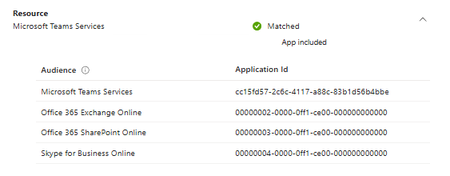
I need to allow Teams to run on non Intuned devices but not allow Outlook desktop to be available I am looking for a solution for Windows and Mac and ideally linux as well The issue is Ig I have Office 365 Exchange Online as my resource, it blocks Microsoft Team Services as well How can I fix this160Views1like2Comments
Intune macOS ADE: support for minimum macOS version enforcement before Platform SSO registration
Hi everyone, I would like to ask whether Microsoft Intune has any supported method, roadmap, or recommended workaround for enforcing a minimum or target macOS version during Automated Device Enrollment before Setup Assistant continues. The scenario is macOS zero-touch deployment with Intune, Automated Device Enrollment, Setup Assistant with modern authentication, Await final configuration, and Platform SSO registration during ADE. Platform SSO registration during Setup Assistant depends on newer macOS capabilities. In addition, some macOS deployment scenarios, such as Platform SSO password sync and macOS LAPS, may require or strongly benefit from a specific macOS version being installed before the user completes enrollment. Today, Intune can manage macOS software updates after enrollment using Declarative Device Management software update policies. However, that does not fully solve the issue where the Mac starts ADE on an older macOS version. In that case, the device may begin Setup Assistant and Platform SSO registration before the required macOS version is installed. What I am looking for is an Intune-native equivalent of enforcing a minimum or target macOS version during ADE, before Setup Assistant continues. Ideally, the macOS ADE enrollment profile in Intune would support options such as: - Minimum required macOS version - Target specific macOS version - Target specific build, if supported - Latest eligible macOS version for the device - Apply the OS update before Platform SSO registration and final configuration - Reporting in Intune showing whether the ADE OS update was required, started, completed, skipped, or failed Without this capability, organizations using Intune-only macOS deployment may still need manual IT staging or macOS restore/update before handing devices to users. This weakens the zero-touch deployment model, especially when adopting Platform SSO registration during Automated Device Enrollment. 1. Is there currently any supported way in Intune to enforce a minimum or target macOS version during ADE before Setup Assistant continues? 2. Is this capability on the Intune roadmap? 3. Are there any recommended workarounds for organizations deploying Platform SSO registration during ADE where a specific macOS version is required? Thanks in advance for any guidance from the Intune team or the community.154Views0likes1Comment
MS InTune - packaging Amazon DCV client
Hi, I used the InTune prep tool to bundle the Amazon DCV client. Everything seems to work correctly, bundle created and it uploads well. When I use the company portal to install, it looks like it pushes\installs properly but the DCV client does not run on the laptop after install. This is a .msi package so all the settings are in place when i create the InTune APP in the portal. Has anyone succesfully bundled DCV in InTune? Am I missing anything? or anything to try? Thank you,Solved178Views0likes5CommentsMicrosoft Managed Home Screen: Unwanted Samsung One UI 8.0 Elements Appearing
Hello Tech Community, Our organization is currently deploying a configuration in Microsoft Intune using a Corporate-owned dedicated device enrollment profile. We’ve applied a device restriction policy to configure Samsung tablets in Multi-app Kiosk mode, with Managed Home Screen set as the launcher. Instead of using an app configuration policy, Managed Home Screen is configured through the device restrictions policy. We’ve left the device navigation options unconfigured, which should hide the following UI elements: Android Overview button Android Home button Android App drawer Once all policies and required apps are installed, Managed Home Screen successfully acts as the launcher for end-users to sign in. Overall, this works well; however, we’ve encountered an intermittent issue: After multiple lock/unlock cycles, the navigation bar sometimes reappears, showing the Overview, Home, and App Drawer buttons. This allows users to access background apps that are not exposed through Managed Home Screen, which defeats the kiosk experience. Device details: Samsung Galaxy Tab S10 FE Android 16, One UI 8.0 Managed Home Screen version: 2.2.0.107721 Has anyone experienced this behavior or have recommendations to prevent these UI elements from reappearing? I’ll gladly provide additional details about our configuration if needed. Thank you!499Views6likes2Comments
We’re running into an Intune issue where a Win32 app with a dependency sits at "Download Pending"
Setup: Main App: Installs in User Context Dependency: Installs in System Context Dependency Detection: Hosts file modification detection script Direct file detection does NOT work either When the hosts file modification is present (detection is met), detection works, and everything installs fine manually The Problem: If detection passes (exit 0) → Everything installs fine. If detection fails (exit 1) → Intune never moves forward, just stays at "Download Pending" indefinitely. Happens with both file-based detection and script-based detection. Dependency app as well at parent app install fine via Intune on their own as well as manual testing. What We Need to Know: Does Intune get stuck in "Download Pending" instead of moving forward when dependency detection fails? Could the install context mismatch (dependency in SYSTEM, main app in USER) be causing this? Myth or fact? Does Intune break the install process if a dependency app is in system context and the parent app is in user context? Again, both apps work fine independent of each other. Thanks for any help!1.6KViews2likes4CommentsControlling Excel Add-ins and Microsoft Store App Installations
We have a requirement to block users from adding add-ins to Excel and Installing certain application directly which utilize Microsoft Store apps. Below are the two scenarios we need to address. I would appreciate any guidance or recommendations on how to implement these controls. 1) Blocking Excel Add-ins from Microsoft Store Users are currently able to add add-ins such as “Claude by Anthropic in Excel” directly from the Microsoft Store apps. For example, if a user accesses the URL: https://marketplace.microsoft.com/en-us/product/saas/wa200009404?tab=overview they can proceed to add the add-in to Excel. So, We need a method to prevent users from adding Office add-ins from the Microsoft Marketplace or external sources. 2) Blocking Installation of Microsoft Store Apps (e.g., WhatsApp) We are currently blocking Microsoft Store apps on OS level. However, users can still download and install applications such as WhatsApp directly from the vendor website, which utilize Microsoft store apps in backend: https://www.whatsapp.com/download We are considering configuring the Intune policy “Only Private Store is enabled.” However, we noticed that enabling this setting prevents users from accessing certain built-in applications (e.g., Notepad). Is there any other way to block access Microsoft Store apps directly? Thank you in advance for your assistance. Dilan467Views0likes1Comment