User Profile

DianeDennis
Brass Contributor
Joined 6 years ago


User Widgets
Recent Discussions
Re: How do I write this formula?
BillY2305 Hi! And thank you so much! 🙂 Unfortunately, there could be many additional "MW-562 Pay X" worksheets added by the users. If I understand your formula correctly, I see that it encompasses, or can encompass, all of the to-be-added worksheets. One thing I didn't explain well enough, and I apologize for that, is that each cell on the "Employee Hours" worksheet needs to pull from only one cell in only one "MW-562 Pay" worksheet. I set up ten rows for the first "MW-562 Pay" worksheet to pull the information from that worksheet. Then, I have to do another ten rows to pull from the to-be-added "MW-562 Pay 2" worksheet, then another ten rows to pull from the to-be-added "MW-562 Pay 3" worksheet, and so on. Late yesterday I came up with the following formula: =IFERROR(INDIRECT("'MW-562 Pay 2'!A14"), "") My plan, provided the formula is good (it does work but I don't yet know if there are issues that will pop up with it), is to repeat that formula into the cells in the next ten rows on the "Employee Hours" worksheet for all info that needs to be pulled from the to-be-added "MW-562 Pay 2" and changing the A14 as needed, and then, in the next ten rows, repeat the "MW-562 Pay 2" formula but change it to be "MW-562 Pay 3" for info that needs to be pulled from the to-be-added "MW-562 Pay 3" worksheet (and changing the A14 as needed), and so on. Does my formula, and my plan, make sense or do you see anywhere that I might falter with it? If it does make sense, would you know if there's a way for me to "fill down" and have the cell reference (such as A14) increase by two during the fill down? For example, on the "Employee Hours" worksheet, cell A12 has the following formula: =IFERROR(INDIRECT("'MW-562 Pay 2'!A14"), "") And cell A13 needs to have the following formula: =IFERROR(INDIRECT("'MW-562 Pay 2'!A16"), "") And cell A14 needs to have the following formula: =IFERROR(INDIRECT("'MW-562 Pay 2'!A18"), "") When I tried it, the cell reference in the formula increased by only one, as follows: =IFERROR(INDIRECT("'MW-562 Pay 2'!A14"), "") to =IFERROR(INDIRECT("'MW-562 Pay 2'!A15"), "") to =IFERROR(INDIRECT("'MW-562 Pay 2'!A16"), "") And then also, would the 3D named ranges that you mentioned be a better (quicker) way to set this up? Again, thank you SO MUCH for your time and help!393Views0likes0CommentsHow do I write this formula?
Hi! I've created a workbook with 2 worksheets. They're named "MW-562 Pay" and "Employee Hours". When the user fills in the "MW-562 Pay", certain bits of the information is pulled from the "MW-562 Pay" worksheet into the "Employee Hours" worksheet. The formula I've used, in the cells on the "Employee Hours" worksheet, to do this is ='MW-562 Pay'!A14 and I change the A14 from cell to cell as needed. It works great. Where I'm running into trouble: Some users will need to add a second "MW-562 Pay" worksheet (and a third, and a fourth, etc.) to accommodate more employees. To do that, they'll copy the "MW-562 Pay" worksheet into the workbook. They'll be instructed to name those additional worksheets as "MW-562 Pay 2" and "MW-562 Pay 3" and "MW-562 Pay 4" and so on. I need to pre-populate the "Employee Hours" worksheet ahead of time with formulas so that it's ready to pull the info from the additional "MW-562 Pay" worksheets once they're added, if they're added (some users won't need to add additional worksheets, the one will be enough). The cells on the "Employee Hours" worksheet that will pull info from the added worksheets need to remain visibly empty until and unless the user adds more "MW-562 Pay" worksheets. Because I know what the name of the additional worksheets will be, I thought that I could write the formulas ahead of time to pull the info from those yet-to-be added worksheets, for example: ='MW-562 Pay 2'!A14 And then when someone copies the "MW-562 Pay" and names that added worksheet "MW-562 Pay 2", the formulas I pre-populated into the "Employee Hours" worksheet would start pulling the needed info from the newly added "MW-562 Pay 2" worksheet. Unfortunately, I ended up with #REF errors on the "Employee Hours" worksheet in all cells that have formulas pulling info from the yet to be added "MW-562 Pay 2" worksheet. I understand why I received the #REF errors (because the formulas are referencing a worksheet that isn't present yet) but I thought, no big, that'll change once I add the "MW-562 Pay 2" worksheet. Alas, that didn't happen, the #REF errors remained. How would I go about accomplishing my goal which is to have the "Employee Hours" worksheet pre-populated with the formulas that'll pull the info from the additional worksheets once they're added? Is it possible? Thank you so much!! 🙂608Views0likes2CommentsWhere is the "Save" button/link to periodically save while making a post here?
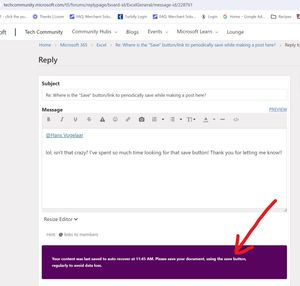
Hi! I tried to "label" this post as "Microsoft Forums" but it wouldn't accept a custom tag. This is a simple question about creating a post here in the forums, as opposed to being about Excel. 🙂 ------------------- When creating a post here, I always get a message that says: "Your content was last saved to auto recover at XX (time). Please save your document, using the save button, regularly to avoid data loss." Does anyone know where that "Save" button is? I cannot find it anywhere, lol. Thank you!!Solved433Views0likes2CommentsRe: Why does my spreadsheet open "scrambled"?
NikolinoDE Hi and thank you so much for your time on this. 🙂 I followed all of your suggestions and numbered my responses below to correspond with your numbered suggestions. I've also included some temporary solutions at the bottom, along with a follow-up question. 🙂 1. I updated Excel (even though it says it does it automatically) and it still isn't displaying correctly. 2. They were created in the current version (no compatibility mode) and are .xlsx 3. There's no option there to reset display settings. Do you know where else I can look for that option? 4. All of the printer settings that you mentioned are, and were, correct. 5. As mentioned, it is happening on other computers. Is there a way to determine if there's a problem with the file and if so, what the problem is? There are two of them that it's happening to and much was copied from one file to the other so I'm sure it's possible that I duplicated the problem from file to file. 6. I have one add-in but there's no option to disable or delete it, only to hide it. When I click the "Money in Excel" link it goes to a 404 page. Any idea what to do about that, how to delete it? 7. I followed the steps and repaired the installation. The problem is still there. --------------------------- TEMPORARY SOLUTIONS: Re the weird display issues: When I change the View from "Page Layout" to "Normal", then save and close the file, then reopen it, the odd display doesn't happen. The print issue is still there (the 6th row being cut off) but all the other weirdness doesn't happen. It was ChatGPT that suggested that possibility. Re the 6th row displaying but getting cut off in printing: When I increase the font size in that field from 8 to 9, I can fit 5 rows of text and they all print, nothing gets cut off like the 6th line that displayed but didn't print when the font size was 8 instead of 9 (I hope that makes sense). -------------------------- QUESTION: Do I need to circle back to #5 and suspect that there's a problem with the files? If so, is there a way to determine if there is an issue with the file and what the issue is? Thank you again so much for your help and time on this!! 🙂3KViews0likes0CommentsWhy does my spreadsheet open "scrambled"?
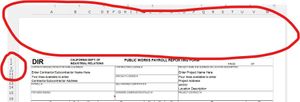
Hello all you wonderful experts! Thank you so much for all the help you all give me! I'm back with more trouble... 😉 I'm using Microsoft 365 on Windows 10. I've created an Excel spreadsheet and it's got some weird things going on. I've set all four margins at .5. "Scale to Fit" is set to "Automatic" for both Width and Height and 100% for "Scale". Part One: When I open it in Excel, the top margin is displaying larger than .5, and row numbers 4 through 9 are "missing" (but the rows are still there because everything in those rows is present on the screen). After I took the above screenshot and went back to the spreadsheet, the top margin was still larger than .5 but the row numbers 4 through 9 are appearing now. I then went to File > Print and the margin is correct even though it displayed incorrectly in the above image, prior to selecting Print. I then went back to the spreadsheet by clicking the back arrow in the Print dialogue and the margin is now displaying correctly. This happens haphazardly but more often than not. Part Two: Sometimes the layout of the form itself is messed up, rows missing, lines shifted, cells appearing oddly but every time I try to get a screenshot, the form corrects itself as soon as I click on the "Snip & Sketch" icon in my taskbar (so I took a picture with my phone). Also showing are the messed up row numbers (38 and 39 showing twice). When I scroll down and then back up on the spreadsheet that weirdness has corrected itself but row numbers are missing now (but the rows are technically still there because everything in the rows is still appearing on the screen) Part Three: I can enter 6 lines of text in this box and it displays fine... But when I go to print it, it cuts off the 6th row of text. ------------------------ Other than Part Three where the 6th row of text is cut off when printing, everything else prints fine even though it displays oddly at times. It happens not just on my computer but on others' computers as well. Any idea what I can do to fix these issues? Thank you so much!! 🙂Solved5.6KViews0likes2CommentsRe: Why do dropdown lists appear differently on different computers and can it be changed?
Hi Sergei! Thank you so much! I just saw this message from you, I apologize for my delay in responding. My goal is to have it work for as many versions of Excel as possible even though I'm using 365 to create it. That being said, is there anything I should be concerned about for folks using 365 if I use OFFSET instead of TOCOL or FILTER? You mentioned a better performance from TOCOL and/or FILTER for 365, does that mean that OFFSET might occasionally not work properly in 365? Thank you again so much! Have a great weekend! Diane2.7KViews0likes2CommentsTrouble deleting rows in a table
Hi! I have a worksheet that has a defined table with 501 rows (first one is a header row) and 11 columns. There are two more tables on the sheet as well. The first table, the one I'm concerned about, is a list of “dummy” employees and related information. I’ve uploaded it here: https://docs.google.com/spreadsheets/d/13TwhUshguiV8eUYjpXbm8eswhlN5YbUZ/edit?usp=sharing&ouid=114726432609057347750&rtpof=true&sd=true Column A has this formula in each cell starting with A2 with the row number increasing by one in each subsequent cell (from A2 through A501 – A1 is the header). =IF(B2<>"", B2&" "&C2&" "&E2, "") The worksheet will be protected when the end user is using it with column A locked. I need the end user to be able to remove an employee and all info in the employee row (columns B through K): Without deleting a row from the table Without adding a blank row to the table, and Keeping the order of the list alphabetical (based on column B) Not delete the formulas in protected column A With the spreadsheet protected I can’t delete a row so no problem there. With the spreadsheet protected I can “clear contents” of a row (I select B through K then “clear contents” and that automatically clears A as well) so no problem with removing the employee but doing so leaves a blank row in the middle of the list. With the spreadsheet protected, when I highlight and cut/copy all the employee rows below the newly blank row and then paste them starting with the first blank row (in an effort to eliminate the blank row), I generate a #REF error in column A. I added a VBA module (I hope that's the correct terminology), 2 actually because I'm doing this for two tables on the sheet but I'm having trouble only with the EE_DB table. The code for the table and module I'm having trouble with is this: Sub RemoveEmployeeAndSort() Dim tbl As ListObject Dim ws As Worksheet Dim lastRow As Long Dim i As Long Set ws = ThisWorkbook.Sheets("Tables1") ' Replace with your sheet name Set tbl = ws.ListObjects("EE_DB") ' Replace with your table name ' Find the last row with data in the table lastRow = tbl.ListRows.Count ' Loop through the table rows in reverse order For i = lastRow To 2 Step -1 If tbl.ListRows(i).Range.Cells(1, 1).Value = "" Then ' Clear contents if it's a blank row tbl.ListRows(i).Range.ClearContents End If Next i ' Sort the table using VBA With tbl.Sort .SortFields.Clear .SortFields.Add Key:=tbl.ListColumns(1).Range, SortOn:=xlSortOnValues, Order:=xlAscending .Header = xlYes .Apply End With ' Reapply protection without a password ws.Protect UserInterfaceOnly:=True End Sub When I run it (spreadsheet protected) it gives me a 1004 error and when unprotected it deletes my formulas from column A. Is it possible to do what I'm trying to do? Thank you so much!! 🙂 🙂 Diane17KViews0likes2CommentsRe: Can formulas be made to change dynamically when copying sheets?
mathetes Ooh, thank you, I'm going to jump in and check this out! Also, thank you so much for the detailed explanation of how the formula works/is constructed, that is so incredibly helpful and I appreciate your time taken explaining it all. I've noticed the little explanations that Excel gives, and I've looked for detailed explanations elsewhere; none of it is as detailed or explanatory as what you've listed out. 🙂 I'm glad to have been a small part. You were definitely more than a small part! Thank you again! 🙂 PS: All of a sudden I'm not getting email notices of responses here so I apologize for my delay in getting back to you. I figured I'd pop in and see and sure enough there was a post here from you. 🙂4.3KViews0likes1CommentRe: Can formulas be made to change dynamically when copying sheets?
mathetes Hi Mathetes!! Thank you again for the formula revisions that you made! 🙂 I've uploaded a new copy here: https://docs.google.com/spreadsheets/d/1CCEb5VbZ-lHeku70xGZJYvz6B6aRZy-K/edit?usp=sharing&ouid=114726432609057347750&rtpof=true&sd=true With notes as to what it should be doing vs. what it is doing. It's close but it's not picking up quite the correct cells, it's like it's skipping forward one cell (you'll see on the uploaded worksheet). 🙂 I also eliminated columns C and D from the 347Helper worksheet (they were just kinda complicating things right now) and removed the reference to them from the formulas on the rest of the worksheets. Oh, also, I saw the "volatile" that you mentioned. I was adding some rows and watched all the numbers change, so I changed it back. 🙂 I also wanted to show you where I'm at with the actual 347 that I'm working on. I've uploaded a copy here: https://docs.google.com/spreadsheets/d/1B-srlnN4FyNDFupa3JTN_1IrgRsk8O5Z/edit?usp=sharing&ouid=114726432609057347750&rtpof=true&sd=true I'm so excited with how it's coming out and I'm super excited to share it with you. 🙂 It would definitely not be this far along without your incredible help! I'd love to hear your thoughts on it. 🙂 Thank you again so much, Mathetes!! 🙂4.3KViews0likes3CommentsRe: Can formulas be made to change dynamically when copying sheets?
Hi! I'm glad you're enjoying this! I am too! 🙂 I opened what you posted and I'm having a hard time making heads or tails of it. I've been up since about 12:30 am and I think my brain space is gone for the day, lol. I'm going to check it out tomorrow and get back to you. Thank you SO MUCH for this, Mathetes!! Have a great night! 🙂4.4KViews0likes0CommentsRe: Can formulas be made to change dynamically when copying sheets?
mathetes I've got a workaround, Mathetes! 🙂 I found out how to allow a helper column to show without printing and it'll work great for this. I'm adding a helper column to the left of the first column on the 347Form-1 (it's the employee name column) and the user will select a coded name from a dropdown list in that column and the not-coded name will appear in the name field. This will resolve a couple issues PLUS the user can copy the sheet as many times as he needs and the formulas will copy over as they should. 🙂 I'd still love for my hope above to work because it'll allow me to create an entire helper worksheet (instead of just a column) and I can set up that helper worksheet to work like a spreadsheet should. 🙂 But if I can't make the formulas change dynamically when a sheet is copied within the 347Form-1 worksheet, I'll have to figure out a different way to make it work. Thank you, Mathetes!! 🙂4.4KViews0likes6CommentsRe: Can formulas be made to change dynamically when copying sheets?
mathetes Hi Mathetes! 🙂 Thank you for the correction on my formula. 🙂 I got side-tracked yesterday with thinking I needed $ in there and I knew that wasn't right, or I was pretty sure, but then I lost track of having used the SUM. I didn't explain well enough what I need, I think. I've uploaded a simple sample with notes that I'm hoping will help. https://docs.google.com/spreadsheets/d/1mKd00BvTXm2dqApKi1VdCYU3RpqSwolY/edit?usp=sharing&ouid=114726432609057347750&rtpof=true&sd=true This is for that same 347 workbook that I've been working on and I have a new wrinkle. The uploaded sample isn't the 347 because I haven't created the next step - I need to find out if this is doable before I do that. Anyhow, it's going to be often that the user has to create additional "347Form" worksheets to accommodate all of his employees (each sheet allows for only 7 employees). My plan... I'm looking at creating a "347Helper" worksheet (along the lines of the revision you created) that the "347Form-1" worksheet will reference (this is to help with the "Name -Classification" issue we chatted about before). There are 7 employee name fields/cells (one per row) on the "347Form-1" and an unlimited number of rows for employee names on the "347Helper". The cells A1, A2, A3, A4, A5, A6, and A7 on the "347Form-1" have the formulas =347Helper!A1 =347Helper!A2 =347Helper!A3 =347Helper!A4 =347Helper!A5 =347Helper!A6 =347Helper!A7 respectively. When the user copies "347Form-1" to create "347Form-2" I'd like those formulas to automatically change on the new "347Form-2" to be =347Helper!A8 =347Helper!A9 =347Helper!A10 =347Helper!A11 =347Helper!A12 =347Helper!A13 =347Helper!A14 (and remain in A1 through A7). Then when the user copies "347Form-1" (or "347Form-2") to create "347Form-3" I'd like those formulas to change on the new "347Form-3" to be =347Helper!A15 =347Helper!A16 =347Helper!A17 =347Helper!A18 =347Helper!A19 =347Helper!A20 =347Helper!A21 (and remain in A1 through A7). And so on... I hope that make sense. 🙂 Thank you so much, Mathetes!! Diane4.4KViews0likes0CommentsIs it possible to display a "helper" column but not print it?
Hi! I have a worksheet that prints one page 8 1/2 x 11 landscape format. I need to insert a new column A and have it display but not print (so that the rest of the worksheet still prints to 8 1/2 x 11 landscape). The cells in this new column will have dropdown lists that the user will select from so the user needs access to the cells in the column. I read that I could set a "custom view" but then I read that because another worksheet in the same workbook has a table, "custom view" isn't available for any worksheet in the workbook. I can select the cells that I want to print and choose "Print Selection" but as soon as a different cell(s) is selected the print function then wants to print the newly selected cell(s). Somehow I need to set it up so that the user can make the selections from the dropdown lists in that first column, hit print, and everything but that first column prints. Is this possible and if so, how would I accomplish it? Thank you so much!!813Views0likes2CommentsCan formulas be made to change dynamically when copying sheets?
Hi! I have a workbook with two worksheets, Sheet1 and Sheet2. Sheet2 has 7 columns and 15 rows with a number in each cell. Sheet1 A1 references A1 on Sheet2 with the following: =SUM(Sheet2!A1) Sheet1 A2 references A2 on Sheet2 with the following: =SUM(Sheet2!A2) And so on across and down A1 through G5. The worksheets are protected, no password. I'd like the user to be able to copy Sheet1 to create Sheet3 in the same workbook and have those references automatically change to reference the next 5 rows on Sheet2, which are A6 through G10. For example, I'd like the formula in A1 on Sheet3 to automatically change, while the user is copying Sheet1 to become Sheet3, to be: =SUM(Sheet2!A6) and so on, much like when I Ctrl + D or Ctrl + R and the formulas change... Is that possible? Thank you so much!!4.9KViews0likes11CommentsRe: Why do dropdown lists appear differently on different computers and can it be changed?
Hi! Thank you! 🙂 Both worksheets are in the same workbook. I laid out further what my workbook is like in my response to Riny_van_Eekelen and what I'm trying to accomplish. Thank you so much! Any ideas/suggestions/etc. that you have are greatly appreciated!2.9KViews0likes0CommentsRe: Why do dropdown lists appear differently on different computers and can it be changed?
Riny_van_Eekelen Hi! Thank you. 🙂 She said she was updated, I'll ask her to check again. 🙂 Thank you also for your suggested solution. 🙂 I tried it and realized that something I didn't mention in my original post might make a difference: Both the worksheet with the tables and the worksheet that references the tables are protected. Not with a password but the preference is for the end user to not have to unprotect the worksheets to add additional rows and update the source code for the data validation. I did what you said and resized the table (it's now 7 rows plus header). I then protected the worksheet with the table and the worksheet that references the table. I then tried to add a row to the table on the first worksheet and it didn't work. I tabbed through the row and it tabbed back to the beginning and down to the next row but the row didn't adopt the table design, nor were the other cells in the row formatted as they should have been (percentages, dollars, etc.). When I went back to the second worksheet (also protected) where the table from the first worksheet is referenced, the test name that I added wasn't available in the dropdown list/the source code in the data validation hadn't updated to include the added row. I then unprotected the first worksheet (with the table). When I added a row to the table it worked. A new row added automatically when I tabbed through the table and it adopted the characteristics/formatting of the table (as did the individual cells). But on the second worksheet the test name wasn't available in the dropdown list/the source code in the data validation didn't update to include the new row. That's why I had it set up like this: 500 rows in the table with the data validation source code being: =Tables1!$A$2:$A$500 Every time the end user fills in a blank row the new name is automatically available in the dropdown list. They don't have to unprotect the sheet and they don't have to change the source code (at least until they get to 500). 😉 Is there a way to set it up so that: A) the end user can add a row to the table (Table name is EE_DB) without having to unprotect the worksheet and B) the "source" in the data validation for the dropdown list on the other worksheet updates automatically (so that the end user doesn't have to unprotect it and change the source code themselves)? C) have the blank rows not show in the dropdown list or if they have to show then force the dropdown list to display from the first row (which would be row 2 of the table because there's a header)? Thank you again so much!!2.7KViews0likes8Comments
Recent Blog Articles
No content to show