User Profile

KenChong
Iron Contributor
Joined 6 years ago


User Widgets
Recent Discussions
Re: SharePoint/Excel - This content presents a potential security issue. Do you trust this content?
Here is the latest update, from Microsoft 365 Admin Center, Issue ID SP843810: Some users may incorrectly receive a security warning prompt when opening Excel or PowerPoint files in SharePoint Online Issue ID: SP843810 Affected services: SharePoint Online Status: Service degradation Issue type: Advisory Start time: Jul 31, 2024, 4:41 PM GMT+8 User impact Users may incorrectly receive a security warning prompt when opening Excel or PowerPoint files in SharePoint Online. More info More specifically, users may incorrectly receive a security prompt when opening Excel, PowerPoint, or Word files in their respective web apps within SharePoint Online. Also, affected users may see the following message "This content presents a potential issue". Scope of impact Impact is specific to some users who are served through the affected infrastructure, and the problem impacts users attempting to open Excel, PowerPoint, or Word files in their respective SharePoint Online web app. Root cause A necessary short-term fix for a separate issue was recently implemented, causing users to receive a security warning prompt when opening Excel, PowerPoint, or Word files in SharePoint Online. Current status Aug 1, 2024, 2:07 AM GMT+8 After reviewing the service telemetry, we've determined that the security warning prompt is the result of a necessary short-term fix for a separate issue that was recently implemented. We're creating a long-term fix for this separate issue that’ll remove the need for this false security warning prompt, remediating impact. We expect that it will complete development and deploy on Tuesday, August 13, 2024. To suppress the warning for trusted sites, tenants can add the trusted sites and hostnames in the internet zones feature. Next update by: Wednesday, August 14, 2024 at 2:30 AM GMT+838KViews2likes0CommentsRe: Missed calls are not shown on history that came through call queue
Unfortunately the feedback is older than 15 months and was deleted. Please follow the links for similar requests but are "feedback collections" which will survive the 15 months deadline: https://feedbackportal.microsoft.com/feedback/idea/1dcbb38c-4ebe-ed11-83ff-000d3a1f8608 https://feedbackportal.microsoft.com/feedback/idea/267ff188-7ebd-ed11-83ff-002248273995 Please keep upvoting and comment even if the original feedback is not exactly what you want. Thank you!4.3KViews0likes0CommentsRe: Internet Explorer mode in Edge is not working
youngjedi Hi John, Glad that you got it worked. Note that it is better to use the Enterprise Site List Manager in Edge to ensure the Enterprise Mode Site List matches the latest schema version (currently schema v.2). You can go to the URL edge://compat/SiteListManager and import the current file. Remember, this tool is not updating in real-time. I will clear the list first, import the current file, edit as necessary, and export the result. The standalone tool will continue to be available in the Download Center but won't get any feature updates. Reference: https://docs.microsoft.com/en-us/DeployEdge/edge-ie-mode-site-list-manager Regards, Ken33KViews0likes1CommentRe: Internet Explorer mode in Edge is not working
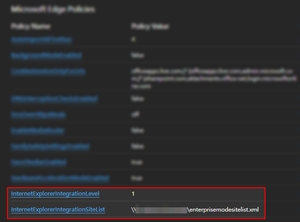
youngjedi Hi John, I see you mentioned AD, please note that https://community.spiceworks.com/topic/2157099-local-vs-domain-gpo. You can first open the Internet Explorer mode diagnostic information (URL: edge://compat/iediagnostic) and take a look. If you are using policies you can also go to edge://policy/ and check which policies are applied. For your reference, I use the following policies: Configure Internet Explorer integration (InternetExplorerIntegrationLevel) Internet Explorer mode (1) Configure the Enterprise Mode Site List (InternetExplorerIntegrationSiteList) [XML file location] Note that although the official document says https://docs.microsoft.com/en-us/deployedge/microsoft-edge-policies#internetexplorerintegrationreloadiniemodeallowed (InternetExplorerIntegrationReloadInIEModeAllowed) should be enabled to allow users to manually switch sites to IE mode, I can use this function even if I have this policy "not configured". Be sure to confirm your environment is meeting the https://docs.microsoft.com/en-us/deployedge/edge-ie-mode#prerequisites. Regards, Ken33KViews0likes0CommentsRe: Site uses outdated or unsafe TLS security settings
TomGriffith3 It may require some time to troubleshoot because browsers always show vague messages when the error is related to a secure connection (i.e. HTTPS). Since you mentioned OpenSSL, you can use it to do basic troubleshooting. It can try to load the certificate and also make a connection with the server so that you can see what happened under the hood. For more details, you can refer to this site: https://www.a2hosting.com/kb/getting-started-guide/internet-and-networking/troubleshooting-ssl-connections-with-the-openssl-program Regards, Ken9KViews0likes1CommentRe: Force webpage to always open in Edge mode (not IE)
drago888 If it is not only you that need to access the specific page, you can only ask your IT to update the Enterprise Mode Site List since it is too time-consuming to install for all users (and ask for approval) as you stated. IE mode, according to Microsoft, is NOT provided forever ("permanent"). However, they only say IE mode will be supported "at least through 2029" AND depends on the Windows lifetime. That means a particular Windows platform's lifetime will also limit the IE mode's lifetime. Read more about the EOL of IE mode here: Internet Explorer 11 desktop app retirement FAQ - Microsoft Tech Community (Search for "How long will IE mode be supported") Regards Ken11KViews0likes1CommentRe: Force webpage to always open in Edge mode (not IE)
drago888 I don't think there is another version of msedge.exe that you can call. Even if you install another channel of Edge side by side (e.g. Edge Beta) it will still apply the policies. If you want, you can install Firefox to your profile, which does not require admin permission if you cancel the Windows UAC prompt: https://www.reddit.com/r/firefox/comments/172103/til_you_can_installupdate_firefox_with_plain_user/ If you still want to use Edge, I think you can only ask your IT to update the policy. P.S. You can check the applied policies by going to this URL: edge://policy Regards, Ken11KViews0likes3CommentsRe: Group Policy for 'Ask before closing a window with multiple tabs'
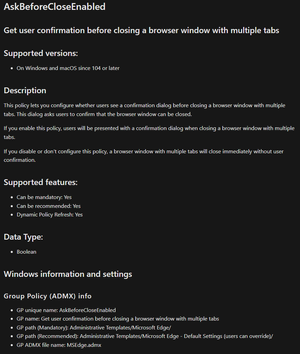
Tomr96 Hi, I just found that the new policy is ready (require v104+, current stable version is 102.0.1245.44 and Dev version is 104.0.1287.1). More information here: Get user confirmation before closing a browser window with multiple tabs https://docs.microsoft.com/en-us/deployedge/microsoft-edge-policies#askbeforecloseenabled Regards, Ken2.5KViews0likes1CommentRe: Force webpage to always open in Edge mode (not IE)
Hi, It seems that your PC is an AD or AAD joined corporate PC, and there are GPOs applied to it. If this is true, then there is no way to override it since policies applied by GPO has the highest priority. By the way, recent SharePoint versions should support modern browsers unless your company is using an outdated version. Regards, Ken11KViews1like5CommentsRe: Internet Explorer mode in Edge is not working
rafalw15851895 , glad that you go one step further! rafalw15851895 wrote: KenChong Thanks for Your answer. One of solutions is working and that is great. I'm able to open webpage in IE mode using Site List. But the problem is in second part. Even when I configured "https://docs.microsoft.com/en-us/DeployEdge/microsoft-edge-policies#internetexplorerintegrationreloadiniemodeallowed" policy I still don't see any of IE mode options from Settings > Default Browser . The option is there even no policy is set. What is the version of Edge? I just tested the https://docs.microsoft.com/en-us/DeployEdge/microsoft-edge-policies#internetexplorerintegrationreloadiniemodeallowed (Allow unconfigured sites to be reloaded in Internet Explorer mode) policy and it is working. Please note this policy requires Edge 92 or later, and the documentation says restarting Edge is required. If you set it in the "Default Settings (user can override)" section, it will keep users' current setting if they set it before. You can remove the https://docs.microsoft.com/en-us/deployedge/microsoft-edge-policies#internetexplorerintegrationtestingallowed policy since it is obsolete and doesn't work after Edge 94.37KViews0likes13CommentsRe: Internet Explorer mode in Edge is not working
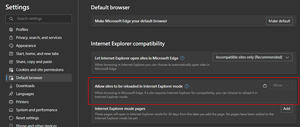
rafalw15851895 Enabling IE mode is possible by either providing a list ("https://docs.microsoft.com/DeployEdge/microsoft-edge-policies#internetexplorerintegrationsitelist" policy) or enforcing/recommending a manual switch in Edge ("https://docs.microsoft.com/en-us/DeployEdge/microsoft-edge-policies#internetexplorerintegrationreloadiniemodeallowed" policy) for users to use. You can also ask users to manually turn the switch on. To use the list approach, set https://docs.microsoft.com/DeployEdge/microsoft-edge-policies#internetexplorerintegrationlevel to 1 and provide a list in a shared folder in your network that all users can read but not write: To set up the list I would recommend you use the https://docs.microsoft.com/en-us/deployedge/edge-ie-mode-site-list-manager. This is the latest version which is integrated into Edge. The URL is edge://compat/SiteListManager. When finished, you are required to manually export to an XML file and save it to the shared folder you specified in the policy: If you want to edit the XML file just import it into the manager tool. For the switch mentioned by Kelly_Y, it is disabled by default, i.e. only use the Edge internal list to automatically switch to IE mode for incompatible sites confirmed by Microsoft. You can either ask users to manually turn it on or enforce/recommend it using GPO policy https://docs.microsoft.com/en-us/DeployEdge/microsoft-edge-policies#internetexplorerintegrationreloadiniemodeallowed. How users turn the switch on: Go to Settings > Default Browser > Internet Explorer compatibility or enter URL edge://settings/defaultBrowser, set Allow sites to be reloaded in Internet Explorer mode to Allow. low" enables the "Reload in Internet Explorer mode" menu item. Ken37KViews0likes15CommentsRe: Android request: Change cards/tabs by swiping left/right bottom bar
I would suggest you post your feature request here: https://feedbackportal.microsoft.com/feedback/forum/b8da43d5-ef1b-ec11-b6e7-0022481f8472 Remember to add the Android tag so that others can search for it easier. Feel free to put the link here and encourage others to vote! Ken1.1KViews0likes0CommentsRe: Want To Remove "Can't Update Microsoft Edge" Notification
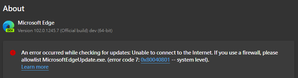
AaronM1285 I recommended a reinstall because you mentioned you had removed the files for Edge update (the C:\Program Files (x86)\Microsoft\EdgeUpdate folder) and it is the fastest way to safely restore it. If you just renamed the folder you can instead restore its original name. Note that even that PC is offline you can https://www.microsoft.com/en-us/edge/business/download from another PC first. The "enterprise installer" does not require an internet connection. You may notice Edge can do a repair install but it requires an internet connection. To confirm your situation you can go to edge://settings/help (the "About Edge" page) and see if you get this expected error: If I rename the "EdgeUpdate" folder to something else, going to edge://settings/help gives me this error immediately: After fixing this problem you can disable automatic update using Group Policy: Re: How to disable edge auto upgrade? - Microsoft Tech Community EDIT: Someone says on the internet that the policies are not working as expected. Download policies from https://www.microsoft.com/en-us/edge/business/download Install the policy in target PC: https://www.winhelponline.com/blog/edge-chromium-admx-group-policy-templates/ Use keyboard shortcut "Windows+R" to open "gpedit.msc" (Local Group Policy Editor) On the left panel open the folder: Computer configuration -> Policies -> Administrative templates -> Microsoft Edge update -> Preferences Double-click to open "Auto-update check period override" on the right Select "Enabled", then modify the number below to 0, click OK. Go to Microsoft Edge update -> Applications -> Microsoft Edge on the left Double-click to open "Update policy override" on the right Select "Enabled", then select "Updates disabled" option from the dropdown, click OK. Close the editor You can also use registry instead. WARNING: editing registry in a wrong way can ruin your Windows OS! Run the following commands on the target PC: %SystemRoot%\System32\Reg.exe ADD "HKLM\SOFTWARE\Policies\Microsoft\EdgeUpdate" /v Update{56EB18F8-B008-4CBD-B6D2-8C97FE7E9062} /d 0 /t REG_DWORD /f %SystemRoot%\System32\Reg.exe ADD "HKLM\SOFTWARE\Policies\Microsoft\EdgeUpdate" /v AutoUpdateCheckPeriodMinutes /d 0 /t REG_DWORD /f EDIT2: Found some more info. If you tried the policy or registry method but failed, run this command: %SystemRoot%\System32\Reg.exe QUERY "HKLM\SOFTWARE\WOW6432Node\Microsoft\EdgeUpdate\ClientState\{56EB18F8-B008-4CBD-B6D2-8C97FE7E9062}" /v brand If you get this result: brand REG_SZ GGLS Then run this command and restart Edge: %SystemRoot%\System32\Reg.exe ADD "HKLM\SOFTWARE\WOW6432Node\Microsoft\EdgeUpdate\ClientState\{56EB18F8-B008-4CBD-B6D2-8C97FE7E9062}" /v brand /d GCEU /t REG_SZ /f Backup the PC before running the commands. Ref: Edge UpdatePolicy - Disable automatic updates leads to "Microsoft Edge is out of Date" - Microsoft Tech Community Updating software can be problematic for offline networks. I would still recommend you update periodically if you can, although you are not required to do so. Backup your PC before update in case the update cause any problems.6.1KViews0likes0CommentsRe: Want To Remove "Can't Update Microsoft Edge" Notification
AaronM1285 What you have done is not expected (and supported) by Edge. Try using the policies (Requires Windows Professional or above to use Group Policy Editor) : How to disable edge auto upgrade? - Microsoft Tech Community Here is a good tutorial about installing and setting the Edge policies: https://www.winhelponline.com/blog/edge-chromium-admx-group-policy-templates/ Note: When downloading, scroll down a bit and click the latest build's policy link: (Edited to reflect the latest links) You can also download the offline version of installers here if you need to update Edge manually.6.5KViews1like4CommentsRe: Want To Remove "Can't Update Microsoft Edge" Notification
AaronM1285 If you still have the update components removed manually I would recommend reinstalling Edge to restore it first. I never tested before, but I think Edge would not display a message if you have no internet and it cannot contact the update servers. The update policies are for the (internet-connected) PCs which the admin wants to control the update, like using centralized software patching systems.6.6KViews1like2CommentsRe: Share in outlook should open desktop app when possible
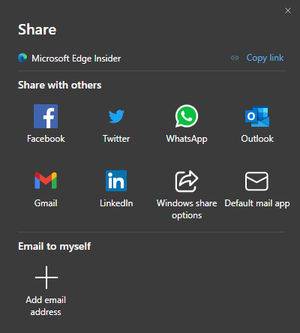
OttawaErik110 I agree that the naming should be "Outlook web" or "Outlook.com" to reduce confusion. Currently, if you want to share to the Outlook desktop app, you can use the "Default mail app" option (if it is the default).574Views1like0Comments


Recent Blog Articles
No content to show