User Profile

NathanPfeifer
Copper Contributor
Joined 6 years ago


User Widgets
Recent Discussions
Erase ink with the Scratch-out gesture in OneNote on Windows
Hi, Microsoft 365 Insiders! My name is Katie Sullivan and I’m a Product Manager on the Office Natural User Interface team. I’m excited to share the latest improvement to the Pen & Ink experience in OneNote on Windows. You can now quickly draw a scribble over your ink to erase the ink behind it. NOTE: If you missed our earlier posts about Pen & Ink improvements in OneNote on Windows, learn more about https://insider.office.com/en-us/blog/draw-tab-and-inking-refresh-in-onenote-on-windows and how to quickly https://insider.office.com/en-us/blog/quickly-create-neat-lines-and-shapes-while-inking-in-onenote-on-windows. Erase ink with the Scratch-out gesture Using your pen tool, you can scratch out your ink (letters, words, or drawings) to erase them. This new gesture provides an even faster way to delete ink while staying in the flow! How it works With a pen tool selected, quickly draw a scribble (loopy or zig-zaggy stroke) over the ink you want to erase and notice that the ink behind it is removed. Head over to the https://insider.office.com/en-us/blog/erase-ink-with-the-scratch-out-gesture-in-onenote-on-windows to learn more and see other updates coming out soon! Best, Nathan Microsoft 365 Insider Social Community Manager Become a Microsoft 365 Insider and gain exclusive access to new features while helping to shape the future of Microsoft 365. Join Now: https://insider.office.com/join/windows | https://insider.office.com/join/mac | https://insider.office.com/join/ios | https://insider.office.com/join/android7KViews0likes3CommentsRecord customized camera feeds with cameo in PowerPoint for Mac
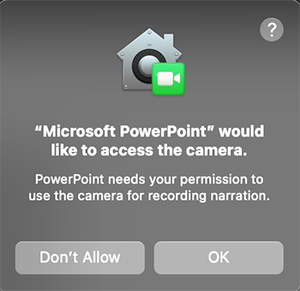
Hey, Office Insiders! My name is Ridhima Gupta, and I’m a Product Manager on the Office Video team. Previously, we let you know about https://insider.office.com/en-us/blog/add-a-live-camera-feed-with-cameo-in-powerpoint-for-mac. Today, we’re excited to announce that cameo is now available when recording slide shows, allowing you to personalize your camera feed for recorded video stories in PowerPoint for Mac. Record customized camera feed with cameo You can now make the video recording of your presentation even more personal and create immersive stories. With cameo supported when recording slide shows in PowerPoint for Mac, you can customize your camera feed’s appearance before you record. You can apply your favorite camera styles, shapes, and sizes to cameo, and choose the perfect place on the slide for your camera feed. Head over to the https://insider.office.com/en-us/blog/record-customized-camera-feeds-in-powerpoint-for-mac to learn more and see other updates coming out soon! Best, Nathan Microsoft 365 Insider Social Community Manager Become a Microsoft 365 Insider and gain exclusive access to new features while helping to shape the future of Microsoft 365. Join Now: https://insider.office.com/join/windows | https://insider.office.com/join/mac | https://insider.office.com/join/ios | https://insider.office.com/join/androidSpeaker view in Teams meetings
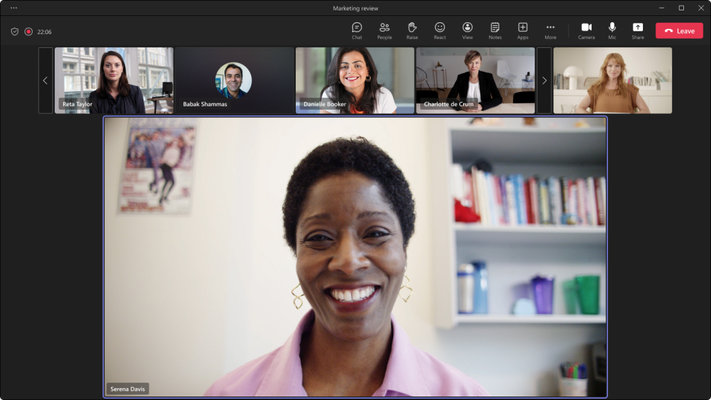
Hi, Microsoft 365 Insiders! We are excited to share the availability of a view in Teams meetings in Teams Public Preview: Speaker view. Speaker view in Teams meetings Speaker view can be selected from the view switcher within meetings and allows meeting attendees to effortlessly track the currently active speaker. It is particularly effective in scenarios with a limited number of key speakers and a large audience, such as town halls, trainings, or lectures – especially from the student’s perspective. The Speaker View offers several enhancements, including: Easy tracking of the active speaker: The view includes a primary area on the stage to focus on key participants in the meeting. Better visual clarity: The active speaker’s video is rendered at a higher resolution. Equal representation for audio and video participants: All attendees are equally represented in the meeting, regardless of whether their video is enabled or disabled. Inclusive by default: This view utilizes 16:9 tiles, providing ample space to fully display hand gestures and body language. Predictable experience: The use of 16:9 tiles and consistent placement of audio and video participants on the same stage ensures a fluid experience. Users toggling their videos on or off do not cause the entire stage to be re-rendered. The main area designated for the active speaker is also utilized for shared content, enabling seamless transitions during presentations. Head over to the https://insider.office.com/en-us/blog/speaker-view-in-teams-meetings to learn more and see other updates coming out soon! Best, Nathan Microsoft 365 Insider Social Community Manager Become a Microsoft 365 Insider and gain exclusive access to new features while helping to shape the future of Microsoft 365. Join Now: https://insider.office.com/join/windows | https://insider.office.com/join/mac | https://insider.office.com/join/ios | https://insider.office.com/join/android5.4KViews0likes1CommentProfiles in Outlook for Mac
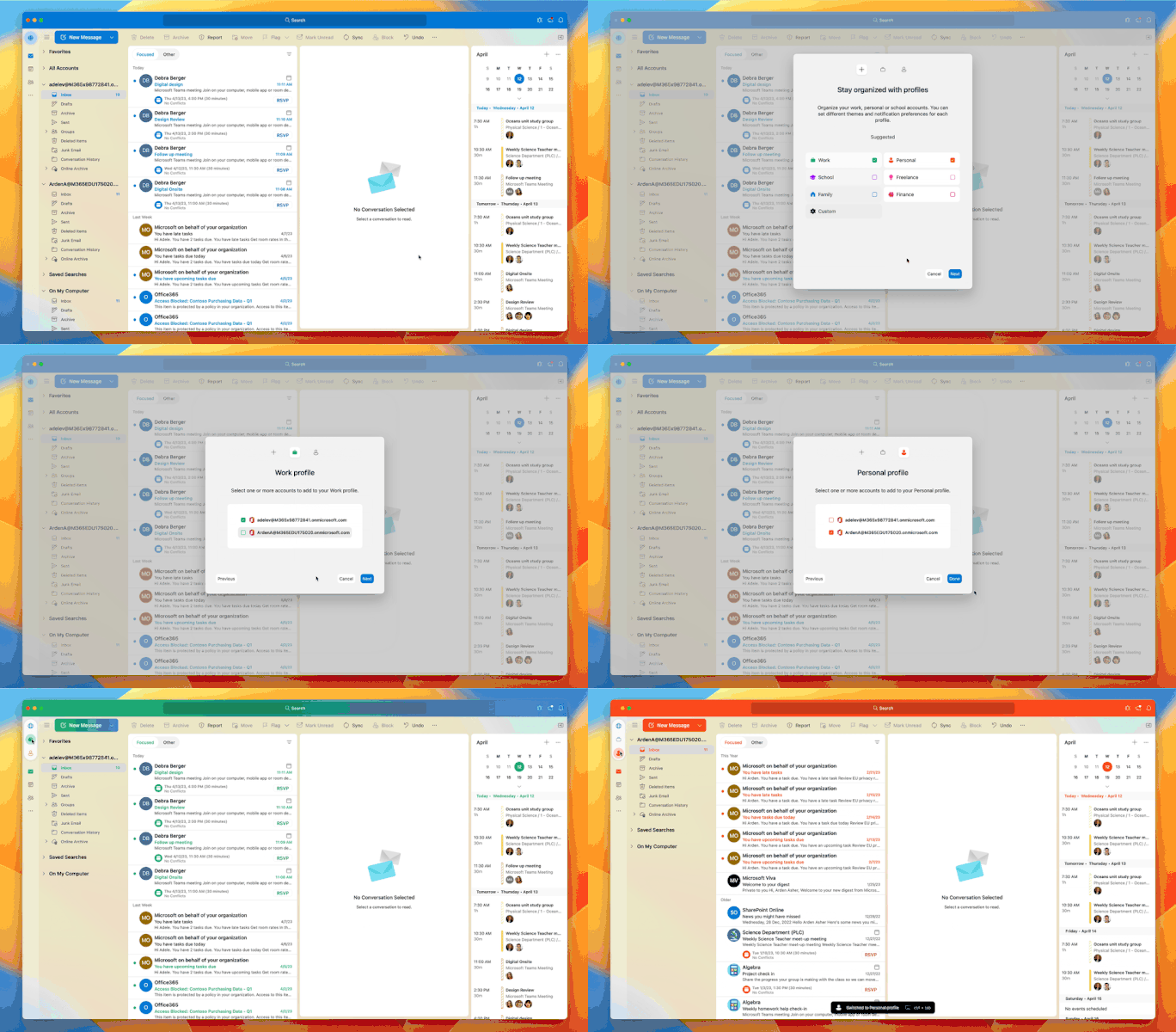
Hello, Microsoft 365 Insiders! This is Priya Ganta from the Outlook for Mac team. If, like me, you have multiple email accounts configured within Outlook or have long shied away from adding your personal accounts to your work Outlook, I have some great news for you! I am excited to announce a new feature now available for Outlook Mac that lets you create a distraction-free experience across multiple accounts. Profiles in Outlook for Mac In Outlook Mac, you can now create profiles – for example, one for your work account, and another for your personal account. You can then select your work profile and Outlook will not bother you with any notifications from your personal email accounts. Similarly, if you select your personal profile at home, Outlook will not bother you with work-related emails. With one click or by pressing the Control+Tab keys, you can switch between Outlook profiles in seconds. You can even automate switching with Siri automation. Switching to my personal profile every weekday evening after 6pm and then switching back to my work profile at 8am is just one example. Until now, you couldn’t mute notifications by account, or show only certain accounts when in a focus mode. Using profiles, you can now: Theme your work profile to be a different color than your personal profile. Switch between various Outlook to help with work-life balance. For example, you can switch to your personal profile, every weekday after 6pm and switch back to work at 8am, the next day. Set up as many profiles as you need to best manage your time and your inbox. Define different Outlook window appearance for different profiles. Tie your email accounts within Outlook for Mac to Apple’s Focus Filters. The possibilities are endless! Head over to the https://insider.office.com/en-us/blog/profiles-in-outlook-for-mac to learn more and see other updates coming out soon! Best, Nathan Microsoft 365 Insider Social Community Manager Become a Microsoft 365 Insider and gain exclusive access to new features while helping to shape the future of Microsoft 365. Join Now: https://insider.office.com/join/windows | https://insider.office.com/join/mac | https://insider.office.com/join/ios | https://insider.office.com/join/android1.7KViews1like3CommentsProfanity filtering control for live captions in Teams meetings
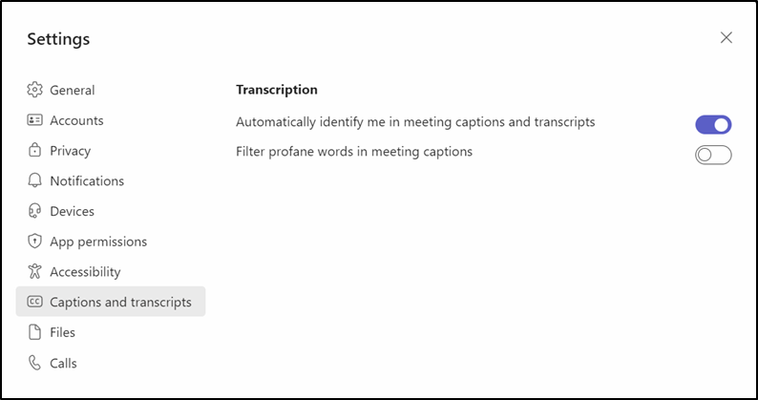
Hi, Microsoft 365 Insiders! We have heard your feedback and are excited to introduce a profanity filtering control for live captions in Teams meetings. Profanity filtering control for live captions in Teams meetings The Live captions feature enables live subtitles in Microsoft Teams, helping all meeting participants to interact better, in a more accessible way. Live captions automatically create real-time subtitles based on the spoken words of the meeting participants. The text appears in real time. Learn more about https://support.microsoft.com/en-us/office/use-live-captions-in-a-teams-meeting-4be2d304-f675-4b57-8347-cbd000a21260. With the newly introduced toggle for turning on or off profanity filtering in live captions in Teams meetings, you are now able to control whether you want to continue to leverage the profanity filtering capability provided out of the box, or if you prefer to see every word as they were spoken. How it works To turn off profanity filtering, select Settings and more > Settings > Captions and transcripts, and then slide the Filter profane words in meeting captions toggle off. Head over to the https://insider.office.com/en-us/blog/profanity-filtering-control-for-live-captions-in-teams-meetings to learn more and see other updates coming out soon! Best, Nathan Microsoft 365 Insider Social Community Manager Become a Microsoft 365 Insider and gain exclusive access to new features while helping to shape the future of Microsoft 365. Join Now: https://insider.office.com/join/windows | https://insider.office.com/join/mac | https://insider.office.com/join/ios | https://insider.office.com/join/android2.2KViews0likes0CommentsQuick Access Toolbar on by default
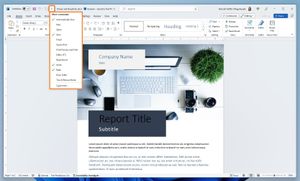
Hi, Microsoft 365 Insiders! My name is Hannah Kieffer and I’m a Product Manager on the Office Suite Experiences team. I’m excited to share that we have heard your feedback and moved commonly used commands back to the Quick Access Toolbar (QAT). Quick Access Toolbar on by default In the https://insider.office.com/en-us/blog/visual-refresh-of-office-apps-for-windows we delivered a simpler and more coherent experience across the Microsoft 365 apps using the Fluent Design principles. As part of the refresh, the QAT was hidden by default, and the Undo and Redo commands were moved to the Home tab. Through surveys and in-app feedback, you let us know that this change was disruptive and slowed your workflow. Specifically, you mentioned that the placement of the Undo and Redo commands on the Home tab required extra clicks and tab navigation. Additionally, some of you also missed being able to hide the AutoSave command from the title bar. We heard you! With this update, the QAT is now shown by default and includes the Undo, Redo, and Save commands, and the AutoSave has found its rightful place back on the title bar. You can quickly customize the QAT to keep only the commands you need. Thank you for taking the time to let us know this change wasn’t quite right. Your feedback is invaluable, and we are listening. Head over to the https://insider.office.com/en-us/blog/quick-access-toolbar-on-by-default to learn more and see other updates coming out soon! Best, Nathan Microsoft 365 Insider Social Community Manager Become a Microsoft 365 Insider and gain exclusive access to new features while helping to shape the future of Microsoft 365. Join Now: https://insider.office.com/join/windows | https://insider.office.com/join/mac | https://insider.office.com/join/ios | https://insider.office.com/join/android758Views0likes0CommentsRe: Automatic bullet formatting in PowerPoint for the web
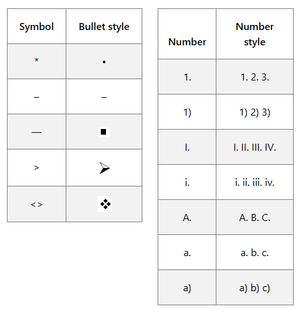
Hello! These commands work in desktop Word, for example, but not all work in Word for the Web at this time. I do not know a timeline where this might be expanded to more applications but if you'd like to suggest inclusion, please feel free to provide feedback or suggestions by navigating to Help > Feedback in PowerPoint for the Web, or contact us directly by emailing us at email address removed for privacy reasons. Thanks!1.1KViews0likes0CommentsGreen screen background in Teams meetings
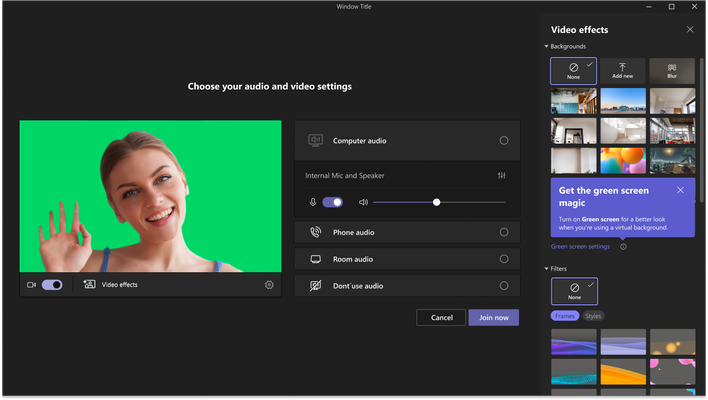
Hi, Microsoft 365 Insiders! We are excited to share the availability of a green screen background in Teams meetings in Teams Public Preview. Green screen background in Teams meetings Microsoft Teams now supports a green screen which provides an enhanced virtual background effect that improves the sharpness and definition around your face, head, ears, and hair. It also allows props or other objects you hold in your hand to be more visible to other meeting participants. Interested? Learn more in our https://insider.office.com/en-us/blog/green-screen-background-in-teams-meetings?ocid=TC! Best, Nathan Microsoft 365 Insider Social Community Manager Become a Microsoft 365 Insider and gain exclusive access to new features while helping to shape the future of Microsoft 365. Join Now: https://insider.office.com/join/windows | https://insider.office.com/join/mac | https://insider.office.com/join/ios | https://insider.office.com/join/android1.6KViews1like0CommentsAdd your own videos to PowerPoint for the web presentations
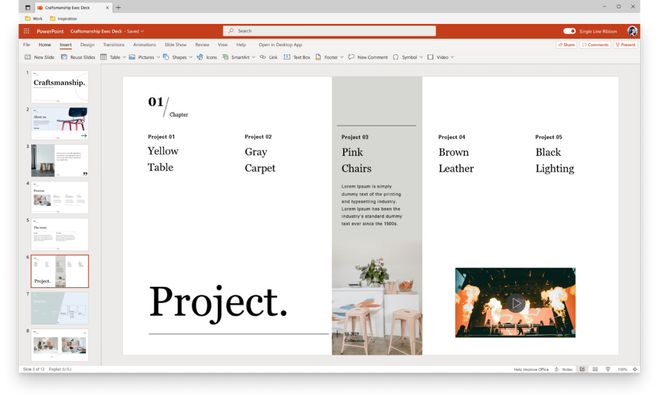
Hi, Microsoft 365 Insiders! I am Monojeet Sinha, a Senior Product Manager on the PowerPoint for the web team. I am excited to share that you can now insert your own videos, from your computer, in your PowerPoint for the web presentations. We heard from many of you that this is something you wanted to do. We’re happy to deliver and give you the ability to better express your passions using your own videos. Add your own videos to PowerPoint for the web presentations Videos are an important part of storytelling. They help hold your audience’s attention so you can better teach, persuade, or entertain. While PowerPoint users have inserted millions of videos from online platforms like YouTube, Vimeo, Stream, or others, sometimes the right video is one you created. Anything from your child scoring the winning goal to your team celebrating the latest of your new product. Interested? Learn more in our https://insider.office.com/en-us/blog/add-your-own-videos-to-powerpoint-for-the-web-presentations?ocid=TC! Best, Nathan Microsoft 365 Insider Social Community Manager Become a Microsoft 365 Insider and gain exclusive access to new features while helping to shape the future of Microsoft 365. Join Now: https://insider.office.com/join/windows | https://insider.office.com/join/mac | https://insider.office.com/join/ios | https://insider.office.com/join/androidAvatars for Microsoft Teams
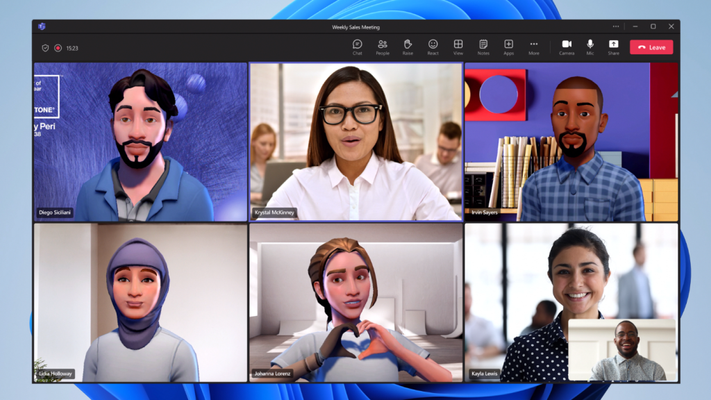
Hi, Microsoft 365 Insiders! We are excited to share the availability of avatars for Microsoft Teams in Teams Public Preview. Avatars for Microsoft Teams Avatars for Microsoft Teams gives you that much-needed camera break, while still allowing you to collaborate effectively. You can add a new layer of choice to your meetings and represent yourself the way you want with customizable avatars and reactions. Interested? Learn more in our https://insider.office.com/en-us/blog/avatars-for-microsoft-teams?ocid=TC! Best, Nathan Microsoft 365 Insider Social Community Manager Become a Microsoft 365 Insider and gain exclusive access to new features while helping to shape the future of Microsoft 365. Join Now: https://insider.office.com/join/windows | https://insider.office.com/join/mac | https://insider.office.com/join/ios | https://insider.office.com/join/android953Views1like0CommentsAutomatic bullet formatting in PowerPoint for the web
Hello, Microsoft 365 Insiders! I am Lakshay Gupta, a Product Manager on the PowerPoint for the web team. I am excited to let you know that we have added automatic formatting for bulleted lists to PowerPoint for the web. This brings parity with PowerPoint on other platforms and will make your text editing and formatting easier. Automatic bullet formatting in PowerPoint for the web Bulleted lists are one of the most used features in PowerPoint for the web. They help you effectively tell your story – with short, easy to scan, high impact statements. Previously, you had to set up a bulleted list: switch to the ribbon, choose the type of bullet you wanted, and then select the desired bullet icon style. Now you can create bulleted lists without having to lift your fingers off the keyboard or break your editing flow. Interested? Learn more in our https://insider.office.com/en-us/blog/automatic-bullet-formatting-in-powerpoint-for-the-web?ocid=TC! Best, Nathan Microsoft 365 Insider Social Community Manager Become a Microsoft 365 Insider and gain exclusive access to new features while helping to shape the future of Microsoft 365. Join Now: https://insider.office.com/join/windows | https://insider.office.com/join/mac | https://insider.office.com/join/ios | https://insider.office.com/join/android1.3KViews0likes4Comments

Recent Blog Articles
No content to show