User Profile

michael-buschbeck-ms
 Microsoft
Joined 6 years ago


User Widgets
Recent Discussions
Re: [Visual Scripting] How to add component type to the variable?
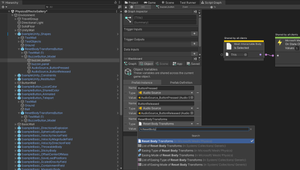
lukaszdudziak – that certainly should work. I tried with the latest Mesh Toolkit Samples release from the public GitHub repository to reproduce, but I'm afraid I couldn't – the type shows up as I'd expect it to: Could you clean Unity's caches and try again? Maybe something got stuck in Unity somewhere.122Views0likes1CommentRe: Instantiating or Destroying a GameObject
You're right, instantiating and destroying scene object currently isn't supported in Mesh Visual Scripting. It's not a security issue as much as an integration complication: Out of the box, instantiating an object in a visual script would create an isolated instance that only exists on the client that created it. Even if you were to make sure that you're instantiating the same scene object on all clients individually, Mesh wouldn't know they're collectively supposed to be the same shared object. That said, I'm aware it's a pain point and we're actively working towards making it possible.390Views0likes1CommentRe: Physics Raycast not exposing the Hit result
Hey Weald_Spatial! Thanks for bringing this up. This looks like a simple oversight, especially since these overloads are available in non-Mesh Visual Scripting. I'll make a note of it and check if we can expose these overloads in an upcoming release.528Views2likes1CommentRe: Line thickness of SVG changes by exporting docx as PDF
Norbert86 – I had the same issue. I seem to have found a workaround that's not too painful. I've played around with the problem, and to me it seems like Word's PDF export imposes a minimum line thickness of 1px at 96dpi relative to the original image dimensions on imported SVG images. So if the image is set to 100% height and width "relative to original picture size" in Word, lines in that image will have a minimum thickness of 1"/96dpi ≈ 0.01" ≈ 0.26mm in the exported PDF. Luckily, this minimum thickness is set relative to the original image dimensions – so if the "original picture size" becomes larger, the minimum thickness becomes relatively less. Obviously, I had made my illustrations (...in Inkscape, too, by the way) the exact size I wanted them to be in my Word document. But after figuring out the above, I scaled them up by a goodly amount (1000% is a nice number and safely pushes my intended minimum line thickness above the magical 0.26mm threshold) and then back down in Word. Now everything looks like I want it to, at the expense of having to explicitly set the image's height and width in Word. Workaround for the "minimum line thickness" issue: Scale the original image up (so that your minimum intended line thickness becomes more than 0.01" ≈ 0.26mm). In Word, scale the imported image back down to its intended dimensions. Using Inkscape to scale up the original image's dimensions works well, of course, but I've found that scaling up the dimensions of an SVG image is actually even easier and faster to do in a simple text editor than a visual editor. If you'd like to go that route, do this: Open the SVG file in a text editor (e.g. Notepad) At the very top, find the "height", and "width" attributes (right next to "viewBox"). Multiply the "height" and "width" values by (e.g.) 10 and update the attributes accordingly. For example, this: <svg xmlns="http://www.w3.org/2000/svg" version="1.1" viewBox="0 0 150 400" height="150" width="400"> ...becomes: <svg xmlns="http://www.w3.org/2000/svg" version="1.1" viewBox="0 0 150 400" height="1500" width="4000"> That's it – no other change needed. After that change, when you import the SVG file in Word (or Inkscape), it'll appear 10x its original size. In Word, right-click > "Size and Position..." > "Size" > "Scale" > set "Height" and "Width" both to "10%", and you're set.13KViews3likes2Comments
Recent Blog Articles
No content to show