User Profile

raymondesray
Iron Contributor
Joined 6 years ago


User Widgets
Recent Discussions
Re: AVD pool one public address
Besides load balancing or NAT Gateway, perhaps you could have a look at Azure Firewall? Impact is that you need to make some changes in your network, this is not a "next next finish" approach. Or get some help from experienced people implementing Azure Firewall. https://learn.microsoft.com/en-us/azure/firewall/basic-features420Views0likes0CommentsAVD / Windows 365 - Step by Step - How to install Microsoft Teams via Intune/MEM
Recently Microsoft announced that the "Windows 10 Enterprise (multi-session) with Microsoft 365 Apps for Enterprise" now includes Teams with AVD media optimizations. This is really helpful and reduces image creation time for the AVD administrator. But what do you do if your organization requires a specific Office version and specific installation options? The result is a separate deployment of Office via Intune. Specifically for Azure Virtual Desktops and Windows 365 Cloud PC's fully managed with Intune, it's recommended to deploy Teams as a "machine-installation" and adding the VDI/AVD media optimizations. Full requirements are described here https://docs.microsoft.com/en-us/azure/virtual-desktop/teams-on-avd. This arises the next question, how to deploy a single Teams installation via Intune? With the additional components, the best way forward is to create an Win32 app. More information about Win32 can be found here https://docs.microsoft.com/en-us/mem/intune/apps/apps-win32-app-management. The following step by step explains how to deploy Teams as a single "machine based" installation via Intune for AVD and Windows365 Cloud PC's. 1.) Create a security group where your AVD/Windows365 virtual devices can be added (this can either be manually or dynamically based on a query rule 2.) Create a folder structure on your local pc as preparation for the Win32 application packaging I have used; C:\win32 C:\win32\input\teamsforavd C:\win32\output\teamsforavd Download the Win32 app packaging tool (https://github.com/microsoft/Microsoft-Win32-Content-Prep-Tool/archive/refs/heads/master.zip), extract the zip file to C:\win32 3.) Download all required files and save them to C:\win32\input\teamsforavd - Teams 64-bit msi installer: https://teams.microsoft.com/downloads/desktopurl?env=production&plat=windows&arch=x64&managedInstaller=true&download=true - Remote Desktop WebRTC Redirector Service https://query.prod.cms.rt.microsoft.com/cms/api/am/binary/RWFYsj - Visual C++ installer https://aka.ms/vs/16/release/vc_redist.x64.exe 4.) Create an install.cmd file in C:\win32\input\teamsforavd and edit the file with notepad. Add the following text and save the install.cmd file. reg.exe add "HKEY_LOCAL_MACHINE\Software\Microsoft\Teams" /v IsWVDEnvironment /t REG_DWORD /d 1 /f /reg:64 TIMEOUT /T 5 msiexec /i MsRdcWebRTCSvc_HostSetup_2106.14001_x64.msi /qn TIMEOUT /T 60 VC_redist.x64.exe /quiet /norestart TIMEOUT /T 180 msiexec /i Teams_windows_x64.msi ALLUSER=1 /qn /norestart 5.) Open a command prompt (CMD) as an administrator and enter the following command: cd c:\win32 Execute the file: IntuneWinAppUtil.exe You will be asked to provide the source location, type: c:\win32\input\teamsforavd You will be asked to provide the install/setup file, type: install.cmd You will be asked to provide a destination location, type: c:\win32\output\teamsforavd You will be asked to generate a catalog file, type: N for No and press enter to start the Win32 app packaging process. A file called "install.intunewin" will be created in c:\win32\output\teamsforavd 6.) Go to the Intune management portal https://endpoint.microsoft.com , click on Apps, click on All Apps, click on the +Add button. Select app type > Windows app (Win32), press the select button. Click on "select app package file", browse to c:\win32\output\teamsforavd and double click the "install.intunewin" file. Provide a Name, Description, Publisher which are required to fill in, and press Next. In the "Install command" field: install.cmd In the "Uninstall command" field: msiexec /x {731F6BAA-A986-45A4-8936-7C3AAAAA760B} Press Next. Select 64 bit as operating system architecture, select a Windows 10 build version and press Next. Select a "Manually configure detection rules" , click the +Add button, select Rule Type "MSI" , provide the product code incl brackets {731F6BAA-A986-45A4-8936-7C3AAAAA760B} and press OK. Press Next. Press Next until you reach the "7 Assignments" page. Add your security group with device members. Press Next again. On the final page press the Create button. Your Teams for AVD application will now be created. Don't close the screen as this might break the upload. This process can take a few minutes depending on your internet connection. 7.) Once the application is uploaded, sync your device. A few minutes later the deployment will start where the device will start downloading the installation files. After the download, the installation will take approximately 10 minutes in total. Intune will report the installation as successful. Good luck! Kind regards, Raymond van Garderen Consultant @ SCCT Netherlands13KViews1like0CommentsMUST READ - WVD Personal VM - Proper Shutdown process and deallocate VM to save costs!
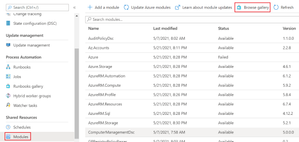
First things first! Recently Microsoft introduced a really cool feature which is called “https://docs.microsoft.com/en-us/azure/virtual-desktop/start-virtual-machine-connect and was a long awaiting feature. This feature is groundbreaking because the WVD management plane is able to start the VM on behalf of the user. End-users no longer have to call their IT admins to start the VM. Once the end-user hits the button to start their desktop, the VM will be started automatically and will take approximately 5 minutes. This mystery has been resolved, now the next piece of the puzzle to shutdown and deallocate a WVD personal VM and save consumption costs. Challenge! Most of the end-users will shutdown the VM but the result is a VM in “stopped” state. This means the VM is still allocated to a host server in the Azure datacenter and the subscription owner will still be charged. Other possible scenario’s might be that end-users disconnect from the session instead of shutdown the VM or they totally forgot their session which becomes inactive/idle. An easy, almost effortless two-step solution 😊 In order to resolve our challenge it’s good to understand the difference between “idle” and “disconnected” terminology and it’s highly recommended to determine idle session time and disconnected session time within your organization or with your customer. Idle time means that the session is inactive, the end-user is not doing anything in the desktop session. Disconnected time means that the user closes the desktop session without properly signing out or shutting down the VM. My advise here, during onboarding provide proper instructions for your end-users on how to end a desktop session. Important note/Prerequisite! This will only work when Logon/Logoff events are audited (success/failure). Almost all enterprises have this enabled in a security or default domain policy but please double check! Configure Azure Automation Account – Finding VM’s with “stopped” state and execute Stop-AzVm to bring VM in “stopped de-allocated” state. An Azure Automation Account is very powerful and can basically do anything within your Azure environment. For this purpose the Automation Account requires to be created along with a “Run as Account”. This account will act as a trusted service principal and is allowed to execute runbooks (regardless what a runbook contains). 1.) Open up the Azure portal with your admin privileges, in the search bar find Automation Accounts and hit the icon. 2.) Press the create button, complete the fields (provide a clear name, associate the corresponding resource group, set location, and toggle the switch on YES to Create Azure Run As Account! Press the Create button. The creation process will take a few minutes. Time to grab a drink or whatever you might want to do 😊 3.) Once completed, open the Automation Accounts, scroll a little bit down, click on Modules, click on Browse Gallery. Find the following modules - Az.Accounts (select it, press Import, wait a few minutes) - Az.Compute (select it, press Import, wait a few minutes) 4.) In the Modules overview hit “Refresh” to validate whether both modules are present and have “Available” status. 5.) Within the “Process Automation” section click on Runbooks, followed by pressing the “+ Create a runbook” button. 6.) Fill in a logical name, set Runbook type “PowerShell”, followed by pressing the Create button below. 7.) Now you need to enter a script, completely copy following content starting at param. Content param ( [parameter(Mandatory = $true)][String]$ResourceGroupName ) $ConnectionName = "AzureRunAsConnection" try { $Connection = Get-AutomationConnection -Name $ConnectionName # Get the connection "AzureRunAsConnection " $ServicePrincipalConnection = Get-AutomationConnection -Name $ConnectionName "Logging in to Azure..." Connect-AzAccount ` -ServicePrincipal ` -Tenant $ServicePrincipalConnection.TenantId ` -ApplicationId $ServicePrincipalConnection.ApplicationId ` -CertificateThumbprint $ServicePrincipalConnection.CertificateThumbprint Set-AzContext -Subscription $Connection.SubscriptionID -Tenant $Connection.TenantId } catch { if (!$ServicePrincipalConnection) { $ErrorMessage = "Connection $ConnectionName not found." throw $ErrorMessage } else { Write-Error -Message $_.Exception throw $_.Exception } } #Get VMs Status [array]$StoppedAzVMs = Get-AzVM -Status if($StoppedAzVMs) { #Loop through each VM in this Resource Group ForEach($StoppedAzVM in $StoppedAzVMs) { #If PowerState is VM stopped if($StoppedAzVM.PowerState -eq "VM stopped") { Stop-AzVM -Name $StoppedAzVM.Name -ResourceGroupName $StoppedAzVM.ResourceGroupName -Force } } } 8.) Hit the “Publish” button Confirm by pressing Yes. 9.) You will see the overview section of the Runbook, click on Schedules, click the button “+ Add a schedule”. 10.) Click on Link a schedule to your runbook. 11.) Click +Add a schedule, complete the form and press Create below. 12.) Click on Configure Parameters 13.) Fill in the designated resource group name and press OK twice. 14.) Go back to the overview of the runbook and press the Start button to validate. 15.) Since this is a manual start and validation action, enter the resource group name and press OK. Wait for the job to complete. 16.) In the overview section you will see the completed Job, click on it , press the output tab and validate it ran successfully. It depends whether you already have stopped state VM’s. Next part is to configure session time limits in conjunction with a scheduled task to trigger a shutdown action. Configure group policy to end idle and disconnected sessions, which means the user will be logged off; Start your group policy management console, right mouse click on the OU that contains the WVD personal VM computer accounts, create a new GPO and ensure it is linked. Enable and configure the following settings; Part 1 of GPO: Computer Configuration\Administrative Templates\Windows Components\Remote Desktop Services\Remote Desktop Session Host\Session Time Limits 1.) End session when time limits are reached > enable 2.) Set time limit for disconnected sessions > enable (for demo purpose 5 minutes but this is what you need to discuss with your organization/customer!) 3.) Set time limit for active but idle Remote Desktop Services sessions > enable (for demo purpose 5 minutes but this is what you need to discuss with your organization/customer!) Part 2 of GPO: Computer Configuration\Preferences\Control Panel Settings\Scheduled Tasks 1.) Right mouse click on Scheduled Tasks > New > Scheduled Task (At least Windows 7) 2.) Leave default Action setting on Update, provide a name and take over rest of the properties 3.) Go to Triggers tab, press New button; The trigger will ignite the Action which will be configured in next step. Event ID 4647 corresponds with a Logoff user event. Press OK when properties are completed as shown in the screenshot. 4.) Go the Actions tab, press New button; Take over the properties as shown in the screenshot and press OK. 5.) Go to the Settings tab, take over the properties as shown below and press OK. 6.) When the VM receives the group policy, the WVD personal VM will shutdown once the user logs off (ending idle/disconnected session 😊). 7.) Signed in with my user, GPO has been applied. As a user you won’t see the scheduled task. 8.) After 5 minutes the user is logged off automatically due to Remote Desktop Services time limit policy. 9.) Once user is signed out, the shutdown action will be triggered. 10.) Confirmed, that VM entered a stopped state. 11.) With the next hour the earlier created Automation Account runbook will find the stopped state VM and will force a Stop-AzVm that puts the VM in stopped de-allocated state. Done! Of course you can apply this runbook to other schedules and resource groups to ensure you won’t be charged unnecessary. In case you have any questions, please let me know. Kind regards, Raymond van Garderen Modern Workplace / WVD / M365 Consultant @SCCT The Netherlands8.2KViews3likes4CommentsRe: WVD - FSLogix - Reduce profile container size - exclude Teams Cache with redirections.xml
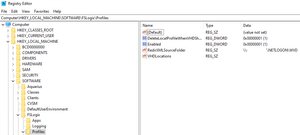
akashroy0601 Key path: HKEY_LOCAL_MACHINE\SOFTWARE\FSLogix\Profiles Name:RedirXMLSourceFolder Type:REG_SZ Data:path to XML folder, only mention the folder NOT XML file! Hope this helps 🙂61KViews0likes0CommentsRe: Publish Remoteapp from UNC Path
Chrisvanaz , hopefully I'm able to help you out. Are you trying to publish the executable from UNC path? For example, an executable from an application server? I have a similar setup for my customers, the only difference here is that we've managed to run the application from UNC path based on a shortcut. 1.Create a folder (example c:\program files\shortcutapps\ )on your WVD session host, or put this folder and files in the image 2.) create a shortcut, target path pointing to your application/executable 3.) Put the shortcut (.lnk file) in the c:\program files\shortcutapps folder. 4.) Create an application group, add the application, select file path instead of start menu, application file path c:\program files\shortcutapps\app.lnk I have tested it many times, it works. However, running the client native from the WVD session host vm gives way better performance. Keep that in mind! Good luck!18KViews0likes0CommentsRe: WVD - FSLogix - Reduce profile container size - exclude Teams Cache with redirections.xml
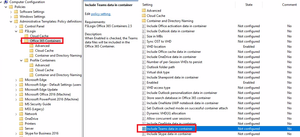
davidsc50 The redirections.xml file only works in conjunction with a Profile Container, not with the Office container. If you would like to include or exclude Teams data, you could enable or disable the following GPO setting: Include Teams data in container Hope this helps!67KViews0likes1CommentWVD - FSLogix - Reduce profile container size - exclude Teams Cache with redirections.xml
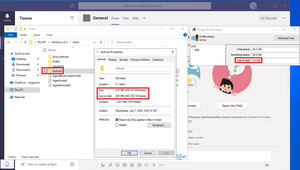
Windows Virtual Desktop Teams cached data causes large Profile Container! Take action and save Azure File Share space! Understanding user profiles: WVD and FSLogix With Windows Virtual Desktop we can provide virtual workspaces (Full Desktop experience) or applications only (RemoteApp). Conditional access in conjunction with Azure Multi Factor Authentication the user will get a safe sign in experience. In order to save user profile settings it is highly recommended to configure FSLogix Profile Containers. Each time the user signs in the full profile will be loaded (in the background the VHD/VHDX will be attached to the Windows 10 multi-session host) without the needs of reconfiguring the Outlook profile for instance. Issue: Newly created, or clean, user profile approximately 4.5GB in size?! Once Teams is installed according to the Teams for VDI installation guidelines (https://docs.microsoft.com/en-us/azure/virtual-desktop/teams-on-wvd) and the user starts Teams for the first time I noticed that the profile container size significantly increased within minutes. Weird, right?! Windows reports that the profile size of the user is only 425MB in size. FSLogix agent reports a 4,4GB profile container. In order to validate, I double checked the size in Azure Files as well which also shows 4,4GB. How is this even possible?! It’s a clean profile! After further investigation I found out a uservoice topic already exists where this issue is reported. https://microsoftteams.uservoice.com/forums/555103-public/suggestions/34622569-teams-windows-client-greatly-increases-roaming-pro The cause was explained and confirmed by many others. I also tested this myself, a host pool with Teams and a host pool without Teams. Without Teams the user profile container was approximately 400MB in size. Which options do we have now?! Dont’t use Teams on WVD. It’s just an option, but obviously not recommended in this era where we collaborate as much as possible in an efficient manner. Use Teams web client. Accept the issue and wait for Microsoft to get this resolved Optimize FSLogix, create exclusions for Team cached data Fix: Optimize FSLogix, create exclusions for Teams cached data The next step by step will explain the solution that worked and has been tested succesfully. Teams performance is still very good, as well for stability. More information about how to create exclusions can be found here https://docs.microsoft.com/en-us/fslogix/manage-profile-content-cncpt . Things to accept; The exclusions file must be named “redirections.xml” FSLogix Agent is installed on the WVD virtual machine. Settings can be applied manually via the registry or Group Policy based on the FSLogix GPO template. I choose GPO method, because this will cover multiple WVD virtual machines at once. Unfortunately after applying the redirections.xml file, the profile container does not shrink in size. In other words, delete the existing profile container. But, communication with your users is key! Optimize FSLogix 1 I have prepared the XML file. Copy below text into a new text file, save this as “redirections.xml” and store the file in a file share that can be accessed by the user (read permissions is sufficient!). During sign on, the FSLogix copies the XML file to %localappdata%\FSLogix . <?xml version="1.0" encoding="UTF-8"?> <FrxProfileFolderRedirection ExcludeCommonFolders="0"> <Excludes> <Exclude Copy="0">AppData\Local\SquirrelTemp</Exclude> <Exclude Copy="0">AppData\Local\Microsoft\Teams\Current\Locales</Exclude> <Exclude Copy="0">AppData\Local\Microsoft\Teams\Packages\SquirrelTemp</Exclude> <Exclude Copy="0">AppData\Local\Microsoft\Teams\current\resources\locales</Exclude> <Exclude Copy="0">AppData\Local\Microsoft\Teams\Current\Locales</Exclude> <Exclude Copy="0">AppData\Roaming\Microsoft\Teams\Service Worker\CacheStorage</Exclude> <Exclude Copy="0">AppData\Roaming\Microsoft\Teams\Application Cache</Exclude> <Exclude Copy="0">AppData\Roaming\Microsoft\Teams\Cache</Exclude> <Exclude Copy="0">AppData\Roaming\Microsoft Teams\Logs</Exclude> <Exclude Copy="0">AppData\Roaming\Microsoft\Teams\media-stack</Exclude> </Excludes> </FrxProfileFolderRedirection> 2 I stored the XML file in NETLOGON location. 3 Configure the GPO: Computer Configuration\Policies\Administrative Templates\FSLogix\Profile Containers\Advanced\Provide RedirXML file to customize redirections Setting: Enabled Path: Provide the only the folder path where the file is located! 4 Ensure the WVD virtual machines are updated with “GPUPDATE /FORCE” or provide a reboot when no users are signed in. 5 Delete existing user profile container, of course in agreement with your user! Result: FSLogix Profile Container without Teams cached data, major reduction in size! Double check on Azure File Share also reports only 200MB in size. Yeah! Have a lovely day!70KViews4likes11CommentsPlotters / Large format industrial printers
Hello, Currently print devices are added and installed based on universal print driver. How could Universal Print fulfill the needs as print solution for plotters and large format industrial printers? I can imagine that the universal print driver would not be sufficient. What would you suggest? It would be nice if Universal Print can also deploy additional drivers along with the installation of the print device once the users press the "add device" button.Solved1.2KViews1like1CommentRe: Universal Print Available for Windows 10 Business?
HiDavid_Swenson , I tested UP with my Microsoft 365 Business subscription on a Windows 10 1909 Pro machine running in Azure, Brother printer installed locally. The connector is running on Windows 10 1909 Enterprise. With this setup, I can discover and add the printer on my Windows 1909 Pro machine running in Azure.1.8KViews1like0CommentsAuto add the printer?
Thanks again for adding me in the private preview! Besides my High Availability question, I do have another question. When I added the printer via the connector, I can find the printer via the settings menu as described. However, the printer is not automatically installed, the user must press the "Add device" button. How can we ensure the printer will be added automatically? Kr, Raymond778Views2likes1CommentConnectors High Availability options?
Thank you for providing me the Universal Print private preview. This is a very nice experience so far. When I turn off the computer that's running the connector, documents will not come out of the printer. I have added my printer via the designated connector computer, but what are the High Availability options? Just installing the connector on a secondary machine? Or is the printer associated with a connector and adding a secondary connector won't make sense? Could you please elaborate on this? Because I can really see the potentials, as long as this can be made high available. Thanks team! Kr, Raymond1.4KViews2likes3Comments
Recent Blog Articles
No content to show