User Profile

Richard_Panton
Copper Contributor
Joined 6 years ago


User Widgets
Recent Discussions
Re: How to add a video from Stream to a group/channel?
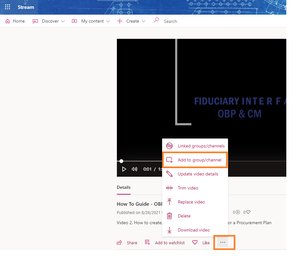
MilanMarecek Yes, the interface does need some work, but I thought the same thing when I followed the instructions given earlier. But let me provide some more details. 1. You have to be owner or admin 2. You have open the video (meaning, it can't be done bulk sadly) 3. Once you open the video, click three-dots, then Add to group/Channel' 4. Under Share With, Click People, and Select Channel. 5. Then type the name of the Channel you create and press search. 6. Click Save. The same can be done under "Update Video Details". 1. Click Update Video Details 2. Under Share With, Click People, and Select Channel. 3. Then type the name of the Channel you create and press search (OR "Create a Channel" also comes up if you haven't created it before). 4. Click Apply (Apply is up top this time when you're using update video details) Lastly, it can be Done from the "My Content" heading by click on the correct icon (See last screenshot below). I added some screenshots below:Re: Microsoft Teams Exploratory - Not Working as I thought. Can't Schedule a Meeting
Eduardo_Teixeira Yes - found 2 ways of getting this to work. First way - I created a user within my organization giving them an email address from my domain. When it came to assigning licences, i assigned them a Teams Exploratory licence and everything worked well. Second way I just discovered and is probably better than the first. Once you have a Guest User that has already created an account in your Azure Directory, you can go to your Azure Admin Centre (https://aad.portal.azure.com/), search for that user and then under Licence, assign the Teams Exploratory Licence. This works well as you don't have to give them an email address from your entity. Ensure that in AAD when looking at the user, under the Source column, it should say External Azure Active Directory and not "Invited user". Invited User means they haven't completed the account setup steps. You may get an error that the user doesn't have a Usage Location, you'll have to edit that under the User Settings as well. Lastly, you can create a Guest User from within AAD and assign the Teams Exploratory licence from there. So instead of doing it from within regular Microsoft 365 Admin Centre, do it from AAD Portal. I hope that helps.6.1KViews1like0CommentsMicrosoft Teams Exploratory - Not Working as I thought. Can't Schedule a Meeting
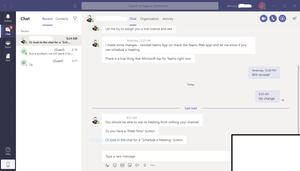
This article https://docs.microsoft.com/en-us/microsoftteams/teams-exploratory suggests that when you assign the licence to a Guest user, they should be able to schedule a meeting. However, this hasn't been working so well for me. So from the screenshot below, a guest is invited and active in Azure AD and is assigned the Teams Exploratory licence which has with it other licences as shown in the screenshot. However the user doesn't have the ability to schedule a meeting. From the Guests Teams window, there is no option to schedule a meeting...just to start a meeting which I believe exists even without the Teams Exploratory licence. I've asked them to try installing the Outlook Teams Plug-in to see if they would get the option. Any help would be appreciated. Thanks in advance.Solved8.2KViews1like2Comments

Recent Blog Articles
No content to show